Participant
January 18, 2023
Question

Background Eraser Tool Not Erasing 100%

  • January 18, 2023
  • 3 replies
  • 2377 views

Hey all,


I am using the Background Eraser Tool and it's not erasing at 100%. I have listed my steps below to recreate the problem. My goal is to extract the subject from the background.


Photoshop Version 2023 V 24.1.0 

MAC OS Monterey 12.4


1 - Select Background Eraser Tool.

2 - Check Background Eraser Tool Settings are set to (Sampling: Background Swatch, Discontinuous, Tolerance 80%, Protect Foreground Color is on). 

3 - Use the Eye Dropper Tool to sample the hair color to protect it and not erase it.

4 - Begin erasing the unwanted area, which is the white background. Every time I sample a color and erase, I can see my brush strokes. See the image below and you'll see different shades of red. Which shouldn't be there. It should all be the color of the red background layer.
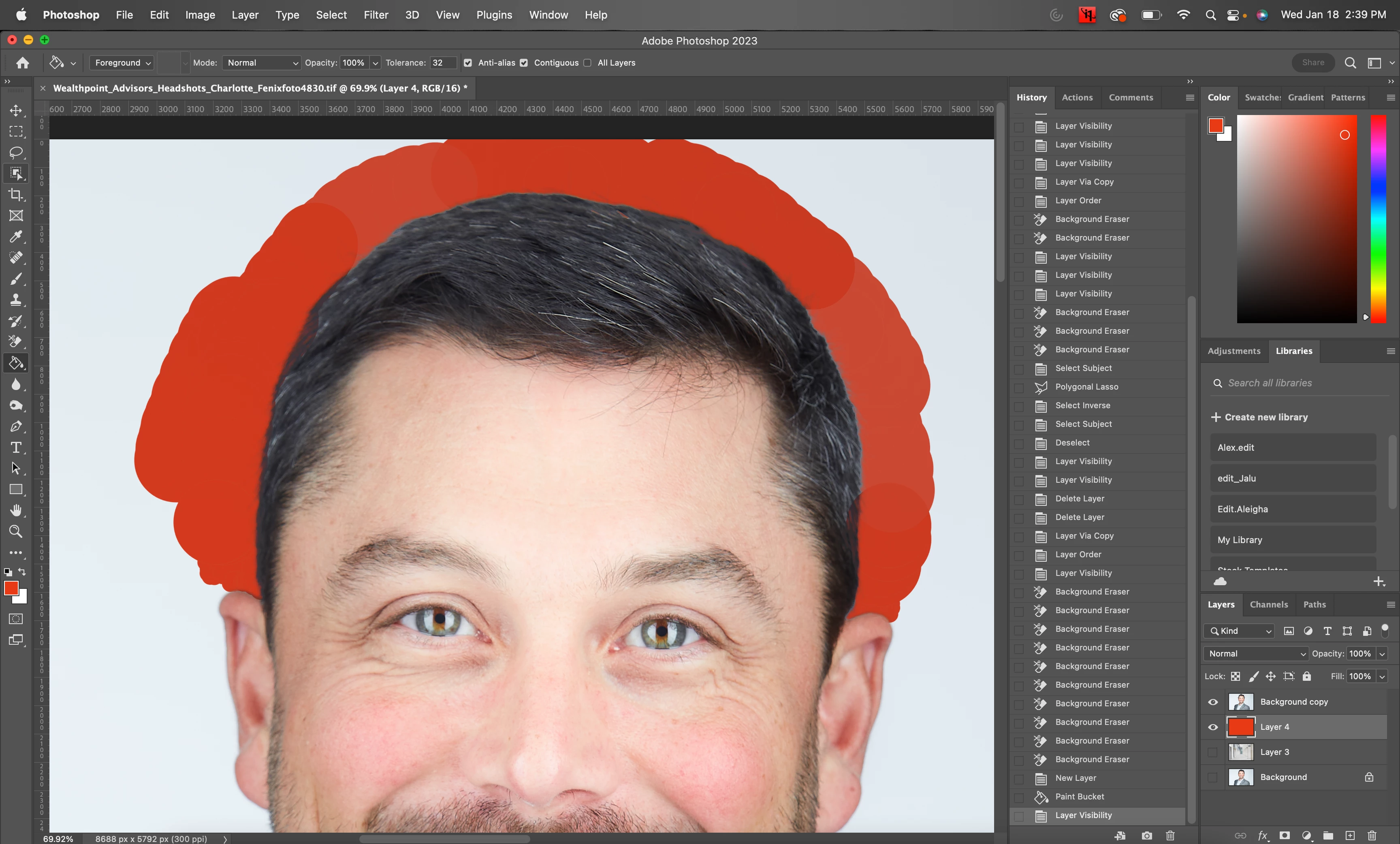


5 - Select the subject  (select > subject)

6 - Use Polygonal Elaso Tool. Make sure settings are set to "Add To Selection"

7 - Select the area outside of the head that I erased to add it to the selection.
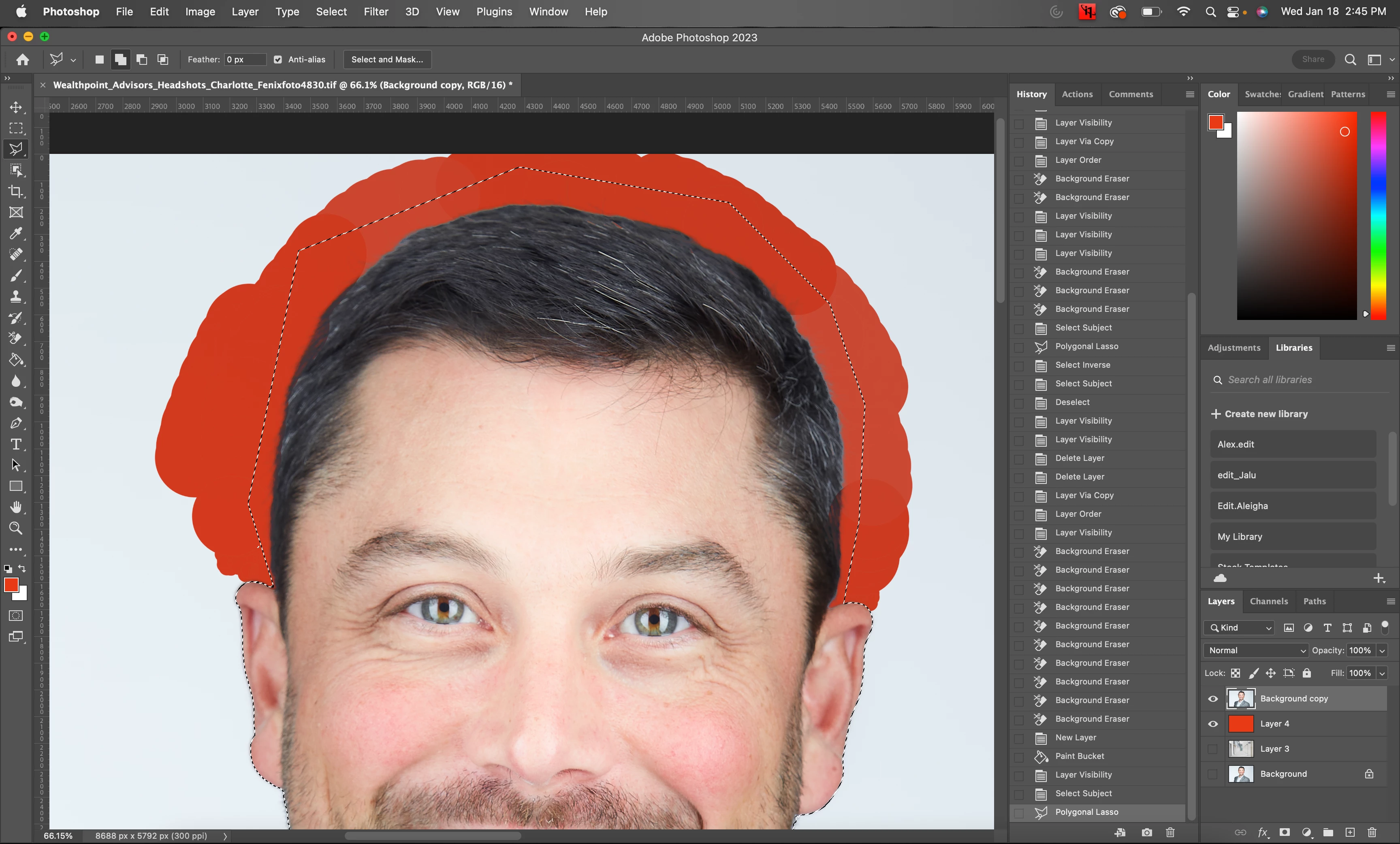


8 - Invert selection "ctrl-shift-i"

9 - Hit Delete

10 - Deselect subject "ctrl-d"
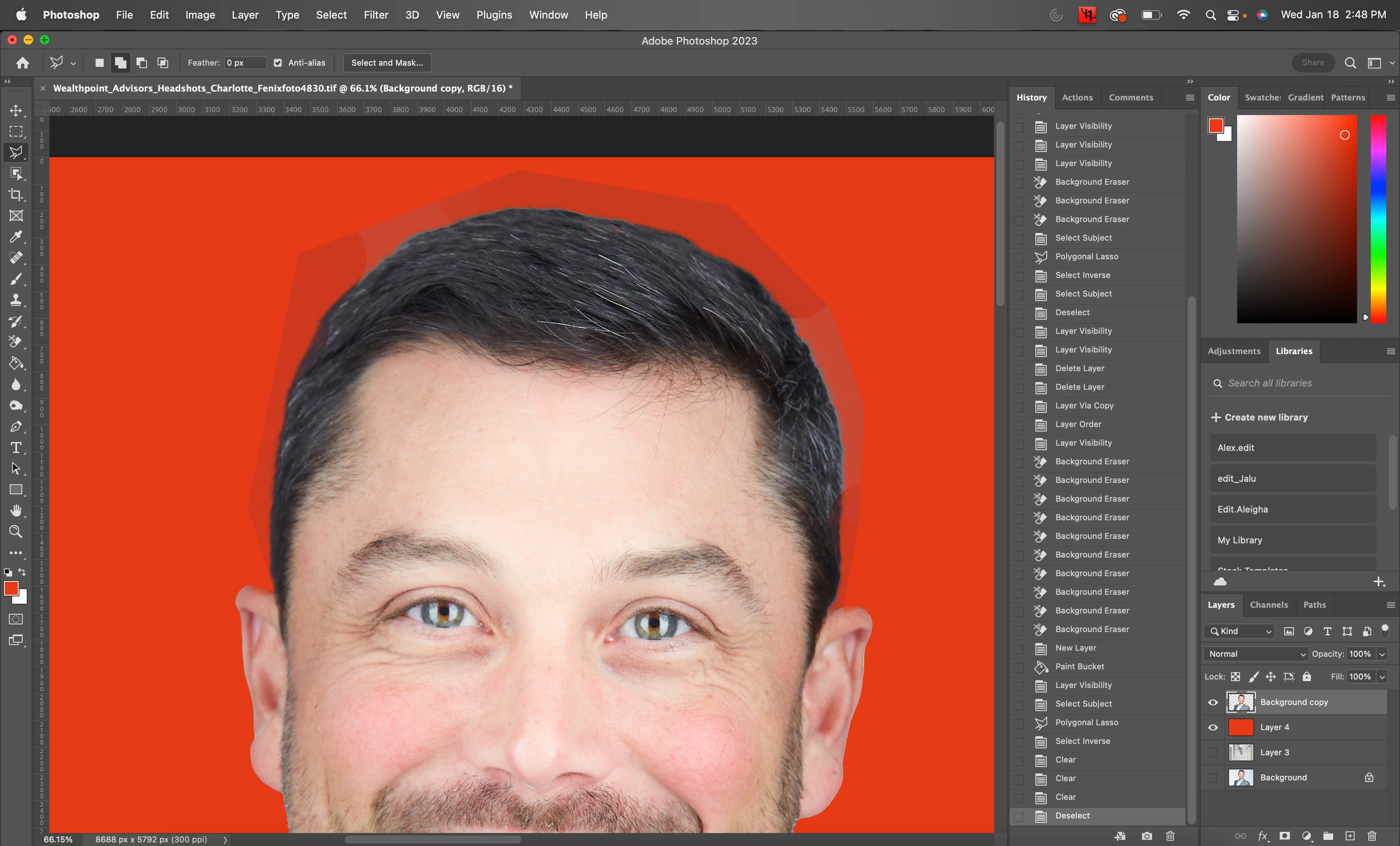


You can see the exact area I selected didn't actually delete all the way. Anything outside of that did delete as it should.  I don't know how to explain it or know why it's happening. But that selected area should definitely be deleted and match the red background. I have completely uninstalled Adobe Photoshop and reinstalled it too.


Any help would be greatly appreciated.


Thank you!!!

This topic has been closed for replies.

3 replies

Bojan Živković11378569
Community Expert
Community Expert
January 19, 2023

Not sure why you are using this old tool with so simple task where everything is well defined? Photoshop is evolving and keeping old tools which are not up to nowadays tasks and criteria like Background Eraser Tool. You can select using Select and Mask even more complicated images with tiny hair then mask them. Later you can erase using Apply Mask if you feel you do not need mask anymore.

Jeff Arola
Community Expert
Community Expert
January 19, 2023

What if you use the following settings:


Sampling Once

Limits Discontinuous

Tolerance 50%

Protect Foreground Color is OFF


If that doesn't work any better maybe you could post a sample of the photo before trying to Erase?


kglad
Community Expert
Community Expert
January 18, 2023

in the future, to find the best place to post your message, use the list here, https://community.adobe.com/


p.s. i don't think the adobe website, and forums in particular, are easy to navigate, so don't spend a lot of time searching that forum list. do your best and we'll move the post if it helps you get responses.


<moved from using the community>

Participant
January 18, 2023

I apologize if I didn't post this where it should be. I thought Photoshop Ecosystem would be the most helpful. This is my first time posting to the Adobe Support Community. I see a lot of different Photoshops Programs on the list, but not just Photoshop.