

Banding/Halos Using Soft Brush Tool PhotoshopCC 2019
Hi everyone,
I have read and read and read some more about this issue but besides using a work around such as adding noise or a slight blur, there does not actually seem to be a legitimate fix for this problem!
I have started painting space paintings so a lot of use of the soft brush tool is needed to create soft nebula. I worked on a piece back in Jan/early Feb and there was a small amount of banding/halos but nothing that prevented my workflow and when it was printed, it was perfect. Since about the 15th of Feb, it has only become worse and worse! I cannot even use Photoshop at all now. So I can't paint anything new either!
A list of things I have done to troubleshoot:
Checked banded images against different displays (I use a Microsoft Surface, I used my phone to view it, another PC with an LG screen, I got my friend to check on his phone - still showed up)
Checked GPU is up to date, has enough RAM and is supported
Updated Photoshop
In the soft brush settings, I've tried changing the spacing
In soft brush settings:
Having Shape Dynamics checked
Having smoothing checked
Having noise checked
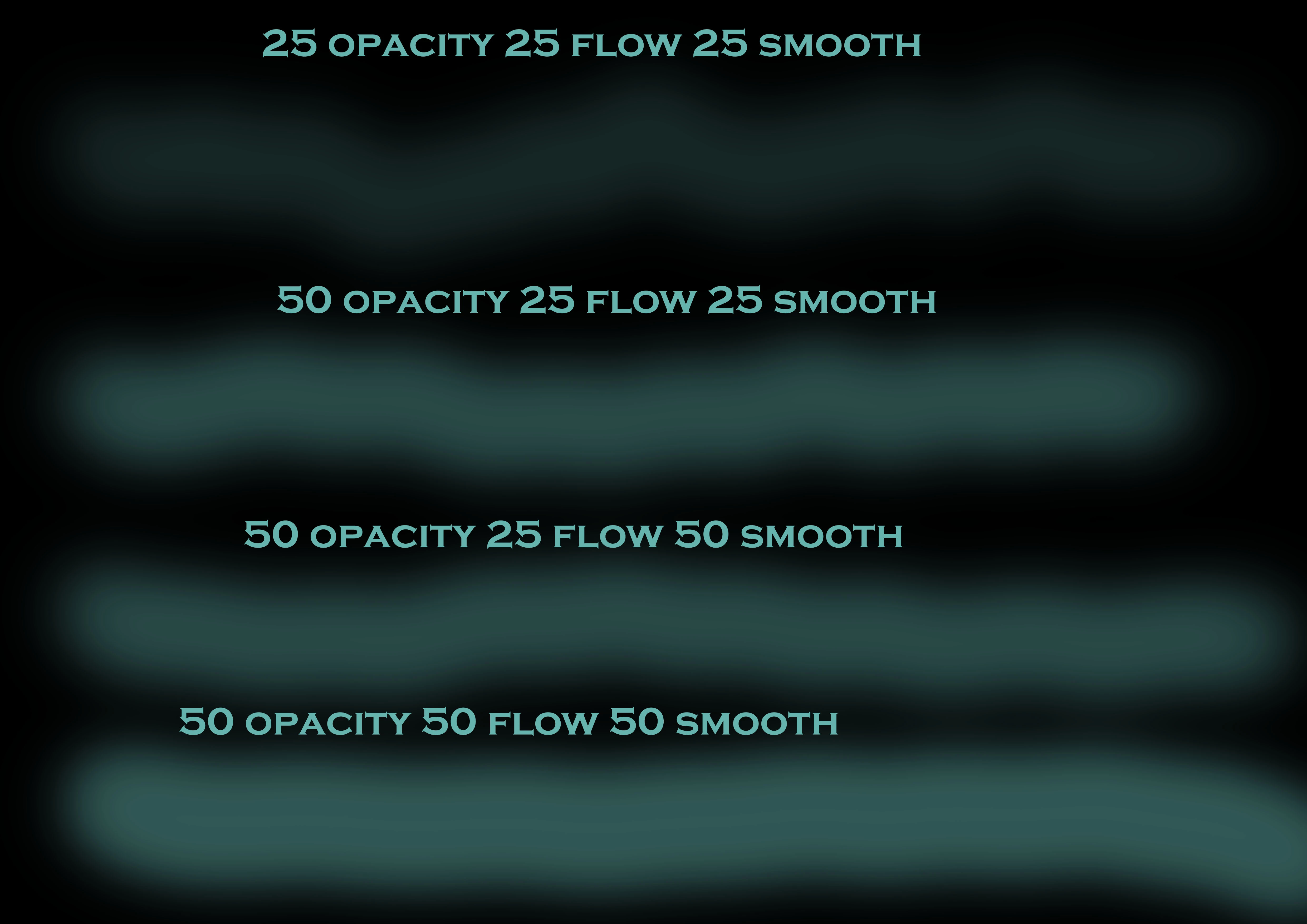
Changing the amount of flow and smoothing
Trying airbrush
Trying pressure sensitivity
Testing hard brush at 1% spacing to make sure the edges were sharp and clean (photo attached)
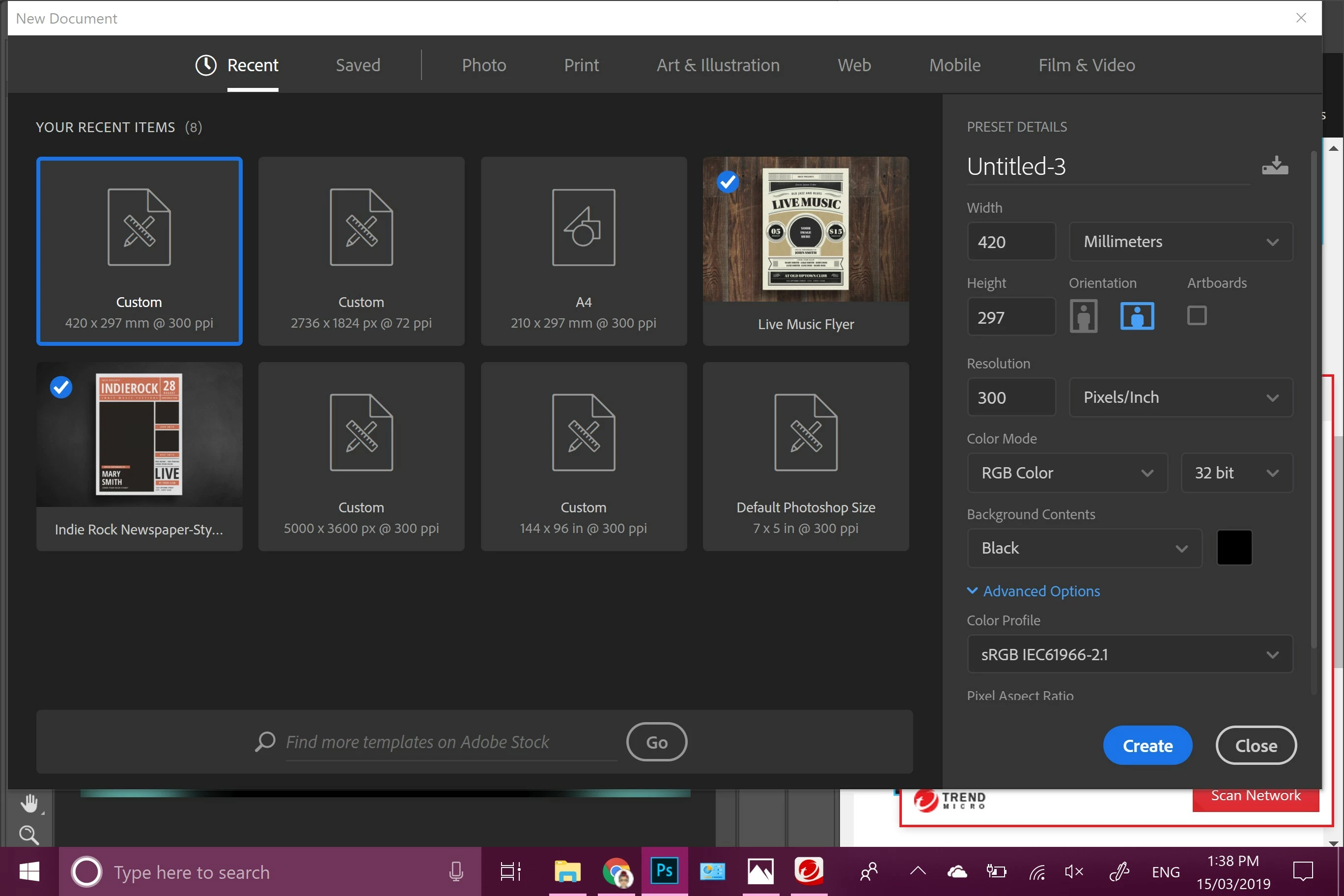
Checking colour profile
Working in 16 bit/32bit 300dpi A3 dimensions
Checked performance settings in Photoshop
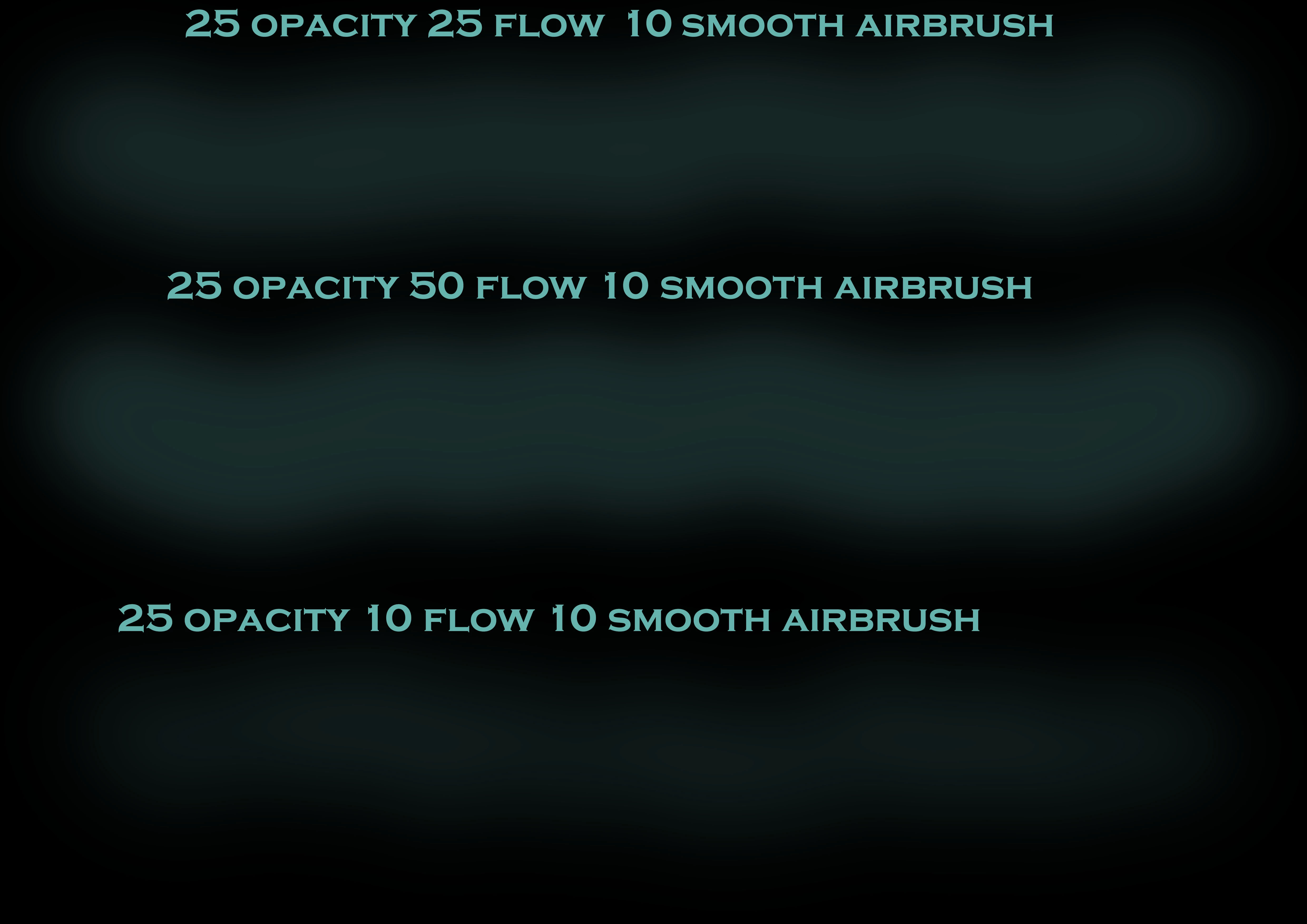
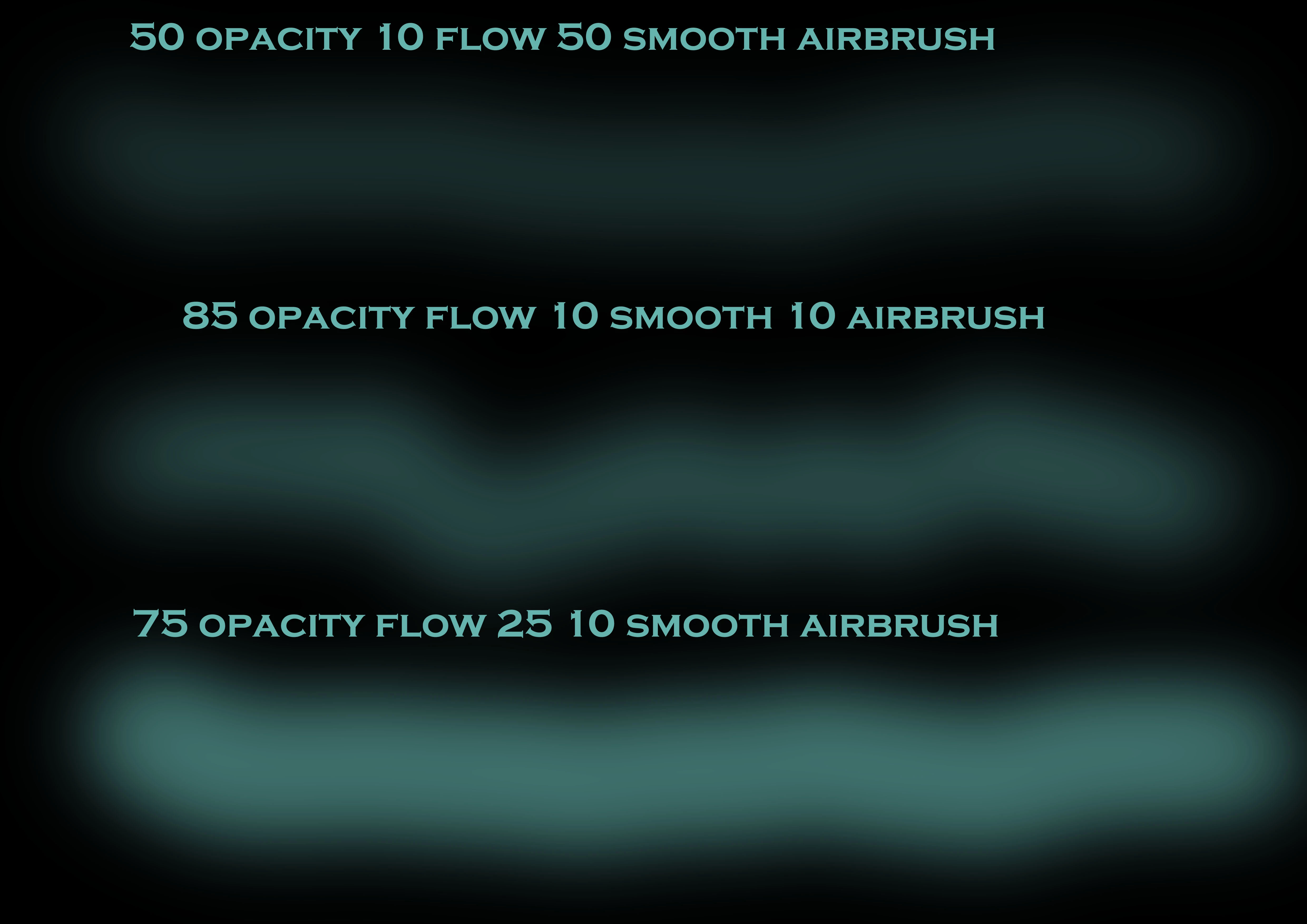
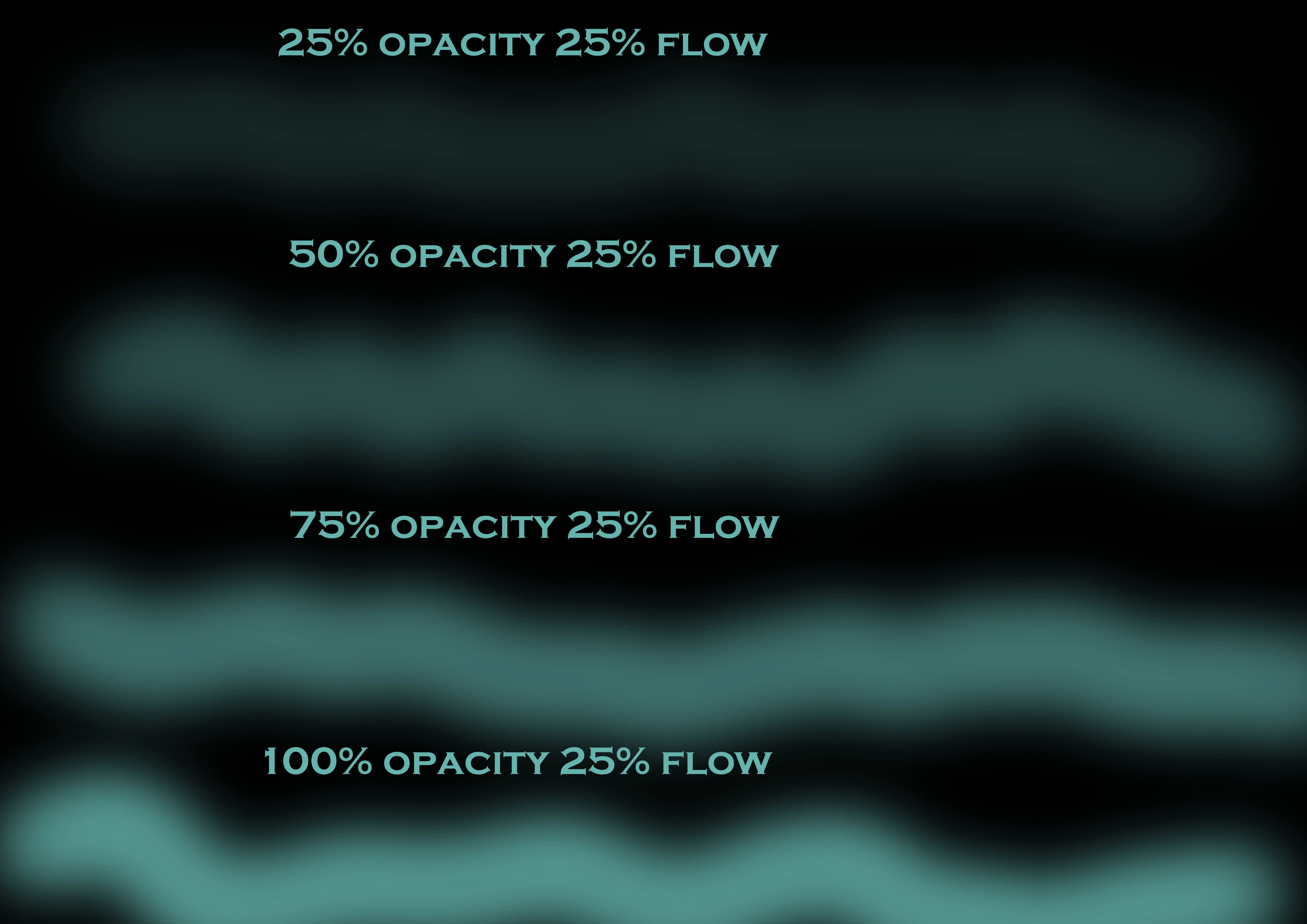
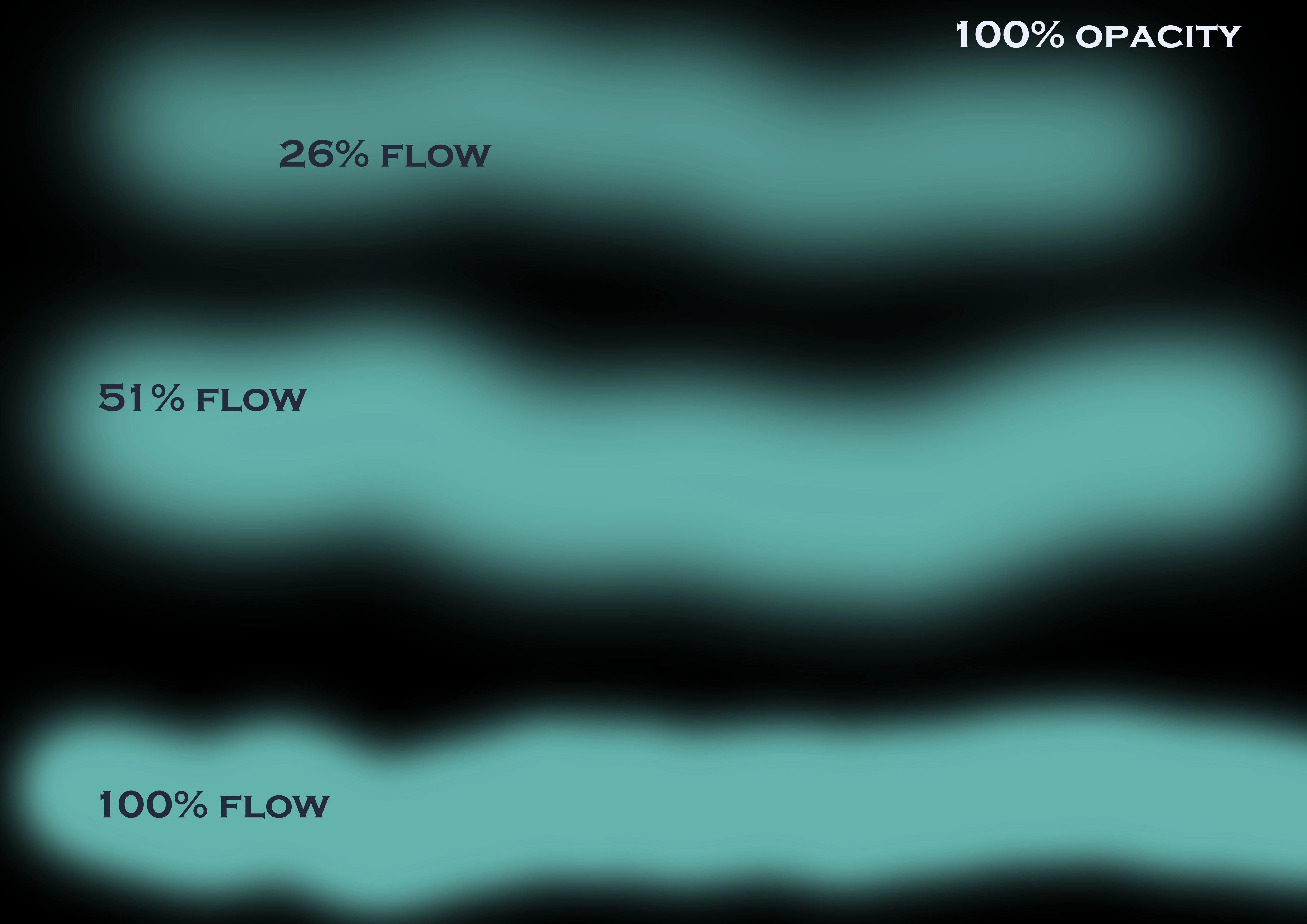
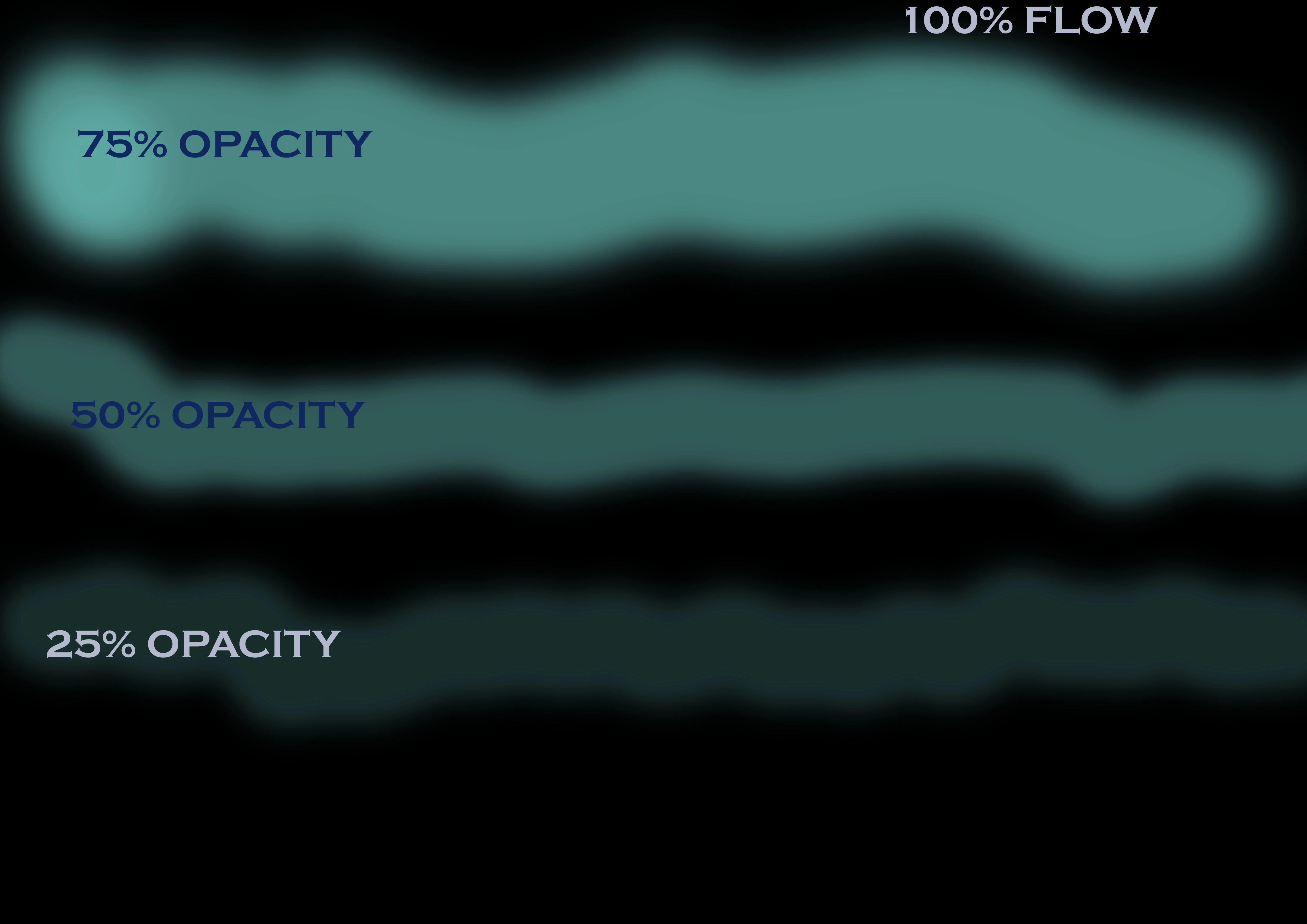
Multiple test images with different variations of opacity, flow, smoothing etc
Using dither
Recalibrating screen and Microsoft Pen settings
Issue does not appear any where near as noticeable when I have my screen brightness at say 50% as opposed to 100% (I found 100% sometimes far too bright to work with and will generally do a Brightness layer at the end of the piece which does not negatively effect the quality (I have done it before with success). I have no idea if this info helps. Or if my Microsoft Surface sucks... but then it is appearing on different screens not associated with my surface so...
I'll attach all of the tests that I've done to see if different combinations would help but nothing has helped. My next experiment is to get one of the test images printed by professional digital printers to see if this banding shows up in print or just digitally. Honestly, I'm at my wits end and have researched everything. Has anyone genuinely found a proper solution for this issue besides "working around it"? Photoshop is NOT cheap and I'm really disappointed that something that seems so prevalent as being a problem, has not been fixed. The last image is my current colour profile in Photoshop as well. Thank you all SO MUCH!!!

 AdChoices