
Batch action for a generic filename
I have a bunch of images in a folder linked with multiple InDesign files and would like to save them in a smaller quality PNG file. The thing is I don't want them to lose their link, so I need them to be overwritten and to keep the same dimensions (so the image doesn't change its size when relinked).
I have tried to use Image Process Pro, but the images actually got larger than before when saving for Web and with different PNG settings. The only way I actually managed to make them smaller was to "Save as" and to overwrite the file chosing the "smallest file size (slowerst saving)" option. The images are already pretty small, ranging drom 8kb to 60kb, but the file I'm working is massive and has lots of repetitive images, so any reduction helps not only to improve the indd file performance but also to lower the exported PDF file size.
So I performed these exact steps as an action, but for some reason the files are saved as a copy. I'm not very used to work with actions in Photoshop, so might be doing some rookie mistake. Below is the image with my settings for the action:
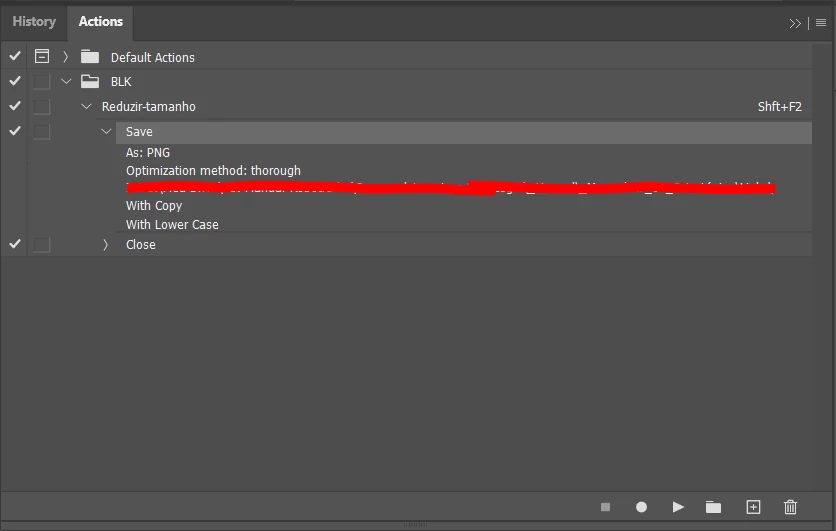
Looks like the whole problem is the "With Copy" part, but I can't get rid of it. If I'm able to overwrite the files that's it, just need to make a batch change in the folder.
Any idea on how to solve this? Any tip of alternative is very welcome.
Thanks!

 AdChoices