Participant
August 8, 2013
Answered

Batch changing multi images from 1200 dpi to smaller dpi?

  • August 8, 2013
  • 3 replies
  • 28948 views

MacBookPro

OSX 6.8

Photoshop 5.5

Hi!

I have over 100 image files set at 1200 dpi and 44,000 dpi.

How can I batch process all of them so I end up with a new set of images that are all 200 dpi?

So happy to have a place to ask for help!

Suzan

This topic has been closed for replies.
Correct answer gener7

Let's make a Action we will call 300 ppi   It will work for both1200 and 44000 images.

1. Open a 1200 ppi image in Photoshop.

2. Open the Actions Panel.  Window > Actions
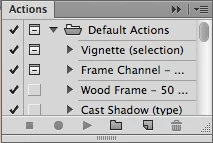
3.  Click "New Action"     ^ (curled paper icon)

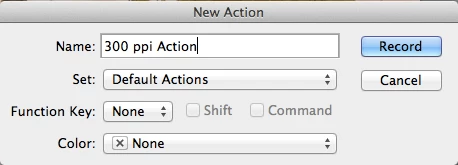
4.  This dialog shows up, give your action a name...Press Record
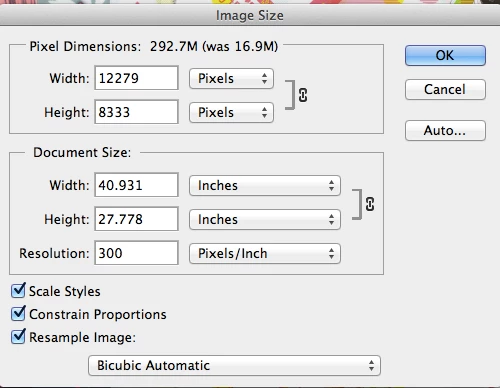
4. Image > Image Size   Enter 300 ppi Press OK
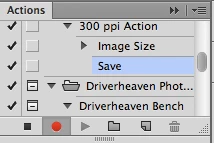
5. Stop Recording. Press the black square to the left of the red button and you are done!

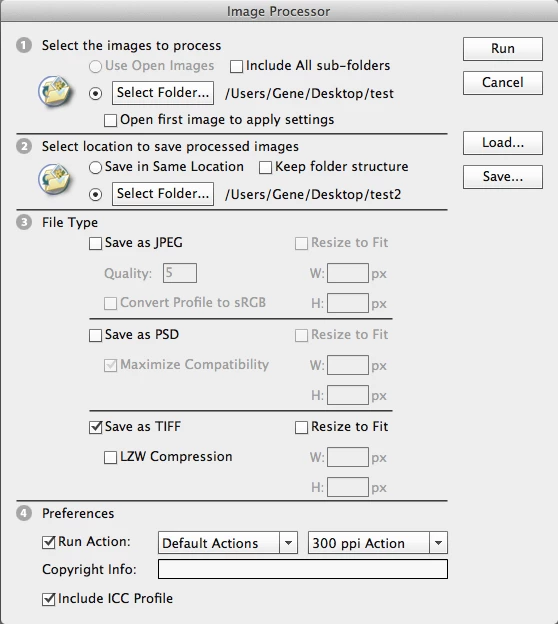
    Your very first action.  It will be stored under Default Actions and can be called up in the Image Processor.
That's it!


Note: I left out the "Save File" part when recording the Action, the Image Processor will handle that.

You can either Cancel or Save As... the original file you opened to create the action.

Now run it in the Image Processor:  Set up two folders:   Test= your originals and  Test 2 = Where your finished files will go.

I selected Tiff, but select the File format you want.

Click Run and the Image Processor will do the rest.  (I've checked it and it works)
3 replies

Participant
March 8, 2020

Thanks so much!  Perhaps many years later, but your explanations were so crystal clear,  I was easily able to change MANY large TIFF files for print to jpegs for the web.  You are so appreciated!

station_two
Inspiring
August 9, 2013

The easiest way is to use the Image Processor, already provided wth Photoshop.

There's a version of that script by the same author, Russell Brown, called Dr. Brown’s Services 2.3.1, which you can download for free and it's like the Image Processor on steroids.

http://www.russellbrown.com/scripts.html

There's a video tutorial for that on that page.

gener7
Community Expert
Community Expert
August 9, 2013

I see. If she is saying "I want to take a 1200 ppi file and resample (not rescale) it to 200 ppi," she will have to open one of her 1200 ppi files > record > Image Size 200 ppi > Save as... Psd (for example) and stop recording.

There she will have an action that will resize by resolution in ppi, something that I don't see in Dr. Brown's Resize options.

In fact changing the ppi setting in his Image Processor rescales (changes print dimensions) but does not resample,so I'm thinking she wants a custom action whether she uses a droplet or runs it in Dr. Brown's Image Processor.

Of course I will have to wait for further word from her to be sure.

Gene

station_two
Inspiring
August 9, 2013

Gene,

I just have a fundamental, natural aversion to using actions, simply because I've never been uniformly and consistently successful at running them without having them stop at certain steps or giving me a "Command xxxx not available" error message.  I'm happy to use someone else's actions if they don't exhibit that behavior, but I'm content to use Russell Brown's scripts any time.

Just my own limitation and preference.

gener7
Community Expert
Community Expert
August 9, 2013

You can create a droplet to do this. Here's a step by step tutorial.

http://www.developertips.net/post/display/design/20/batch-resize-action-with-photoshop-cs6/
