
Participant
March 15, 2017
Answered

Batch Save For Web (Legacy) - Not working as intended

  • March 15, 2017
  • 2 replies
  • 6196 views

Hi All,

I am brand new to the Adobe Forums - so I hope I'm doing this right.

Essentially, I am trying to use an Action to Batch optimize images for Web. There are a ton of images for this client and I don't particularly want to sit and optimize all 200+ individually.

I have set up a new Action to do the following:

The problem is that when I run the batch, instead of saving each image individually, it just overwrites one file over and over. The batch settings are:
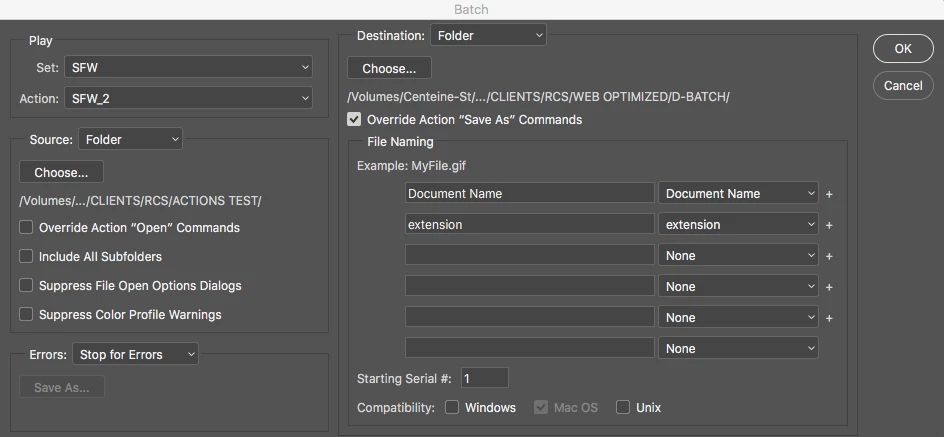
I have no idea what I'm doing wrong - I followed a tutorial, as I have never set up an Action like this before. No one else seems to be having a problem, and I can't seem to find any discussions, here or elsewhere, talking about this particular issue.

I tried using Export instead of the Legacy Save for Web, but the Action didn't record that at all (which confuses me).

I have an image compression program, but it doesn't compress them enough, even when I run the compression multiple times. Not to mention that PS has a really good optimization system with great results. So I would like to get this working.

Any help would be great!

Thanks

Centeine

This topic has been closed for replies.
Correct answer D Fosse

Another way (and this is my own "safe procedure"):

Set destination to "none" in the batch dialog.

Set save location in the SFW dialog. Have a destination folder ready. This is sticky, and will then be recorded in the action, and the files saved with original names.

End the action with "close without saving" (important!)

2 replies

D Fosse
Community Expert
D FosseCommunity ExpertCorrect answer
Community Expert
March 15, 2017

Another way (and this is my own "safe procedure"):

Set destination to "none" in the batch dialog.

Set save location in the SFW dialog. Have a destination folder ready. This is sticky, and will then be recorded in the action, and the files saved with original names.

End the action with "close without saving" (important!)

CenteineAuthor
Participant
March 15, 2017

Thank you!

What I ended up doing was creating a new Action - so that I could use both your tips and start again with a clean slate. And voila! It works!

Thank you again, that is so perfect - so much time will now be saved.

D Fosse
Community Expert
Community Expert
March 15, 2017

To be honest, I gave up on the "override action save" checkbox. It always seemed to do the exact opposite of what I thought it would do.

In the end I streamlined the whole process by simply putting a permanent "outbox" on my desktop, with appropriate subfolders, and pointing all my image processing actions to that. It occurred to me that these actions never produced anything I wanted to keep anyway, they were all just for external delivery.

Eternal Warrior
Inspiring
March 15, 2017

Looks like you need to enable override action open commands and this should work... for some reason sometimes Photoshop gets stuck on the same image over and over because it needs permission to run the action on the other files....

Hopefully this should help.

Otherwise it's probably a bug and you need to try resetting your Photoshop preferences.

Best,

EW

Eternal Warrior
Inspiring
March 15, 2017

Also would enable suppress file open options dialogue and see if that resolves things.