Participant
October 9, 2024
Answered

Best method for batch editing over 4,000 slides in Photoshop

  • October 9, 2024
  • 1 reply
  • 878 views

I have just finished scanning over 4,000 slides and am looking for a way to batch automate to quicken the editing process. There is a black border surrounding the image because as I was scanning them, the slide would end up in a slightly different area of the slide tray, so I made the scanning area slightly larger to ensure the scan contained the whole image. What tool can I use and automate to get rid of the black part surrounding the photo, that is slightly different for each scan? I will be making an action and batch automating as much as possible to also color correct, resize and sharpen. One last question, what do you think about keeping the curved corners of the slide? Keep or crop them straight? Thanks for your help!

This topic has been closed for replies.
Correct answer Conrad_C

If the black border color is completely uniform, one technique to try is the Image > Trim command. It looks at the color of a corner pixel, and crops out all contiguous pixels of the same value, such as black. It stops when it reaches a pixel that is not the same value. But, this can be unreliable if the border color is not uniform within a scanned film frame.


For very large numbers of scans, I avoid Photoshop because it’s far too inefficient and slow. Partly because each image has to be opened one by one. Doing hundreds of film frames takes forever.


I strongly prefer using something like Lightroom Classic or Adobe Bridge + Camera Raw. In those apps you can quickly bulk crop (and bulk correct) any number of images at once, as long as the scans are in a supported format such as raw, DNG, TIFF, JPEG… (In Camera Raw, you must enable TIFF/JPEG support in File Handling preferences.)


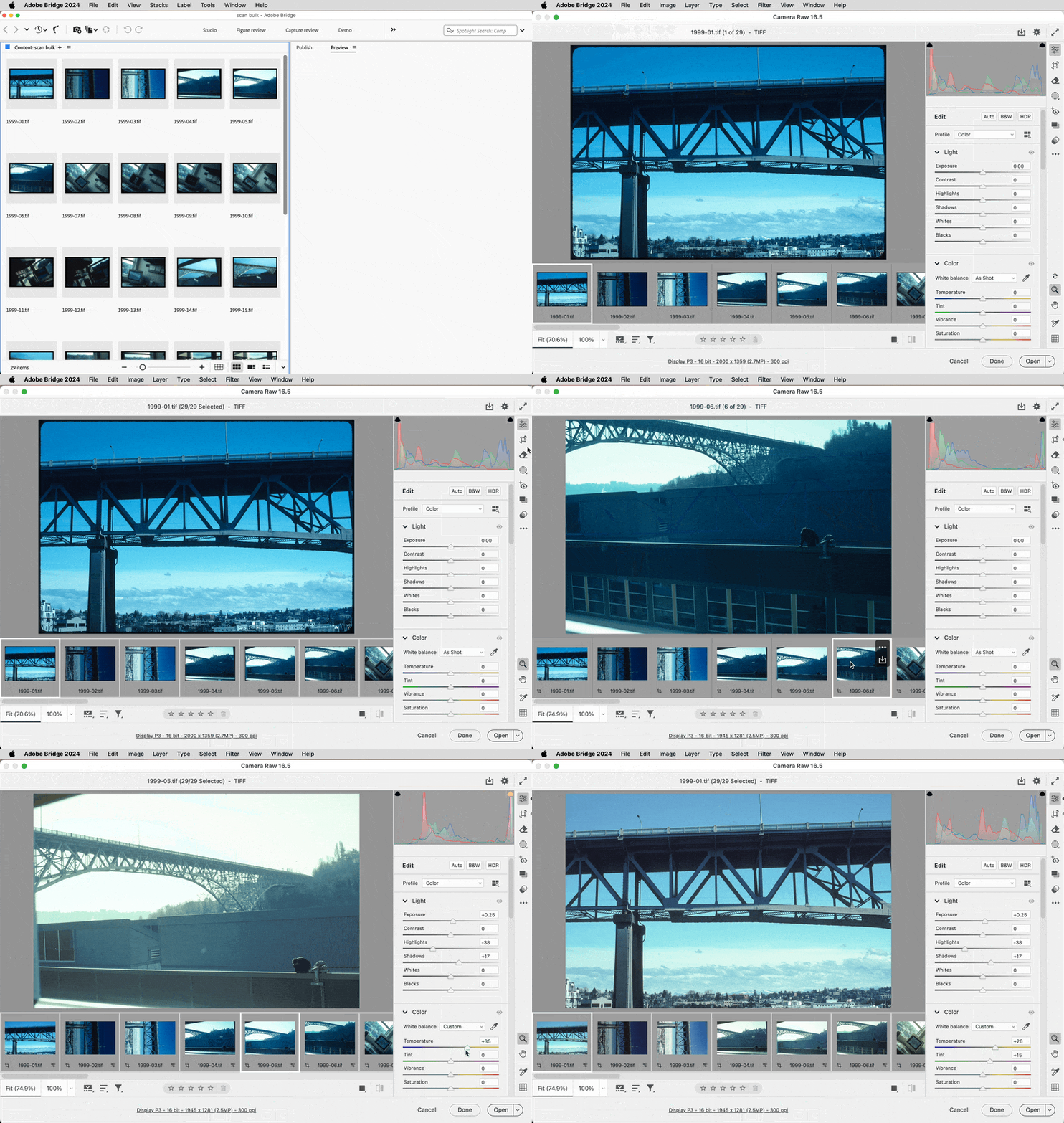
The key is to select all of the images, so that an edit affects all selected images. Hundreds of images can be corrected in seconds. Below is a demo of that. As you can see, it works even better if the border is consistent across scans, because the same crop works for all of them. When finished, you do have to export copies from Lightroom Classic/Camera Raw with the crop applied, because in those apps the crop edit is only in metadata (to preserve the original).


Steps shown in the demo:

1. View folder in Adobe Bridge. There are 29 TIFF scans.

2. Select all of them and then choose Open > Camera Raw.

3. Select all images in the Camera Raw filmstrip, and switch to the Crop tool.

4. Crop one image. All selected images are cropped the same way (watch the filmstrip).

5. Make tone and color corrections. All selected images are corrected the same way.

6. Make sure all images are still selected, and click the Save icon to batch-save new copies with these edits applied. Batch save is GPU-accelerated in Camera Raw and Lightroom Classic.


One reason Camera Raw and Lightroom Classic can do this faster than Photoshop is that those apps can process multiple images simultaneously, and the more CPU cores the computer has, the more images they can process at the same time. But in Photoshop, even a batch automation is going to process images serially, one by one, and that’s always going to be slower.


For bulk scanning jobs, I only move a photo to Photoshop if it needs specialized retouching that Lightroom Classic or Camera Raw can’t do. But I’ve edited fewer and fewer images in Photoshop as Lightroom and Camera Raw retouching and masking tools have improved.


If you don’t want to have to adjust the crop manually, or if you must do it in Photoshop, someone might be able to suggest a Photoshop script of some kind that could try to auto-detect the border, make a selection based on it with a little tolerance, invert the selection so that the image is now selected, then run the Image > Crop command on that. But that might fail if the image itself has colors similar to the border that also touch the border.


On the question of the round corners, I’m not sure. I feel like if the round corners are there, a little of the border should also show; if the idea is to remove the border then I think the round corners have to go too. But it’s really up to you.

1 reply

Conrad_C
Community Expert
Conrad_CCommunity ExpertCorrect answer
Community Expert
October 9, 2024

If the black border color is completely uniform, one technique to try is the Image > Trim command. It looks at the color of a corner pixel, and crops out all contiguous pixels of the same value, such as black. It stops when it reaches a pixel that is not the same value. But, this can be unreliable if the border color is not uniform within a scanned film frame.


For very large numbers of scans, I avoid Photoshop because it’s far too inefficient and slow. Partly because each image has to be opened one by one. Doing hundreds of film frames takes forever.


I strongly prefer using something like Lightroom Classic or Adobe Bridge + Camera Raw. In those apps you can quickly bulk crop (and bulk correct) any number of images at once, as long as the scans are in a supported format such as raw, DNG, TIFF, JPEG… (In Camera Raw, you must enable TIFF/JPEG support in File Handling preferences.)


The key is to select all of the images, so that an edit affects all selected images. Hundreds of images can be corrected in seconds. Below is a demo of that. As you can see, it works even better if the border is consistent across scans, because the same crop works for all of them. When finished, you do have to export copies from Lightroom Classic/Camera Raw with the crop applied, because in those apps the crop edit is only in metadata (to preserve the original).


Steps shown in the demo:

1. View folder in Adobe Bridge. There are 29 TIFF scans.

2. Select all of them and then choose Open > Camera Raw.

3. Select all images in the Camera Raw filmstrip, and switch to the Crop tool.

4. Crop one image. All selected images are cropped the same way (watch the filmstrip).

5. Make tone and color corrections. All selected images are corrected the same way.

6. Make sure all images are still selected, and click the Save icon to batch-save new copies with these edits applied. Batch save is GPU-accelerated in Camera Raw and Lightroom Classic.


One reason Camera Raw and Lightroom Classic can do this faster than Photoshop is that those apps can process multiple images simultaneously, and the more CPU cores the computer has, the more images they can process at the same time. But in Photoshop, even a batch automation is going to process images serially, one by one, and that’s always going to be slower.


For bulk scanning jobs, I only move a photo to Photoshop if it needs specialized retouching that Lightroom Classic or Camera Raw can’t do. But I’ve edited fewer and fewer images in Photoshop as Lightroom and Camera Raw retouching and masking tools have improved.


If you don’t want to have to adjust the crop manually, or if you must do it in Photoshop, someone might be able to suggest a Photoshop script of some kind that could try to auto-detect the border, make a selection based on it with a little tolerance, invert the selection so that the image is now selected, then run the Image > Crop command on that. But that might fail if the image itself has colors similar to the border that also touch the border.


On the question of the round corners, I’m not sure. I feel like if the round corners are there, a little of the border should also show; if the idea is to remove the border then I think the round corners have to go too. But it’s really up to you.

Participant
October 9, 2024

Conrad, I just tried using the Bridge method and I owe you so much gratitude! Thank you for saving me many hours of work!

Stephen Marsh
Community Expert
Community Expert
October 9, 2024

@HeyJules310 – I’ll mark Conrad's reply as a correct answer for you as it sounds like it was.  :]