Inspiring
October 13, 2024
Answered

Best way to add a gradient masked layer but mask out subject

  • October 13, 2024
  • 2 replies
  • 987 views

I am looking for the best non-destructive way to achieve the following. Any recommendations on how to setup my layers to meet the following?


My first idea is to create a new layer by merging everything that is visible (ctrl + alt + shift + E), then applying a layer mask and removing the subject's legs. It's not my preferred method since I don't have the ability to easily adjust the gradient later on.


I have a black color layer with a layer mask. The layer mask is a gradient black/white applied to it.
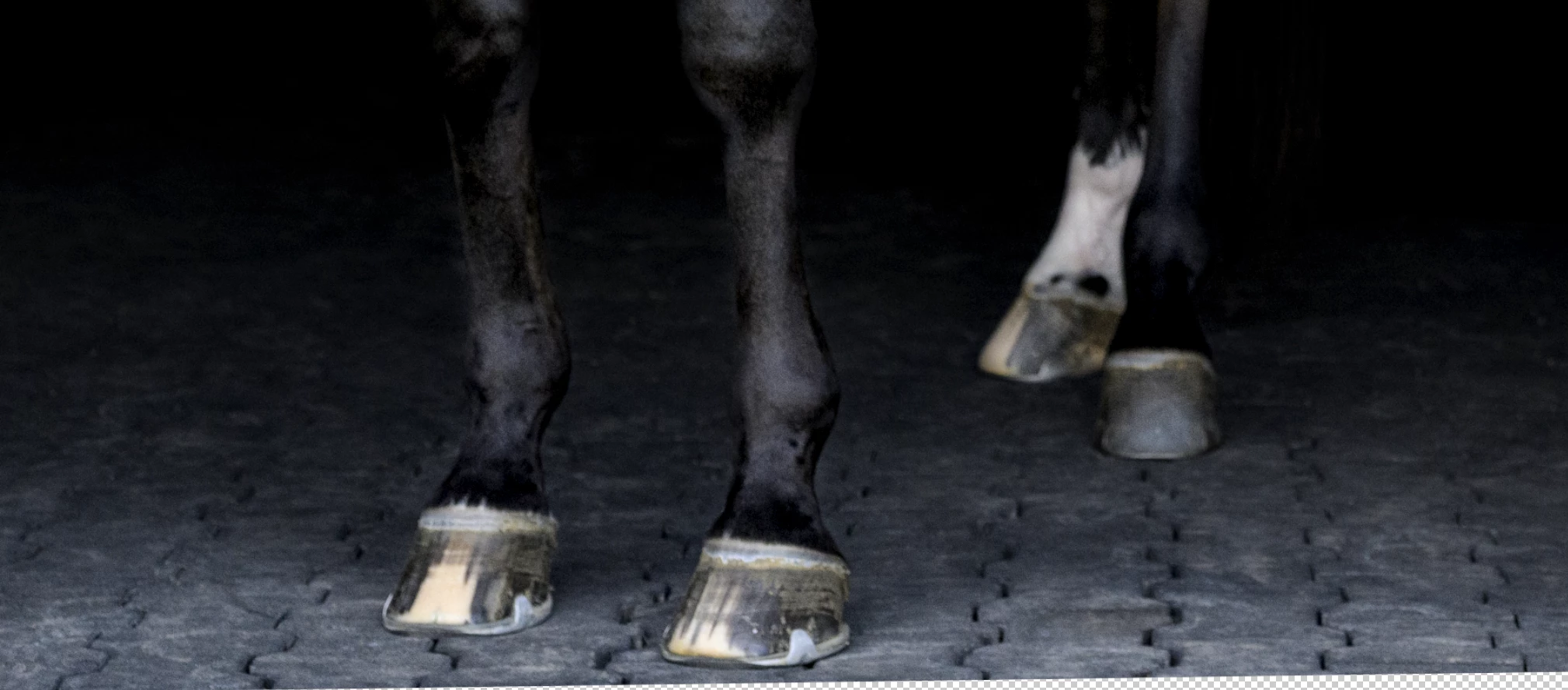
Why: I want to create a fade from the bottom (black) to the bottom 1/3 of the image (white), to keep the original floor of the image but fade into a blacked out background.

 

I want to mask out the subject's legs so the fade is not applied to the subject and appears to occur in the background/on the floor behind the subject.

 

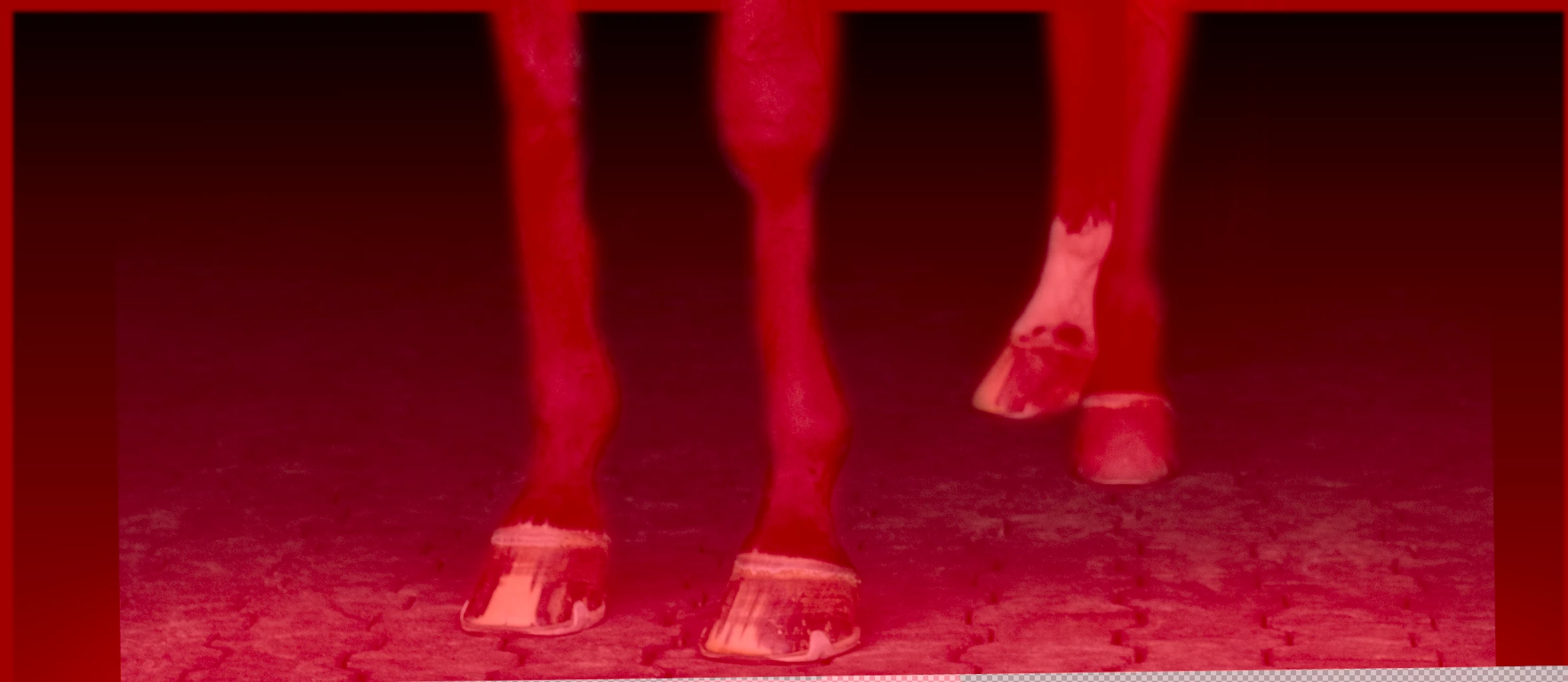
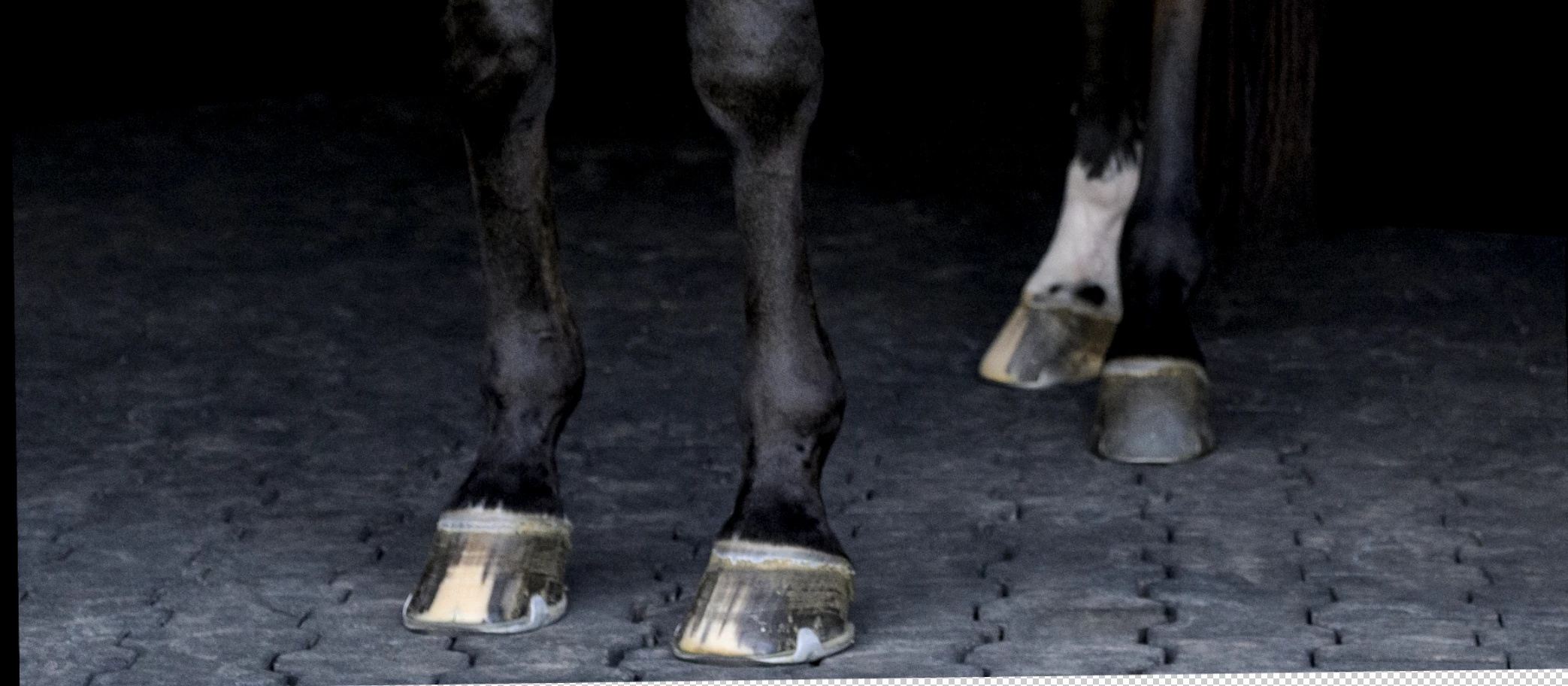
Very rough example of the desired before & after:

Before (black background layer disabled)
 

After (black background layer enabled with subject's legs masked out) --


But, I want a way to mask out the subject without it affecting the original gradient that was applied. This way, if I make a mistake and mask out part of the background, I can use a white brush on the background so the original gradient is still applied.


If I use my original layer mask and mask out the background, I cannot apply the original gradient to the background.

This topic has been closed for replies.
Correct answer Conrad_C

I might or might not be understanding the problem fully, but when I want to do something like this, I look into applying multiple masks. Photoshop only allows one pixel mask and one vector mask per layer, so when you want to apply more than one mask of the same type, this requires workarounds.


One workaround is to use layer groups (folder icons), because a layer group can have a mask. Put the layer alone in a layer group, apply one mask to the image, and another mask to the layer group so that you can edit each mask independently.


In some cases, it can also work to apply another layer (such as a gradient fill layer) as a clipping mask, to a layer that has a mask.

2 replies

Conrad_C
Community Expert
Conrad_CCommunity ExpertCorrect answer
Community Expert
October 13, 2024

I might or might not be understanding the problem fully, but when I want to do something like this, I look into applying multiple masks. Photoshop only allows one pixel mask and one vector mask per layer, so when you want to apply more than one mask of the same type, this requires workarounds.


One workaround is to use layer groups (folder icons), because a layer group can have a mask. Put the layer alone in a layer group, apply one mask to the image, and another mask to the layer group so that you can edit each mask independently.


In some cases, it can also work to apply another layer (such as a gradient fill layer) as a clipping mask, to a layer that has a mask.

kdash1228Author
Inspiring
October 13, 2024

Thank you! The workaround with the layer group worked perfectly.

pixxxelschubser
Community Expert
Community Expert
October 13, 2024

That's the beauty of Photoshop: many paths lead to the same goal.
😉


pixxxelschubser
Community Expert
Community Expert
October 13, 2024

Why not duplicate the layer and mask the legs on the duplicate.
Then create a new black/white gradient layer between the two layers in Multiply mode.


The degree of darkening can then be regulated by controlling the gradient.