
Inspiring
September 30, 2022
Answered

best way to extract this critter from background with a very similar colour?

  • September 30, 2022
  • 3 replies
  • 271 views

It's a while since I've had to extract such a fluffy critter.


The old masking technique I used in the past is not really doing what I want. The background and magic eraser tools can't seem to distinguish between the feathers and the fence. 
I have the choice of Windows or iPad with Apple pencil. 


What Photoshop methods would the experts recommend for this pic please? Low res version attached and at the imgur link for reference.

https://i.imgur.com/SXaz1Mi.png 
This topic has been closed for replies.
Correct answer Conrad_C

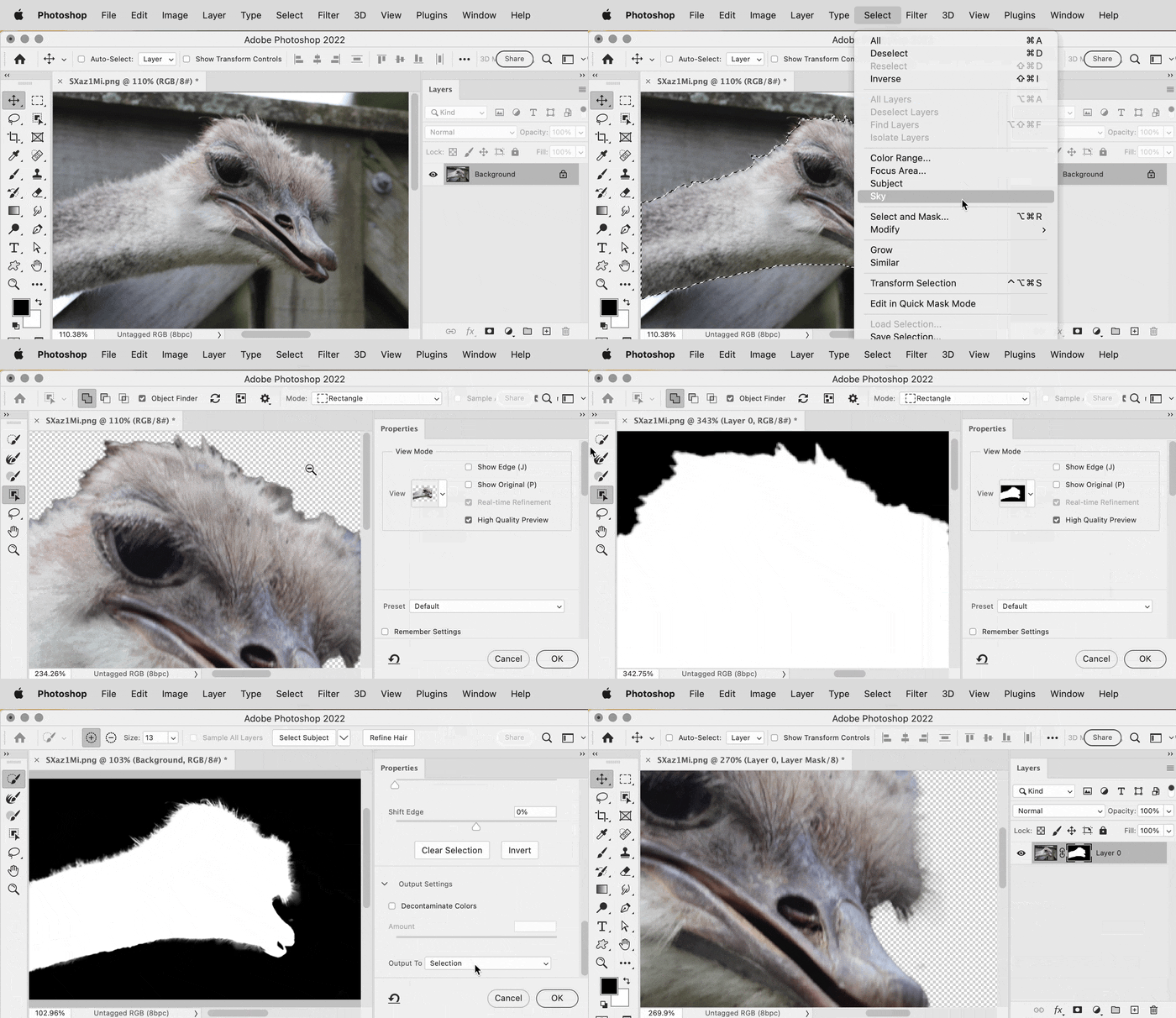
My suggestion is similar to Chuck’s: Try the new AI-powered selection tools, like a combination of Select Subject (or the Object Selection tool) and then Select and Mask with Refine Hair. You can apply Select Subject from the Select menu as shown below, or from inside Select and Mask. Once you have a subject selection inside Select and Mask, click the Refine Hair button. Use the View options to check the quality of the mask. The Refine Edge Brush tool could be used to manually adjust the hair edge, if necessary. As you can see below it took only a few seconds to get a hair mask that, even if not perfect right away, is a big head start.


(Sorry about the weird colors…the animated GIF I uploaded looks OK, but the Adobe forum software appears to re-compress it and screws up the colors.)


In Select and Mask, the Select Subject and Refine Hair buttons are available only when one of the first three tools is selected.


3 replies

Kevin Stohlmeyer
Community Expert
Community Expert
September 30, 2022

Select Subject worked just fine. I downloaded and was able to select it first try.

Conrad_C
Community Expert
Conrad_CCommunity ExpertCorrect answer
Community Expert
September 30, 2022

My suggestion is similar to Chuck’s: Try the new AI-powered selection tools, like a combination of Select Subject (or the Object Selection tool) and then Select and Mask with Refine Hair. You can apply Select Subject from the Select menu as shown below, or from inside Select and Mask. Once you have a subject selection inside Select and Mask, click the Refine Hair button. Use the View options to check the quality of the mask. The Refine Edge Brush tool could be used to manually adjust the hair edge, if necessary. As you can see below it took only a few seconds to get a hair mask that, even if not perfect right away, is a big head start.


(Sorry about the weird colors…the animated GIF I uploaded looks OK, but the Adobe forum software appears to re-compress it and screws up the colors.)


In Select and Mask, the Select Subject and Refine Hair buttons are available only when one of the first three tools is selected.


Inspiring
September 30, 2022

Thank you. 

Chuck Uebele
Community Expert
Community Expert
September 30, 2022

I would first try the object selection tool, then use select and mask to attempt to soften the feathers. If that doesn't work, I would try to make a series of alpha channels to separate various sections of the neck, then use a brush set to overlay mode to boost the black or whites of the mask.