Inspiring
August 8, 2022
Answered

Blend mode jumps layers

  • August 8, 2022
  • 4 replies
  • 1236 views

I have written some Photoshop Actions but have had some unexpected problems.

https://community.adobe.com/t5/photoshop-ecosystem-discussions/actions-non-operational-for-non-english-language-photoshop-versions/m-p/13114422#M662233


I have more or less solved these but I have decided that going forward I should structure my Actions so that can act recursively to ensure that they are fully robust.

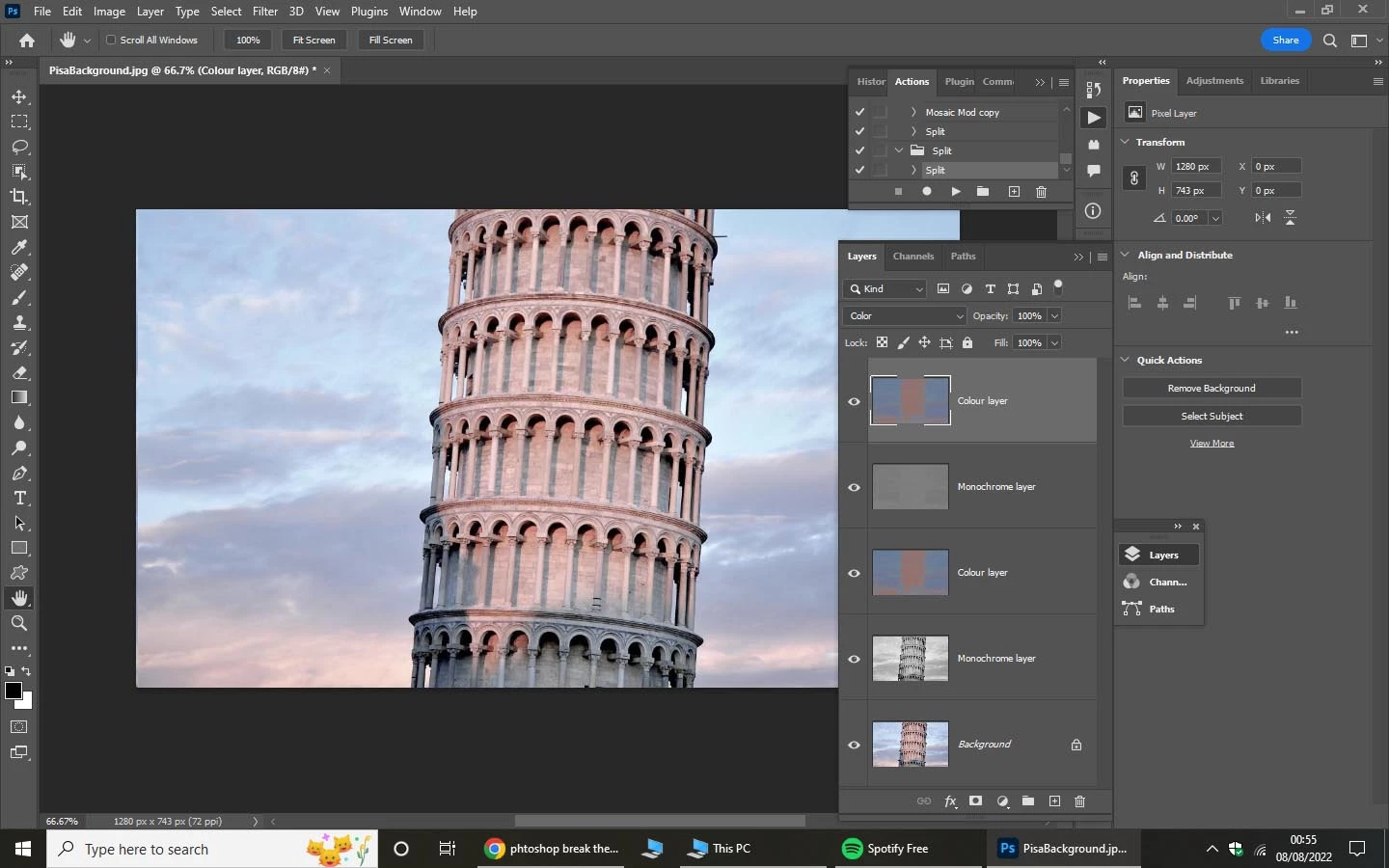
The picture below shows that I get an anomaly. The top layer doesn’t blend with the layer below but with one further down.   Of course, the two layers have the same name, but that is inevitable if the Action is applied twice recursively.  I do though set the blend mode before renaming the top two layers from temp1 and temp 2 at the last minute.  I realise that recursion is not particularly useful in this case but I want to understand this simple case before I tackle something more substantial.

This topic has been closed for replies.
Correct answer c.pfaffenbichler

        So when I first apply the Action to the "Background layer" there is no issue. I am left with "Colour layer" blend set to "colour" and that colour is applied to "Monochrome layer" immediately below it.


I run the Action again with "Colour layer" as the target for processing this time.  I get a new 'Colour layer' and below it a new 'Monochrome layer'.  (Below these are the previous 'Colour layer' and below that the previous 'Monochrome layer'.)   The main display now shows the new colour layer but the 'colour' blend is applied to the old 'Monochrome layer' rather than applied to the new 'Monochrome layer' which is immediately below it.


I have now found that the cleanest way to address this is to toggle the blend state of the 'Monochrome layer' within the action (see red text below).  This seems to clear any history of the Blend mode and when I subsequently set the Blend mode to 'colour' for the 'Colour layer' it applies that blend to whatever layer is immediately  below it irrespective. 


                                                 Set current layer

                                                To: layer

                                                Name:  “Monochrome layer”

                                Set current layer

                                                To: layer

                                                Mode: hue

                                Set current layer

                                                To: layer

                                                Mode: normal

                                Select layer “temp3”

                                                Without Make Visible

                                                4

                                Set current layer

                                                To: layer

                                                Name:  “Colour layer”

                                Set current layer

                                                To: layer

                                                Mode: color


I think you misinterpret the situation. 


When you duplicate a Layer the copy has the Blend Mode of the original; that is as intended and has nothing to do with a History of Blend Modes.

A Background Layer cannot have a Blend Mode (other than Normal), so duplicating that will naturally result in the copy haveing Blend Mode Normal. 


And when you apply the Blend Mode Color to a monochrome Layer it desaturartes the lower content and has no influence on the luminance.


Edit: To illustrate try hiding the second »Color Layer« (in the »bad« result); the result should be that the image is monochrome owed to the second »Monochrome Layer«. 

So it was not that the »Color Layer« was »applied« to the first »Monochrome Layer« but that the second »Monochrome Layer« did not have the intended Blend Mode. 
4 replies

Inspiring
August 11, 2022

So I have now gone through the processing step by step on a trial and error basis.  What seems to happen is that on the first iteration, the blend specified for top layer is applied between the top layer and the layer below (call it layer x).  On the second iteration, the software decides that I want to blend but not with the (now new) layer immediately below, but still with layer x.  It is quite difficult to break this association.  The way I have done it is to make the blend mode pro-actively 'Normal' at the start of the processing sequence.  That is, I select a blend mode other than 'Normal' and then I select 'Normal'.  This seems to give a clean start on Blend.  The fact that system rembers previous Blend layers is probably a bug.


Thank you for the observations given. It was interested to read that other Actions often have many steps in them as 'belts and braces'.  Some of filters I have developed use the same generic structure and individual filters might be capable of simplification but I now get the flavour that unsimplified Actions are par for the course and provided they are not too slow then simplification needn't be an issue.

Zesty_wanderlust15A7
Known Participant
August 11, 2022

I know a few obscure bugs re. actions, but nothing that would interfere with your case, I'm guessing.

If you want a solution for something that clearly goes wrong, you can post part of the action. Usually, it's a wrong layer being selected, which I've explained how to solve.

OTOH, it also feels like maybe you're misunderstanding one of the blending modes. Or if you think there's a bug, I'd love to know it (not that I've seen many fixed, and I've reported about 5 action bugs).

Oops, I see you meanwhile have found a workaround.

Zesty_wanderlust15A7
Known Participant
August 8, 2022

Haven't read your problem, but generally speaking...

- Ctrl + doubleclick each step to see where it goes wrong

- Some actions have "tons" of next/previous layer steps. This is to make it possible using the action more than once w/o directly selecting a layer name potentially already present.  If you do allow that, it will pick the first one starting from the bottom — usually you want the opposite.

- If you don't want "tons" of next/prev layer steps, temporarily rename a key layer with a unique name for direct selection purposes, then rename it at the end. By analyzing your action (maybe setting it up differently), you will often see you don't really need to do this, or can get away with doing this for just one or two key layers.

-

What I also often see is actions doing 12 "previous layer" steps to then make a Group. Just start by making a group first (or early) to avoid these unnecessary steps. OTOH, the advantage of making it last is that the folder will be closed — if that's absolutely what you want.

c.pfaffenbichler
Community Expert
Community Expert
August 8, 2022

In Actions selecting a Layer by clicking it in the recording is based on its name. 

If there are multiple Layers of the same name you have created a problem and you may want to select Layers by next-layer-above or -below instead of clicking them in the recording, 

Bojan Živković11378569
Community Expert
Community Expert
August 8, 2022

Layer name does not have nothing to do with blending mode, blending mode does not care about layer names. What is your end goal and what are steps you are taking to achieve it? What are your expectations? Is there any blending mode applied to layer below selected layer?

Inspiring
August 8, 2022

“Layer name does not have anything to do with blending mode.”  Well, it shouldn’t do, but something is going wrong so who knows.


Let me explain what I am doing here.  I have written an Action which divides an image into a separate colour layer and a separate luminosity/monochrome layer.  This is useful because it is possible now to apply the standard Photoshop filters to one or both layers separately and this gives an interesting alternative to applying a filter to the full composite image.  So, I have released a set of ‘Extended filter Actions’.  (It is a shame that this forum doesn’t allow a direct link to my Medium article on this because that would be a lot clearer).   Anyhow, I released this set of Actions and an Italian user said it didn’t work for him.  It turns out that my Actions address the background layer but Italian PS has ‘background’ in Italian and so is not compatible.   I have worked to overcome this issue but before I relaunch the Actions, I wish to assure myself that I now have a fully robust formulation.  One measure of robustness is that my filters should work recursively.


So, I start with the image of the leaning tower of Pisa (the ‘Background’ layer in the snapshot I provided previously). I apply my Action once and the Monochrome and Colour layers are generated immediately above the Background layer.  All is good so far.   The Colour layer is now the selected layer and I can apply my Action again to that.  In terms of layers, I get the expected result.  I get a new near identical Colour layer and a new uniform monochrome layer.  All is good except that I have the top colour layer selected, I have blend mode set to ‘colour’.  I would expect the blend to work on the layer immediately below and I would expect the processed image to now look identical to the colour layer.   But it doesn’t.    It seems that the top Colour layer is applying a colour blend not to the layer immediately below (labelled Monochrome layer) but to the layer 3 down (which is also labelled Monochrome layer).


How can I make my Action sufficiently robust that it gives the expected result when it is applied the second time?

c.pfaffenbichler
Community Expert
Community Expert
August 8, 2022

Can you please post a screenshot with the FULLY EXPANDED Action in the Actions Panel and the History Panel visible?