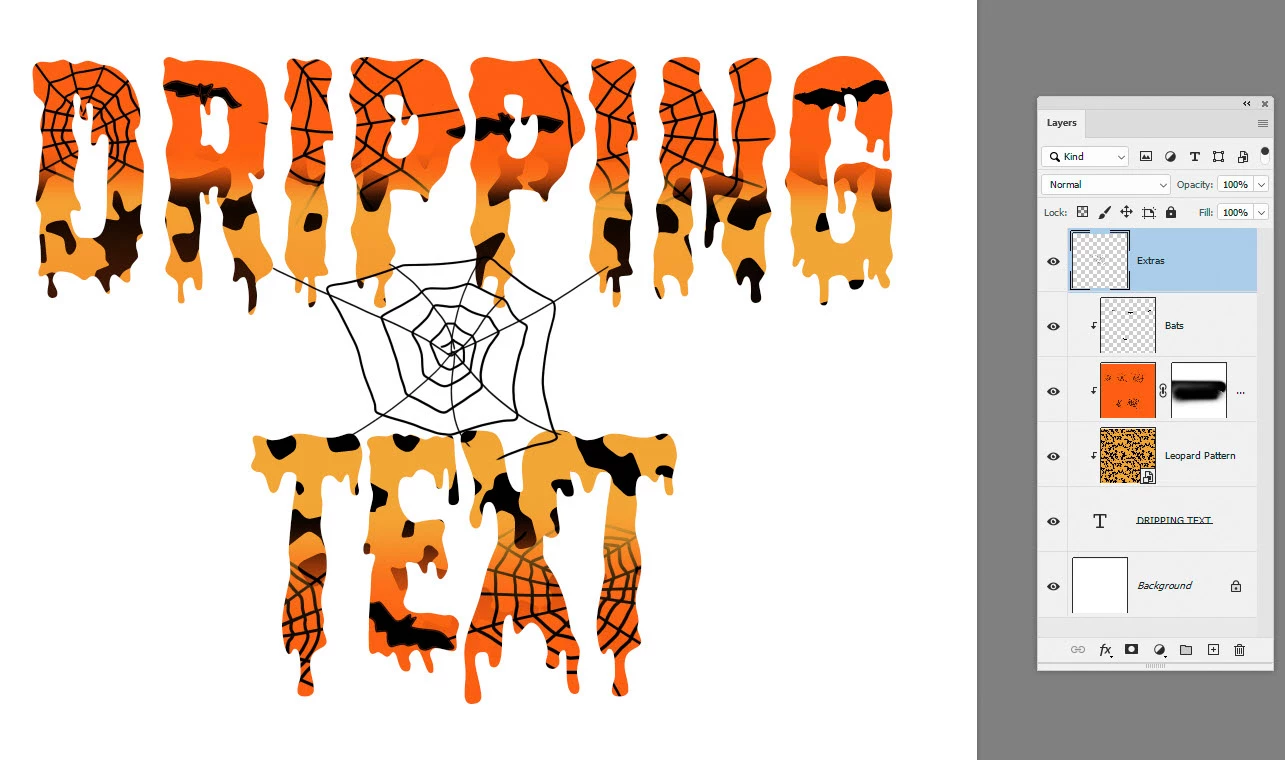
So i saw this design, but for the life of me cant figureout how the person would have blended the 2 patterns (cheetah print and halloween pattern) on the text "spooky vibes" together so perfectly. Will someone please explain how i can achieve this look? I've included a picture!
To create the clipping mask, go up to the Layermenu in the Menu Bar and choose Create Clipping Mask:And that's all there is to it! With the layer mask created, the Layers panel now shows the top layer ("Layer 0" ) indented to the right, with a small arrow pointing down at "Layer 1" below it.
This is how Photoshop tells us that the top layer is now clipped to the layer below. But the problem is, all we've accomplished so far by creating a clipping mask is that we've hidden the image from view, and that's because our mask layer ("Layer 1") contains no content.
It's completely transparent. With a clipping mask, any areas on the top layer that are sitting directly above transparent areas on the bottom layer are hidden. Since the bottom layer contains nothing but transparency, no part of the image above it is visible.
@romantic_Dazzle5FA1 This thread was answered 2.5 years ago. Your answer is misleading as there is no example shown in the thread where the lower layer is fully transparent. The question requires the patterns and textures to be clipped to a text layer.
Eye Candy 7 has a drip effect. I used Comic Sans as I am a rebel and its rounded shape lends itself to drips.
If you have time on your hands, you can make the drips independently of the letters.
Stamp down a fully hard round brush on a new layer.
Drag out a tail with Liquify.
Add Bevel & Emboss layer style. The shading angle needs to be 45° or 135° (ish) and you need to use trial and error on the altitude because it needs to be just right to get tht nice highlight.
Copy the layer a couple of times and randomise the size with Free Transform.
Select all the layers and copy and repeat.
Use Move > Align to distribute and move into place
The trick with the last step is to hold down down Ctrl (Cmd) and click on the drip with automatically selects the layer
It took me longer to type tyhis out than it did to create.
Using a gradient on a mask could achieve the pattern blend. And then it's as easy as getting the letters outlined and arranged, and further masking out or erasing everything outside of the letters.
I would suspect this is done in a vector program like Illustrator though.




 AdChoices