andreyk90754508
Participant
March 27, 2020
Answered

Blending colors without losing texture

  • March 27, 2020
  • 3 replies
  • 17205 views

Hello! Please tell me how you can blend the colors of the parts of the picture that have a texture. For example, smooth out skin color transitions. Frequency separation will not work! Need method for painting, not for photo! Thanks! )

This topic has been closed for replies.
Correct answer davescm

OK....thanks.  However, I can't see how it's different: a) an image with texture and a particular color b) change color of image to a selected color without changing the texture or features of the image.  That's all I'm asking, too.


Using a gaussian blur would then "blur" the image to some degree and lose texture/features.  


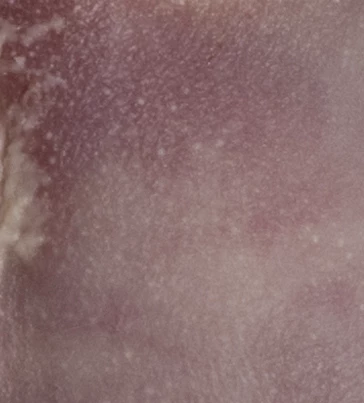
I am attaching two example images then.  I want to keep a uniform color tone without any degradation of the texture or features. In the first image, changing the entire image to the non-magenta skin tone is optimal.  In the second,  it doesn't matter too much, as long as it is lighter and uniform.  Same process though...
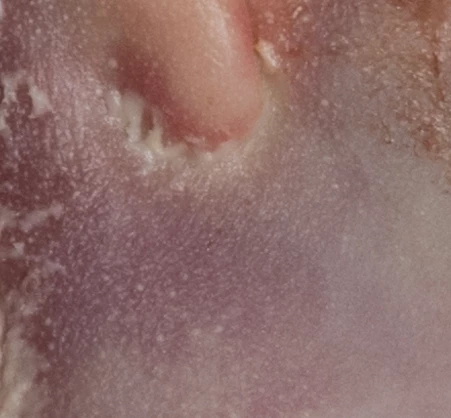
 

Thanks!


Hi @garymak 

Frequency separation works by separating the low frequency detail ( like colour variations in your image) from the high frequency detail such as the skin texture.

It works like this :

1. Make 2 duplicates of your image layer

Name the lower - "Low frequency"

Name the Higher - "High Frequency"

2. Select the Low frequency layer and use Filter Gaussian Blur (around 6.0 should work on these)

3. Select the High frequency layer
Go to menu Image > Apply Image
Set the source layer to Low Frequency
Set the blending mode to Subtract
Set Scale to 2 *
Set offset to 128 *
Click OK

4. Change the blending mode of the high frequency layer to Linear Light

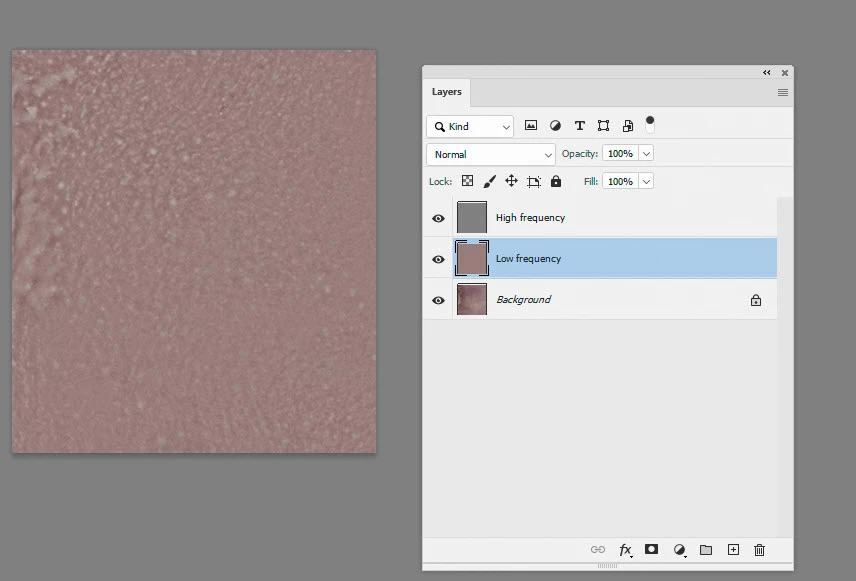
5. Now you can clone out blemishes on the high frequency layer and lighten or darken/recolour areas on the low frequency layer

As an extreme below I have painted out all the colour variation by painting on the low frequency layer - while keeping all the detailed texture on the high frequency layer untouched

Dave

* Note - the above steps are for 8 bit/channel images. For 16 bit/channel step 3 changes slightly

3. Select the High frequency layer
Go to menu Image > Apply Image
Set the source layer to Low Frequency
Check "Invert" next to channel

Set the blending mode to Add
Set Scale to 2
Set Offset to 0
Click OK

Now carry on with step 4 above

3 replies

mglush
Community Expert
Community Expert
March 28, 2020

Hi!

Have you tried using a layer set over your image set to Color and then paint the color in on that layer? Using a layer set to Color on top will allow you to add color to an image without destroying the texture of the layer underneath. You also have control of how much by changing the opacity of the brush or the layer.

Once you get it the way you want it, you can then Merge all the layers to a New Layer to apply the transforamation.

Michelle

andreyk90754508
Participant
March 28, 2020

Hello! Thank you very much! Everything turned out exactly as I wanted! 🙂

garymak
Inspiring
September 21, 2023

A little confused here, but I have this question, too.  I don't agree with the solution - unless I have missed somethign...  I have blotchy skin tones on newborns.  I sample the color (area of skin color) I want, create a color layer, then brush in the color at Opacity 10% or so.  I set the brush to "lighten" (usually, as the blotches are usually darker than the skin tone I want.)  It smooths out the dark blotches beneath to a lighter tone usually matching the rest of the unblemished skin.  BUT if takes some of the texture away, to the extent that, if I were to do, say, 100% opacity, it would just paint a color over it with zero texture!  I don't see how anyone says this method "preserves the texture underneath."  It doesn't... unless there is some other step I'm misisng.  Also, I don't see a "sample all layers" "checkbox" anywhere....


Thanks!

c.pfaffenbichler
Community Expert
Community Expert
March 27, 2020

»Frequency separation will not work!«

Why? 


Sometimes a 50% neutral noise set to. Linear Light suffices to simulate an image’s noise on a painted Layer. but unless you post the (pertinent section of the) image I don’t think you should expect a lot of meaningful advice. 


andreyk90754508
Participant
March 27, 2020

Thanks for the answer! I attach an example of what happens when using 3 methods. None of the results look natural. )

davescm
Community Expert
Community Expert
March 27, 2020

Hi

can you post your unblended starting image


Dave

davescm
Community Expert
Community Expert
March 27, 2020

Can you post an example of what you are starting with and describe exactly what you are trying to do

Dave

andreyk90754508
Participant
March 27, 2020

Hello, Dave! Thanks for answering! I attach an example of what happens! None of the options suit you! Frequency separation is certainly better than 2 other methods, but it doesn’t look natural. I would like to find a good way for brushes to mix colors in specific areas of the image.