AmandaMc14
Inspiring
May 24, 2020
Answered

Blurry images when using Bicubic Sharper Reduction

  • May 24, 2020
  • 3 replies
  • 1591 views

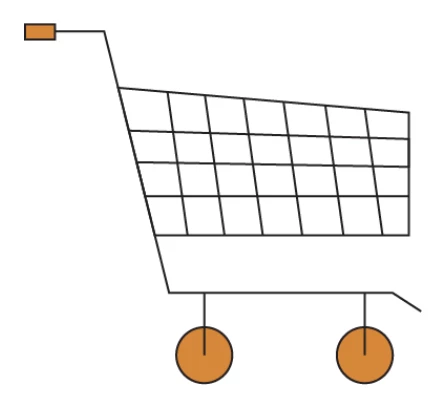
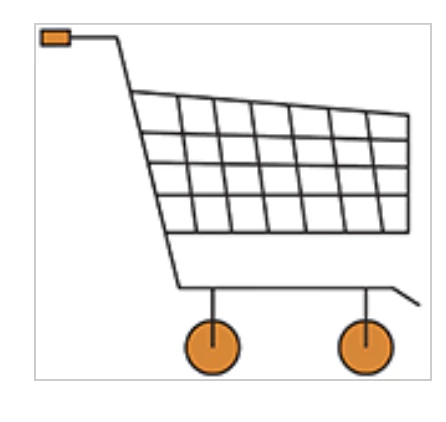
Hi I have a png file that I exported from an ai file and when I save it as a jpg from 379 × 345 to 158x144, it pixelates.  See screenshots

I have tried taking a screenshot of the ai file, making the icon the same size as what I need it .. ie 158x144 then exporting it but whatever I try I get this sort of result.


Any suggestions, thanks 🙂

This topic has been closed for replies.
Correct answer AmandaMc14

A pixel image is fundamentally different from a vector design. Vector artwork can be scaled indefinitely and will still be rendered at full screen resolution. A pixel image is just pixels. Zoom in, and those pixels just get more prominent. The pixels are the atoms, and you have only 158 of them across.


There are workarounds to reduce the inevitable impact, but not remove it.


One is to never use jpeg. Jpeg is for photographs. The jpeg algorithm is particularly unsuited for sharp edges against flat areas. It will produce "ringing" artifacts. PNG is the way to go.


The other is to avoid slanted lines as far as possible. Again, pixels are just pixels. To produce a slanted line, the pixels stairstep. There's no way to get around that. That has nothing to do with Photoshop.


If you need this as a pixel image, create it as such in Photoshop at 100% size. Plot the pixels individually, using the pencil tool (which does not anti-alias).


Thanks for your help 🙂

3 replies

c.pfaffenbichler
Community Expert
Community Expert
May 24, 2020

In which application was the second screenshot taken anyway? 

Edit: And please also post the original png. 

c.pfaffenbichler
Community Expert
Community Expert
May 24, 2020

Please post screenshots of the original image and the downsampled image open in Photoshop at View > 100%. 


AmandaMc14
Inspiring
May 24, 2020

Thanks but I have saved the image as a png and as the gentleman above explained the dynamics of both, I am good to go.

Mylenium
Legend
May 24, 2020

Not sure what you expect. You are going from a low-res image to an even lower res and your artwork has all the trimmings of a "bad" design for thumbnails/ icons, like the lines being way too thin to begin with (and unevenly arranged). It's inevitable that they end up being a mush of interpolated pixels and the specifics of JPEG compression certainly don't help. This really isn't anything wrong with PS nor a question of "Which option need I use to fix it?". You need to get back to the drawing board and design your artwork with the later use case and the limitations in mind.


Mylenium

AmandaMc14
Inspiring
May 24, 2020

Wow that seems a bit harsh 😞  Are you saying that you cant have a vector image with thin lines look good small?  I actually got it to look better saving it as a png so there was some work around 🙂

D Fosse
Community Expert
Community Expert
May 24, 2020

A pixel image is fundamentally different from a vector design. Vector artwork can be scaled indefinitely and will still be rendered at full screen resolution. A pixel image is just pixels. Zoom in, and those pixels just get more prominent. The pixels are the atoms, and you have only 158 of them across.


There are workarounds to reduce the inevitable impact, but not remove it.


One is to never use jpeg. Jpeg is for photographs. The jpeg algorithm is particularly unsuited for sharp edges against flat areas. It will produce "ringing" artifacts. PNG is the way to go.


The other is to avoid slanted lines as far as possible. Again, pixels are just pixels. To produce a slanted line, the pixels stairstep. There's no way to get around that. That has nothing to do with Photoshop.


If you need this as a pixel image, create it as such in Photoshop at 100% size. Plot the pixels individually, using the pencil tool (which does not anti-alias).