EALS.specialone
Participant
December 21, 2017
Answered

Brightness/contrast on a single layer

  • December 21, 2017
  • 6 replies
  • 126897 views

I've been messing with adobe Photoshop CS6 using brightness/contrast, vibrancy, color, etc. and I've noticed that whenever I apply one, it applies to the layer I'm wanting as well as any layer below it. This is ok if I were to have two or three layers, but I'm getting to eightish, so it's causing any new layer to look very odd. I then must use extreme changes on these layers to get them how I want them, but then when I add another layer under it they apply again and change the new layer by those same extremes. I can't add any on top of previous layers because I would then need to adjust everything underneath it if I were to adjust a new layer on top. Is there a way to make changes to a single layer without having it affect any layer above or below it?
Correct answer Terri Stevens

If you want an adjustment layer to apply to a single layer or a series of layers, but not have the effect cascade down and effect all layers, all you need to do is put the adjustment layer and the layers to be effected in a 'group' (select the layers and press ctrl-G or cmd-G on the keyboard).

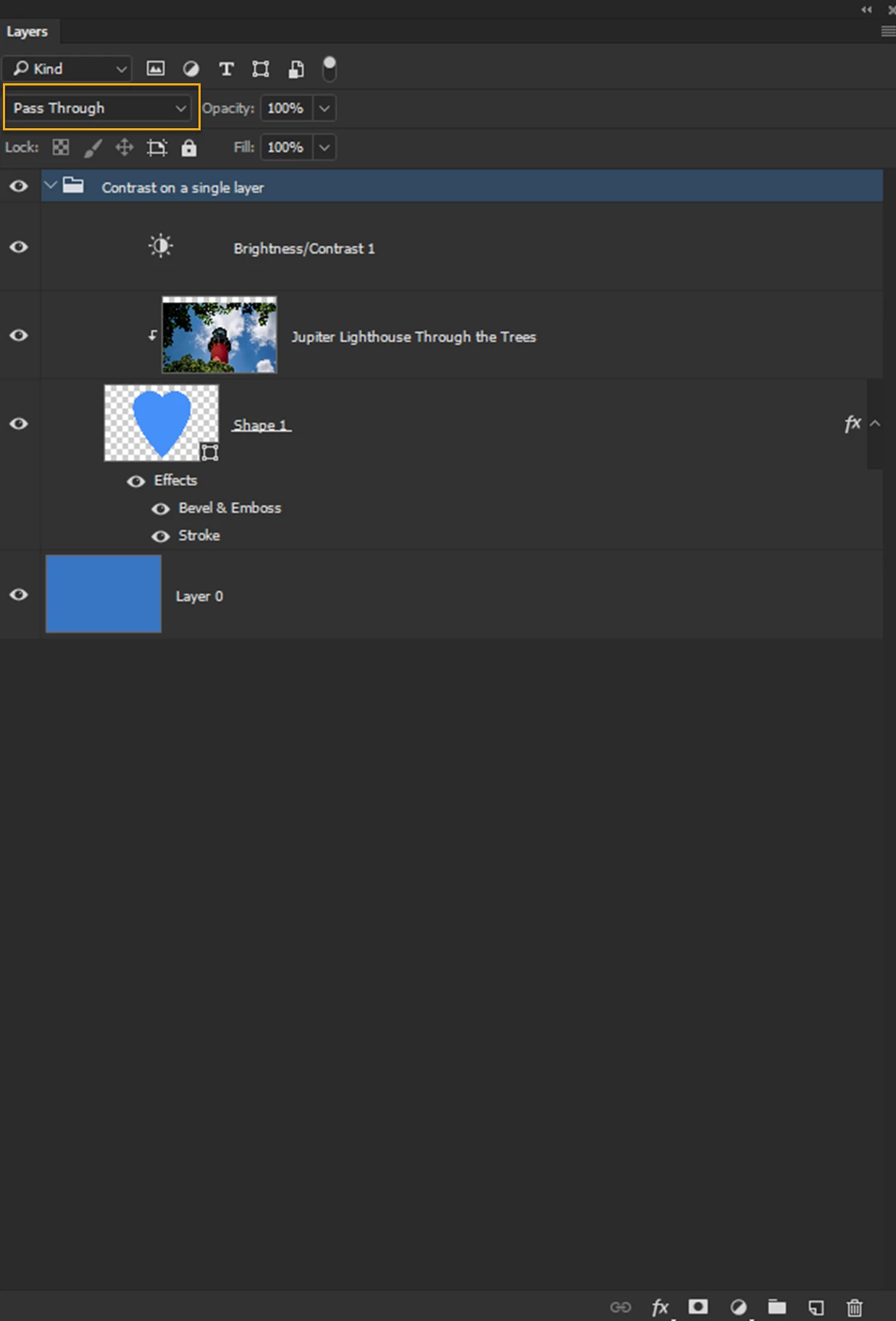
Below is a layer panel with a contrast /brightness adjustment layer, an image, a shape layer and some layer effects all contained in a group called 'Contrast on a single layer' Note the blend mode says 'Pass through' Like this the contrast /brightness adjustment will effect everything whether in a group or not.

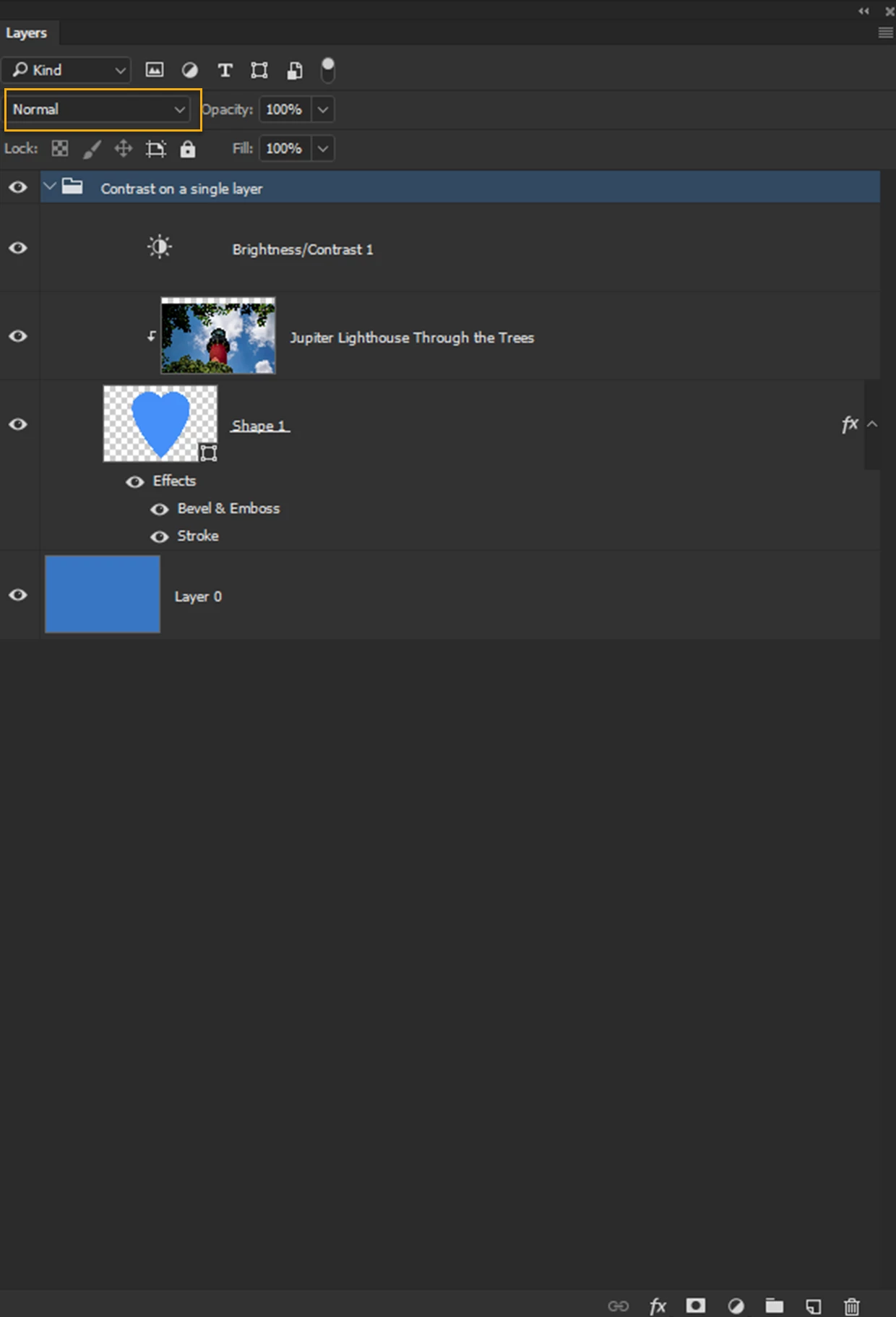
Change the blend mode of the group to 'normal' and then only the contents of the group are effected and not the layer marked Layer 0 here. It's as easy as that.

6 replies

juliusk44010316
Participant
November 4, 2019

Terri Stevens had the right idea, but it didn't work for me as there was no "pass through to turn on or off. What I ended up having to do was to create a group for the layers that needed to be adjusted. I then created the adjustment layer above the group and selected create clipping mask. That did it for me.

Semaphoric
Community Expert
Community Expert
December 22, 2017

You could also just use Image > Adjustments, although you would lose the ability to update the settings without starting over. You'd want to make a duplicate of the layer first, and do the adjustments on that.

Terri Stevens
Terri StevensCorrect answer
Legend
December 21, 2017

If you want an adjustment layer to apply to a single layer or a series of layers, but not have the effect cascade down and effect all layers, all you need to do is put the adjustment layer and the layers to be effected in a 'group' (select the layers and press ctrl-G or cmd-G on the keyboard).

Below is a layer panel with a contrast /brightness adjustment layer, an image, a shape layer and some layer effects all contained in a group called 'Contrast on a single layer' Note the blend mode says 'Pass through' Like this the contrast /brightness adjustment will effect everything whether in a group or not.

Change the blend mode of the group to 'normal' and then only the contents of the group are effected and not the layer marked Layer 0 here. It's as easy as that.

Participant
January 5, 2019

Thank you for this detailed and easy to follow answer!  This is just what I was looking for.

Terri Stevens
Legend
January 5, 2019

My pleasure, very glad it helped.

Terri S

EALS.specialone
Participant
December 21, 2017

Ok... Google saved the day. Problem solved. Just used Clipping Mask.

c.pfaffenbichler
Community Expert
Community Expert
December 21, 2017

What are you talking about exactly?

Could you please post a screenshot taken at View > 100% and with the pertinent Panels (Layers, Channels, Options Bar, …) visible?

Adjustment Layers can be Clipping Masked to a Layer so they only affect that and not the other lower ones.

EALS.specialone
Participant
December 21, 2017

My work is private as it is of my family and friends. I'd prefer not to post it on the internet. How do you do Clipping Masked?

Just Shoot Me
Legend
December 21, 2017

That's how the layer system works. From the Top down. If you want to view a layer below the one you applying those setting to you have to hide that layer by click the Eye Icon to turn it off.

EALS.specialone
Participant
December 21, 2017

Well that's not very helpful... I mean thank you for telling me that, but it's not very useful for it to be that way. It would have been better to have created it so that one could apply a setting to a particular layer alone. I can see how it would be useful the way it is, but Adobe should've made it so it could do both.