
Participant
July 13, 2020
Answered

Brush at max opacity when build-up enabled :(

  • July 13, 2020
  • 1 reply
  • 852 views

So, I recently had to wipe my mac after some unfortunate mishap and after the usual installing of everything PS ended up acting kinda screwy.

It seems like the initial start of every stroke tripples in opacity. After some tinkering I managed to isolate the problem to the "Build-up" option. It happens regardless of brush used, as long as build-up is enabled. It doesn't happen every time, but often enough to get annoying and well, doccument... ^^;
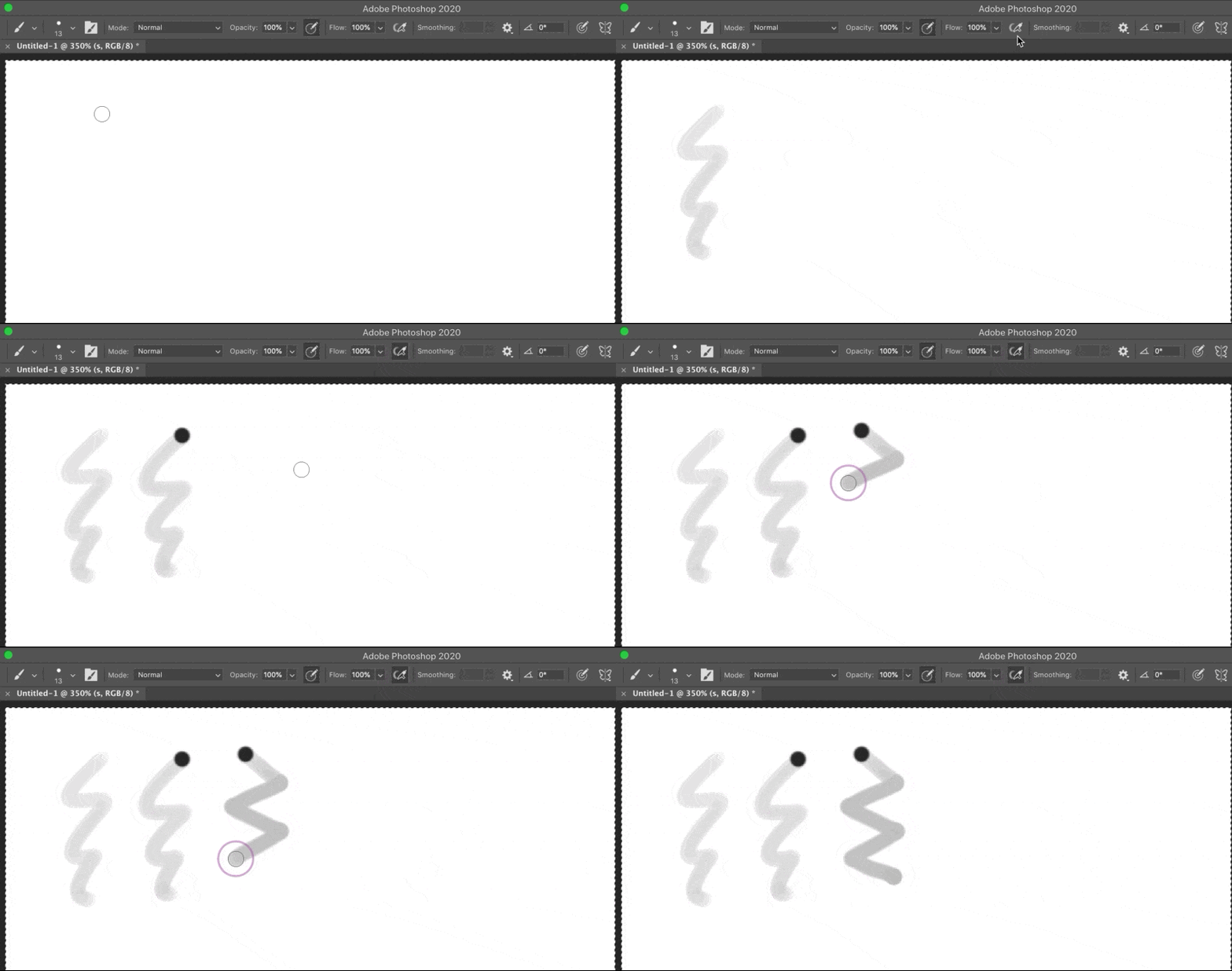
So am I just an idiot? What is going on here? Please help!

This topic has been closed for replies.
Correct answer Michael Bullo

Yeah, I've had to do that a couple times in the past too. Wacom must've gotten their sht together though, since it didn't seem to be the problem this time 😆

So, I tried using 3 different older versions and for last one I uninstalled all Wacom applications, but it didn't seem to change anything either.

Thank you for having so much patience with this, by the way! I didn't expect this to go on for so long. For... multiple reasons >_>


Thank you. Happy to help.


So it seems like your tablet is working great in all programs except Photoshop. Is that correct? If so, is it all versions of Photoshop or just the current version that you have installed? The Creative Cloud app allows you to have multiple versions of its programs, including Photoshop, installed simultaneously. Perhaps your next test is to see if the problem persists in an earlier version of Photoshop.

1 reply

Michael Bullo
Community Expert
Community Expert
July 13, 2020

Did you try resetting the preferences?

MinjiAuthor
Participant
July 16, 2020

Yes, unfortunately it didn't change anything. (Just to confirm, that's the "Reset All Locked Settings" option in the Brush Settings panel, right?)

Michael Bullo
Community Expert
Community Expert
July 16, 2020

Sorry I should have been more specific. I was referring to resetting the preferences for Photoshop. Doing so is not a big deal and something people generally do when trying to fix odd Photoshop behaviour. Keep in mind that you will lose any changes to preferences that you have made. You can find more specific information on the following page...


https://helpx.adobe.com/au/photoshop/using/preferences.html


Press and hold Alt+Control+Shift (Windows) or Option+Command+Shift (Mac OS) as you start Photoshop. You are prompted to delete the current settings. The new preferences files are created the next time you start Photoshop.