
dw27317543
Participant
June 4, 2019
Question

BUG:transparent gradient tool not transparent, fills in solid

  • June 4, 2019
  • 6 replies
  • 3661 views

I was having some issues earlier with the linear gradient tool adding a large chunk of solid color before the gradient, instead of being a smooth transition from opacity so I reset my tools and restarted Photoshop. After restarting the problem got even worse and now just fills in a solid chunk with no gradient whatsoever when trying to use transparent tools. !

Instead the default transparent tool looks like this:
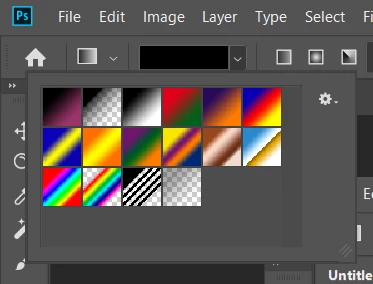
even though all its default settings are normal:
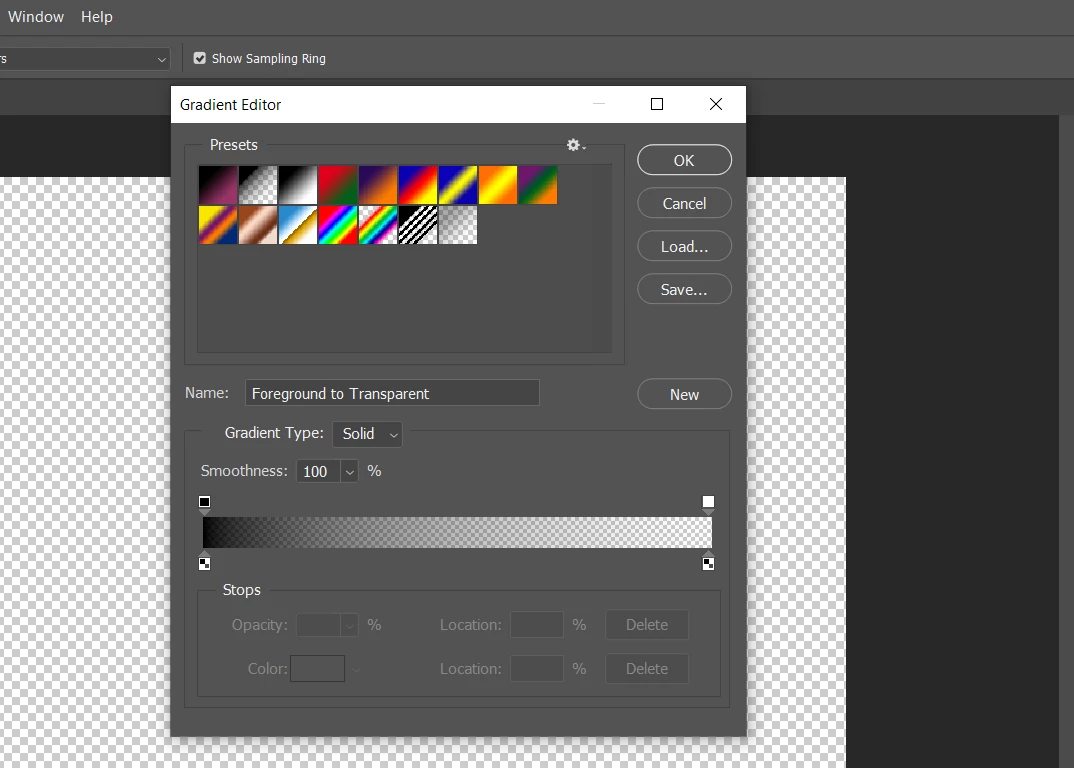
updating Photoshop and resetting tools hasn't fixed this error.

This topic has been closed for replies.

6 replies

Participant
October 22, 2021

Did you ever solve this issue? It's happening to me as well. I'm currently in the middle of a full class load, so I don't  have time to troubleshoot. I can set the layer to multiple and thwart the issue to some degree sometiems.. but that's a bad work around with very particular applications.

Jeff Arola
Community Expert
Community Expert
June 5, 2019

Make sure you have Transparency checked in the tool options bar.

without transparency checked

with Transparency checked

dw27317543
Participant
June 5, 2019

that fixed part of the problem. however I'm still suffering from a major banding issue where there's a giant chunk of space that solids color instead of being a "smooth" transition to complete black

JJMack
Community Expert
Community Expert
June 5, 2019

Are you editing in 8bit ot 16bit color mode 8bit usually has visible banding you show 8bit RGB....

JJMack
JJMack
Community Expert
Community Expert
June 4, 2019

What OS version and what version of Photoshop???

JJMack
dw27317543
Participant
June 4, 2019

I'm using windows 10 and the latest version of Photoshop since I just updated the program to try and fix the problem

Norman Sanders
Legend
June 4, 2019

Updating the app does not build a new Preferences file. Choose Preferences > General, click on the Reset Preferences,  then restart Photoshop.

Sebastian Bleak
Community Expert
Community Expert
June 4, 2019

Can you share a screenshot of how the gradient looks?

marliton
Community Expert
Community Expert
June 4, 2019

Hi. ¿Maybe, have you tried resetting the preferences?

Marlon Ceballos
dw27317543
Participant
June 4, 2019

i've tried resetting all tools to their default value

JJMack
Community Expert
Community Expert
June 4, 2019

It look like you gradient thumbnails are being scaled?  The gradient in the gradient editor look OK and you does not show any gradient in the image window.

Your's

JJMack