LEFT4LAZY
Known Participant
November 8, 2023
Answered

Can I drag and/or expand a Work Path w/o tampering it?

  • November 8, 2023
  • 2 replies
  • 410 views

Let's say I were to create a seclection using the pen tool to generate a shape - say a circle - could I then take the Work Path itself, without having to tinker with the plotted pen points, and simply expand or contrast the Path to a greater or lesser radius using some sort of doohickey. Similary, meeting all that same criteria as well, can I use a tool or key word to move that circle to a desired spot within its layer/image?
This topic has been closed for replies.
Correct answer Trevor.Dennis

You have at least two options.


If you still have the Pen tool selected, holding down Ctrl will bring up the Direct Selection tool (white arrow)

If you drag a window around the entire path so that all of it its points are solid, still holding down Ctrl and clicking anywhere on the path will change to the Path Selection Tool (black arrow) and you can move the path.  If any of the points are outlined only, then only the solid points will move.

If you use Free Transform on the path, the Path Selection tool is automatically selected, and you can move the path.


A useful thing that I am not sure is documented is that when you select a path, as above, you can copy it with Control C.

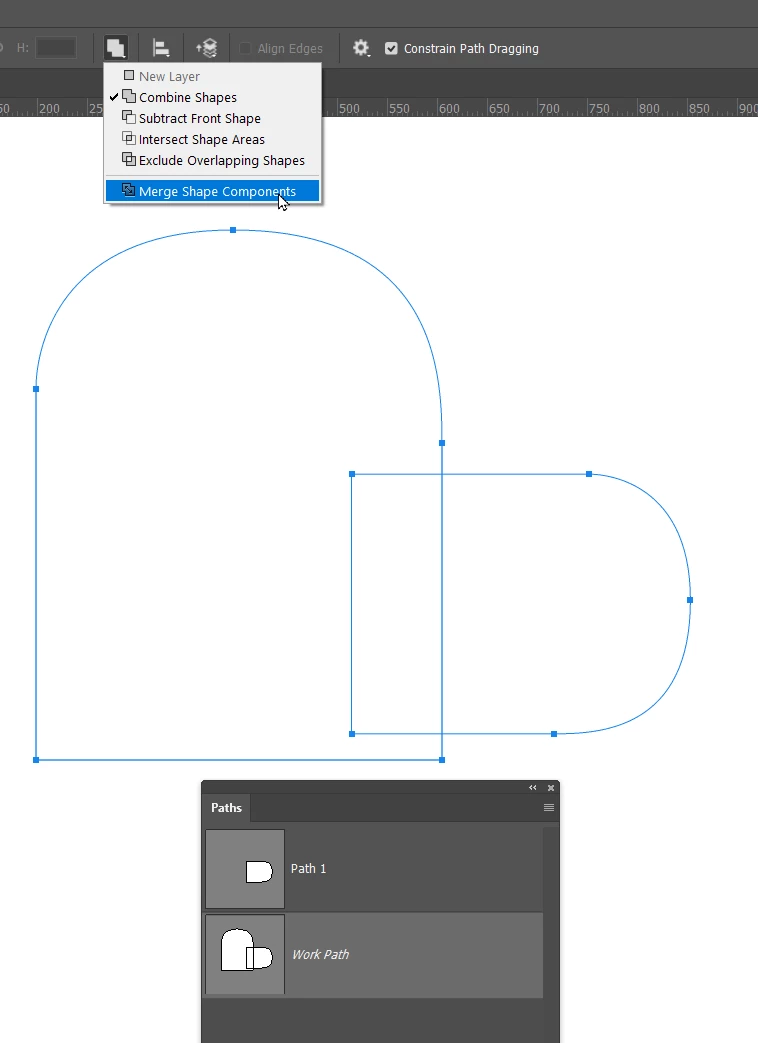
You can then paste it to another path, and merge the two together with a number of Path Operations options.


Trying the different Operations shows their effect in the icon above the list.

2 replies

Mike_Gondek10189183
Community Expert
Community Expert
November 9, 2023

Command click on the work path to make a selection

Select >> Modify >> Expand (you will find contract under there)


Trevor.Dennis
Community Expert
Trevor.DennisCommunity ExpertCorrect answer
Community Expert
November 9, 2023

You have at least two options.


If you still have the Pen tool selected, holding down Ctrl will bring up the Direct Selection tool (white arrow)

If you drag a window around the entire path so that all of it its points are solid, still holding down Ctrl and clicking anywhere on the path will change to the Path Selection Tool (black arrow) and you can move the path.  If any of the points are outlined only, then only the solid points will move.

If you use Free Transform on the path, the Path Selection tool is automatically selected, and you can move the path.


A useful thing that I am not sure is documented is that when you select a path, as above, you can copy it with Control C.

You can then paste it to another path, and merge the two together with a number of Path Operations options.


Trying the different Operations shows their effect in the icon above the list.

LEFT4LAZY
LEFT4LAZYAuthor
Known Participant
November 9, 2023

Thank you @Trevor.Dennis, didn't know you could transform a Path! I did still have to do some minor replotting with the points, but hey, it beats having to start from scratch.