
Inspiring
February 8, 2025
Answered

Can I increase the maximum allowed open files?

  • February 8, 2025
  • 5 replies
  • 1468 views

I'm using the latest Photoshop 2025 on a Windows 10 laptop.  I have a script that I use with file - automate - batch which converts RAW files to jpgs.  It will only work with 400 files.  If I have more than 400 files in the source directory, after it processes the 400th file, the process stops with an error messgae  - something like "too many open files."  Is ther some way to increase the limit?
Correct answer Stephen Marsh

@Mark37430984r9lw 


Do you seriously have 400 raw files open at once for conversion? Shouldn't the script close each file after processing?


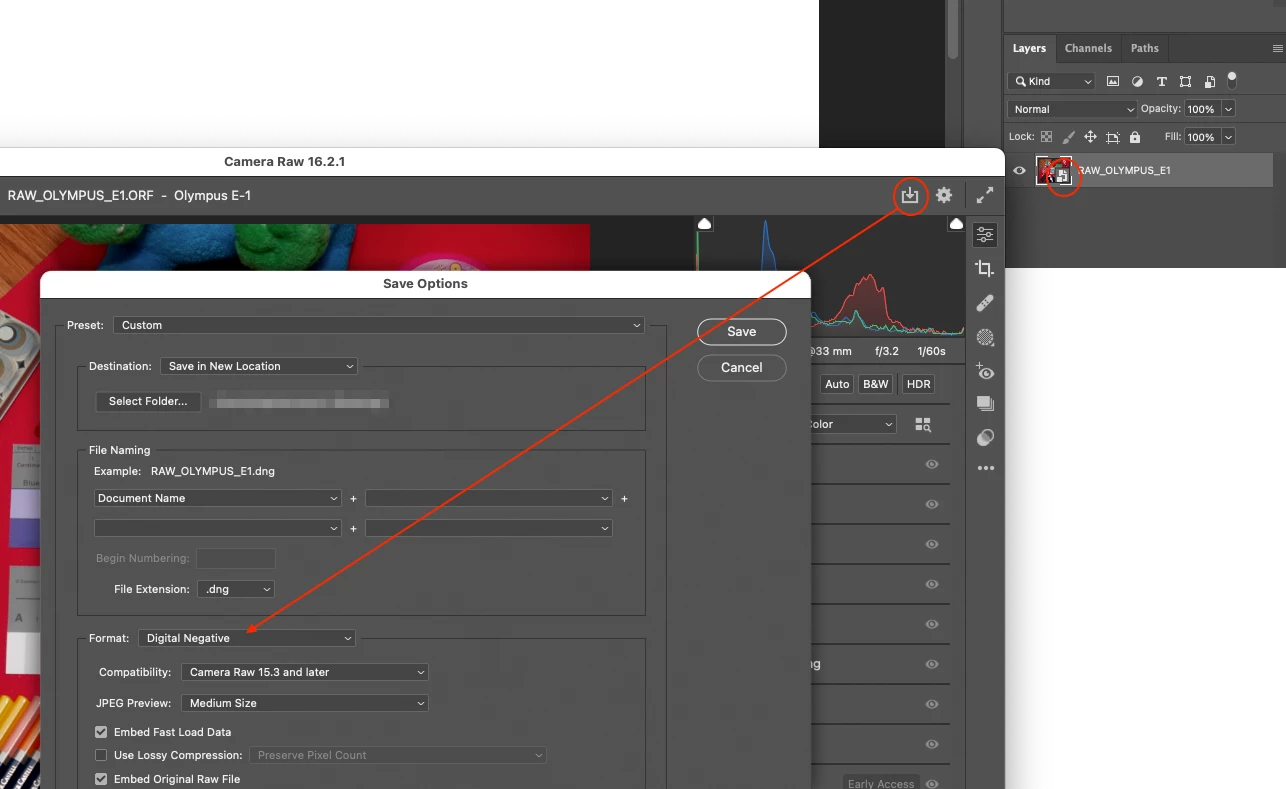
Anyway, I would suggest that you bypass Photoshop altogether, just open all raw files into ACR, select all the files and then export directly to JPEG from within ACR:


This screenshot is from another older post, ignore the fact that it shows a raw smart object and saving to DNG, the key point is that ACR has the "Save Options" button, the downward facing arrow in a 3-sided box at the upper-right of the ACR interface, which allows batch processing of multiple files selected in the ACR filmstrip.

5 replies

Bojan Živković11378569
Community Expert
Community Expert
February 10, 2025

Have you ever attempted to use the Export panel in Bridge? I'm uncertain about its limitations; in fact, I've never tried processing many files. If you have Bridge installed, I think it's worth giving it a shot.

Conrad_C
Community Expert
Community Expert
February 10, 2025

That’s a great idea, Bojan. I sometimes forget about the Export panel in Adobe Bridge.


I just used the Bridge Export panel to test converting 252 raw files to JPEG, and it worked great with no errors:

Bridge Export converted the 252 images in 3 minutes, or 1.4 images per second.

All CPU cores were fully engaged, but the GPU was not.

Bridge used about 2GB of RAM during the test.

The range of Export options is similar to Camera Raw and Lightroom Classic.


Then I tried converting the same 252 raw files to JPEG using Camera Raw hosted by Bridge:

Camera Raw converted the 252 images in 1 minute 45 seconds, or 2.4 images per second.

All CPU cores were fully engaged, and the GPU was heavily used. I think the GPU acceleration is why Camera Raw was faster than the Export panel.

Bridge memory use increased to about 22GB of RAM during the test. My theory is that because Camera Raw used the GPU, the extra memory was being used as graphics memory (VRAM) to feed the GPU acceleration. (This is an Apple Silicon Mac, so any free RAM can be used as graphics memory on demand.)


Bridge actually has another bulk processing option, the Workflow panel. I would like to recommend both the Export and Workflow panels more, but when answering conversion questions here, both sometimes fail to do the job for one reason or another. Sometimes someone wants to output PSD files, CMYK files, or resize/resample them in a way that is not an option, so Export and Workflow have not always been good enough.


But in this specific instance where someone just needs raw converted to JPEG with apparently no additional adjustments, it looks like the Export panel could be another solid solution. If it works for Mark37430984r9lw, they could skip the step of going into Camera Raw, and instead just select a bunch of images and run them through an Export panel preset they preconfigured in Bridge.

Inspiring
May 23, 2025

I really appreciate all the help I’ve received here — it significantly improved my original workflow. That said, I’ve now managed to speed things up even more — by at least 10× — and wanted to share the result in case it’s helpful to others.


I asked ChatGPT to help streamline my RAW-to-JPEG review process, and the solution has been a huge time saver.


You can download ExifTool here: https://exiftool.org/


Below are two batch files that extract embedded JPEGs from RAW files. These JPEGs are the same previews your camera generates for on-screen review. The scripts are tailored for Nikon .NRW files, but with minor tweaks, they can be adapted for other RAW formats.


Makejpgs.bat


This is the fast version. It extracts JPEG previews from your RAW files without copying any EXIF metadata. It’s perfect for quickly reviewing images to decide which RAWs to edit. In my case, it processed 100 .NRW files in just 29 seconds.


Paste this into Notepad and save it as Makejpgs.bat:


@2846721off

setlocal enabledelayedexpansion


set "exiftool_path=C:\Exiftool\exiftool.exe"

set "source_dir=D:\birding\raw"

set "output_dir=D:\birding\output"


REM Create output folder if it doesn't exist

if not exist "%output_dir%" (

    mkdir "%output_dir%"

)


REM Start timing

set /a count=0

for /f %%T in ('powershell -command "Get-Date -UFormat %%s"') do set "start=%%T"


echo Extracting embedded JPEGs...


for %%F in ("%source_dir%\*.NRW") do (

    "%exiftool_path%" -b -JpgFromRaw "%%F" > "%output_dir%\%%~nF.jpg"

    if exist "%output_dir%\%%~nF.jpg" (

        set /a count+=1

    )

)


REM End timing

for /f %%T in ('powershell -command "Get-Date -UFormat %%s"') do set "end=%%T"

set /a elapsed=end-start


if !count! GTR 0 (

    set /a avg=elapsed*1000/count

) else (

    set avg=0

)


echo.

echo ===============================

echo Total files processed: !count!

echo Total time (seconds):  !elapsed!

echo Avg time per file (ms): !avg!

echo ===============================

pause


Makejpgs+exif.bat

This version does the same as above but also copies EXIF metadata from the RAW files into the extracted JPEGs. This includes camera info, timestamps, GPS data, etc. It’s useful if you plan to use the JPEGs outside of your immediate review workflow and want them properly tagged — but note that it took 2 minutes and 7 seconds to process the same 100 files.


Paste this into Notepad and save it as Makejpgs+exif.bat:


@2846721off

setlocal enabledelayedexpansion


set "exiftool_path=C:\Exiftool\exiftool.exe"

set "source_dir=D:\birding\raw"

set "output_dir=D:\birding\output"


REM Create output folder if it doesn't exist

if not exist "%output_dir%" (

    mkdir "%output_dir%"

)


REM Start timing

set /a count=0

for /f %%T in ('powershell -command "Get-Date -UFormat %%s"') do set "start=%%T"


echo Extracting embedded JPEGs and copying EXIF metadata...


for %%F in ("%source_dir%\*.NRW") do (

    set "jpgfile=%output_dir%\%%~nF.jpg"

    "%exiftool_path%" -b -JpgFromRaw "%%F" > "!jpgfile!"

    if exist "!jpgfile!" (

        "%exiftool_path%" -TagsFromFile "%%F" -All:All -overwrite_original "!jpgfile!" >nul

        set /a count+=1

    )

)


REM End timing

for /f %%T in ('powershell -command "Get-Date -UFormat %%s"') do set "end=%%T"

set /a elapsed=end-start


if !count! GTR 0 (

    set /a avg=elapsed*1000/count

) else (

    set avg=0

)


echo.

echo ===============================

echo Total files processed: !count!

echo Total time (seconds):  !elapsed!

echo Avg time per file (ms): !avg!

echo ===============================

pause

Just open either file in Notepad (or your preferred text editor), update the folder paths to match your system, then save with a .bat extension.

Double-click to run.


Hope this helps someone else speed up their post-shoot review process!


Conrad_C
Community Expert
Community Expert
February 10, 2025

I think adding the step to close each file after conversion will solve the immediate issue.


But, I have to strongly agree with the others that if this is only about conversion of raw to JPG, Photoshop is the wrong tool to use, and the right tool is Adobe Camera Raw (when hosted by Adobe Bridge, not Photoshop) or Lightroom Classic.


The major benefits are speed and efficient resource usage. When you bulk convert through Photoshop, it’s a serial process: Your action or script has to have Photoshop open each raw file in turn, which actually opens Camera Raw first for each file, then converts to a Photoshop document, which now must be saved and then closed.


When you do the bulk conversion in Adobe Camera Raw or Lightroom Classic, a number of inefficiencies are swept away:


ACR and Lightroom Classic can process in parallel, able to convert multiple files simultaneously. The more CPU cores you have, the faster it goes. Photoshop, processing files serially, cannot do this.


In ACR and LRC, instead of having to record or script the settings, you just create an export preset with the needed settings (color space, bit depth, file format, compression, metadata…), then apply that preset to the batch export job.


Exporting happens in the background, so you can actually continue to use ACR or LRC for others things while they export. In comparison, Photoshop is locked off the entire time it’s batch processing, while you watch it go through opening, editing, and closing files as if a human was in the loop slowing things down.


ACR and LRC support GPU acceleration for exporting. If you have a compatible GPU, this means exporting could happen faster with lower CPU load compared to Photoshop, on top of the time savings of parallel processing.


If there are no steps in your conversion that actually have to be done by Photoshop, like if every conversion requirement can be covered by the extensive export options in ACR and LRC, then there is no reason to unnecessarily slow down your batch process by making Photoshop do it. Instead use Camera Raw or Lightroom Classic, and take advantage of parallel processing, background export processing, GPU acceleration, and export presets. I’ll bet they need less RAM than Photoshop to do this, too.

Inspiring
February 15, 2025

Ty - pls advise on the specific steps to do thsi with Adobe camera RAW, as when I open two images with it, the save process only saves the first.  Not sure how to get it to batch process.

Conrad_C
Community Expert
Community Expert
February 16, 2025

Stephen answered this a little earlier, and he’s right…the annoying thing about the Camera Raw method is that you have to select multiple files twice: First, in Bridge, to tell Camera Raw how many files to open, and then in Camera Raw itself after it opens, Select All must be applied so that all loaded files will be exported. (Obviously this is a feature, so that if you load 200 files into Camera Raw and only want to export a few, you can select just the ones you want to export.)


Select All is on the menu you get when you click the ellipsis (…) button that appears when you hover the pointer over any image in the Camera Raw filmstrip, as shown in the picture below. Or, you can get that menu by right-clicking any image in the filmstrip.


Notice the difference:

Before choosing Select All, in the top picture, only one image in the filmstrip has a thick outline indicating it’s selected.

After choosing Select All, in the bottom picture, all of the pictures in the filmstrip have a thick outline indicating they’re selected.


When you save/export from Camera Raw, the selected images are processed as a single batch. If you Select All, then all are exported.


Multi-image selection works the same as on the desktop:

To select a range, click one image and Shift-click another; all images in between are selected.

To select any combination of photos, Command-click (macOS) or Ctrl-click (Windows) images one after the other.

D Fosse
Community Expert
Community Expert
February 9, 2025

Or use Lightroom classic, which is specifically designed in all aspects to deal with high volume processing.


But even in Photoshop, I don't understand why this should stall at all, as long as one file is processed and closed before the next one opens. Then a batch could in theory run indefinitely and never stop until you ran out of files. It wouldn't consume more RAM and scratch disk than the one single biggest file.

creative explorer
Community Expert
Community Expert
February 9, 2025

@Mark37430984r9lw Curious, wouldn't 400 RAW file NOT SERIOUSLY SLOW DOWN your computer? I agree with @Stephen Marsh , a closing of the RAW image would fix that issue. 

m
Stephen Marsh
Community Expert
Stephen MarshCommunity ExpertCorrect answer
Community Expert
February 9, 2025

@Mark37430984r9lw 


Do you seriously have 400 raw files open at once for conversion? Shouldn't the script close each file after processing?


Anyway, I would suggest that you bypass Photoshop altogether, just open all raw files into ACR, select all the files and then export directly to JPEG from within ACR:


This screenshot is from another older post, ignore the fact that it shows a raw smart object and saving to DNG, the key point is that ACR has the "Save Options" button, the downward facing arrow in a 3-sided box at the upper-right of the ACR interface, which allows batch processing of multiple files selected in the ACR filmstrip.

Inspiring
February 9, 2025

I'm new to this, and when I wrote the script with the Adobe recorder function, I didn't bother to close the files.  So, with my workflow, I either have to keep depressing "N" when asked to save each file when I try to exit Adobe, or use task manager to forcr quit the app.  I'll re-write the script to close the files first.

Stephen Marsh
Community Expert
Community Expert
February 9, 2025

Ah, I think that you mean an Action, not a script. Recording or inserting a menu command to close is most likely going to fix the issue.


Regardless, batch saving directly from inside the Adobe Camera Raw plugin offers many advantages over rendering the files to open documents in Photoshop and batch processing there.