mits5k
Participant
June 13, 2017
Answered

Can somebody help me identify how to recreate this effect?

  • June 13, 2017
  • 2 replies
  • 351 views

I really love the effect on the letters on the left of the text here being broken out into the color spectrum and spread from an axis point. Can anybody identify a shortcut that might be used to accomplish this, or do I just need to create a bunch of layers, color them differently, and stack them? I'm pretty novice with Photoshop, but would really appreciate some guidance on recreating this effect! Thank you in advance!
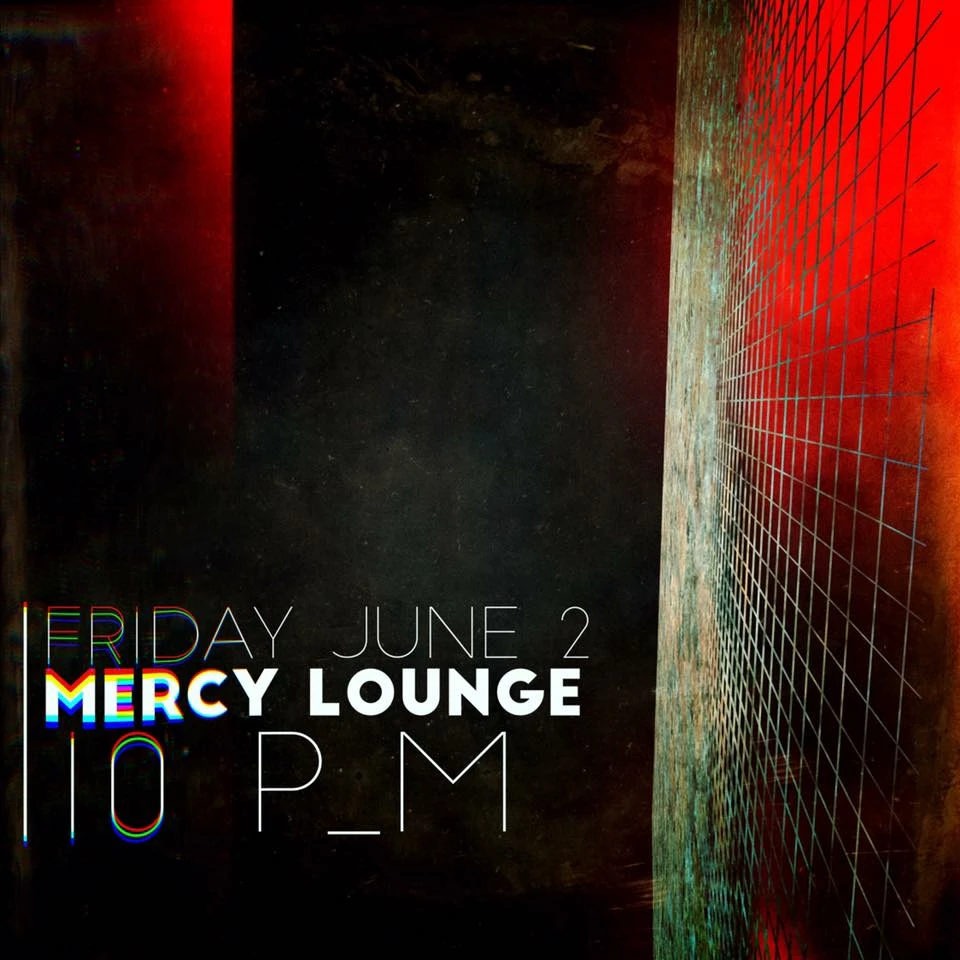
    This topic has been closed for replies.
    Correct answer WILDCAT54

    This effect looks to be a pretty simple manual process.

    I was able to recreate the effect in just a few minutes by duplicating my text four times for each color represented.

    I then took each layer and converted it to a smart object and then changed the perspective of each layer ( CTRL + T > Right Click > Perspective)

    2 replies

    barbara_a7746676
    Community Expert
    Community Expert
    June 13, 2017

    You may need to fiddle with the positioning a bit, but this should get you very close.

    1. Type the text. It should have a white fill color.
    2. Type > Rasterize Type Layer.
    3. Image > Mode > CMYK (if the image is not already CMYK)
    4. In the Channels panel, target only the Cyan channel.
    5. Make a selection around the text, and move the text down a bit.
    6. Repeat for the Magenta and Yellow channels. Move each channel either in a different direction or by a different amount.
    7. Click the composite CMYK channel to see the results. I've exaggerated it below.

    If you want to be able to see the effect as you're working, you can make all channels visible. Just make sure that only one channel is targeted at a time while you are moving the pixels.

    WILDCAT54
    WILDCAT54Correct answer
    Inspiring
    June 13, 2017

    This effect looks to be a pretty simple manual process.

    I was able to recreate the effect in just a few minutes by duplicating my text four times for each color represented.

    I then took each layer and converted it to a smart object and then changed the perspective of each layer ( CTRL + T > Right Click > Perspective)

    mits5k
    mits5kAuthor
    Participant
    June 13, 2017

    I wish I could mark both of these answers as correct because combining the two effects is perfect. Thank you!
