


mohamedh78426672
Known Participant
June 16, 2025
Answered

Can't add a bottle of beer and make it look realistic

  • June 16, 2025
  • 3 replies
  • 292 views

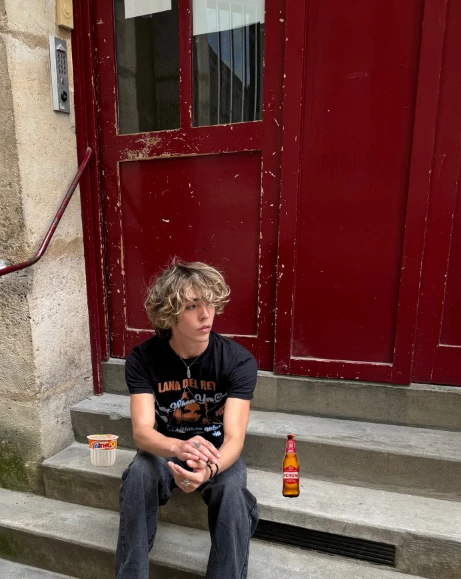
Before working on shadows and colours i would like to be able to add bottles with the brand visible. Every time I resize the bottle to make it realistic it becomes a mess. I also tried resizing, keeping proportions but it's still not good. The reason i think it's doable it's because there's a lot of pictures with this same propotions of someone that has a bottle next to him with the brand visible, so I guess I'm makling some mistake here. Any advice?

Correct answer davescm

There are several things wrong that make it look false


1. The angle that the bottle has been photographed is fairly straight on (look at the label) but it has been placed looking down on it. Either warp the sections to match the perspective or use another bottle photograph

2. The bottle has bright edge lighting that does not match the surroundings. You could take that out by painting with a layer set to luminosity and clipped to the bottle layer. You may need a second set to colour blend mode, also clipped to the bottle to correct edge contamination.

3. The bottle looks slightly over-saturated compared to the surrounding picture.

4. The picture is lit from the right (look at the door frames and the face) the bottle should also be lit that way. You can correct that at step 2 above.


I hope that helps

Dave

3 replies

Trevor.Dennis
Community Expert
Community Expert
June 17, 2025

Hi Mohamed.  Dave has given you excellent advice, so I'll just add a couple of points.


As Dave said, you must make the bottle fit the scene's perspective, and in this case that means you are looking down on it.  The bottle has no label, and that is deliberate.

It takes at least two shadow layers to look convincing.  A harder shadow that ties the object to the ground, and a softer shadow that matches the scene's lighting.  So the bottle on the left has the hard shadow, the bottle on the right has a softer shadow.  In actual fact, they both started as identical ovals, but with different amount of Gaussian Blur.

The neck of the bottle is translucient, so we should be able to see the step behind it.  What I've done here is to make a copy of the step the shape and size of the bottle, and move the layer above the bottle layer.

I've added a layer mask to that layer, and filled it with black to make it invisible.


I then used a white brush to paint where the step should show through.  (this just shows the mask)


Two things are happening here.  I reduced the step layer's opacity to reveal about the right amount of the step. The other issue was that the step is grey, which effectively desaturated the bottle's colour, so I set the blend mode to Opacity so it shows the texture and outline without affecting the colour.


The bottle is a Smart Object, so I can double click it to open in a new window, and it's there that we add a label.

The label is also a Smart Object, which is super useful because it is actually a rectangle.

You can see how much easier it is to design your label as a rectangle, and modify that label as many times as required.


We shape the label the bottle with Free Transform > Warp > Cylinder

This is a fairl recent addition, and incredibly useful

The final touch is to give the label the hint of a shadow to make it stand proud from the bottle. Drop shadow doesn't work, but we can use Outer Glow if we change the blend mode to Multiply.


Image upscaled and sharpened with Topaz Photo Ai


davescm
Community Expert
davescmCommunity ExpertCorrect answer
Community Expert
June 16, 2025

There are several things wrong that make it look false


1. The angle that the bottle has been photographed is fairly straight on (look at the label) but it has been placed looking down on it. Either warp the sections to match the perspective or use another bottle photograph

2. The bottle has bright edge lighting that does not match the surroundings. You could take that out by painting with a layer set to luminosity and clipped to the bottle layer. You may need a second set to colour blend mode, also clipped to the bottle to correct edge contamination.

3. The bottle looks slightly over-saturated compared to the surrounding picture.

4. The picture is lit from the right (look at the door frames and the face) the bottle should also be lit that way. You can correct that at step 2 above.


I hope that helps

Dave

Bojan Živković11378569
Community Expert
Community Expert
June 16, 2025

I am not sure what you are asking. Do you want the brand on the bottle to appear realistic when placed, and not pixelated? Ensure that the bottle matches the image; it needs to be at a pixel size that is suitable for the parent image. If the parent image is 4000x4000px and the bottle image is 100x100px, there isn't any magic to make it look as you might want it to.