
Known Participant
September 29, 2019
Question

Can't create a filled circle with different opacity border in photoshop

  • September 29, 2019
  • 4 replies
  • 2134 views

Hi all,


Why is it that I cant find anywhere how to create a filled circle with the same color border but with a different opacity?

Now to explain so I dont get unwanted answers. 


I can easily create a ring with a solid color and make the thickness of the ring whatever I like. And I can change the opcacity no problem. I can also create a fill circle and change the color and make the opacity whatever I like, easy!


But when I try to make a red filled circle with faded opacity and then have a solid border the same color I cant find any videos on youtube explaining how to do this. Surely it cant be that difficult.


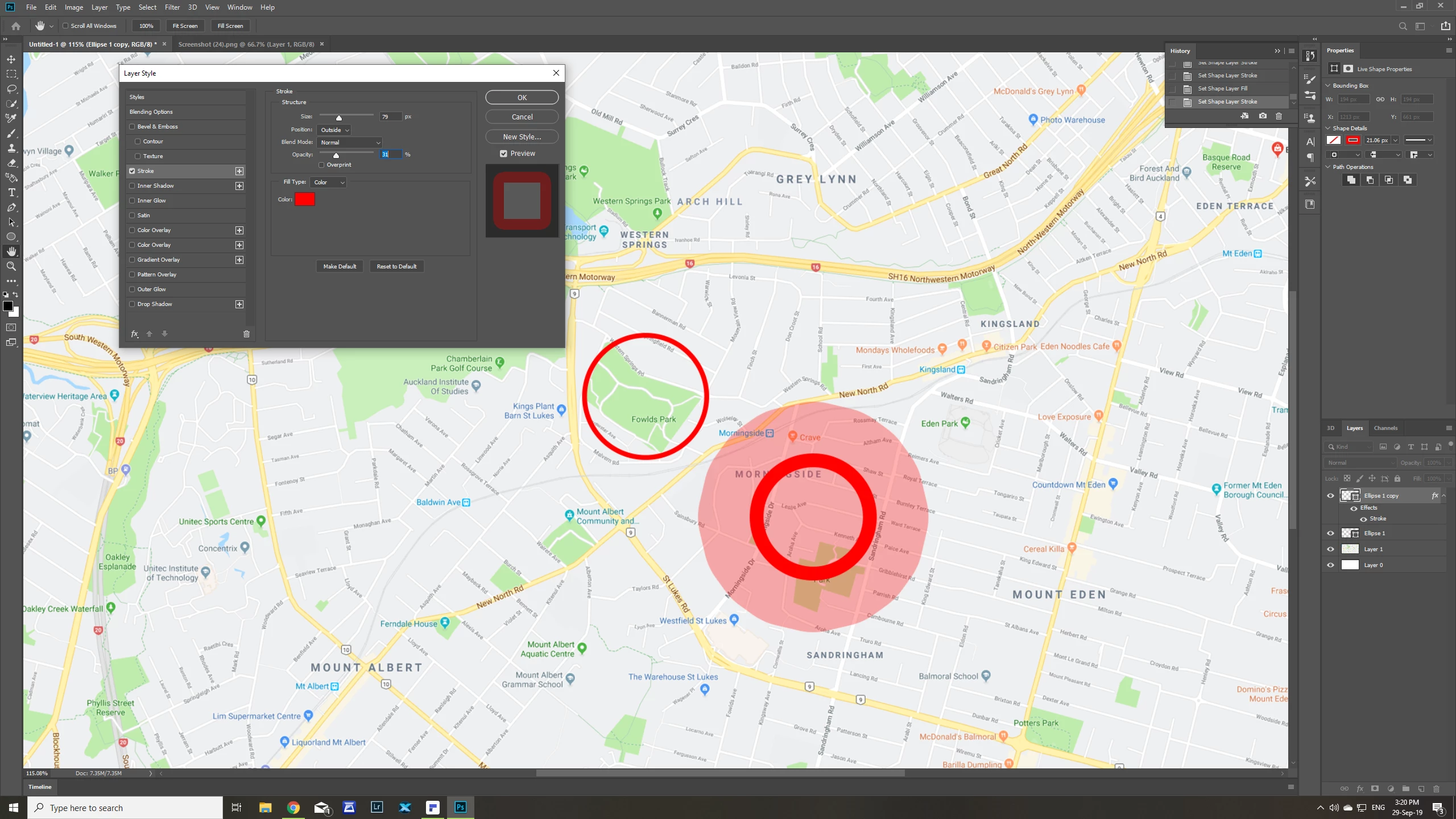
See photo
This topic has been closed for replies.

4 replies

Known Participant
September 29, 2019

Got it! I did it using the blending options. See photo.

Thanks for the advise which made me keep trying different combinations. 

Jeff Arola
Community Expert
Community Expert
September 29, 2019

You could use two ellipse shape layers.


Draw you inside ellipse, then use the tool options bar to set the Stroke with no Fill


Put the second larger ellipse shape layer below, draw you ellipse, select the two ellipse layers and use the move tool align options to center the layers to each other. Then on the bottom ellipse layer set the fill opacity as desired and use the options in the tools options bar to set to outside stroke.


Or use one Ellipse shape layer, set the settings in tool options bar to both stroke and fill as red, then use the Layer Fill Opacity to reduce the inside red fill.


Known Participant
September 29, 2019

Thank you for helping out. But these haven't worked. I got it to work in reverse now though. See picture.

I know I can do it with two circles but you kind of have to guess where the other circle fits inside. Surely there is a way to do it using one circle. See my picture here this is what I want but the solid line on the outside, with the faded opacity on the inside.

Trevor.Dennis
Community Expert
Community Expert
September 29, 2019

Have you thought of using Layer Styles?

Double click the layer to open Layer Styles, and use Strokes.

Stacked Layer Styles work a bit like normal layers, in that the upper one overwrites those beneath it.

So I start with a filled circle and set its _fill_ opacity to 50% this affects the filled circle, but NOT any layer styles you apply.

I have added a 50 pixel stroke with opacity set to 100%


Then add another Stroke beneath it (by clicking the + sign) and making its size larger, and opacity lower.  This gives us the overlap

If you need to go a different way then give us some more information, and we'll explain how to achieve it.

Good luck. 😊

Chuck Uebele
Community Expert
Community Expert
September 29, 2019

Create the filled circle, as a shape layer, and not as a layer style. Then use layer style to create the stroke. Then use fill opacity to control the opacity of the fill.