
Participant
October 18, 2017
Question

Can't Make Adobe Photoshop CC 2018 Default Application in macOS Sierra

  • October 18, 2017
  • 27 replies
  • 31012 views

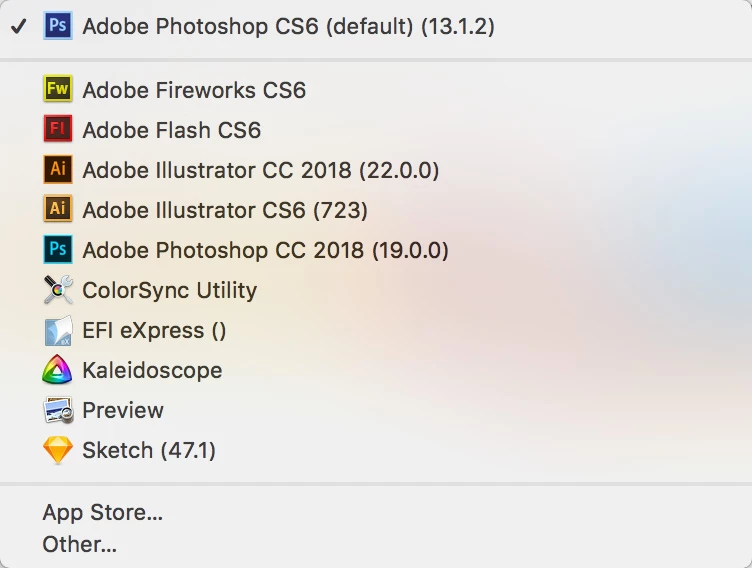
Just updated from CC 2017 to CC 2018 today. Prior to the update, CC 2017 was my default application for all PSD, JPEG, GIF, PNG, etc. files. I still have CS6 installed on my Mac and it's now the default application for these files. I can change it to Adobe Photoshop CC 2018 (19.0.0.) individually for each file, but I can't to a system wide change through Finder.

When I right-click a file and choose Get Info and change Open With to Adobe Photoshop CC 2018 (19.0.0.) and click Change All it immediately reverts back to CS6 as the default. But I can do the above steps on a file-by-file basis and it will stick for each file.

I restarted and zapped PRAM but it did not fix the issue. Haven't tried uninstalling CS6, but the point is I had CS6 installed along side CC 2017 and CC 2017 had no trouble being assigned the default status.

Did I find a bug in CC 2018?
    This topic has been closed for replies.

    27 replies

    ShareYourBrilliance
    Participant
    August 28, 2018

    Ta da - I found a solution to make PS 2018 the default program to open files...

    Highlight any file type you want Photoshop to open by clicking on it once. Press Command+I or choose Get Info from the menu bar at the top. Under the "Open with:" section, choose Photoshop as the application you want to use, then click the "Change All..." button. Close the Get Info box.Jul 22, 2009 Making Photoshop default for opening imag… - Apple Community https://discussions.apple.com/thread/2090220

    Participating Frequently
    August 28, 2018

    That's usually the way to make it work, but when the latest was released (at the time), that solution no longer worked.

    Adobe has updated Photoshop a few times since then, and it does work now.

    Dominic310
    Participating Frequently
    June 1, 2018

    I'm actually trying the opposite, I'd like to keep 2017 the default rather than 2018. I hate the drag feature for brushes in 2018. How can I make 2017 default?

    I'm using a Mac

    gener7
    Community Expert
    Community Expert
    June 2, 2018

    Cmd i on all files you  want to open in 2017. Select CC 2017, then click the "Change All" button and those files can open in 2017 from now on.

    Dominic310
    Participating Frequently
    June 2, 2018

    now that was easy! thank you!

    Armadillo77
    Known Participant
    March 4, 2018

    The most recent Mac High Sierra update may have fixed this issue.

    Known Participant
    February 16, 2018

    The Photoshop file association on my brand new iMac 2017 [High Sierra,10.13.3 (17D47)] is ok for a while then it's not; it changes to whatever else I have installed to work with raster images, like Apple's Preview, like Corel Painter, like Autodesk's SketchBook ... it's random. I fix it (info window, etc. already explained) and a few days later, maybe "tomorrow", associations are misbehaving again. They just don't stick as they should. Photoshop is the only app that has this "issue". I'm now used to start every session by checking .psd, .jpg, .png, etc. associations ... A royal pain in the rear. A.C.

    gener7
    Community Expert
    Community Expert
    February 16, 2018

    I know I have 10.13.3 on my mid 2012 MBP and  this is happening. I was to get a support higher-up and they sent me me a Capture log app to record the system state when it happens and upload it to them.

    Meantime boot into Safe Mode and then reboot to fix the launch database which keeps track of file associations.

    Also if you are using FireFox Quantum...it's been noted to affect file associations upon saving images.

    I have to wait for word from Apple when they finish looking over the logs and no guarantees there.

    I had two Macbooks running High Sierra and I downgraded one to Sierra 10.12.6 No such problem in Sierra as far as I can see.

    Gene

    melodyc38572292
    Participant
    February 15, 2018

    I just noticed this problem (on El Cap 10.11.6), after having CC 2018 installed for over a month.

    Here is the behavior I have seen:

    The default program is still set to CS6 and can't be changed en masse as specified by the original post.

    If I open a file with out Photoshop CC 2018 open, it defaults to CS6 and opens the file using that.

    If I open a file with Photoshop CC 2018 open, it opens in CC 2018, regardless of whether or not CS6 is open.

    I guess I usually have Photoshop already open when I open files. This is strange behavior and would be very frustrating if I wanted certain files to open in CS6 for some reason, but isn't impeding my workflow in any serious way for now.

    gener7
    Community Expert
    Community Expert
    February 15, 2018

    If these are PSD files, you can set 2018 via Get Info, but it will be on a one by one case. You can't use "Change All" button. It's an acknowledged bug, and when it will be fixed, I'm not sure.

    Alternatively you can install CC 2017 and associate files with that.

    Gene

    Participating Frequently
    February 26, 2018

    I have a similar problem with Photoshop CS3 and 2018CC, and have a simple workaround.

    My workaround was to zip the CS3 application (you have to authenticate it). The zipped file will appear on the desktop. I moved it back to the CS3 folder (authenticate again), then delete the CS3 application (authenticate again).

    After that, all PSDs showed up in Get Info as "Open With 'Photoshop 2018 CC' "

    If I need CS3, I just unzip it (it shows up on the desktop), move it back to CS3 folder (authenticate), and launch it. I just have to trash the application again afterwards or PSDs want to continue opening with it. The zipped CS# application file stays in the CS3 folder, and no need to uninstall or re-install the application.

    Participant
    January 24, 2018

    Hi All, I have found a work around. Firstly uninstall CC 2018 version. Following, simply delete the "." from your cs6 photoshop software. Make it a non software for the time being. It will turn into a folder icon. So this is what it will look like. Adobe Photoshop CS6app, without the dot.

    Install CC 2018 and WALA, all images will open in the latest Photoshop CC 2018 because CS6 temporary is not around.

    Try it.

    Thanks

    Good Luck

    adriaw17030514
    Participant
    January 24, 2018

    That worked, thank you. It was messing up my whole computer...

    adriaw17030514
    Participant
    January 8, 2018

    Adobe hasn't fixed this yet... I just upgraded to CC2018. I'm running os high sierra. The cc2017 files are still in the Applications file, AI, PS etc. If I go to open an AI file it just crashes, if I go to open a PS file it says "the application Photoshop 2017 cannot be opened". It will open if I open PS 2018, and when I save it it still thinks it's a PS2017 file. ID seems to sort of work, but I get the unresponsive issues, eventually it might open. LR is just slow, lots of pinwheels of death. I am going to blame high sierra for this too!


    Can I just delete the 2017 apps? How do I go back to CC 2017? If I uninstall CC2018, how do I get 2017 back?


    thank you and I hope everyone is managing to find a way through this

    ArtistDavid
    Participant
    February 7, 2018

    I'm having similar problems with images having no idea what .app to open in.

    I'm running an older macPro Desktop and locked into El Capitan. After my CC2018 upgrade .png's want to open in Illustrator, .jpg's try to open in MPegStreamClip, and on occasion .psd's will try to open in Illustrator. Lot's of fun.

    Any "Open With" setups don't work,, or are very inconsistent.

    I've attributed much of it to my older machine,,

    No Solution Here.

    Participant
    January 8, 2018

    move your "Adobe Photoshop CS6" from Application folder to Desktop (backup)

    cb87315498
    Participant
    January 3, 2018

    I'm going with joe.pagan​'s answer. Worked for me using El Capitan 10.11.6 and PS CC 2018. image files (png, jpg, etc) were opening with AI, Open Office and other random programs after updating to PS CC 2018. I wasn't getting duplicate versions of PS in the open with menu but rather PS wasn't in the "open with" dropdown options at all. (but I could select it using the "Other..." option). Ran the commands he recommended in Terminal and so far it's working. (fingers crossed...)

    Figured out a fix for this, if you don't have the older version installed.

    As suggested here: How to Remove Duplicates & Customize the “Open With” Menu in Mac OS X « Mac Tips :: Gadget Hacks

    I believe this is probably Adobe's fault because they've been retarded for years rather than MacOS, but, anyway...

    The "Open With" apps are made up from a file which needs to be reset, as suggested on the post you can do this by doing the following opening terminal and running the following line:

    /System/Library/Frameworks/CoreServices.framework/Frameworks/LaunchServices.framework/Supp ort/lsregister -kill -r -domain local -domain system -domain user; killall Finder

    After running this the older missing version of photoshop disappeared from the menu.

    Participant
    December 22, 2017

    Subscribing because I have the problem too. Thing is, it only started today, and it's been over a month since I updated any of my Adobe programs. Why would it suddenly be different this morning?

    El Capitan

    CC2018 and CS6

    Participant
    December 30, 2017

    Issue : Same as everybody else here. I can assign Photoshop 2018 to individual files, (via file info palete) but cannot assign Photoshop 2018 globally for all .psd files.

    My Not Very Elegant Solution : I had a legacy CS3 copy in my applications folder, alongside CC 2018.  CS3 the last version I owned before going to subscription versions. This old version is what it will revert back to on a failed attempt to do a global change.  So I simply took away that fall back option.  I'm hesitant to delete something I paid for, so I just zipped the Photoshop CS3 application folder.  Left the .zip file in the apps folder and deleted the unzipped folder. I'll still have CS3 if I need it, but the system isn't seeing it. I now have CC 2018 for all psd files. Not very elegant, but it works. Weird, been using Photoshop since Mid 90s. (Version 2.5 installed via 7 floppy disks lol). My usual bag o tricks were no use on this problem, but this method worked for me.

    Note: If a conflict with a previous (and missing) version is your issue, I'd look at Joe.Pagan's Reply #44.

    My System : Sierra 10.12.6,  2012 Mac Pro 5.1, 12 core 3.47 Ghz.