simonh78076528
Participant
September 14, 2021
Answered

Can't print in colour

  • September 14, 2021
  • 3 replies
  • 2111 views

Hi there,


I'm trying to print a colour jpeg image through my HP Deskjet 2630 printer... 

Through Photoshop print window it defaults to a B&W Generic Gray printer profile. Very frustrating. See image example. There doesn't seem to be anywhere in printer settings to manage the printer's colour set up. 

Any help would be awesome.

This topic has been closed for replies.
Correct answer NB, colourmanagement

This is not how I would print (see below for "Photoshop Manages Color") but FYI, our HP 8750 does include colour controls but only if you:

1: select "printer manages color" in Photoshop

and next in print settings 

2: select "vendor matching" 

"vendor matching" means that the HP driver software manages colour [not the operating system]

you'll see that my mac driver also offers ColorSync as an option [above].

When that’s selected, the expanded color section [see below] basically tells me that HP cannot control the colour. 


Next, still in print settings /  "paper type/quality"

3: click to expand color options and you'll see a greyscale option, make sure one of the color options is selected. 
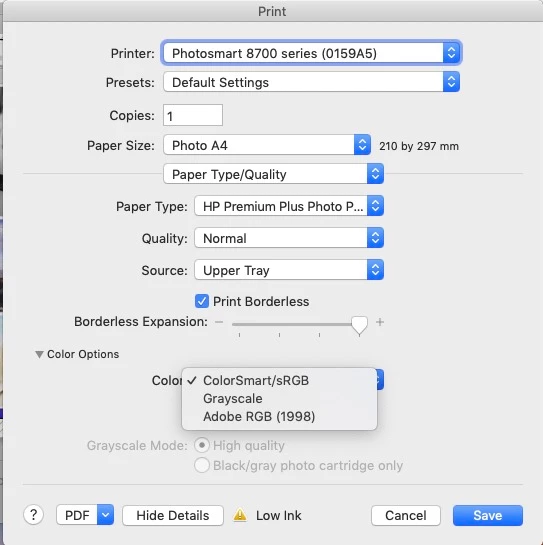
 

honestly its because of such options hidden in different places in different print drivers that "Photoshop Manages Color" works best.


I hope this helps
neil barstow, colourmanagement net :: adobe forum volunteer
google me "neil barstow colourmanagement" for lots of free articles on colour management
[please only use the blue reply button at the top of the page, this maintains the original thread title and chronological order of posts]

 

3 replies

NB, colourmanagement
Community Expert
Community Expert
September 15, 2021

Hi, can I presume that your image is RGB as the doc space appears to be sRGB?

Ideally it would be flattened (no layers)

Why not try a test with another image? this test image would make a good test:- https://www.colourmanagement.net/downloads/CMnet_Pixl_AdobeRGB_testimage05.zip
Try setting the print dialog to "Photoshop manages Color" and choose a colour profile for the printer / paper


I hope this helps
neil barstow, colourmanagement net :: adobe forum volunteer
google me "neil barstow colourmanagement" for lots of free articles on colour management
[please only use the blue reply button at the top of the page, this maintains the original thread title and chronological order of posts]

NB, colourmanagement
Community Expert
Community Expert
September 15, 2021

HP printers can make a test from the front panel I think - so why not do the HP test print from the printer panel and see if it actually CAN print colour? 


I hope this helps
neil barstow, colourmanagement net :: adobe forum volunteer
google me "neil barstow colourmanagement" for lots of free articles on colour management
[please only use the blue reply button at the top of the page, this maintains the original thread title and chronological order of posts]

NB, colourmanagement
Community Expert
NB, colourmanagementCommunity ExpertCorrect answer
Community Expert
September 15, 2021

This is not how I would print (see below for "Photoshop Manages Color") but FYI, our HP 8750 does include colour controls but only if you:

1: select "printer manages color" in Photoshop

and next in print settings 

2: select "vendor matching" 

"vendor matching" means that the HP driver software manages colour [not the operating system]

you'll see that my mac driver also offers ColorSync as an option [above].

When that’s selected, the expanded color section [see below] basically tells me that HP cannot control the colour. 


Next, still in print settings /  "paper type/quality"

3: click to expand color options and you'll see a greyscale option, make sure one of the color options is selected. 


honestly its because of such options hidden in different places in different print drivers that "Photoshop Manages Color" works best.


I hope this helps
neil barstow, colourmanagement net :: adobe forum volunteer
google me "neil barstow colourmanagement" for lots of free articles on colour management
[please only use the blue reply button at the top of the page, this maintains the original thread title and chronological order of posts]


davescm
Community Expert
Community Expert
September 14, 2021

That B&W profile is not being used at all. The printer profile in that dialogue only comes into use if you choose Photoshop Manages Colors in the box above it, at which point you can change it.

Whilst you have "Printer manages colours" set, the printer driver is managing the color and all settings are accessed via "Print settings" at the top of the page.


Dave

simonh78076528
Participant
September 15, 2021

Hi Dave, thanks for your response. I agree the print driver mangaes the colours, however through the print settings in photoshop or any other application for that matter, i get the same outcome. Just prints greyscale. I've updated the HP drivers too. If you click on print settings they're is no colour settings, just draft or B&W to change... am I right in thinking this?


Cheers Simon

Legend
September 15, 2021

Some printers have a black and white colour setting in the print driver.

Some printers have a front panel option.

Some printers automatically switch to black and white if a colour ink runs out.


Since it is happening with all apps, there is no use trying to solve it inside Photoshop.

CShubert
Community Manager
Community Manager
September 14, 2021

Hi, a few questions, is this the first time you have used this printer, or is this a new behavoir since you added/changed anything? What version of Photoshop are you using, do other images print in color and just not this one?  If you can share more info on the steps you are taking before you are seeing this issue it will help the team on the forum get to the root cause of this issue.

Thank you,

simonh78076528
Participant
September 15, 2021

Hi Cory, thanks for your response. Any image only prints in greyscale. Using latest version of photoshop too.


In terms of steps, literally go to print use default print settings. All draft or B&W settings are off, that's pretty much it. Also I have updated the HP print drivers as well. In print settings there doesn't seem to be any colour attributes to turn on or off.   


Thanks Simon