Participant
October 30, 2022
Answered

Can't save image to own computer hard drive...

  • October 30, 2022
  • 9 replies
  • 1145 views

I can't save the image file on my computer's hard drive. Photoshop defaults to the Creative Cloud service and when I try to switch, Photoshop freezes.

This topic has been closed for replies.
Correct answer Michael Bullo

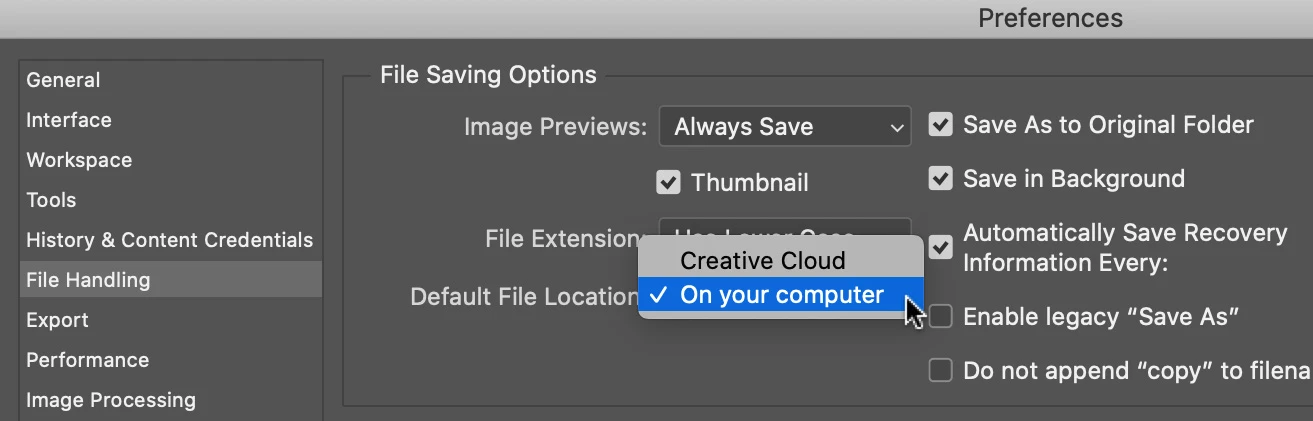
Mac: Photoshop > Preferences > File Handling
Windows: Edit > Preferences > File Handling


Does changing the Default File Location help?
 

9 replies

Participant
October 30, 2022


That problem is now finally solved. Preferences -> File Handling -> Enable legacy "Save As", then all works. Now I can change file format and even Save my images to the hard disk....

Participant
October 30, 2022

Well I ever uninstall PhotoShop and install it again. I make new preference settings, but there is still a problem. I can only save my pictures on TIF-format. If I try change file-format -> PhotoShop freezes. Save button is still out of SAVE AS window frame, and button is "grey", not active at all. Is the problem my new computer Mac Studio with OS Ventura 13.0 system, because PhotoShop works perfectly with Old MacBook Pro, with older OSx system...

Community Expert
October 30, 2022

Try deleting the Prefrence files for Photoshop in the user Library folder. The prefrences may be corrupted, then restart Photsohop and it will regenerate new Prefrences. 

Participant
October 30, 2022

Seems like there is problem again. Photoshop lost its Preferences settings and 

I can't change file format type, when I try to save my picture to the hard disk. When I choose, example file format .jpg, I can't press SAVE button any more, because SAVE button is out of the Save AS window, and that button is not active at all,,, what to do now? 

I have Mac Studio (M1 Ultra), with MacOs Ventura 13.0

btw. On my MacBook Pro this PhotoShop works perfectly, but not with Mac Studio!


Michael Bullo
Community Expert
Community Expert
October 30, 2022

Great to hear. For anyone else with the same problem, which method solved it?

Participant
October 30, 2022

Thank you, very much about help. Problem solved!!

Michael Bullo
Community Expert
Michael BulloCommunity ExpertCorrect answer
Community Expert
October 30, 2022

Mac: Photoshop > Preferences > File Handling
Windows: Edit > Preferences > File Handling


Does changing the Default File Location help?


Community Expert
October 30, 2022

usually it's due to a mild corruption in the preferences which can be fixed.


https://help.astropad.com/article/354-resetting-your-photoshop-preferences


Stephen Marsh
Community Expert
Community Expert
October 30, 2022

Have your tried resetting preferences?


In the short term, you could try the following script to see if that bypasses the cloud option and lockup:


// Save As to Computer
var idsave = stringIDToTypeID( "save" );
    var desc19 = new ActionDescriptor();
    var idas = stringIDToTypeID( "as" );
        var desc20 = new ActionDescriptor();
        var idmaximizeCompatibility = stringIDToTypeID( "maximizeCompatibility" );
        desc20.putBoolean( idmaximizeCompatibility, true );
    var idphotoshopthreefiveFormat = stringIDToTypeID( "photoshop35Format" );
    desc19.putObject( idas, idphotoshopthreefiveFormat, desc20 );
    var idin = stringIDToTypeID( "in" );
    desc19.putPath( idin, new File( "~/Desktop" ) ); // user's desktop
    var idcopy = stringIDToTypeID( "copy" );
    desc19.putBoolean( idcopy, false); // true for save a copy
    var idlowerCase = stringIDToTypeID( "lowerCase" );
    desc19.putBoolean( idlowerCase, true );
executeAction( idsave, desc19, DialogModes.ALL );


  1. Copy the code text to the clipboard
  2. Open a new blank file in a plain-text editor (not in a word processor)
  3. Paste the code in
  4. Save the text file as .txt
  5. Rename the file extension from .txt to .jsx
  6. Install or browse to the .jsx file to run (see below)

https://prepression.blogspot.com/2017/11/downloading-and-installing-adobe-scripts.html#Photoshop