
Fletch45
Known Participant
July 2, 2021
Question

Can you rasterize the Blend If layer style?

  • July 2, 2021
  • 5 replies
  • 3653 views

Hey all! I learned about the Blend If function in the Layer Style menu and I love the sort of textures it creates! But I have yet to find a way to rasterize the Blend-If style like you can if you have a stroke, bevel or even a drop shadow style. Can this be done?


The only reason I want to rasterize the Blend If style is to capture the organic opacities and divots and use it as a layer mask. For example, in the picture I attached, my black lines are blended to react to the textured canvas beneath it. I would love to be able to rasterize the black lines so that I can keep the fun texture, but change the background to a different picture.
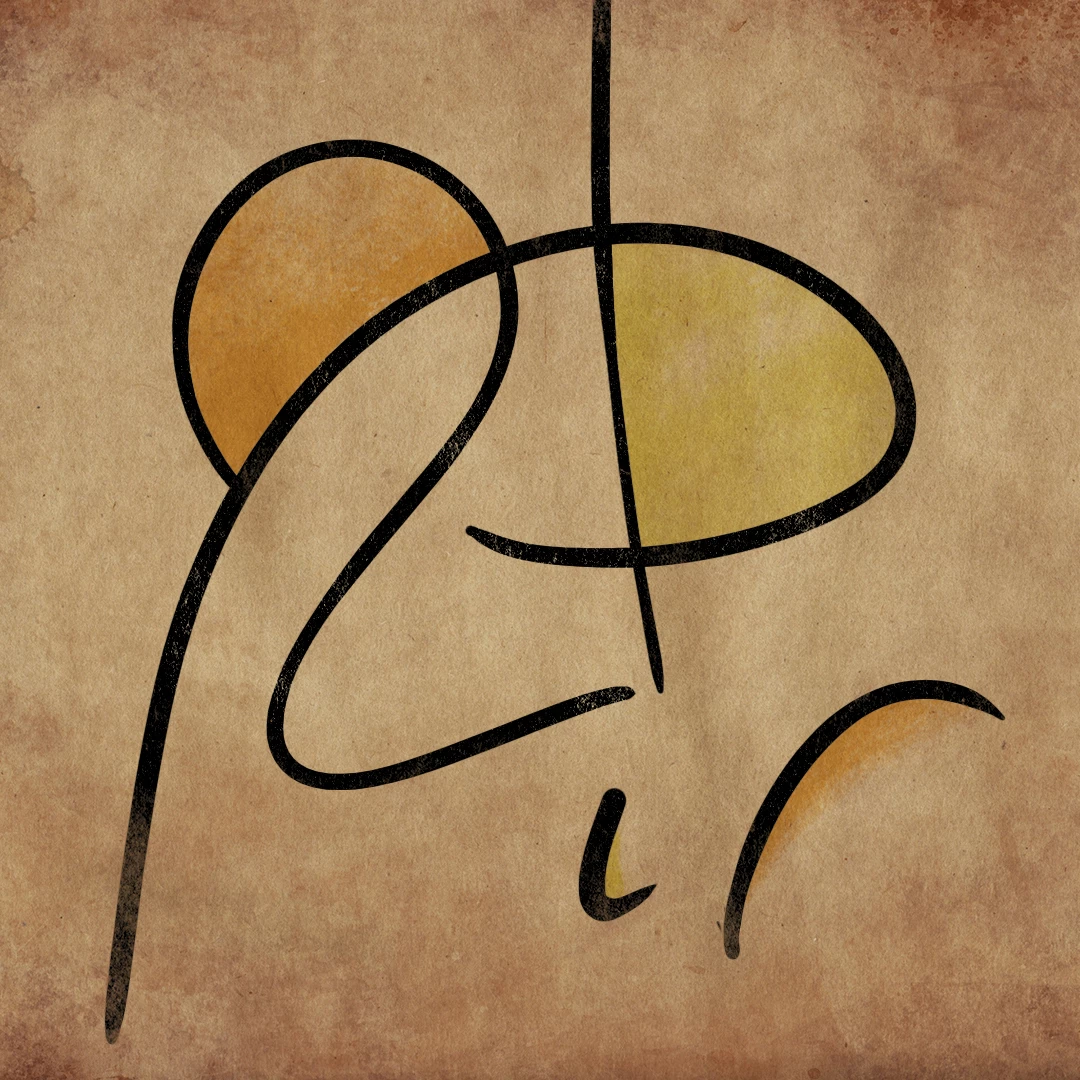


Actually, I've found a convoluted work-around where I make a selection of the entire document from one of the channels, then duplicate the lines, turn off its Blend-If style, and use the Channels selection to erase the textured look into the duplicated lines.


I'd love to hear your thoughts! These kind of problems excite me because Photoshop has so many fun avenues and solutions. Thanks.

This topic has been closed for replies.

5 replies

Jeff Arola
Community Expert
Community Expert
July 3, 2021

Here's another way that actually just keeps the black line.


1.  Turn off the visibilty of all the layers except your new layer that resulted from the Copy merged and paste.

      (click on the eye to the left of each layer thumbnail in the layers panel)


2. Go to the Channels panel (Window>Channels) and Ctrl Click on the Blue channel thumbnail, then

    Shift+Ctrl click on the Green channel thumbnail and finally Shift+Ctrl click on the Red channel thumbnail.


3. In the Layers panel click on the Add layer mask button at the bottom of the Layers panel.


4. Press Ctrl+I to invert the layer mask. You can also Apply the Layer mask if you happy with the results.


Jumpenjax
Community Expert
Community Expert
July 2, 2021

Good thing about photoshop, is there is no one rule to accomplish your creativity. As long as you are happy with the results, then you have a way to do it. Looks great!

Lee- Graphic Designer, Print Specialist, Photographer
Fletch45
Fletch45Author
Known Participant
July 2, 2021

Thanks, Jumpenjax. I like the ideas that Jeff and Trevor suggested, so I will be trying those techniques as well.

This is a great community! What a way to learn Photoshop, stuff you may never find in a tutorial 🙂


Fletcher 

Trevor.Dennis
Community Expert
Community Expert
July 2, 2021

That's a good question.  The only way I have got round it in the past is to use a copy merged layer similar to Jeff's idea.  It won't work if your blend if layer is the only layer turned on, so you have to add a blank layer. Then Shift Ctrl Alt T  Thinking back on it, I can remember being unreasonably annoyed that I couldn't isolate the blend if layer until I worked out the copy merged trick.


Fletch45
Fletch45Author
Known Participant
July 3, 2021

Thanks for sharing! I was able to get the copy merged layer technique to work, but I do not understand what you mean by needing a blank layer and hitting Ctrl+Shift+Alt+T. When I merged the blank layer with the Blend-If layer, the Blend if dissappears and your left with regular black lines again. Also, the Shift Ctrl Alt T did not change anything for me. What was it supposed to do?


Thanks,


Fletcher

Jeff Arola
Community Expert
Community Expert
July 2, 2021

After you put a new background you could change the layer blending mode of merged layer to Luminosity.


Fletch45
Fletch45Author
Known Participant
July 2, 2021

That's a good point! That would match the hue of the background, right? I have not used the Luminosity mode too much, so I will give it a whirl.


Thanks,


Fletcher

Jeff Arola
Community Expert
Community Expert
July 2, 2021

Looks like you could load a selection of the brush strokes by Ctrl or Cmd clicking on the layer thumbnail in the layers panel then go to Edit>Copy Merged and Edit>Paste which should give you a layer with your brush strokes and texture merged.


Fletch45
Fletch45Author
Known Participant
July 2, 2021

Thank you, Jeff! That's a neat trick, I didn't know you could copy merged. I guess that technique doesn't keep the opacity/ "holes" in the lines that the Blend-If style creates. It keeps the texture though, and thats really useful info.


Thanks again,

Fletcher