Known Participant
February 14, 2020
Question

Cannot change colors in Photoshop

  • February 14, 2020
  • 3 replies
  • 14720 views

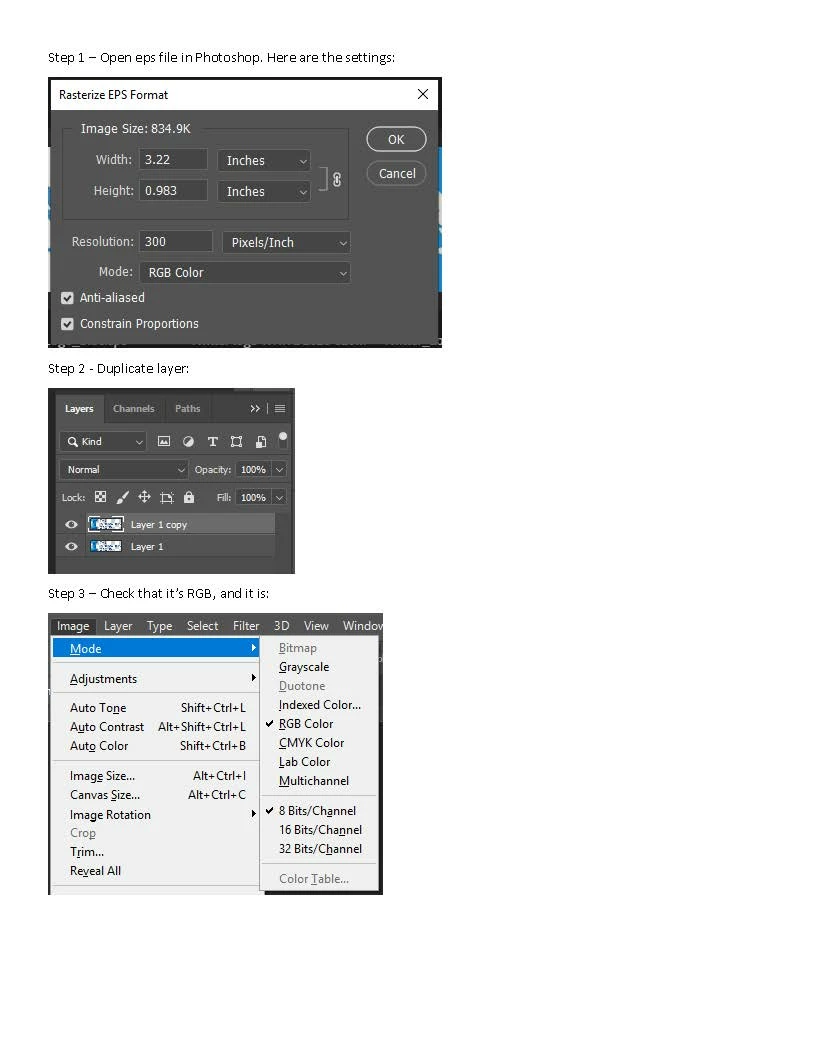
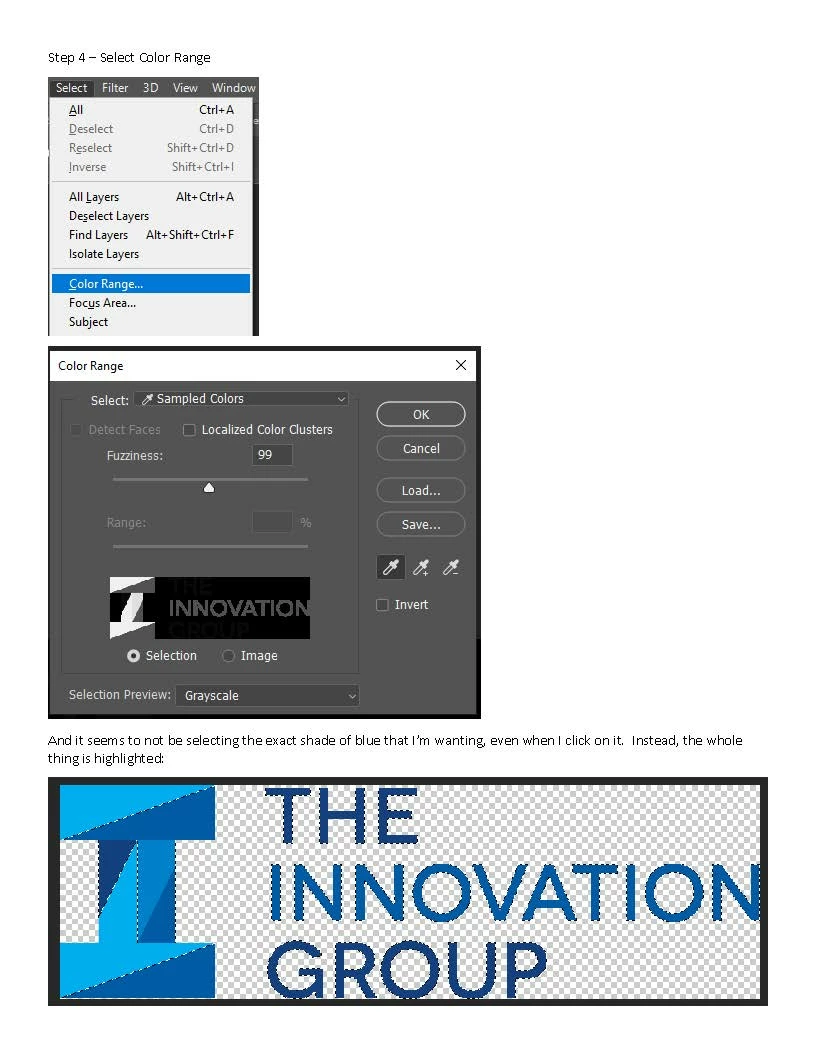
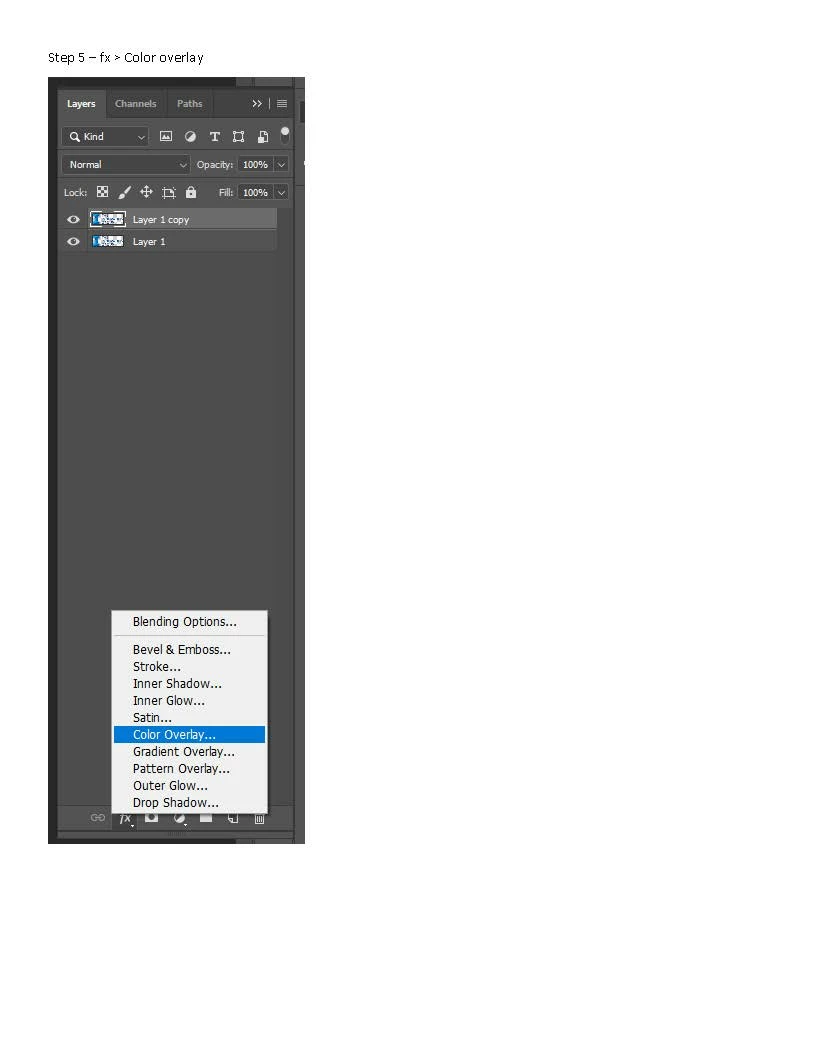
After reading every article I could find here and elsewhere, and trying everything suggested (RGB, etc), I still cannot do a simple process that I used to be able to do. I can't change colors within an object.  I used to do this all the time with no issues and suddenly it's not working.  Attaching screenshots of the problem. If you give suggestions, please list every step from the beginning and how and where to click to check things or do things - because I am a total novice! Thanks!
This topic has been closed for replies.

3 replies

S_Gans
Community Expert
Community Expert
February 14, 2020

Looks like in Color Range, you're partially selecting some of the colors you don't want - so when you apply the white with a mask (using the Solid Color Adjustment layer - NOT color overlay), you're filling the partly selected areas with that white. 
Note: Color Overlay just lays a color over all visible pixels - it won't "pick" what you want - Solid Color Adjustment applies your requested color over JUST what you want to fill, using a layer mask that works off your selected pixels)

In Select Color range - if you want a specific color completely selected, it should show as white in the preview window - and everything else should be black. Shades of gray indicate partially selected (translucent). So, you either want to use the eyedropper with the PLUS to select what you do want, and the one with the MINUS to Deselect what you don't.

Another way to do this might be to get what you do want ALL the way to white in the preview window - hit ok to make it a selection, and use the lasso on MINUS to deselect the pixels you don't want to change (remove the marching ants) by encircling them with that lasso. 


Then, use the Solid Color Adjustment layer.

Hope that helps.


Adobe Community Expert / Adobe Certified Instructor
Known Participant
February 17, 2020

Thanks. This part has me lost: "so when you apply the white with a mask (using the Solid Color Adjustment layer - NOT color overlay)"  I don't know what a mask is or how to use it and when I just looked it up, the video I'm watching says it's a way to make stuff disappear.  I don't want to make stuff disappear.  I want to change all of the blue tones of our logo to white/light gray tones that still show the tone differences within the letters like the blue treatment does.


Kevin Stohlmeyer
Community Expert
Community Expert
February 14, 2020

Reduce your fuzziness and take another sample with the eyedropper.

Known Participant
February 14, 2020

How?

Kevin Stohlmeyer
Community Expert
Community Expert
February 14, 2020

In the Color Range dialog box (you took a screenshot of it):

Reduce the slider for Fuzziness then move your cursor over your artwork.

It automatically becomes an eyedropper/color picker.

Click the color you want to change.

Review the preview then click OK.

chanaart
Community Expert
Community Expert
February 14, 2020

Checkout the bleanding mode and opacity level when you go to color overlay could not see the detail in the screenshot.

Known Participant
February 14, 2020

How? And once I check it, what should I be looking for?