Inspiring
August 7, 2018
Answered

Cannot easily save jpeg after cropping CS6

  • August 7, 2018
  • 4 replies
  • 747 views

Suddenly, if I open a bog standard jpeg, make a small change such as crop it, and then close down to save, I now have to jump through some hoops to do so.

Whereas before I could just press SAVE, and it would save, now I can't do that. The save box appears and the the jpeg option has disappeared from the drop down box (ie I only have the options shown in screengrab below), and I have to flatten the image and then save as jpeg.

To clarify, no layers have been added when I crop the image. (I understand that adding layers mean you have to flatten...)

It is a bit annoying, and I don't know why it has suddenly started doing this? Any help would be great.
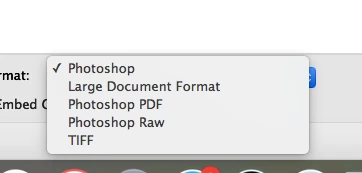
    This topic has been closed for replies.
    Correct answer kathykate 23

    Just solved it myself. It is because the 'Delete Cropped Pixels' box in the menu bar was not checked. I must have unchecked it by mistake recently. Now it will save as a jpeg easily again.

    4 replies

    Participant
    October 19, 2020

    Thanks for this info! I spent a lot of time chatting with Adobe's experts, who could not help me with this problem. I like having the "delete cropped pixels" turned off, but turning it on has let me use an action and process my photos quickly like I used to do!

    kathykate 23AuthorCorrect answer
    Inspiring
    August 7, 2018

    Just solved it myself. It is because the 'Delete Cropped Pixels' box in the menu bar was not checked. I must have unchecked it by mistake recently. Now it will save as a jpeg easily again.

    D Fosse
    Community Expert
    Community Expert
    August 7, 2018

    You didn't read my post?

    Actually the exact wording has changed a bit. As far as I can remember it used to be "delete" or "hide", now it's just a checkbox to delete. Anyway, that's the one I meant.

    Inspiring
    August 7, 2018

    Yes I saw it, but you didn't mention the 'delete cropped pixels' box.  I knew I could save the image by flattening it, as mentioned in my original post. When you are cropping lots of images that is one extra step too far, when I knew before I could save very easily. But by pointing me in the direction of it becoming Layer ) instead of Background, it was a great help, so thank you !

    D Fosse
    Community Expert
    Community Expert
    August 7, 2018

    You probably have the crop tool set to "hide" instead of "delete".

    The jpeg format specification really doesn't allow anything other than flat 8-bit pixels. You can't do much to a file before it's not allowed as a jpeg.

    gener7
    Community Expert
    Community Expert
    August 7, 2018

    It may be the process turned your Background layer into a floating layer, something the jpeg format doesn't support.

    If you see "Layer 0" instead of "Background" with a padlock icon, chances are that's the problem.

    Solution: Flatten the image either via the Layer menu or Layer Panel menu before saving.

    Inspiring
    August 7, 2018

    OK, thanks. You are correct in saying 'the process turned your Background layer into a floating layer, something the jpeg format doesn't support'. I just did a test.

    But why has it suddenly started doing this? I have cropped and saved thousands of photos in the past, and never had to flatten them before doing so. It is very frustrating....