Participant
June 21, 2021
Question

cant edit and then save smartobjects back in original file

  • June 21, 2021
  • 3 replies
  • 2107 views

hello,

I try to edit smartobject, I double click it and then it opens in a new tab, then I edit it and try to save and go back to see the changes in the original PSD file from which I opened the smartobject, but it says:
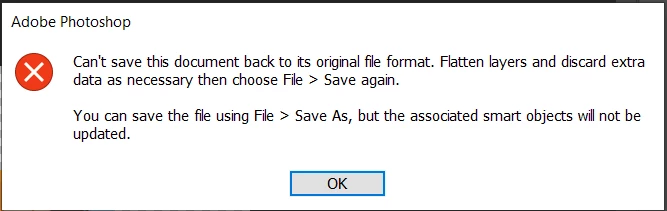
when I try to flatten layers:
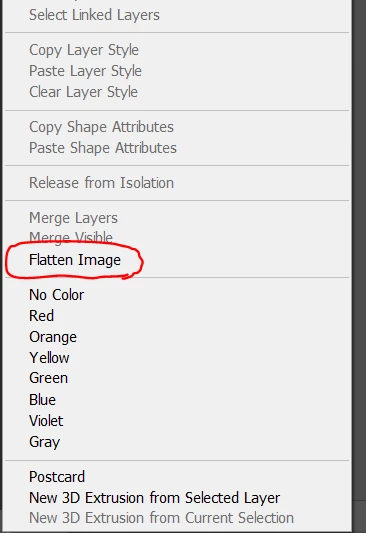
it doesnt do much and still says the first error.

any advice?


This topic has been closed for replies.

3 replies

Participant
May 30, 2022

I had the same problem. i rasterized smart objects and then convert them to smart objects. the  problem was fixed.

JJMack
Community Expert
Community Expert
June 21, 2021

If a smart object is a Placed Jpeg file. If you open the  object in Photoshop the Object Jpeg will open ins Photoshop. If you add layers to need to flatten before you use save for  save will not save a layered document as a jpeg. If you use Save As to save the image the Smart object work file will not be overridden  it will still be unchanged,  The file you saved did not overwrite the work file.  However in 22.4.2 Save AS now does seem the overwrite the work files if you know the change the file type from PSD to Jpg and  overwrites the work file Photoshop Updated the smart object layers object with the saved as changes.  You get the Message the if you use save as the smart object will not be updated but  that is not what I see in 22.4.2  what I see my logo is added to the smart object. But then I'm not using a Mac with macOS 0.1+ installed.


JJMack
Participant
June 23, 2021

thank you for the wonderful comment, but it's still doesnt work... it only works if I do simple things to the smartobject, but I want to delete its background.

im adding the psd file here, I would love if you could maybe understand how to delete the smartobject background and then save it.

c.pfaffenbichler
Community Expert
Community Expert
May 30, 2022

• Save the layered Smart Object as a psd or psb 

• Use Layer > Smart Objects > Replace Contents to replace the original SO-content with the layered image

marliton
Community Expert
Community Expert
June 21, 2021

Hi. ¿How do you created the Smart Object?


Marlon Ceballos