Participant
January 11, 2017
Answered

Center object and give it a fixed measure automatically, using batch...

  • January 11, 2017
  • 4 replies
  • 967 views

Hi all readers and helpers,

Very often i need to resize and move (centre) the object like this.
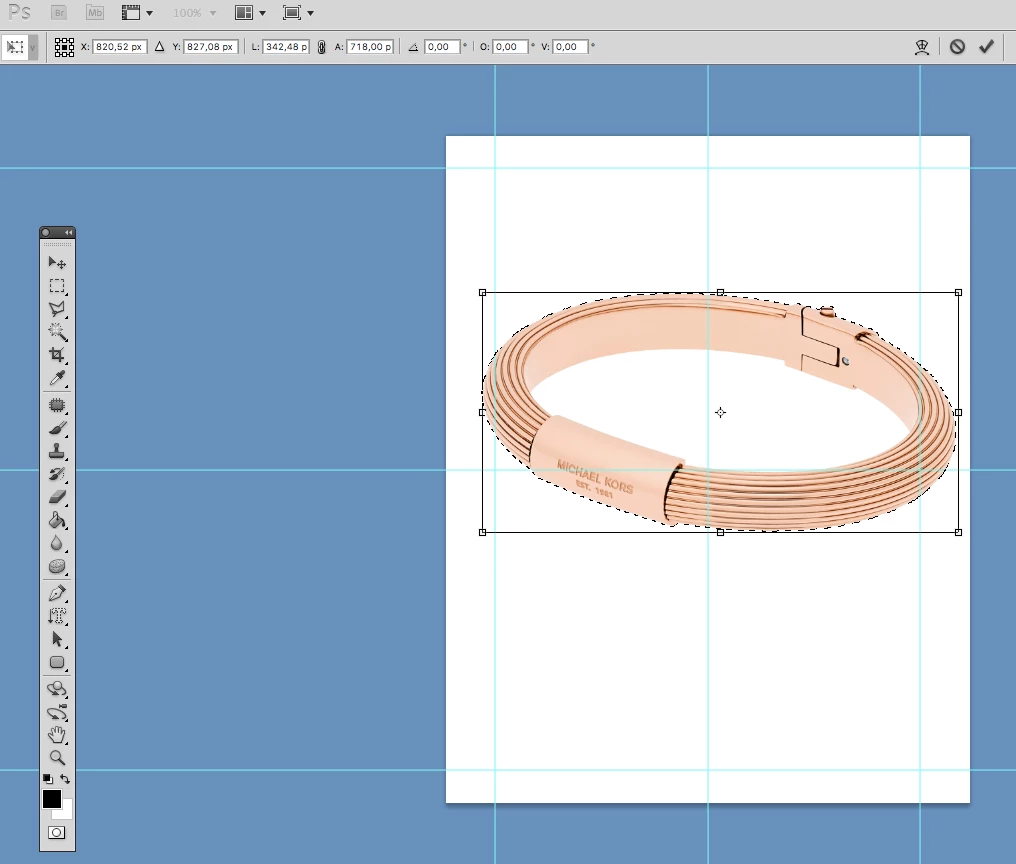
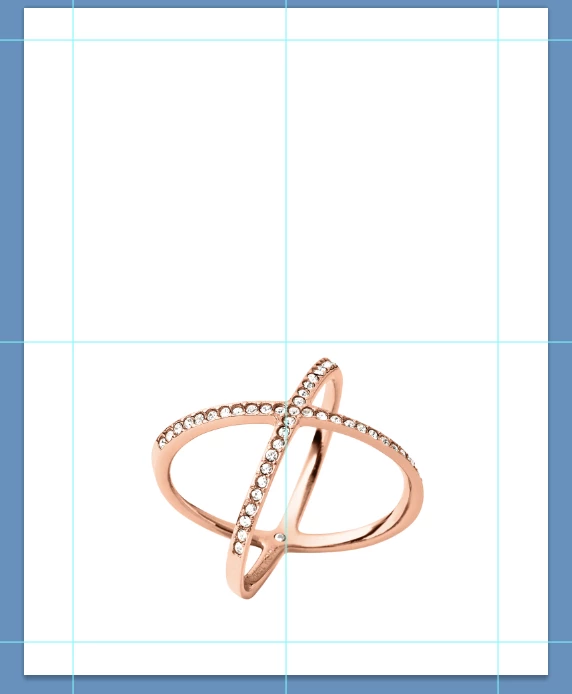
When i register this action and try to use in batch... PS repeats the same "movement" that first object did. It doesn't work, cause I have objects in different places on this white background and of different sizes. Like this for example:
Question is:

How to "tell" PS that he should make this "transform free" rectangle to be of absolute measures (ex. fixed "L" and "A" proportional to it) and that "centre-cross" of free transformation is where my guidelines cross? I need this action for automatic resize of object with "batch..." tool.

Many thanks in advance.

This topic has been closed for replies.
Correct answer c.pfaffenbichler
could u explain what u mean by: ''clip the document to the Layer''.

Hide all other Layers and use Image > Trim > Transparent Pixels for example.

But I think the Smart Object approach is preferable.

4 replies

macpawel
Participating Frequently
January 11, 2017

You can also use simpler method.

Start with your image (any size) and layer with your artwork.

THEN:

  1. Add new empty Layer (CTRL+Alt+Shift+N)
  2. Using Alt+Backspace fill this new layer with your foreground (any!) color - color is not important here
  3. Select this new layer and also your artwork layer. Be sure you selected ONLY layers
  4. Then with Move Tool selected (V) choose Vertical and Horizontal center inoptions panel on top of your screen
  5. Remove previously added layer

Thats all

It works fine and you can record it with action

Pawel

Stephen Marsh
Community Expert
Community Expert
January 11, 2017

The following action screenshot presumes that the current targeted layer content requires:

1) To be horizontally and vertically centred on the canvas

2) To be resized to a fixed pixel width, with the height proportionally resized

The automated placement could be made elsewhere by transforming the selection which is used by the align command.

The script referenced in the final step of the action is below. Line 12 is where the pixel value can be changed, in this case the target is 600px. I can't script, however looking at lines 06 and 12 it would appear to be possible to change this to another unit of measure, such as inches etc:

// https://forums.adobe.com/thread/988084

#target photoshop 

function main(){ 

if(!documents.length) return; 

var startRulerUnits = app.preferences.rulerUnits; 

app.preferences.rulerUnits = Units.PIXELS; 

var doc = activeDocument; 

var res= doc.resolution; 

var LB = activeDocument.activeLayer.bounds; 

var Width= LB[2].value - LB[0].value; 

var onePix = 100/Width; 

var newSize = onePix * 600; 

doc.activeLayer.resize( newSize , newSize, AnchorPosition.MIDDLECENTER);  

app.preferences.rulerUnits = startRulerUnits; 

main();

If the height of the layer was they key step, then (line 13):

// https://forums.adobe.com/thread/988084

// Change Height to 930px

#target photoshop 

function main(){ 

if(!documents.length) return; 

var startRulerUnits = app.preferences.rulerUnits; 

app.preferences.rulerUnits = Units.PIXELS; 

var doc = activeDocument; 

var res= doc.resolution; 

var LB = activeDocument.activeLayer.bounds; 

var Height= LB[3].value - LB[1].value; 

var onePix = 100/Height; 

var newSize = onePix * 930; 

doc.activeLayer.resize( newSize , newSize, AnchorPosition.MIDDLECENTER);  

app.preferences.rulerUnits = startRulerUnits; 

main();

Participant
January 11, 2017

Many thanks c.pfaffenbichler,

  • have no idea about JavaScript. can I learn it fast? (no clue about programming too)

Participant
January 11, 2017

from the second option, ok i think i get the idea more or less but could u explain what u mean by: ''clip the document to the Layer''.

c.pfaffenbichler
Community Expert
c.pfaffenbichlerCommunity ExpertCorrect answer
Community Expert
January 11, 2017
could u explain what u mean by: ''clip the document to the Layer''.

Hide all other Layers and use Image > Trim > Transparent Pixels for example.

But I think the Smart Object approach is preferable.

c.pfaffenbichler
Community Expert
Community Expert
January 11, 2017

I see two alternatives:

• do it with JavaScript

• get »fancy« with the Action – meaning you may have to clip the document to the Layer, use Image Size to get the target width, then increase the Canvas to the previous size or better yet convert the Layer to a Smart Object, open it and change the Image Size without resampling, save and close