
Inspiring
November 5, 2020
Answered

Changing image color without changing background

  • November 5, 2020
  • 1 reply
  • 916 views

Hi all,

I'm trying to get the face in the image below to be entirely lime green. As you can see, some of it is discolored at the top. The original image is from a crappy scan. I've managed to make the background a flat black by spot healing it. Is there a way I can get the entire face to be the same green color without also making the background green? I want the background to remain black.

Thank you!
This topic has been closed for replies.
Correct answer Norman Sanders

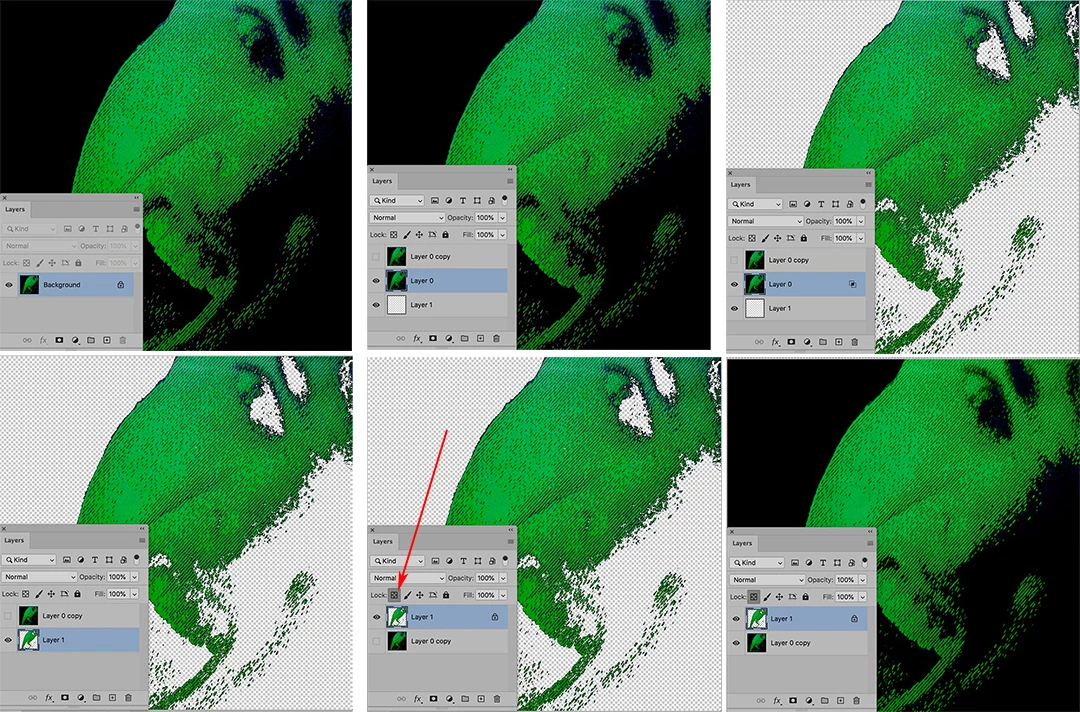
For a common green throughout, try this:

  1. Your image file
  2. Dupe the image layer and turn it off. Add a blank layer to the bottom of the stack
  3. Use Layer Style > Blend if to isolate the green. (Top left slider, gently) Some fringe black will remain. Its green overprint will not be apparent in the final image.  
  4. Layer > Merge Down to combine the bottom two layers
  5. Transpose the layers and Lock the transparency of the top layer
  6. Sample the green and set it as Foreground Color. Edit > Fill with Foreground Color with Fill menu set to Color. Turn on bottom layer. Flatten, if desired

1 reply

Norman Sanders
Norman SandersCorrect answer
Legend
November 5, 2020

For a common green throughout, try this:

  1. Your image file
  2. Dupe the image layer and turn it off. Add a blank layer to the bottom of the stack
  3. Use Layer Style > Blend if to isolate the green. (Top left slider, gently) Some fringe black will remain. Its green overprint will not be apparent in the final image.  
  4. Layer > Merge Down to combine the bottom two layers
  5. Transpose the layers and Lock the transparency of the top layer
  6. Sample the green and set it as Foreground Color. Edit > Fill with Foreground Color with Fill menu set to Color. Turn on bottom layer. Flatten, if desired
kirbydooAuthor
Inspiring
November 6, 2020

Thanks! I appreciate it.