Participant
December 21, 2016
Question

Changing the color of the blanket

  • December 21, 2016
  • 3 replies
  • 1882 views

Good day everyone,

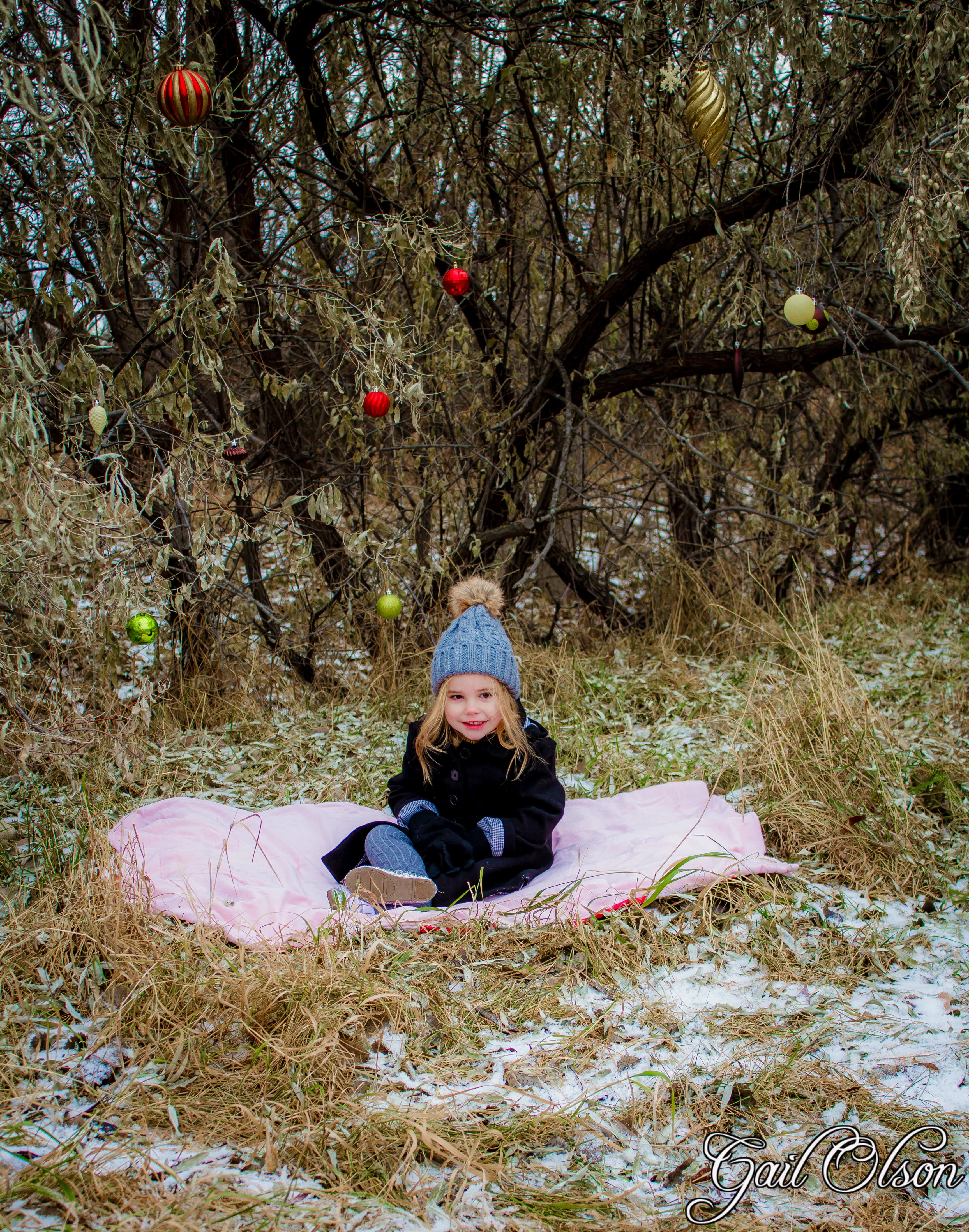
My sister wants me to change the color of the blanket in the images she gave me and I'm having a bit of trouble making it more natural.

I've tried making a new layer and putting the paintbrush at 37% opacity and painting over the blanket, but I'm having so much difficulty in maintaining a clean edge while trying not to go over previous areas and avoiding grass in the image (I'll try to attach it to this post).

Does anyone have any good tips or tricks for doing this?

Thanks in advance.
This topic has been closed for replies.

3 replies

Terri Stevens
Legend
December 21, 2016

I probably should know this, but how did the OP upload a 32MB file when we can only upload 8MB files? I've seen this before so must be missing something. I think this is more difficult than it looks as there are some strange color effects around the blanket, the grass seems to have picked up on reflected pink light and there is a lot of chromatic aberration around the little girl-so I would guess this was taken with a phone or a low end camera-none the less it's a lovely photograph. I just used Christoph's and Silkroosters method as a gradient map didn't work. so won't repeat what they have already said.

Silkrooster
Legend
December 21, 2016

I was thinking the hue/saturation/brightness adjustment layer would work, but it acted like it wasn't working. Perhaps a wider range of hues than normal? Maybe I should have tried clipping it to just the blanket the widen hue across the entire spectrum.

When I don't get the expected behavior it drives me nuts until I can figure out why.

A gradient map should have worked as well. Hmm...

D Fosse
Community Expert
Community Expert
December 22, 2016

That blanket isn't just "pink" - it actually runs from cobalt blue to vermilion red - that's probably close to 140° of the entire color circle. The blue component is mostly reflections from the sky.

I'm generally opposed to fiddling too much with images like this - just as a matter of principle. it's a great and very charming image, why ruin it with something that will very likely look fake?

What I really want to do here is crop it more tightly!

Then, I'd just take out the blue component from the blanket, with a selective color layer (which is subtler and less destructive to image integrity than hue/sat). Then you only need a very loose mask. And finally take out some of the overall red color cast/oversaturation, again with selective color (no mask).

Silkrooster
Legend
December 21, 2016

As you can see it can be done, but it will take time due to the grass. Especially since some of the grass is the same color - assumption is this was colored before.

Start with Select>Color Range then use Select and Mask (double click the mask thumbnail or click on it in the properties panel)

c.pfaffenbichler
Community Expert
Community Expert
December 21, 2016
I've tried making a new layer and putting the paintbrush at 37% opacity and painting over the blanket

That seems to be less than ideal.

Instead you should probably use Adjustment Layers (or at least a Layer with a Blend Mode other than Normal) and Layer Masks.

Participant
December 22, 2016

I like what you did here, would you be able to "walk" me through your process?

c.pfaffenbichler
Community Expert
Community Expert
December 22, 2016

I used an Lab-copy’s a- and b-Channels as the basis for the Layer Mask of the Group, but as Silkrooster mentioned Color Range is also an option.

Inside the Group are a Hue/Saturation- and a Curves-Adjustment Layer, the first to colorize and the second one the darken.