There is good news and bad news.
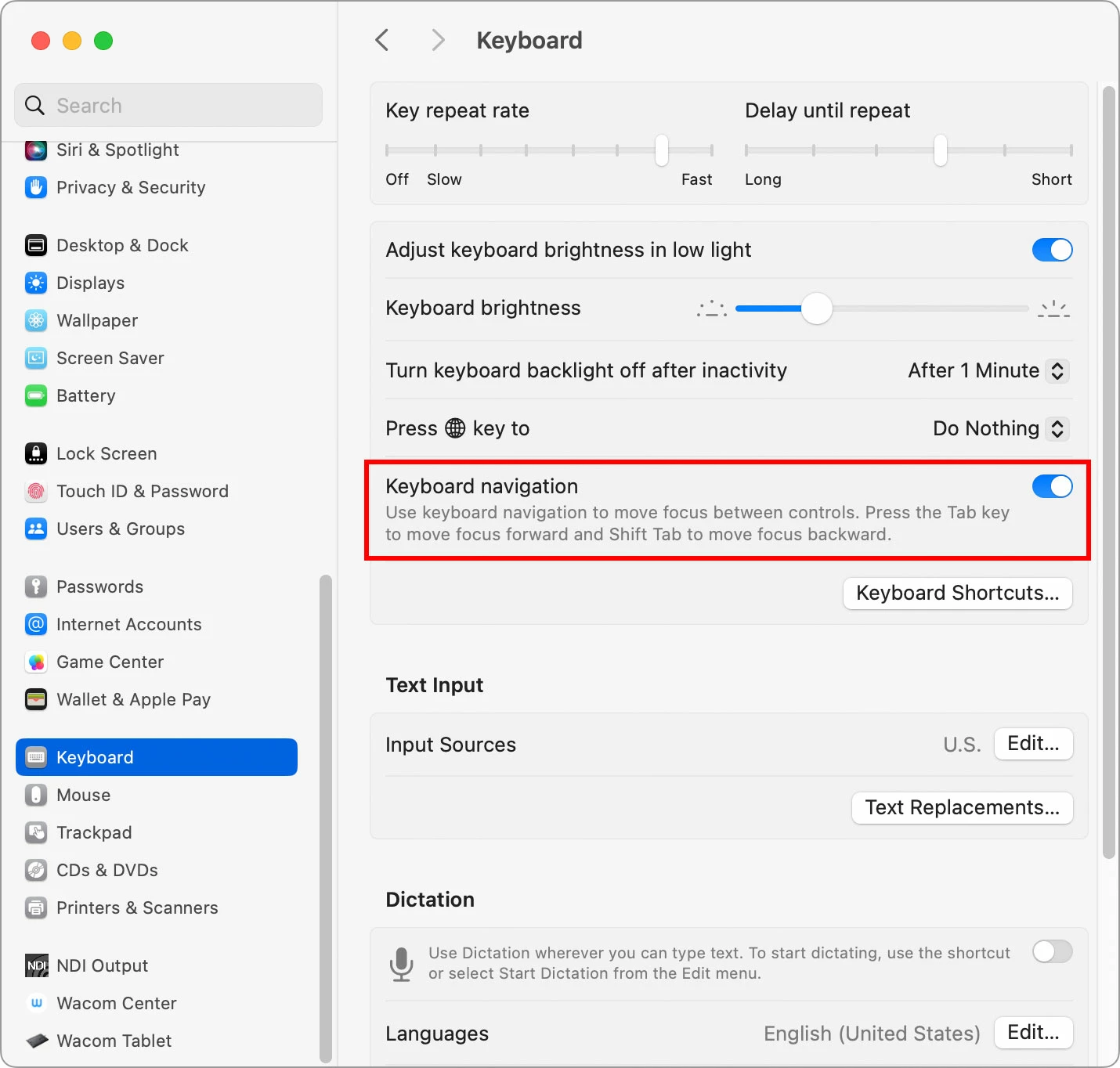
macOS does support driving the UI with the keyboard. In the screen shots below, you’ll see that this can be enabled in System Settings, Keyboard panel. Enabling Keyboard Navigation lets you select items in dialog boxes in much the same way as Windows (Tab/Shift-Tab among fields and options, enable/disable selected option by pressing the spacebar).
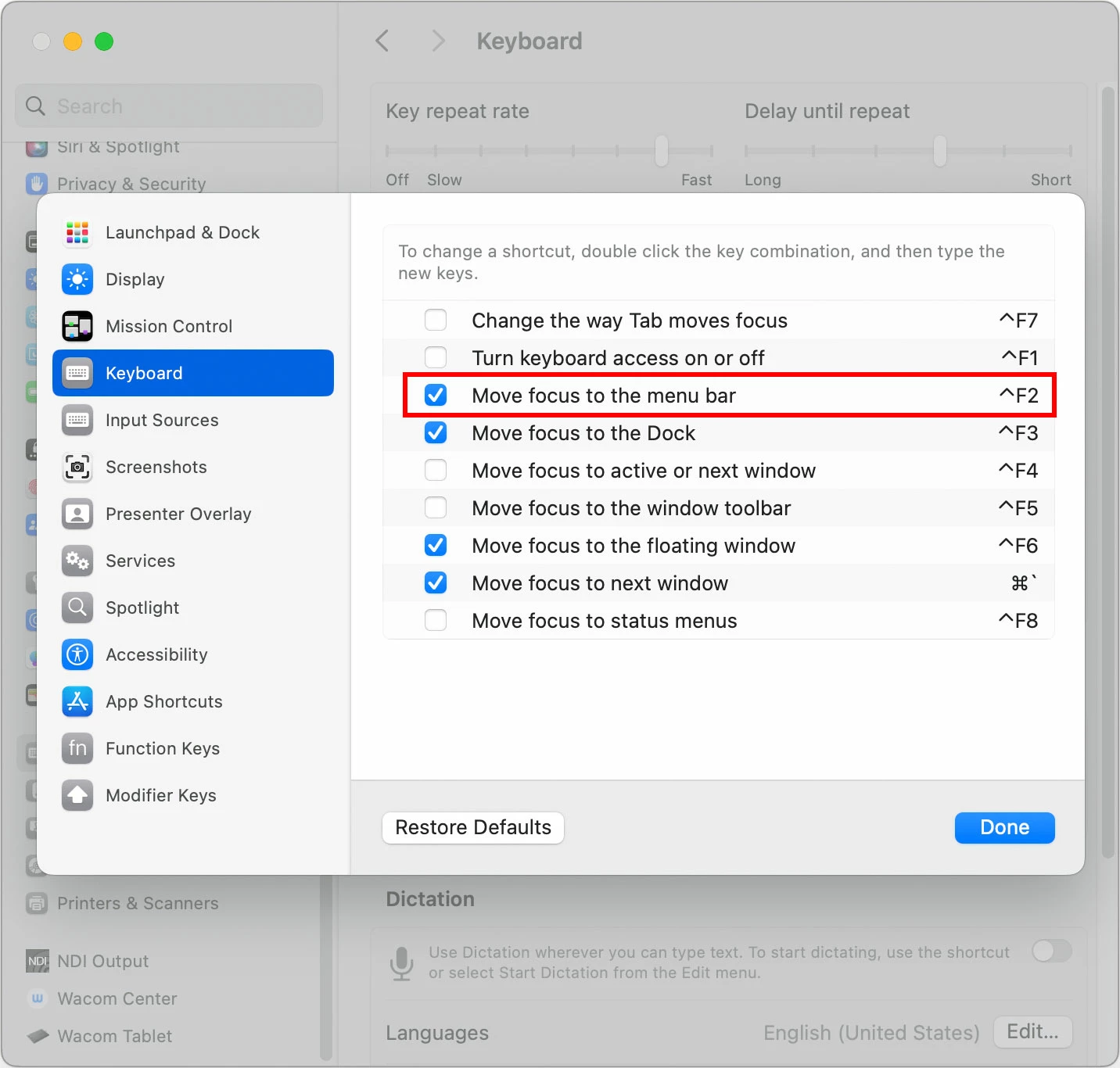
In Keyboard Shortcuts, there are configurable shortcuts for moving focus to various other parts of the UI such as menus. When a menu has focus, you can navigate horizontally using left/right arrow keys, and you can navigate menus with arrow keys and Home/End/Page Up/Page Down keys. To select a menu command when a menu has focus, start typing the name of the command and it will select as soon as it matches. (The Alt menu shortcuts in Windows don’t have an equivalent in macOS.)
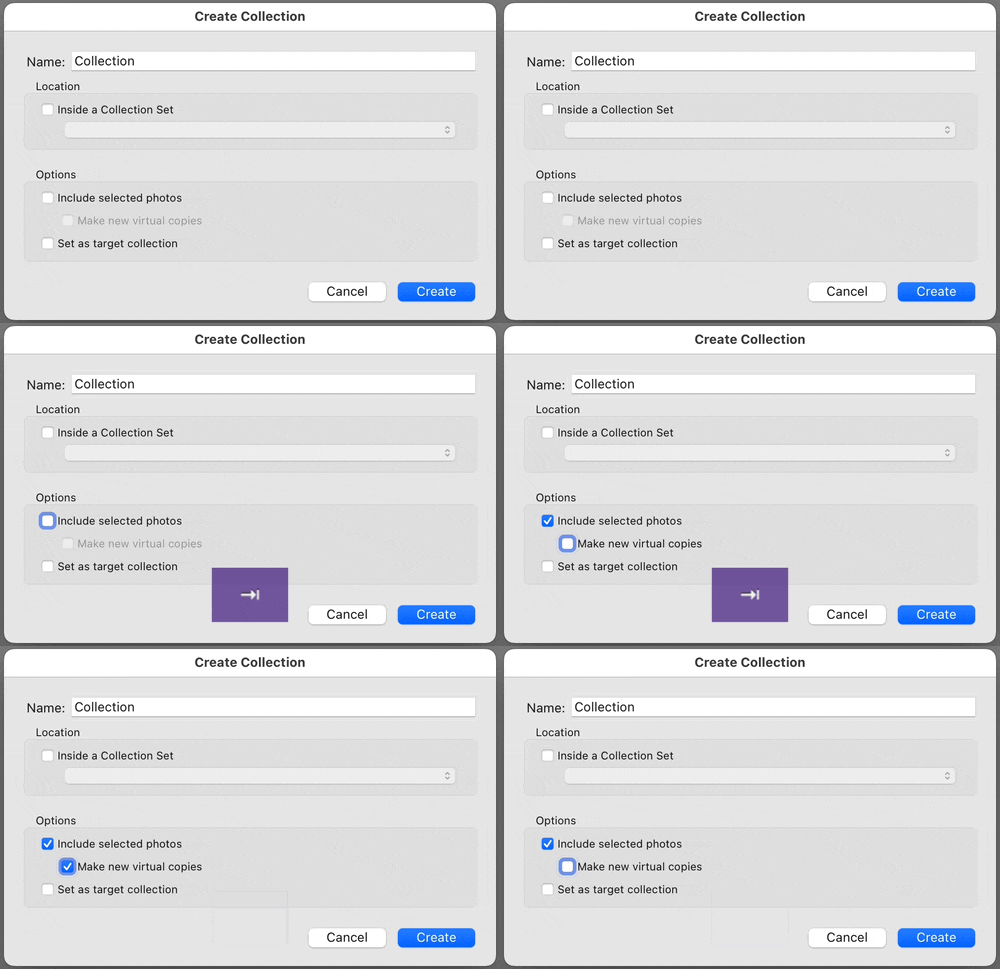
The demo below shows using macOS Keyboard Navigation in a dialog box in Adobe Lightroom Classic. Why am I not showing Photoshop? Well, that’s the bad news. For some reason, some of these standard macOS accessibility shortcuts don’t always work in Photoshop dialog boxes. For example, in Image Size you can Tab between fields, but options and pop-up menus never select. I don’t know why, but it’s possible they are using proprietary code in at least some dialog boxes. Support of macOS Keyboard Navigation is uneven across several Adobe applications. This has been the case for many years, so it isn’t clear when it might be resolved.





 AdChoices