Known Participant
April 12, 2019
Answered

Clean Up Scans of Paintings

  • April 12, 2019
  • 1 reply
  • 980 views

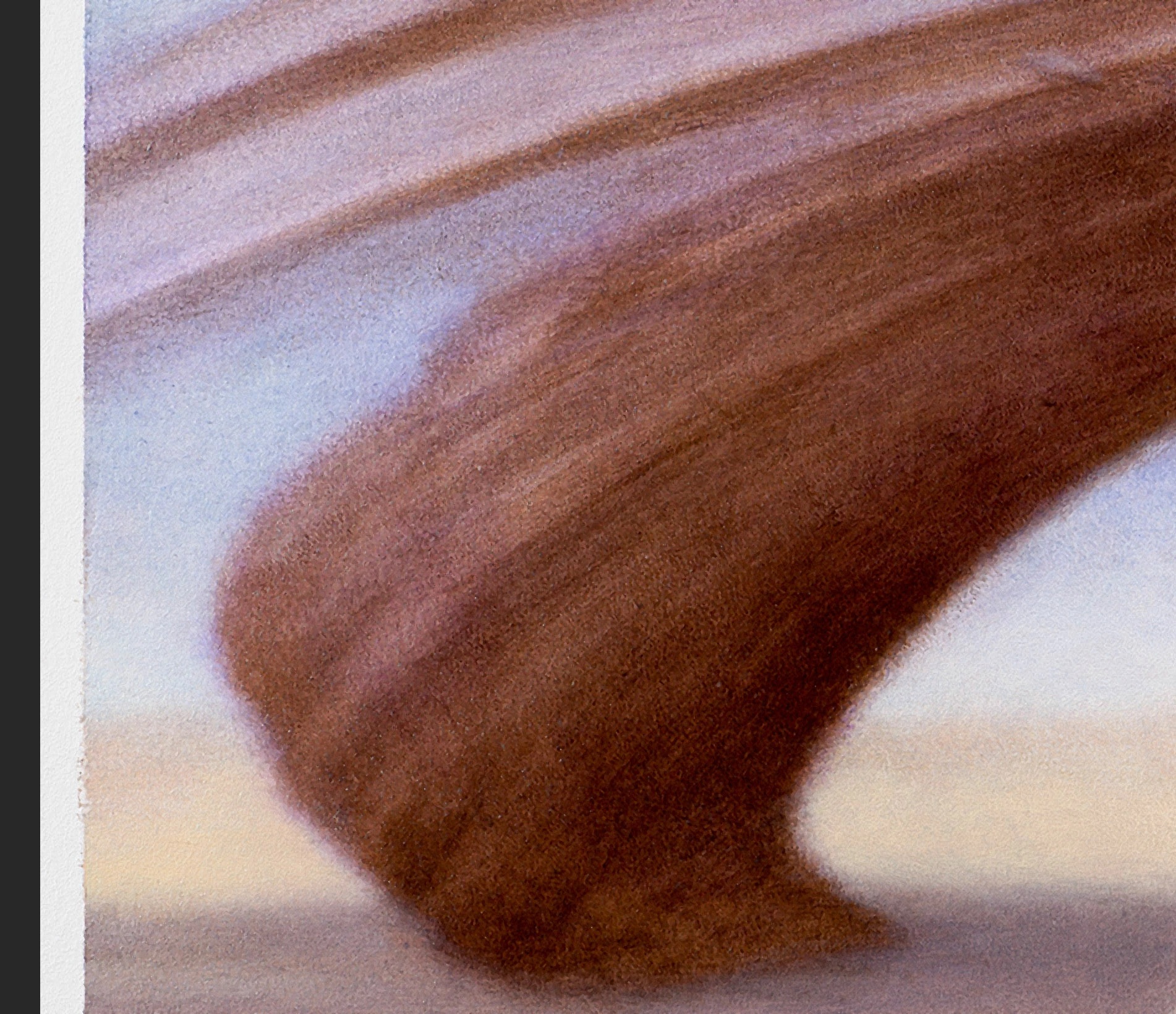
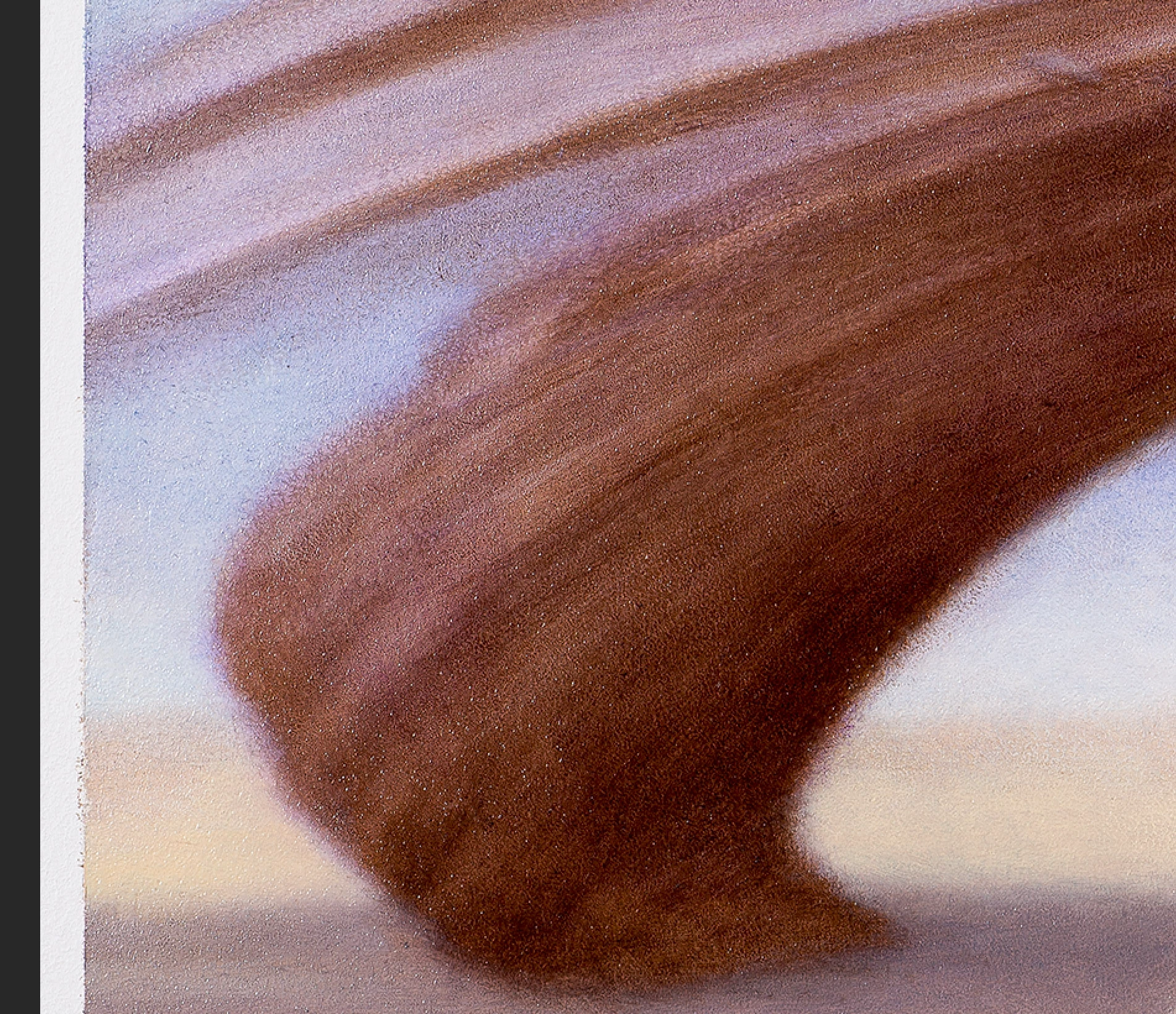
I'm helping an artist put together a catalog of his life's work. A lot of the images are scans. Because the originals were on canvas, there are a lot of undesirable artifacts. Not just the usual scratches and dirt you expect from a scan, but little white specs like this, which I assume are caused by stray light rays bouncing off the rough surface.

Seems like it would take forever to go in with a tiny spot healing brush and zap each one; it would also harm the character of the brushwork, at least using the "normal" setting.

Could anyone suggest an efficient way to clean it up?
    This topic has been closed for replies.
    Correct answer

    Hi

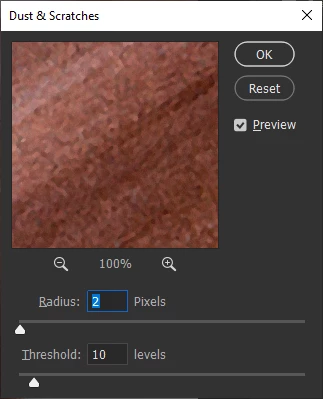
    You could try the Dust and Scratches filter

    1 reply

    Correct answer
    April 12, 2019

    Hi

    You could try the Dust and Scratches filter

    Norman Sanders
    Legend
    April 12, 2019

    An alternate method, one that does not affect parts of the painting that do not have the specks, works well.

    1. Set the image at 100% of size and make a duplicate layer

    2. Filter > Blur > Gaussian Blur... Radius 2.5 px so the specks disappear

    3. Choose the History panel and click the History Brush symbol down to the bottom in the list (the blurred step ).

    4. Click on the step before the History Brush step. The image wlll look sharp again.
    5. Choose the History Brush Tool and in its Options Bar change the Mode to Darken. It will now darken only the specks

    6. With a large soft History Brush Tool,  sweep across areas that show the white spaces. They will disappear. Note that image sharpness, detail and color fidelity are not compromised.

    One more hint: Hold down the Space Bar to convert to the Hand Tool and shift the area to be worked on.