
Participant
November 10, 2017
Answered

Clipping mask problem: can't see my picture

  • November 10, 2017
  • 2 replies
  • 13720 views

I'm creating a template for my son's school yearbook and set it up so that pictures could be placed inside squares.  I put the photo layer on top of the first square layer and hit "create clipping mask."  However, the picture doesn't appear.  Any ideas as to how to troubleshoot this?  Thanks!!
    This topic has been closed for replies.
    Correct answer davescm

    Hi

    Has the layer below your image layer (i.e. the one you are clipping to) got solid pixels. The color does not matter but there needs to be solid pixels in the shape you want to clip your image to.  If it is a shape use the fill property.

    Dave

    2 replies

    davescm
    Community Expert
    Community Expert
    November 10, 2017

    Hi

    Your layers panel shows one definite issue and one possible issue.

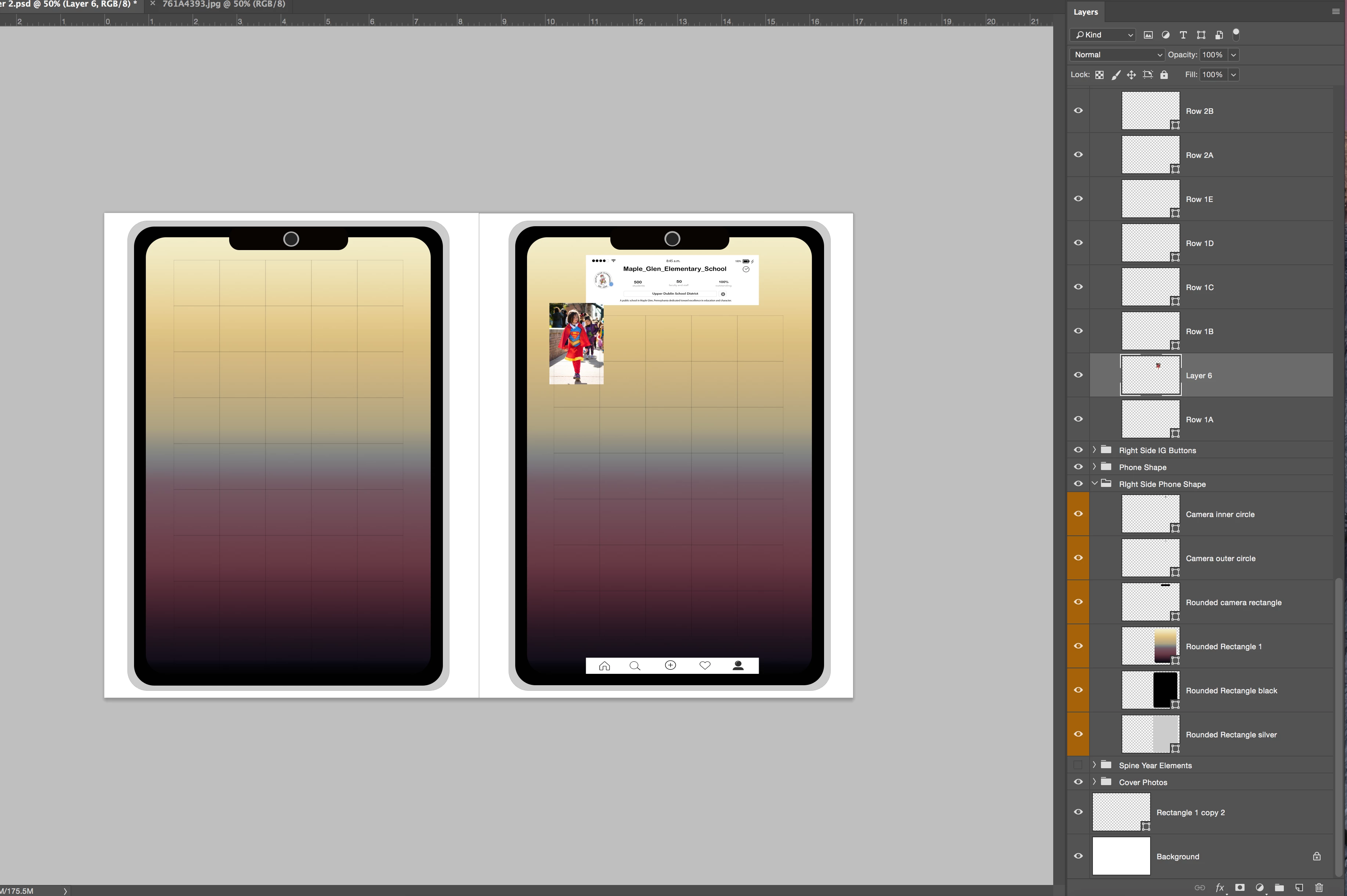
    1. Your layer 6 is not clipped to the layer below. To get it to clip Alt click on the border between the two layers in the layers panel. A small down arrow will appear.

    2. To act as a clipping mask the layer below must have some solid pixels. It is hard to tell from the thumbnail, but it looks empty.

    Dave

    Participant
    November 10, 2017

    Thanks so much for helping, davescm.  I accidentally turned off the clipping mask on layer 6 when I took the screen shot.  I turned it back on, but the photo still didn't appear. 

    I disabled everything else except the template squares.  I then added a layer of pixels right above the background layer.  Unfortunately, nothing changed.

    Would you happen to have any ideas as to what I'm doing wrong?  Photoshop's graphic design features are not my strong suit, regrettably.

    Thanks!

    davescm
    Community Expert
    davescmCommunity ExpertCorrect answer
    Community Expert
    November 10, 2017

    Hi

    Has the layer below your image layer (i.e. the one you are clipping to) got solid pixels. The color does not matter but there needs to be solid pixels in the shape you want to clip your image to.  If it is a shape use the fill property.

    Dave

    JJMack
    Community Expert
    Community Expert
    November 10, 2017

    How are you planning to populate your  template. Your layered document does not seem to be well  suited for automating populating it with images.

    Photo Collage Toolkit

    Photoshop scripting is powerful and I believe this package demonstrates this here is a video showing a 5 image collage PSD template  being populated with images

    The package includes four simple rules to follow when making Photo Collage Template PSD files so they will be compatible with my Photoshop scripts.

    1. Size the photo collage templates for the print size you want - width, height and print DPI resolution.
    2. Photo collage templates must have a Photoshop background layer. The contents of this layer can be anything.
    3. Photo collage templates must have alpha channels named "Image 1", "Image 2", ... "Image n".
    4. Photo collage templates layers above the background layers must provide transparent areas to let the images that will be placed below them show through.

    There are fifteen scripts in this package they provide the following functions:

    1. HelpPhotoCollageToolkit.jsx - Online Help
    2. TestCollageTemplate.jsx - Used to test a Photo Collage Template while you are making it with Photoshop.
    3. CollageTemplateBuilder.jsx - Can build Templates compatible with this toolkit's scripts.
    4. LayerToAlphaChan.jsx - Used to convert a Prototype Image Layer stack into a template document.
    5. InteractivePopulateCollage.jsx - Used to interactively populate Any Photo Collage template. Offers most user control inserting pictures and text.
    6. ReplaceCollageImage.jsx - use to replace a populated collage image Smart Object layer with an other image correctly resized and positioned.
    7. ChangeTextSize.jsx - This script can be used to change Image stamps text size when the size used by the populating did not work well.
    8. PopulateCollageTemplate.jsx - Used to Automatically populate a Photo Collage template and leave the populated copy open in Photoshop.
    9. BatchOneImageCollage.jsx - Used to Automatically Batch Populate Collage templates that only have one image inserted. The Collage or Image may be stamped with text.
    10. BatchMultiImageCollage.jsx - Used to Automatically Batch Populate Any Photo Collage template with images in a source image folder. Easier to use than the interactive script. Saved collages can be tweaked.
    11. PasteImageRoll.jsx - Paste Images into a document to be print on roll paper.
    12. BatchPicturePackage.jsx - Used to Automatically Batch Populate Any Photo Collage template with an image in a source image folder.  Images Rotates for best fit.
    13. BatchPicturePackageNoRotate.jsx - Used to Automatically Batch Populate Any Photo Collage template with an image in a source image folder.
    14. PopulatePicturePackage.jsx - Used to Automatically populate a Photo Collage template Fill with the same single image and leave the populated copy open in Photoshop.
    15. PCTpreferences.jsx - Edit This File to Customize Collage Populating scripts default setting and add your own Layer styles.

    Documentation and Examples

    JJMack
    Participant
    November 10, 2017

    Thanks so much, JJMack.  I had no idea Photoshop could auto-populate pictures.  I'll have to try that sometime.  This time around, I'm going to have about 60 photos flying my way in unknown formats, so it may not work out for this project.  However, it's good to know about!