bartonlew
Legend
June 25, 2022
Answered

clone stamp alternative?

  • June 25, 2022
  • 3 replies
  • 661 views

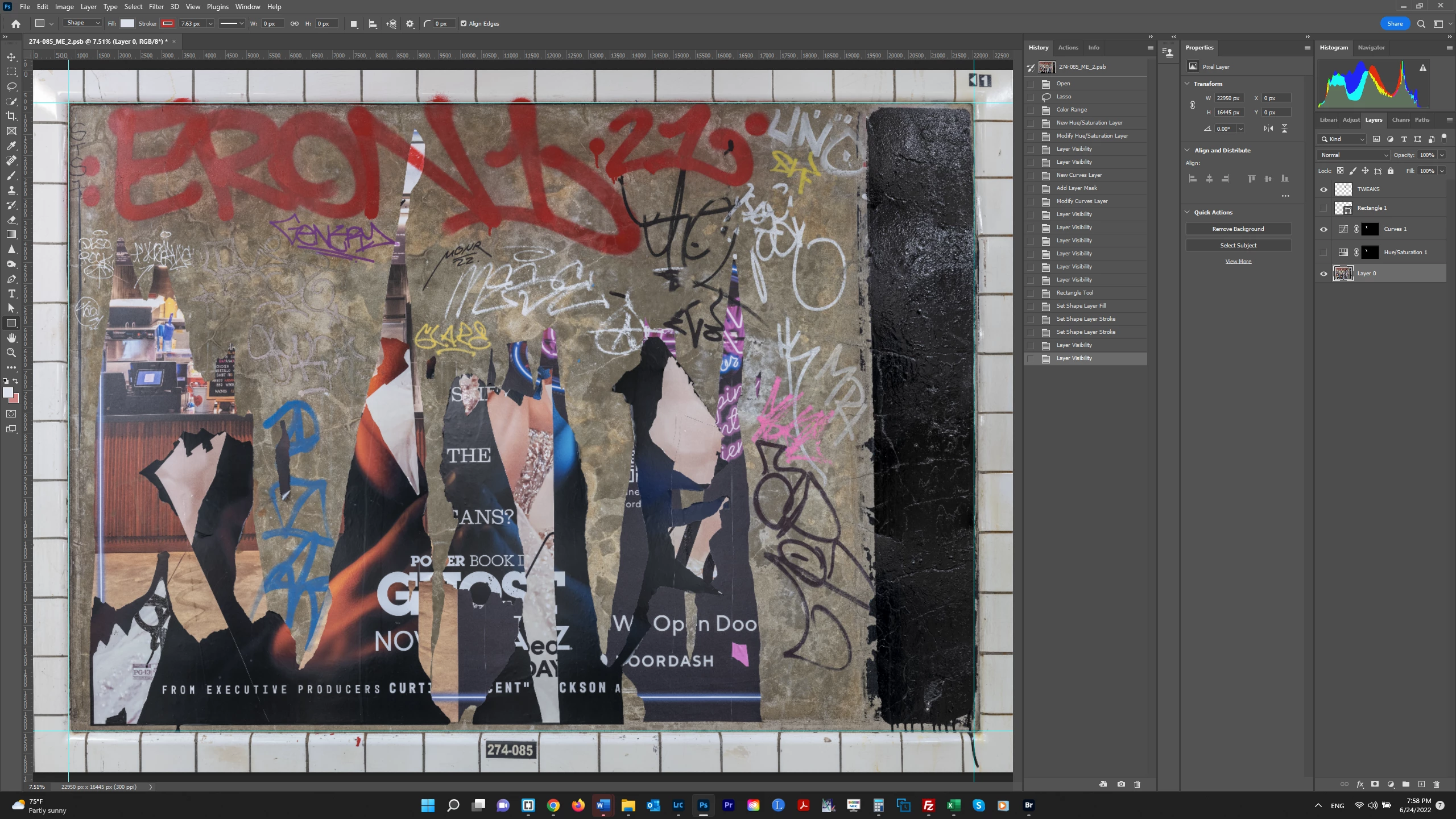
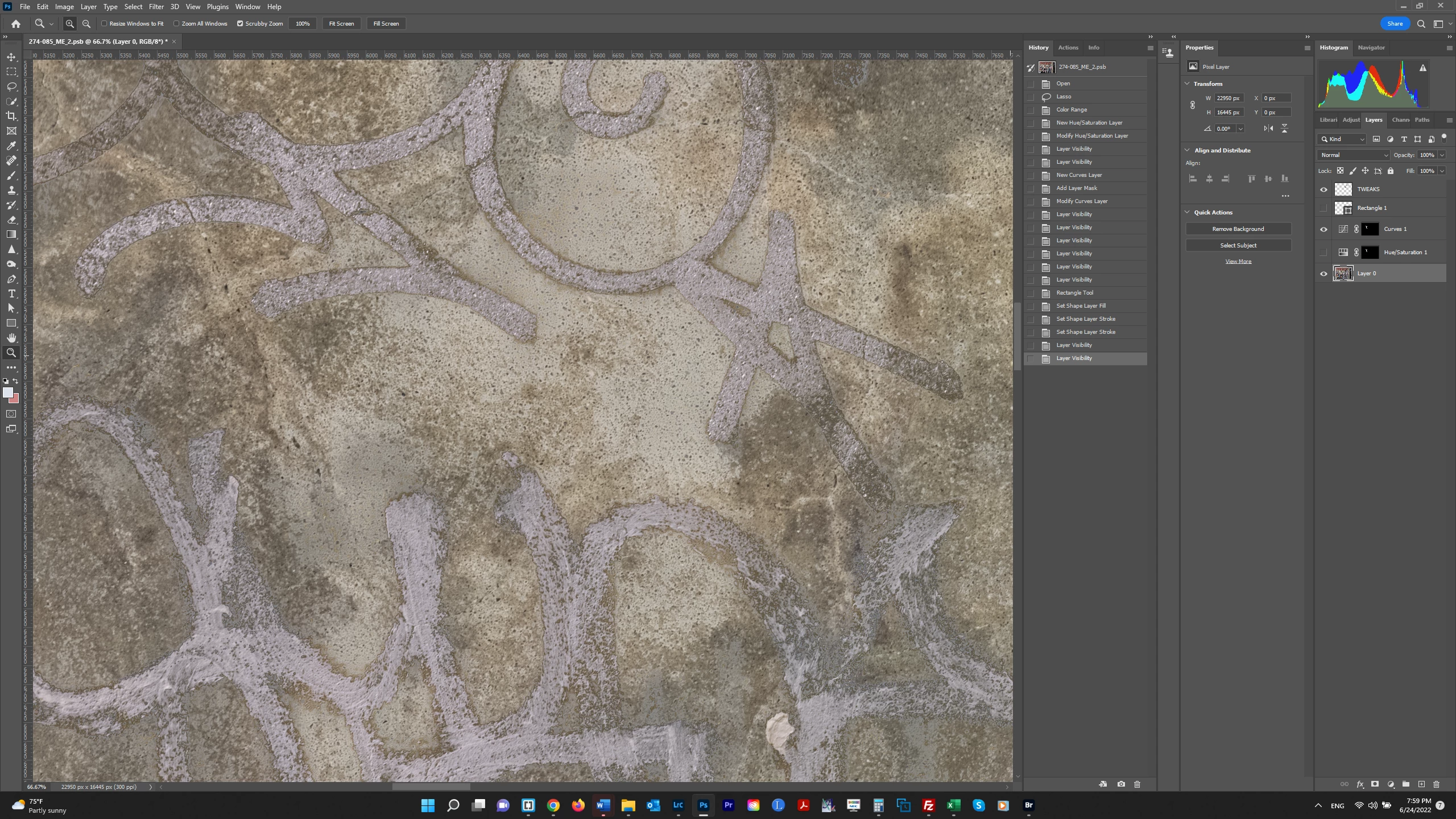
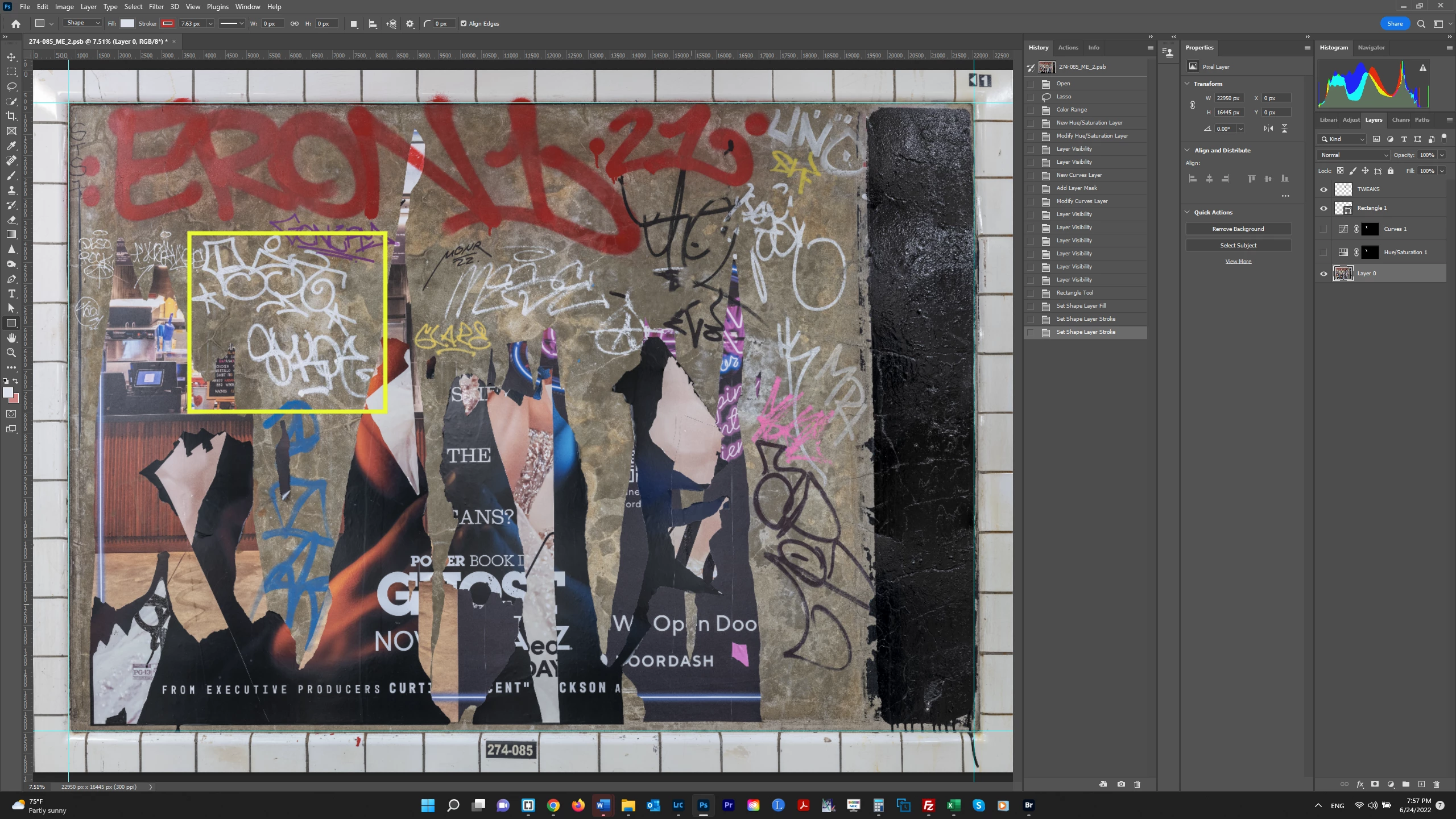
I want to "delete" most of the graffiti in this image (not the big red graffiti at top).  I don't want to use the Clone Stamp because I'd like to preserve the existing texture in the cement wall - just getting rid of the paint on top.  I selected the white graffiti inside the yellow box in screenshot #1 using Select>Color Range and applied Curves adjustments (screenshot #2).  Screenshot #3 is a close-up of this area.  It's much improved - but the graffiti is not quite "disappeared."  Is there a way I could apply the surrounding color to the graffiti in the Curves 1 layer?  I thought about using Frequency Separation but I always find that an imperfect solution.  Thanks.  


This topic has been closed for replies.
Correct answer Trevor.Dennis

The Healing Brush and Patch Tool would do a much better job than the clone tool.  You can even stroke through that yellow outline without corrupting it.  I am sure those tools have been improved from what they used to be.

3 replies

Leslie Moak Murray
Community Expert
Community Expert
June 25, 2022

I like the Content-Aware fill. I use it all the time.


Chris 486
Community Expert
Community Expert
June 25, 2022

For me the Spot healing brush was a home run for this job. Once you get the grafitti removed you can retouch the wall texture to match extactly how you want. Good luck!


Trevor.Dennis
Community Expert
Trevor.DennisCommunity ExpertCorrect answer
Community Expert
June 25, 2022

The Healing Brush and Patch Tool would do a much better job than the clone tool.  You can even stroke through that yellow outline without corrupting it.  I am sure those tools have been improved from what they used to be.

bartonlew
bartonlewAuthor
Legend
June 25, 2022

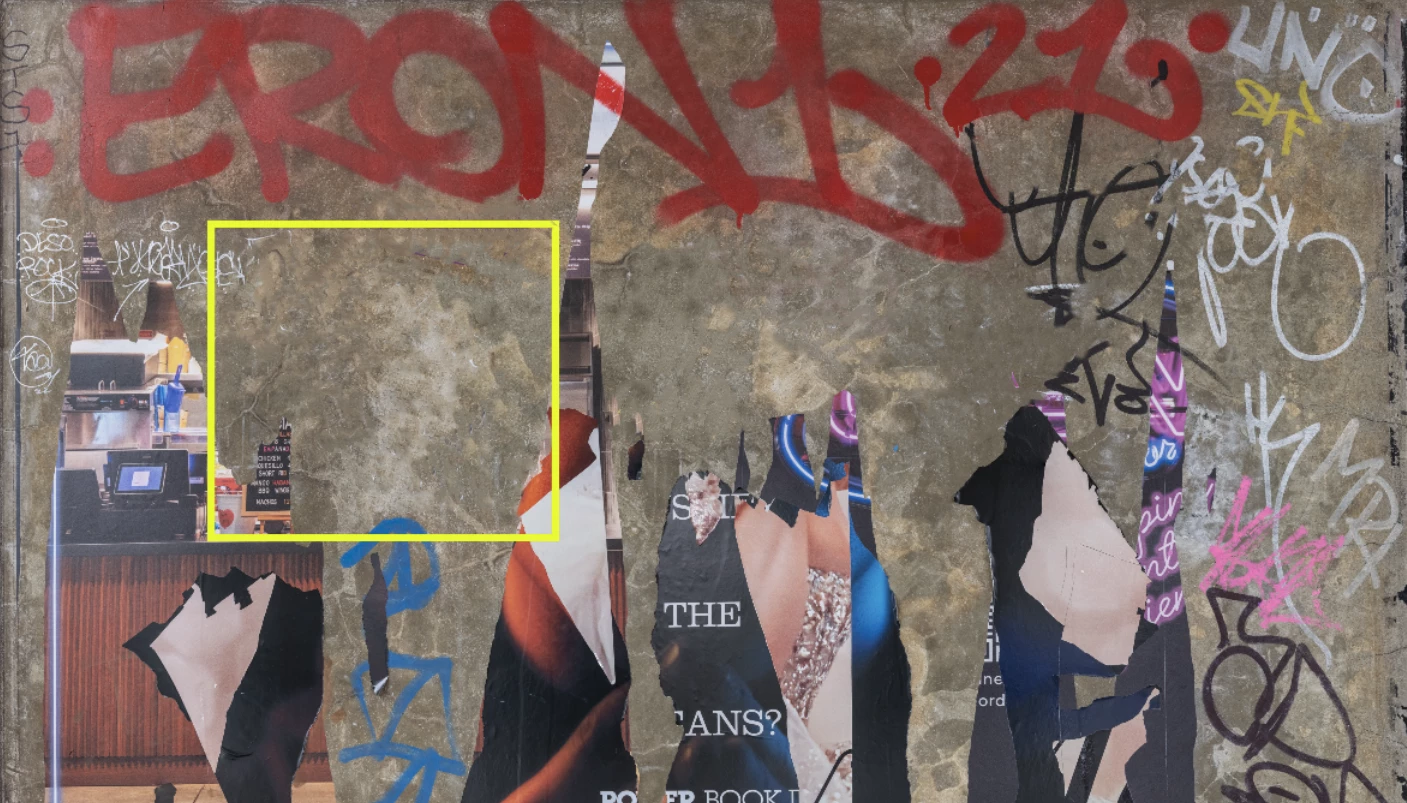
Thank you.  I had never used the Patch Tool and watched a tutorial on youtube.  It looks promising.  However, I can't use it on the Background Layer (Layer 0) or else I get the result shown below.  I guess this is because the adjustments I made previously are on the Curves 1 Layer.  Looks ike I may have to flatten the image before using the Patch Tool, is that correct?  Thanks.