
Participating Frequently
September 9, 2020
Question

Clone stamp / patch tool / content aware fill all leave remnant

  • September 9, 2020
  • 6 replies
  • 622 views

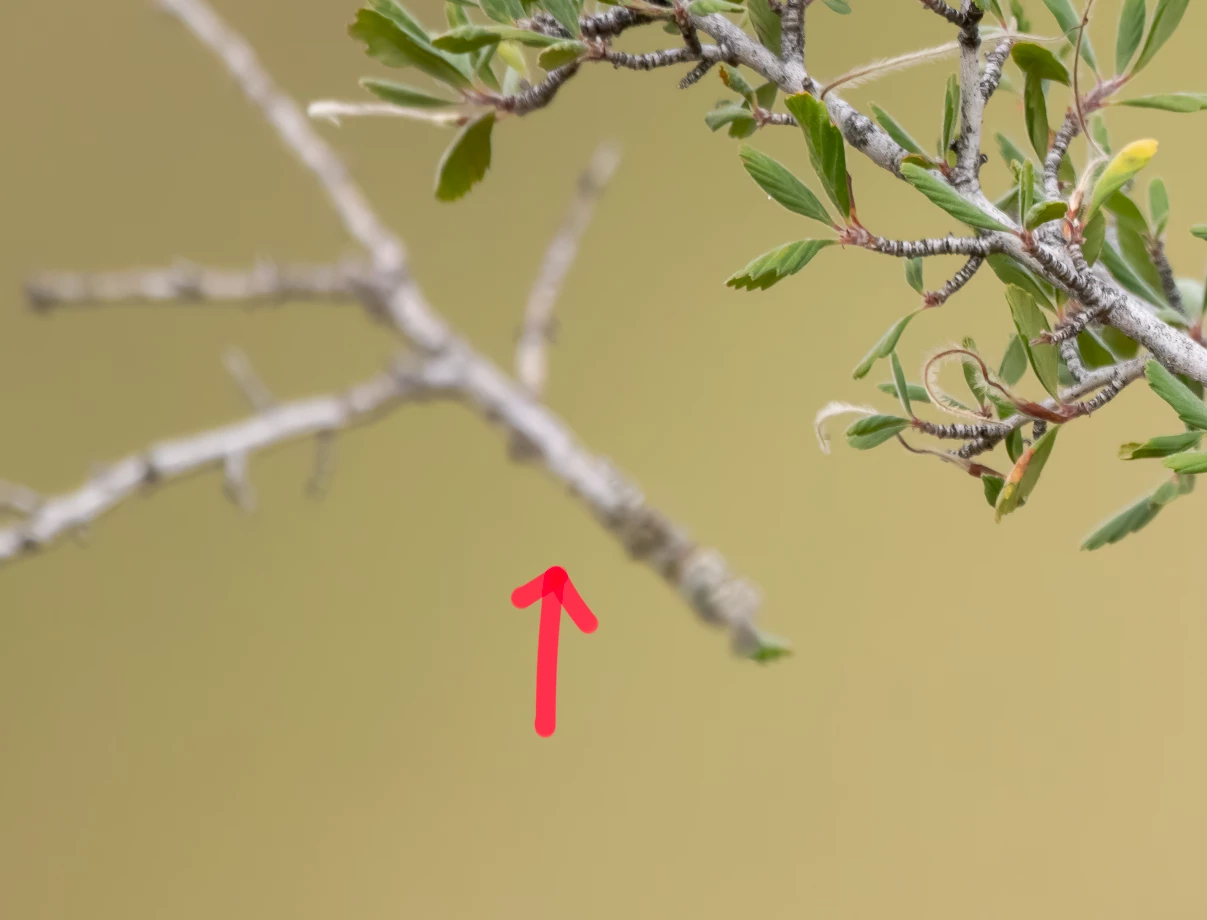
Attempting to evict this branch on left I can use one of the aforementioned processes which normally all work fine. But no matter what process I use, there is a faint white silhouette of the lightest part of the branch using any/all of them.


Red arrow pointing to branch to be removed:


Red arrows pointing to remnant
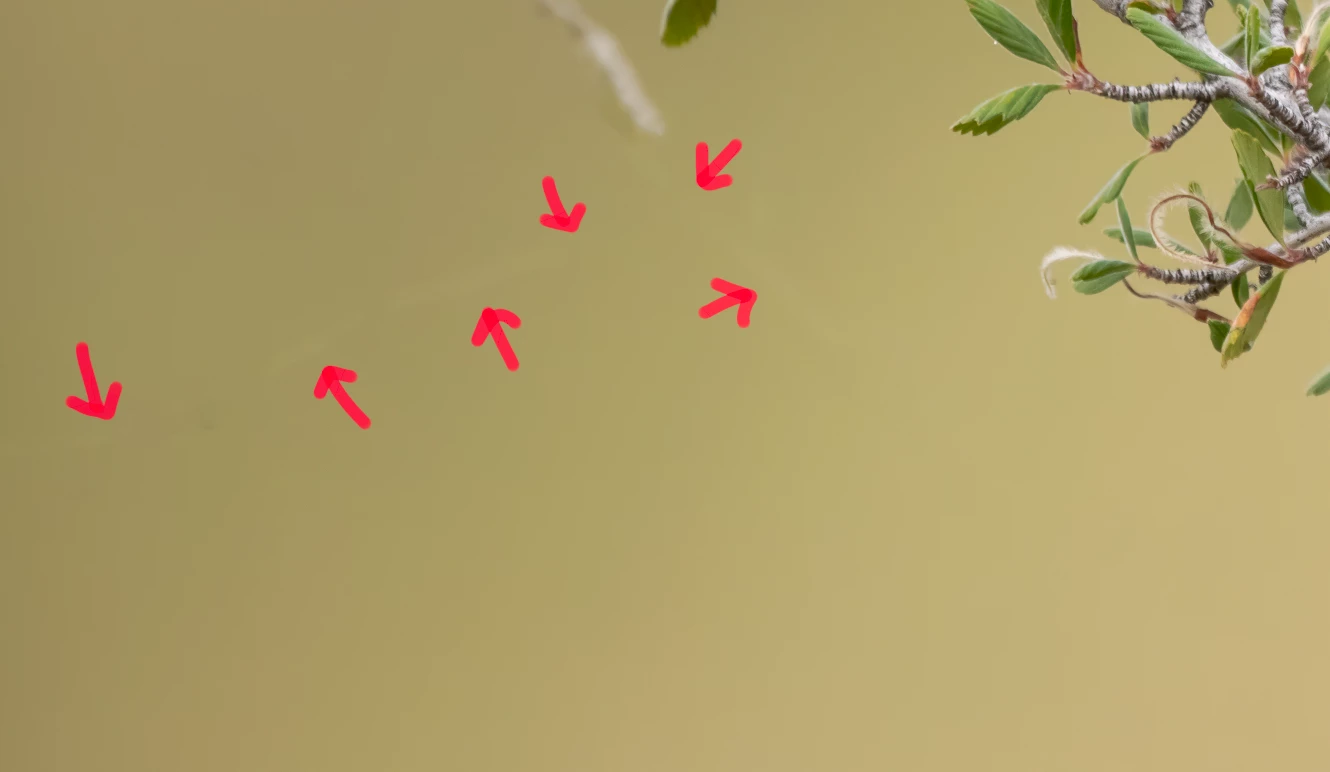


I have closed and re-opened PS to no avail. I have tried cloning onto another layer, etc and same thing.


Ideas?


Photoshop CC v 21.2.2

This topic has been closed for replies.

6 replies

Barb Binder
Community Expert
Community Expert
September 9, 2020

No, I did not have any issues removing the branch. I said "If you think it is a Photoshop glitch...".


All preferences are reset when you click the Reset All Preferences button in Preferences > General. Be sure to save all presets, custom brushes, etc. first.


If this is a layer issue, we'll be able to pinpoint it once you share your process. Until then, it's all guesswork.


~Barb 


~Barb at Rocky Mountain Training
Participating Frequently
September 11, 2020

Okay, here we go....


Here is a screenshot of current layers. You will see I am working on the highlighted layer:


Here I selected the area using the lasso tool that I want to remove


Clicked "Content Aware Fill". You can see in the preview menu it does not show any remnants


But here is the outcome. You can see the white slihouette from the evicted branch:


Next I tried turning off the original layer and trying on the layer below


Again, no evidence of remnants in the preview pane (content aware fill)


But again, same result


I tried again on a new (duplicated) layer above the original, with the same result


Clicked "Sample all layers" in the content aware fill preview pane as well with no luck

Participating Frequently
September 16, 2020

I have an open ticket with PS support. Tier 1 could not figure it out after a bunch of settings, updates, etc. They even tried PS 2019.


Escalated to tier 2

Barb Binder
Community Expert
Community Expert
September 9, 2020

If you think it is a Photoshop glitch, you can reset preferences in Preferences > General. 


I had the same result after first saving the downloaded .png as a .psd.


I suspect it is a layer issue—that's why I asked to see the Layers panel in each screen shot. 


~Barb 


~Barb at Rocky Mountain Training
Participating Frequently
September 9, 2020

Barb, sorry you had the same glitch? What exactly happened?


If I reset preferences there, what exactly do you suggest I reset?


Assuming it were a layers issue, would you suspect it still, regardless of whether I turned the top layer off and tried on one below (I ctrl/cmd J to duplicate the bkg layer, and I subsequently duplicated the duplicate to try making the clone/fill on different layers with others turned off to test it, and had the same result)?

Participating Frequently
September 16, 2020

I have an open ticket with PS support. Tier 1 could not figure it out after a bunch of settings, updates, etc. They even tried PS 2019.


Escalated to tier 2


Barb Binder
Community Expert
Community Expert
September 9, 2020

Well, since two of us have keystroked this using your image and have not experienced the same problem, can you share a series of screen shots so that we can see your process? Please include the Layers panel in each shot. 


~Barb 

~Barb at Rocky Mountain Training
Participating Frequently
September 9, 2020

Sure, I will when I get to my editing computer later on.


I would imagine there would be no issue with any of you stamping it out because you're editing a jpg on your system. I believe it's either a PS glitch or something embedded in my file. I make similar edits every single day and have never had this issue before.

Barb Binder
Community Expert
Community Expert
September 9, 2020

content aware fill all leave remnant

Are you using Edit > Fill > Content-Aware or Edit > Content-Aware Fill?


Try Edit > Content-Aware Fill:

  1. Make a loose selection of the branch

  2. Edit > Content-Aware Fill
    This taskspace allows you to control over what Photoshop uses to rebuild the area where you are removing pixels. Using the Sampling Brush tool, paint green over the areas you want to sample from, remove green from the other branch.


  3. This left a little smudge to the left of the white branch. With the selection still active, use the Clone tool to remove.
  4. That's it.

~Barb 

~Barb at Rocky Mountain Training
Participating Frequently
September 9, 2020

Barb, as mentioned in the title I have already attempted content aware fill. It really doesn't matter which method I try, I still get the remnant and I cannot re-content aware fill nor stamp on top of it to make it go away.

Simmer1
Community Expert
Community Expert
September 9, 2020

Hi,


The result you posted would just need another Clone Stamp Layer at the very top.

Next set the Clone Stamp set to sample all layers and with a small Brush paint in the lighter areas where the branches are visible. Maybe reduce the Brush flow slightly as well.


Participating Frequently
September 9, 2020

Unfortunately I already tried cloning on top of this as well as stamping on a new layer above. I'll try to sample all layers next but believe I already played with that setting as well. 

lambiloon
Community Expert
Community Expert
September 9, 2020

Hi this may be due to some color pixels cloning if you do it properly this then hope all will be ok....regards


Ali Sajjad / Graphic Design Trainer / Freelancer / Adobe Certified Professional