Participating Frequently
February 9, 2017
Question

Color Balance layer transfer between two files, two different outcomes?!...

  • February 9, 2017
  • 2 replies
  • 602 views

Hi,

Not sure what to think of this; let me preface that I'm an experienced Photoshop artist, been working in the field for over a decade and I've seen all kinds of bugs but this one escapes me... I'm running CS6 on Win8.

I'm working on a poster for a client, and like it sometimes happen with my big files, at some point I try to save and it say "can't save ... because of a program error". My usual workaround for this is to create a new file, and drag everything in the new one, then I can save (simply duplicating rarely works).

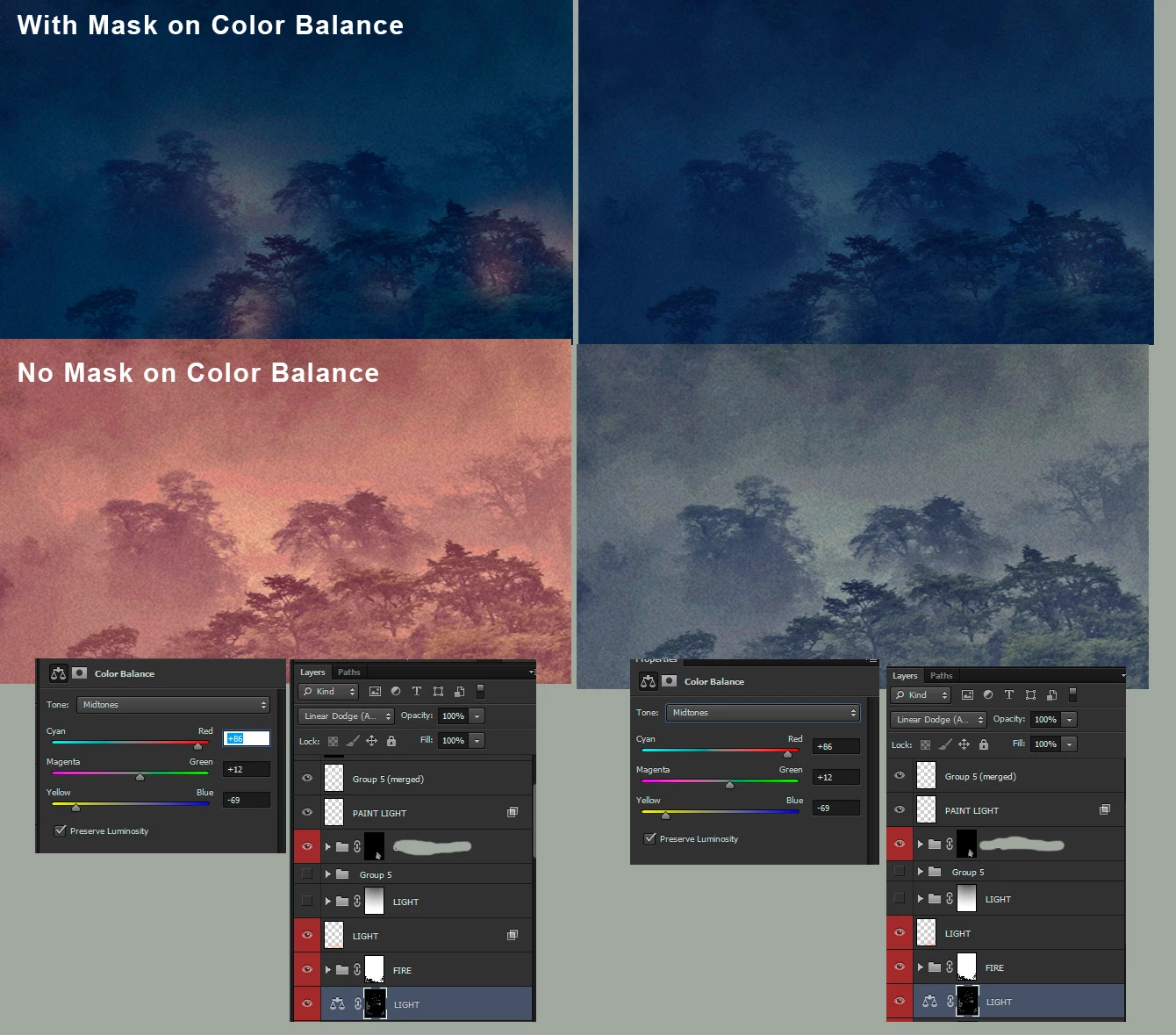
Now, I have some "lights" in my shot made in part with a Color Balance layer set to Linear Dodge, Preserve Luminosity on, and with Highlights/Midtones cranked up to make it more orange. When I dragged all my layers, the color faded out! I'm still on RGB 8bit, the order of all the layers were as is (I dragged them all at once), the other Color Balances and other Color Corrections are fine, ONLY this one! I tried to make a new one, and it doesn't work either; normally when if I drag the red color to one extreme, it will give me a burned red result; now it doesn't.

I made a quick collage of the same effect on two different files, with/without mask to get a better view. I can't show more due to the confidentiality of my work. I feel like I did double-check everything and can't figure out why it does this. The ONLY clue I might have is next to the names in the tab, the correct one spells (RGB/8*)*, and the other spells (RGB/8)*. Neither are in color proofing mode. I don't know what else it could be, or why it does that.

Hoping someone will have a clue, as in all my years working in Photoshop, I've never come across this issue!
This topic has been closed for replies.

2 replies

D Fosse
Community Expert
Community Expert
February 10, 2017

Yes, numbers are relative to color space, so any numerical adjustment will have varying effect depending on color space.

If one is sRGB and the other ProPhoto, any given set of numbers will have vastly different visual appearance.

c.pfaffenbichler
Community Expert
Community Expert
February 10, 2017

If the newly created image is not the same Colour Space as the source file that would be a significant oversight.

c.pfaffenbichler
Community Expert
Community Expert
February 10, 2017

What are the two images’ Color Spaces? (If I understand correctly the last asterisk indicates that the file was not saved, the other one whether it is in the Working Space)

Do they have visible Background Layers?

Is the effect visible at View > 100%?

You may want to set the Status Bar to »Document Profile« and include it and the Application Bar in such screenshots in the future.

elisefAuthor
Participating Frequently
February 14, 2017

You were right; for some reason they were in different color profiles (even though I NEVER touch it). The one with almost no color is in sRGB, and the other with bright color is in Adobe RGB. As far as I can tell, the client provided Adobe RGB, but depending on if I had a made a copy selection from the image prior to creating the new image it would maintain the color profile, but without a prior copy it reverted back to sRGB...

It's so silly I knew it must've been something like this, but since I never play around with the color profiles I didn't put two and two together. In the end I did manage to drag over my layers and maintain the proper effect (therefore the color space), and I've just verified that my final final was with Adobe RGB.

Weird thing is different comps I received from the client are in different modes as well (two in Adobe RGB, one in sRGB). So that would bring me to two other questions:

- Do color profiles tend to be set differently on Macs vs PCs?

- Which color profile is ideal for print between the two? I usually am in sRGB but now I am doubting my choice...

I have to say I haven't played around with that stuff since college, so I need a refresher.

D Fosse
Community Expert
Community Expert
February 14, 2017

Do color profiles tend to be set differently on Macs vs PCs?

This is determined by your policies and choices in Photoshop, and has nothing to do with OS platform.

Which color profile is ideal for print between the two? I usually am in sRGB but now I am doubting my choice...

The general advice is that sRGB is the safe choice if you don't know. But that's just so you don't get any unpleasant surprises - what you see on screen is generally what comes out at the other end, in almost any situation.

However, there are printable colors that fall well outside the gamut (range) of sRGB, and so it's an unnecessary limitation. Adobe RGB can contain saturated - and printable - colors that will get clipped in sRGB. For that reason, Adobe RGB is more or less the standard in the print industry.

You just need to be aware of the implications. To use Adobe RGB, there has to be a fully color managed process all the way. You can't use it for web or screen work, if there is a possibility the profile gets stripped somewhere, or it will be viewed in a non-color managed environment. A standard display is fairly close to sRGB, and if you feed it Adobe RGB numbers without color management, it will be muted and desaturated.

You also need a wide gamut monitor to reproduce Adobe RGB fully on screen. On a standard monitor you can't see the full color range, it will get clipped to sRGB-ish.