
Participant
June 5, 2024
Question

Color change

  • June 5, 2024
  • 1 reply
  • 126 views

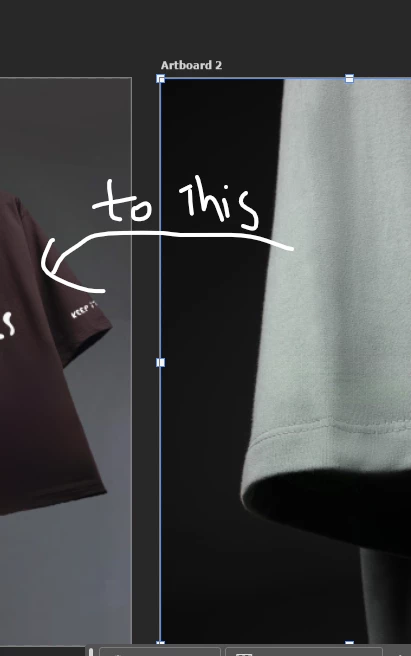
I am a beginner at photoshop! I just wanted to change the color from one color to another (which I provided in attachments)! I tried many tutorials, but it's not working! Let me know if any one of you knows how to do so! It would be really helpful to me.


Thanks
 

This topic has been closed for replies.

1 reply

Myra Ferguson
Community Expert
Community Expert
June 5, 2024

One way to apply the color would be to do sample the color, add a layer filled with the color, and use a layer mask to apply the color only to the shirt. Here's how:

  1. Select the Object Select Tool (If you can't find it, then go to Edit > Search and enter "Object Select Tool" in the search field at the top of the Discover panel that opens)
  2. Make a selection around the Shirt. If you have the Options bar open (Window > Options), then you can set the Mode to Lasso. You don't have to make a perfect selection with this tool. Just draw a rough selection around the shirt.
  3. Select the Eyedropper tool (you can search for it in the Discover panel again if you have trouble finding it)
  4. Click on the color you want to use on the other shirt
  5. While the selection is active, go to Layer > New Fill Layer > Solid Color and click OK in the New Layer dialog.
  6. The Color Picker that opens should use the color that you just sampled for the fill. If it's correct, click OK.
    • If the mask needs to be adjusted, click on the layer mask thumbnail in the Layers panel and in the Options bar, click the Select and Mask... button
    • Try using the Shift Edge slider to get more or less of the color to show (by changing what the layer mask reveals) and click OK
  7. The color will be masked to the shape, but it won't blend yet. Change the Blend mode in the Layers panel from Normal to Multiply.