
Participant
January 22, 2022
Answered

Color management in PS2022

  • January 22, 2022
  • 7 replies
  • 1485 views

Is there a mechanism for telling PS2022 to ALWAYS open files without color management. (e.g. Use the embedded profile in EVERY file that is opened, even if being opened as layers!
I have studied the Preferences in PS and can find no way to change the default which is to discard the embedded profile...  I can open individual files (.dng and .jpg) from Lightroom Classic and for each one I must specify that I want to use the embedded profile.  However, If I open a batch of files as layers in PS, either from Lightroom Classic OR by using the script available from the PS File menu, PS automatically discards the embedded profile and all of my development is lost.   Is there a way to set a global preference to 'Use embedded profile'?
This topic has been closed for replies.
Correct answer NB, colourmanagement

Willard, you wrote: "I appreciate the response and have attached a screenshot showing the dialog box that opens in PS2022 every time I open a file .jpg file.  Note that the default choice shown is to discard the embedded profile with destroys the changes made in Lightroom Classic"

3 important points here from your screenshot,

1: never ever set the workingspace to "monitor profile". 

2: its really very very unlikely indeed that your monitor display actually is accurately characterised by the sRGB profile. For serious imaging work you really do need a sensor based screen calibration / profile, a device such as i1display Pro will do that. 

3: go to edit/ color settings and choose the most apt of the presets, the default options [e.g. when file opening] are set up here [post your current settings there please?] its useful to have a warning for a mis matched profile in my opinion, I know others don't like that warning but I do, it only takes a second to make the choice of "preserve embedded profile" - If you must, though, [and you trust the source of incoming files] you can turn off the warning checkbox in edit/color settings

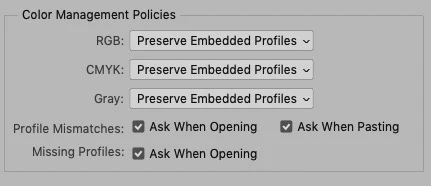
screenshot above, here you may like to uncheck Profile Mismatches: 'Ask When Opening'


I hope this helps
neil barstow, colourmanagement net :: adobe forum volunteer
google me "neil barstow colourmanagement" for lots of free articles on colour management

7 replies

Participant
January 24, 2022

I want to say 'Thank You' to all who have endeavored to help me solve my problem, but especially to NB, colourmanagement.net. I was totally overlooking the Edit>Color Management dialog (repeatedly searching through all of the Preference dialogs!) and all I've had to do to solve my problem is uncheck the box 'Ask When Opening'. Thank you so much, everyone.

NB, colourmanagement
Community Expert
Community Expert
January 25, 2022

Willard, thanks so much for letting me know that was all you needed.

Just beware now of opening any files of uncertain province, because they may have unwanted embedded profiles, e.g. 'input' type profiles from, say, a camera or scanner.

Those input profiles are often non-linear so are not suitable editing colour spaces. 


I hope this helps neil barstow, colourmanagement net :: adobe forum volunteer

google me "neil barstow colourmanagement" for lots of free articles on colour management

Kukurykus
Legend
January 25, 2022

Something wrong happened with text under your post. By the way, since we have not only Threaded view like a year ago, but also Linear, the 'Blue button' part is not needed anymore.

NB, colourmanagement
Community Expert
NB, colourmanagementCommunity ExpertCorrect answer
Community Expert
January 24, 2022

Willard, you wrote: "I appreciate the response and have attached a screenshot showing the dialog box that opens in PS2022 every time I open a file .jpg file.  Note that the default choice shown is to discard the embedded profile with destroys the changes made in Lightroom Classic"

3 important points here from your screenshot,

1: never ever set the workingspace to "monitor profile". 

2: its really very very unlikely indeed that your monitor display actually is accurately characterised by the sRGB profile. For serious imaging work you really do need a sensor based screen calibration / profile, a device such as i1display Pro will do that. 

3: go to edit/ color settings and choose the most apt of the presets, the default options [e.g. when file opening] are set up here [post your current settings there please?] its useful to have a warning for a mis matched profile in my opinion, I know others don't like that warning but I do, it only takes a second to make the choice of "preserve embedded profile" - If you must, though, [and you trust the source of incoming files] you can turn off the warning checkbox in edit/color settings

screenshot above, here you may like to uncheck Profile Mismatches: 'Ask When Opening'


I hope this helps
neil barstow, colourmanagement net :: adobe forum volunteer
google me "neil barstow colourmanagement" for lots of free articles on colour management

Participant
January 23, 2022

I appreciate the response and have attached a screenshot showing the dialog box that opens in PS2022 every time I open a file .jpg file.  Note that the default choice shown is to discard the embedded profile with destroys the changes made in Lightroom Classic. If I select option 1 to use the embedded profile my development is preserved.  However, when I use either the script from PS (File Menu > Scripts > Load files into stack, the option checkbox does not appear and the default is used so that all development is lost for all layers!  The same thing occurs if I open a stack of files from LRC using the context menu (Edit In > Open as layers in Photoshop).  No dialog checkbox, loss of all development changes from LRC.

I'm not sure exactly when this happened, but it has been just recently.  I specialize in time-lapse, macro photos, often dozens in series, that I turn into movies using layers in PS.  For almost two years I never seemed to have the problem I now have.  If I changed anything in PS 'Preferences' I cannot find it but perhaps I have been overlooking something.  Any help will be appreciated.

TheDigitalDog
Inspiring
January 23, 2022

Your color setting are kind of a big mess here (the Monitor set for Working Space is a disaster).

The JPEG doesn't match that hence your warning but you really need to start from scratch setting the Color Settings after understand what they all do. So here's the homework <G>.

See: http://digitaldog.net/files/PhotoshopColorSettings.mp4

Photoshop CC Color Settings and Assign/Convert to Profile video

Author “Color Management for Photographers" &amp; "Photoshop CC Color Management/pluralsight"
NB, colourmanagement
Community Expert
Community Expert
January 23, 2022

Please post screenshots:

your color settings

any warning you get when loading the stack


How do you open a batch of files into PS as layers, do you mean all at once? 

using:- File/ scripts / Load files into stack? 

Ideally I imagine tyou'd ensure all files to be opened are in the same colourspace

(i.e. all have the same embedded profile) 

It works OK when I try it here, no discarding of profiles.

I note though that if I include a file with no embedded icc profile then that gets assigned the same profile as the others (which do have embedded profiles) 

Are all your lightroom files developed using the same ICC profile (e.g. AdobeRGB (1998)?


I hope this helps
neil barstow, colourmanagement net :: adobe forum volunteer
google me "neil barstow colourmanagement" for lots of free articles on colour management
[please only use the blue reply button at the top of the page, this maintains the original thread title and chronological order of posts]

c.pfaffenbichler
Community Expert
Community Expert
January 22, 2022

Your description seems a bit strange to me. 

Maybe you could try again and post meaningful screenshots (with the Status Bar set to »Document Profile« and the pertinent Panels visible)? 

D Fosse
Community Expert
Community Expert
January 22, 2022

Have you made any changes in PS Color Settings? If you have, unmake them. The default is to always use the embedded profile - in other words, the embedded profile will override the working space.


The only way to discard the profile automatically, is to set color management policies to "off", which is something you should never, ever, do. This option should just have been removed long ago.


Note that Export and Save For Web will discard the profile at default settings (don't get me started on the wisdom of that). Here, you need to check "embed color profile"

TheDigitalDog
Inspiring
January 22, 2022

There is never any "No color management" in Photoshop, nor should there be. Photoshop always needs a  profile of the display to preview images and an embedded profile to understand the scale of the RGB (or CMYK) values to edit and display that image.

You can try fooling Photoshop by not embedding profiles (pointless) but it will always use an assumption in the color settings for untagged data. It always uses color management, even if you try to fool it by stripping profiles.

You NEVER want to discard the embedded profile. We can go into why. But you accomplish nothing but producing RGB mystery meat that insures the numbers will not preview correctly.

Author “Color Management for Photographers" &amp; "Photoshop CC Color Management/pluralsight"
Participant
January 23, 2022

Thank you for your response.  Please see my reply to previous response w/ a screenshot showing the dialog checkbox which clearly shows 'Discard the embedded profile (don't color manage)' that, to my mind means, 'No color management', does it not?  How do I set the first option 'Use the embedded profile as the default, whether opening individual files or a large stack of .jpgs?  Thank you again for your response.

D Fosse
Community Expert
Community Expert
January 23, 2022

Uncheck the box in color settings that warns when the embedded profile is not the same as the working space.


That warning serves absolutely no sensible purpose and tells yu nothing useful. Just get rid of it.