Mr_tapo8
Participant
December 1, 2016
Answered

Color replacement tool [2016]

  • December 1, 2016
  • 2 replies
  • 4576 views

Hello dear Adobe users i need help from you.


I have question if is possible to make from white color to black. For example i have white car but i need to make it black and this tool can make only blue or green or just bright color like theese. Iam using Cs5


Please can you help me with this problem.


Thank you.

Correct answer davescm

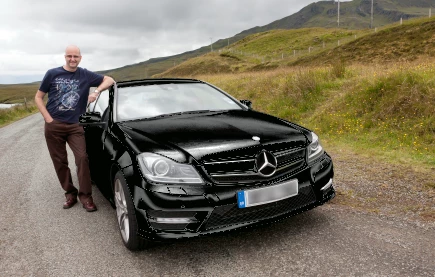
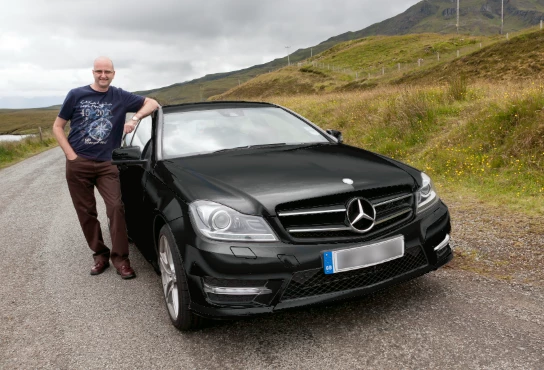
The trick is to make it black but still have glossy reflections - otherwise you end up with a dark flat car - or a gray car.

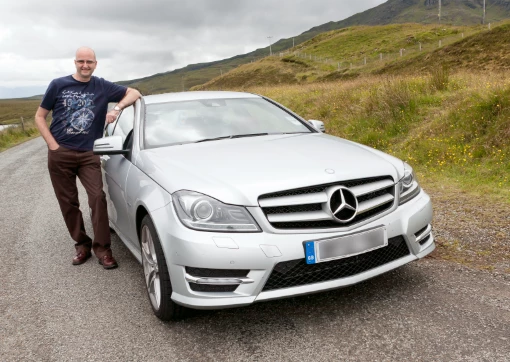
(I didn't have a white car pic handy but this very light silver should demonstrate it.)

1. Mask the metalwork

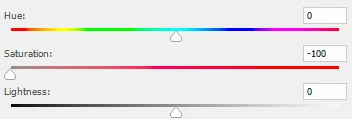
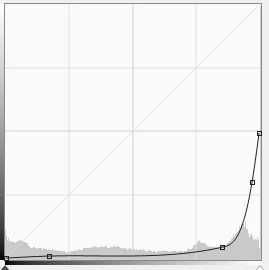
2. Add a curves layer with a fairly extreme curve and a Hue saturation layer. These should darken and desaturate  the car but will take out many of the reflections so it will look flat
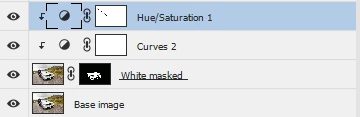
3. Duplicate those top three layers . Go into curves and really mangle the curve to bring out the reflections and shape.

This will look unnatural - but don't worry you are just trying to bring out the shapes with highlights

4. Now change the top (mangled) car layer blending mode to screen and reduce the opacity. You are aiming to make those highs blend naturally

Result :

From this :

To this :

I hope that points you along the way

Dave

2 replies

davescm
Community Expert
davescmCommunity ExpertCorrect answer
Community Expert
December 1, 2016

The trick is to make it black but still have glossy reflections - otherwise you end up with a dark flat car - or a gray car.

(I didn't have a white car pic handy but this very light silver should demonstrate it.)

1. Mask the metalwork

2. Add a curves layer with a fairly extreme curve and a Hue saturation layer. These should darken and desaturate  the car but will take out many of the reflections so it will look flat
3. Duplicate those top three layers . Go into curves and really mangle the curve to bring out the reflections and shape.

This will look unnatural - but don't worry you are just trying to bring out the shapes with highlights

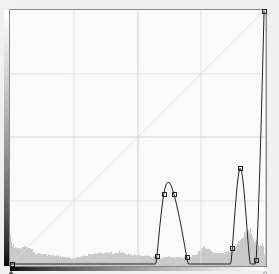
4. Now change the top (mangled) car layer blending mode to screen and reduce the opacity. You are aiming to make those highs blend naturally
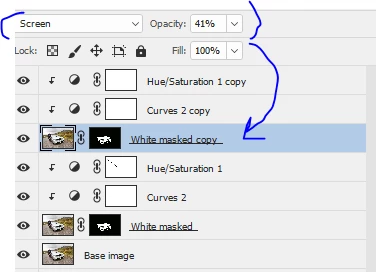
Result :

From this :
To this :
I hope that points you along the way

Dave

Mr_tapo8
Mr_tapo8Author
Participant
December 2, 2016

Your answer is for sure right but i can not do this iam not at this level but thank you anyway !

davescm
Community Expert
Community Expert
December 2, 2016

Mr.tapo8 wrote:

Your answer is for sure right but i can not do this iam not at this level but thank you anyway !

Have a try at following what I wrote. Follow it step by step and shout out if you get stuck. A little project like this is a great way to learn about some of Photoshop's features.

There were 3 things involved (if you want to look them up whilst having a go) :

1. Layer masking - to ensure that adjustments only affected the car and not the whole image

2. Adjustment layers - these are similar to image adjustments but allow you to go back and re-adjust

3. Blending modes (right at the end)

Have a try - and have fun doing it

Dave

Chuck Uebele
Community Expert
Community Expert
December 1, 2016

As you have found out, the color replacement tool only works with colors, not black, white, or shades of gray. You need to use an adjustment layer, like curves, with a mask to do what you want.