
Atrocity79
Known Participant
May 14, 2023
Question

Color Shift on Export, Color Profile, or Monitor Calibration Issues

  • May 14, 2023
  • 6 replies
  • 13208 views

Hello. I recently re-installed Photoshop to my Windows PC using a BenQ EX3210U monitor. The colors from what I'm seeing via the monitor look great, so I can continue to edit as usual. Once I started to export my edited photo, uploaded to both Dropbox and OneDrive, the photo looks very washed out losing most of it's saturation and contrast. Below are some screenshots of what I'm seeing in Photoshop. Is what I'm experiencing a color profile or monitor issue? After looking at all I can do within Photoshop and Windows 11 settings, I do believe it could be a monitor issue as it has never been calibrated.


After doing some rearch on Google, I checked Color Management within Windows and the ICC Profile was blank at first until I added the sRGB 2.1 seen below.
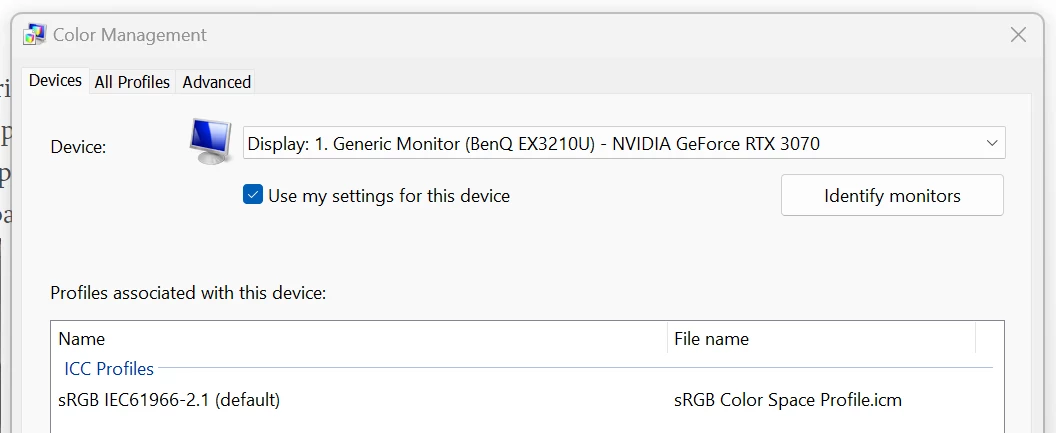
 

Below are the Color Settings I seen in Photoshop. I made no changes so these settings were the same before I noticed I had an issue.
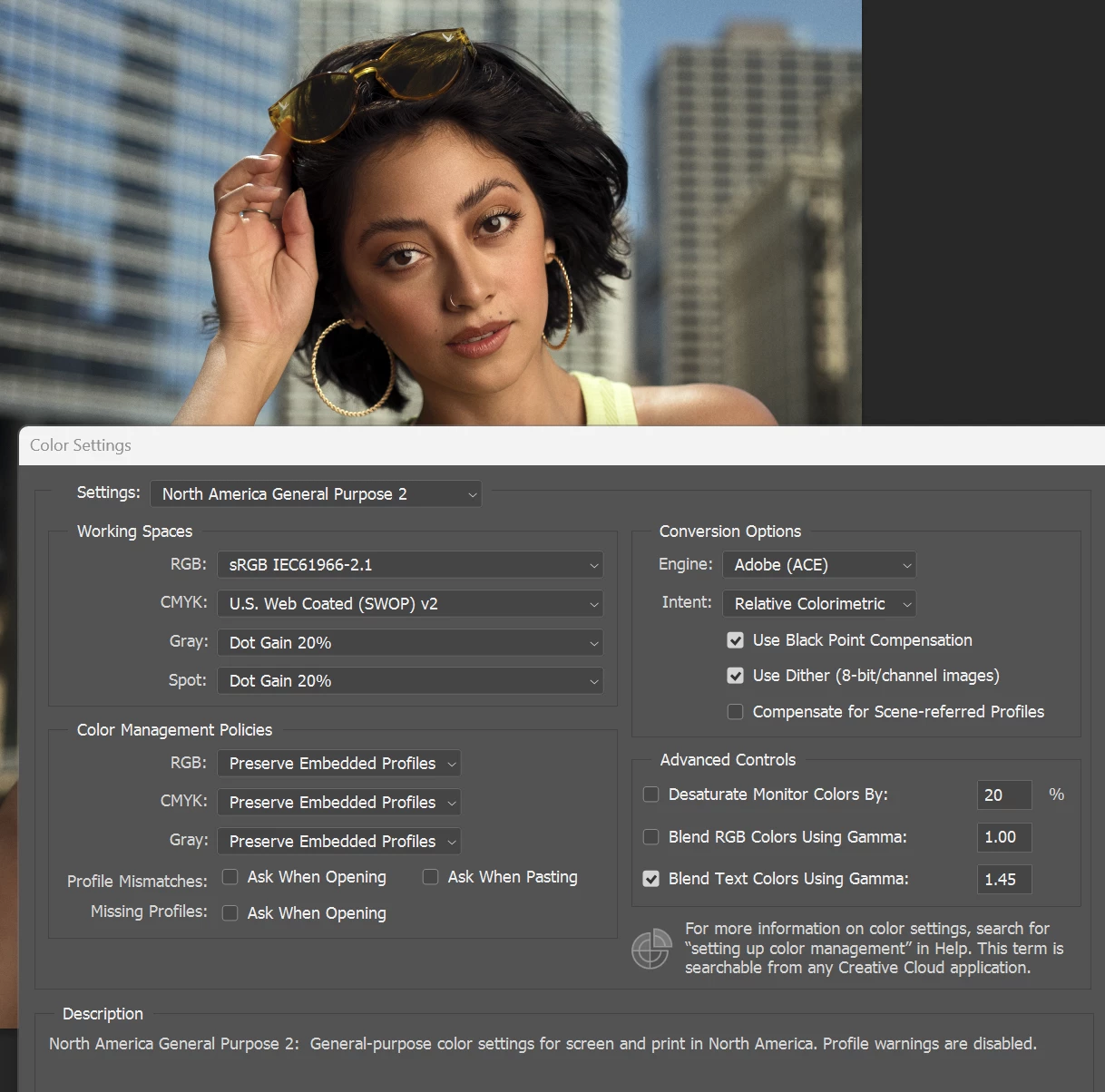
 

Below are some picture examples of what others are viewing. Now to me the below picture looks fine but when I view this on my iPhone it's very washed out, no saturation, contrast, etc. Other are seeing what I see on my phone as well. 

 

Any guidance would be appreciated. Thanks.

6 replies

Participant
April 9, 2024

I had the same problem which drove me nuts !! .. 

What I did notice is that the default colour profile when exporting a file (in Lightroom) was ProPhoto RGB.

On my computer, on the screen etc images looked amazing,. great colours but when uploaded to OneDrive or Instagram they looked washed out,

I changed the colour space settings in the export to sRGB and that resolved the issue

D Fosse
Community Expert
Community Expert
April 9, 2024

Yes, another example of why ProPhoto as the default color space in Lightroom is an extremely unfortunate choice. Inexperienced users continually get in trouble because of this.


Defaults are supposed to be safe settings for beginners.


Experienced users who want/need ProPhoto, and are aware of the implications, will know where to find it for themselves. They don't need any help.

TheDigitalDog
Inspiring
May 14, 2023

Your BenQ has several possible color presets, so check that. In theory, you can select sRGB and be 'close' to that target. 

It is a wide gamut, closer to Adobe RGB (1998) than P3 so pick that if its set for wide gamut. 

If the display profile is defining the display condition, and it should, what you see in Photoshop IS CORRECT. What doesn't match isn't properly color-managed. 

Author “Color Management for Photographers" & "Photoshop CC Color Management/pluralsight"
NB, colourmanagement
Community Expert
Community Expert
May 15, 2023

Try this

Recent models of iPad, Android (such as Samsung) and iPhone have factory calibration which is pretty reliable, so they are quite consistent - of course brightness is user adjustable. 

IF your main computer screen is correctly calibrated and profiled and if you save images with the sRGB ICC profile embedded they should reproduce well on an iOS or Android device. My iPhone X matches my calibrated Eizo Coloredge screen very well. 

Here's an Adobe RGB image to try on the computer - and a version for the 1Pad / Android / iPhone (view in Safari etc)

With all set up correctly on your computer, these should match well


https://developer.apple.com/design/human-interface-guidelines/ios/visual-design/color/


I hope this helps

neil barstow, colourmanagement net :: adobe forum volunteer:: co-author: 'getting colour right'

google me "neil barstow colourmanagement" for lots of free articles on colour management

davescm
Community Expert
Community Expert
May 14, 2023

Hi

A little info on uRGB (after a bit of searching)

It is the internal name for a cut down sRGB profile with a filename sRGB-v2-micro.icc

https://github.com/saucecontrol/Compact-ICC-Profiles


I have no idea why that would be embedded in your documents using Export instead of the standard sRGB profile, but it may be worth deleting from your system or at least renaming it to sRGB-v2-micro.old. If installed, you will find it in C:\Windows\Sytsem32\Spool\drivers\color


Dave


Atrocity79
Known Participant
May 14, 2023

Hello. I just checked out what you mentioned. This is what is currently on my computer.


Per Berntsen
Community Expert
Community Expert
May 14, 2023
quote

Hello. I just checked out what you mentioned. This is what is currently on my computer.


This doesn't look like all the files in that folder, there should be a lot more.

You do have Adobe RGB, and it's not showing, and ProPhoto is not there either.


Here's how the Dropbox files look in Photoshop.

Are you seeing the same thing on your computer?


D Fosse
Community Expert
Community Expert
May 14, 2023

In addition, that's a wide gamut monitor (DCI-P3). That means the very first thing you need to do, is go out and buy a calibrator. You cannot use wide gamut monitors without a custom monitor profile, and a calibrator is the way to make one. No wide gamut monitor should ever be sold without a calibrator.


You cannot use sRGB IEC61966-2.1 as monitor profile for that unit. Until you get a calibrator, use Image P3. It won't be entirely accurate, but as close as it's possible to get for now. Using sRGB, everything will display very oversaturated.


Yes, I agree with Per that "uRGB" sounds very suspect, and it will very likely be ignored in most color managed software. You need to find out where it comes from, stop using it, and replace it with something standard.

Atrocity79
Known Participant
May 14, 2023

I figured this monitor would need to be calibrated once I started to edit photos. Before I was using Windows, I was using a Macbook Pro and pictures on that display were very similar to what was seen on other devices like an iPhone and iPad.


I'll update the monitor profile to Image P3 and see how that works out for now. And I have noticed that using the sRGB profile within Windows can be overbearing because of the color saturation.


Which calibrator do you recommend? I've seen several brands online with a wide range in cost.

TheDigitalDog
Inspiring
May 14, 2023

Get a Colorimeter; avoid any named after any Arachnida 😜

Depending on your budget:

https://calibrite.com/

Author “Color Management for Photographers" & "Photoshop CC Color Management/pluralsight"
Per Berntsen
Community Expert
Community Expert
May 14, 2023

The image has a profile called uRGB embedded. I've never heard of it, and an Internet search brings up no results.

It does look somewhat desaturated, and assigning Adobe RGB in Photoshop (Edit > Assign profile) makes it look much better.

So it seems that you exported in Adobe RGB, which is not a good choice for the internet.

Always convert to sRGB (and embed the profile) when exporting.


I have no idea where the uRGB profile came from, but it could be that web browsers ignore it, and treat the image as untagged. (having no profile) Images created in Adobe RGB or ProPhoto that don't have the profile embedded, will display desaturated in web browsers, which will assign sRGB to untagged images.


Atrocity79
Known Participant
May 14, 2023

I have no idea how it has an image profile called uRGB embedded. I've just opened a RAW file using Camera Raw, made a few adjustments. On the bottom, left hand side of the screen I'm seeing the Document Profile as sRGB IEC 61966-2.1 (8bpc).

When exporting I'm selecting File> Export> Save for Web (Legacy)> JPEG is selected, Embed Color Profile is checked, Convert to sRGB is checked, Preview has Internet Standard RGB (No Color Management) is selected from the drop down menu, then I continue to Save the file to my computer. Is there anything that needs to be different when exporting? I've tried changing those settings before and nothing changed how it was being displayed off of my computer. I would still see that desaturated look that you see.

Per Berntsen
Community Expert
Community Expert
May 14, 2023
quote

When exporting I'm selecting File> Export> Save for Web (Legacy)> JPEG is selected, Embed Color Profile is checked, Convert to sRGB is checked, Preview has Internet Standard RGB (No Color Management) is selected from the drop down menu, then I continue to Save the file to my computer. Is there anything that needs to be different when exporting?


The No color management option for preview dates back to the time when web browsers weren't color managed.

These options don't affect the exported file, but to see a correct preview, choose Use document profile.

Other than that, your settings are fine.


quote

I've tried changing those settings before and nothing changed how it was being displayed off of my computer. I would still see that desaturated look that you see.


At what point, and on what device are you seeing the desaturation?

Is it after opening the exported image on your computer immediately after the export?

If so, in what application are you viewing the image?

Or is it on your phone?


quote

I have noticed that using the sRGB profile within Windows can be overbearing because of the color saturation.


Native Windows applications, like the File Explorer and Desktop are not color managed, and will always display images over saturated on wide gamut monitors. Not like what you've been used to on a Mac, where everything is color managed.

TheDigitalDog
Inspiring
May 14, 2023

Where are you viewing that image after export in Photoshop, and is it color managed? 

The iPhone uses a wide gamut color space, far wider than sRGB should you export and embed that profile. 

In your color settings, you really, really need to consider having all the warning checkboxes ON! 


See: http://digitaldog.net/files/PhotoshopColorSettings.mp4

Photoshop CC Color Settings and Assign/Convert to Profile video

Author “Color Management for Photographers" & "Photoshop CC Color Management/pluralsight"
Atrocity79
Known Participant
May 14, 2023

After exporting the photo from Photoshop I'm uploading to Dropbox or OneDrive, using those two apps on my iPhone to then download to the Photos app on the iPhone. This is when I first noticed the huge color shift.


The warning checkboxes are now on as suggested.