
Inspiring
December 15, 2018
Answered

Colors with 3D

  • December 15, 2018
  • 2 replies
  • 18815 views

I have worked with Photoshop for years but just started playing with the 3D feature. I am trying to learn as I go but I have to ask how do I change colors on my 3D images?  I am working with some text taken from a tutorial and it is black or gray but I don't see where to give it another color.  I am using CC 2018.
This topic has been closed for replies.
Correct answer Omar.Fathy

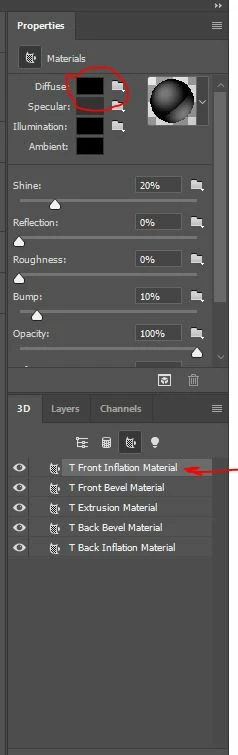
Working with 3D in photoshop needs to use the 3D panel & Properties Panel.

You can select the item from the 3D panel and get its options in the Propertied panel.

You can select the Material of your object then change the material colors from the properties panel.

------

Every object in PS 3D has 5 parts to change materials of it; Front Cap (Inflation),Front Bevel, Extrusion, Back Cap (Inflation) and Back Bevel.

2 replies

Omar.Fathy
Community Expert
Omar.FathyCommunity ExpertCorrect answer
Community Expert
December 15, 2018

Working with 3D in photoshop needs to use the 3D panel & Properties Panel.

You can select the item from the 3D panel and get its options in the Propertied panel.

You can select the Material of your object then change the material colors from the properties panel.

------

Every object in PS 3D has 5 parts to change materials of it; Front Cap (Inflation),Front Bevel, Extrusion, Back Cap (Inflation) and Back Bevel.

pslane1Author
Inspiring
December 15, 2018

Okay, I see the right panel now.  I have changed the color except for the black part that you see in my screenshot.  How do I change that?  Thanks!

davescm
Community Expert
Community Expert
December 15, 2018

The black part is the extrusion material. So select that in the 3D panel then Diffuse in the Properties panel

Dave

Mylenium
Legend
December 15, 2018

Select the itme in the 3D panel and change the material properties.

Mylenium