
Participant
December 16, 2020
Answered

Colour change in psd to jpg
  • December 16, 2020
  • 3 replies
  • 561 views

Hi, 

I am facing a hard time understanding this. So when im working on an illustration, photoshop shows one colour and when i finish and export it to either jpg or png with srgb ticked and ICC profile ticked, it still changes the colour. It goes to a dull colour.  So when i transfer the file to my mobile and view, it is showing that dull colour. If the 2nd muted colour is my actual gamut, where can i change that settings to see that in photoshop too. Its like photoshop gives bright colours only while inside photoshop. My colour settings are in srgb only. As a digital artist, it really is a pain. Hope im clear enough. Pardon my language. Thanks in advance. 

This topic has been closed for replies.
Correct answer D Fosse

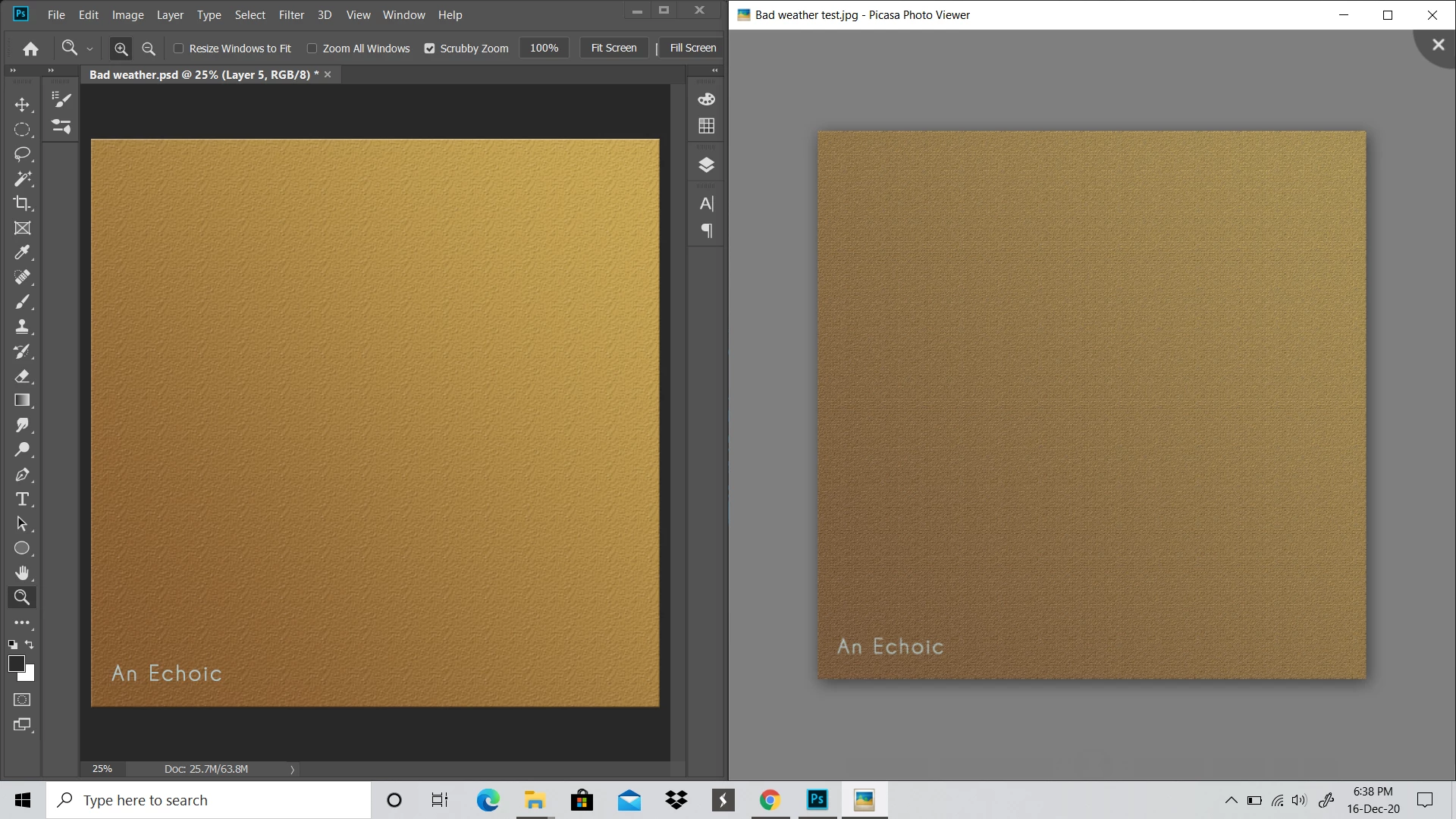
Actually I see now that this is an entirely different issue. It's not Photoshop vs other applications - it's flattened vs layered. That has some implications.


You have a lot of fine noise/texture in this file. In those cases you must view at 100% to get a reliable preview. That maps exactly one image pixel to exactly one screen pixel.


All adjustment and blending previews are calculated on the basis of the on-screen image. This is done for performance reasons. When you are zoomed out, like here, that means all those sharp pixel-level transitions are downsampled, softened and blended into intermediate values.


But the preview is calculated using these intermediate values that aren't really there in the original full data. Very simplified, a couple of pure black and pure white pixels become blended into one gray pixel. That's why you get a misleading preview. The calculations are based on wrong numbers, downscaling artifacts.


So when you flatten the image, it appears to change. But it's not changing, the flattened version is the correct one - it's the preview that is wrong.


To avoid this, make it a habit to always check at 100% when you have this kind of image (noise, texture, line art, halftone screen etc). It doesn't matter in a "normal" photograph.

3 replies

Per Berntsen
Community Expert
Community Expert
December 16, 2020

These applications are all color managed:

  1. FastStone image viewer. Free for personal use. Color management must be enabled under Settings > CMS, and both boxes must be checked,
  2. ACDSee. Not free. Color managed out of the box.
  3. Irfanview. Free for none commercial use. Color management must be enabled under Options > Properties/Settings.
  4. Bridge. Included in your Creative Cloud subscription.


If the 2nd muted colour is my actual gamut, where can i change that settings to see that in photoshop too. 

Provided that you have a sound and correct monitor profile, Photoshop is displaying correct colors.

So you have to edit the image to look the way you want it.


It is also possible that you have a defective monitor profile, causing Photoshop to display wrong colors.

To troubleshoot the monitor profile, try setting it to sRGB. If Photoshop now displays different colors, you most likely have a defective or incorrect monitor profile. sRGB will work as a temporary solution, but for accurate colors, it is recommended that you calibrate the monitor with a hardware calibrator. This will also create and install a custom monitor profile that describes your monitor accurately.


To set the monitor profile to sRGB:

With Photoshop closed, press the Windows key + R, type colorcpl in the box and press Enter.

Add the sRGB profile and set it as default.


Anil5CB5Author
Participant
December 17, 2020

1)Monitor profile is already set in srgb iec. 

2) My laptop is kinda new but with only 75%srgb value. Not fully accurate (but im ok with that)

3) I checked with irfanview. changed the colour settings and still except inside Photoshop (PSD) ,everywhere else it is showing that muted colour. When i click on save as button and the pop up opens with the "jpg quality" , that is where the colour shift happens in photoshop. Im not really familiar with many technical terms, so pardon me for being a beginner at this. I am desparate for help. I am providing more screenshots as the original PSD, Colour shift during JPG save as dialogue box open, Comparison of PSD and IRFANVIEW and my colour profile set up. 

D Fosse
Community Expert
D FosseCommunity ExpertCorrect answer
Community Expert
December 17, 2020

Actually I see now that this is an entirely different issue. It's not Photoshop vs other applications - it's flattened vs layered. That has some implications.


You have a lot of fine noise/texture in this file. In those cases you must view at 100% to get a reliable preview. That maps exactly one image pixel to exactly one screen pixel.


All adjustment and blending previews are calculated on the basis of the on-screen image. This is done for performance reasons. When you are zoomed out, like here, that means all those sharp pixel-level transitions are downsampled, softened and blended into intermediate values.


But the preview is calculated using these intermediate values that aren't really there in the original full data. Very simplified, a couple of pure black and pure white pixels become blended into one gray pixel. That's why you get a misleading preview. The calculations are based on wrong numbers, downscaling artifacts.


So when you flatten the image, it appears to change. But it's not changing, the flattened version is the correct one - it's the preview that is wrong.


To avoid this, make it a habit to always check at 100% when you have this kind of image (noise, texture, line art, halftone screen etc). It doesn't matter in a "normal" photograph.

D Fosse
Community Expert
Community Expert
December 16, 2020

There is no "color change". There is only applications that don't display correctly, and Picasa is one.


Photoshop is color managed and uses icc profiles to control color throughout. To take full advantage of that, advanced users will use calibrators to make a monitor profile that is used in this fully color managed pipeline. In combination with the embedded document color profile, this ensures the file is accurately represented on screen. Any defect in your monitor is corrected.


Applications without color management, like Picasa, don't do any of that. They just send the original numbers straight through. The result on screen is entirely down to how your particular display treats the numbers - which is random and often all over the map.

Anil5CB5Author
Participant
December 16, 2020

So instead of picasa can you suggest any other application which displays the colour corretly. As i said earlier, this is not only the case with picasa, I tried windows PHOTOS, and also some other mobile phones display it as what is shown in picasa. Thank you for replying.

D Fosse
Community Expert
Community Expert
December 16, 2020

Windows Photos is also not color managed.


The only fully color managed photo viewer I trust is Bridge, and I've never seen any reason to use anything else. There are others, I think IrfanView - but there color management has to be enabled in preferences. It's off by default.


Web browsers usually get it right nowadays. All the major web browsers are color managed: Edge, Chrome, Firefox, Safari.


But again, you need to stop thinking that the file "changes" when exporting ("Only PSD has huge difference when converting to jpg or png"). It doesn't, the numbers are exactly the same. This is entirely about the application you are using to view the file.

PECourtejoie
Community Expert
Community Expert
December 16, 2020

You might be comparing a color managed with a non-color managed application.

Check the jpg in Photoshop.

Anil5CB5Author
Participant
December 16, 2020

The exported(desaturated) jpg when placed again in photoshop doesnt have much change. They both looks same. Only PSD has huge difference when converting to jpg or png. Thanks for replying.