
jeffreychao
Participant
December 11, 2016
Answered

Colour Lookup Problem in Photoshop CC 20161012R

  • December 11, 2016
  • 4 replies
  • 4755 views

Hi, I didn't have this problem until recently I updated my Windows 10 to the latest version.

4 of the colour lookups in 3DLUT does not work and it blacks my screen, including 2 strip, 3 strip, bleach bypass, soft warming. The rest works just fine.
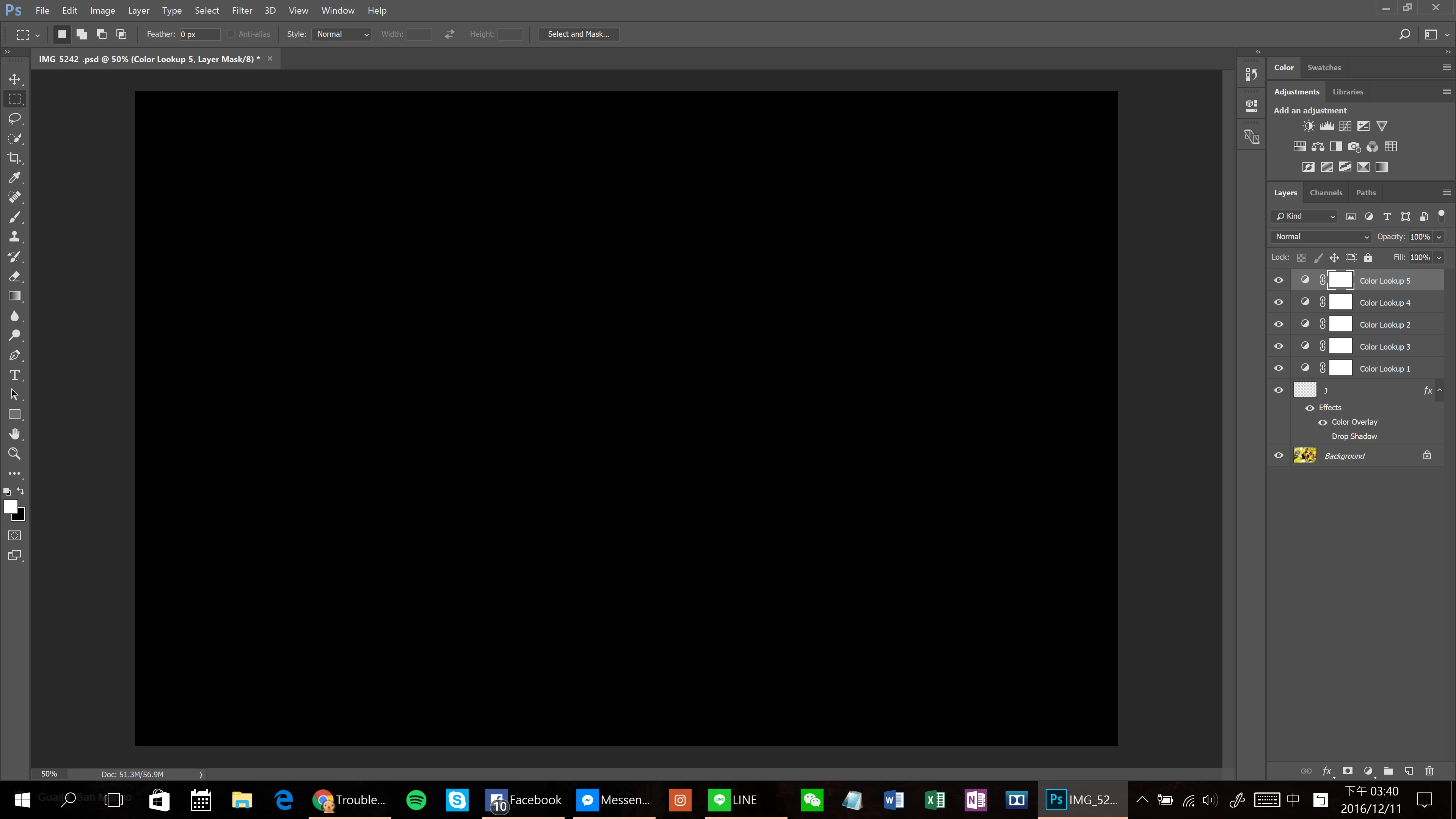
I tried every solution I saw online. Resetting the preference, disable the graphic processor, set advanced setting to basic, update my Windows and my processor driver to the latest version, even reinstall Photoshop still doesn't solve the problem.

What am I missing here?

This topic has been closed for replies.
Correct answer jeffreychao

Ok. So I was in the live chat with an extremely nice engineer trying to solve the problem.

We had tried everything you would find online.

Re-install PS, reset preference, disable graphic processor, and etc.

In the process, we figured that it is definitely not the hardware problem.

And my software and drivers are up to date.

Just when we about to get to the no-solution end, we decided to try the ultimate solution: Enable Compatibility Mode.

I'm using Windows 10, so I don't know how other platforms work. Here is how-to:

1. Go to the folder when you install Photoshop.

2. Right click on Photoshop.exe and choose 'properties'.

3. Find 'Compatibility Mode' under Compatibility, checked the box for 'Run this program in compatibility mode for:' and choose 'Windows 7'.

In the setting section, check 'Disable display scaling on high DPI settings' and 'Run this program as an administrator', and click apply then close it.

4. Re-open Photoshop and see whether it works.

I hope this solves your problem as well as it has bugged me for a long time!

If you have any more question, hit me with a message:

http://m.me/Jeffeography

4 replies

Inspiring
February 21, 2017

So this finally fixed the problem but now I get that loud warning noise and a pop up to authorize PS to make changes each and every single time I open something, how do I get rid of that?

Participant
April 17, 2022

Damn... maybe direct this question to the service team? I hope you found the solution!

Participant
February 10, 2017

Thank you SOOOO much for this one! Saved me a bunch of time.

Georgina76
Participant
January 7, 2017

THANK YOU!!!! I was having trouble with this for ages... I installed and uninstalled it a couple of times, nothing worked. I followed your post and instructions and IT WORKED!!!

Thank you. =)

jeffreychao
Participant
January 8, 2017

Haha! You are so welcome      

jeffreychao
jeffreychaoAuthorCorrect answer
Participant
December 12, 2016

Ok. So I was in the live chat with an extremely nice engineer trying to solve the problem.

We had tried everything you would find online.

Re-install PS, reset preference, disable graphic processor, and etc.

In the process, we figured that it is definitely not the hardware problem.

And my software and drivers are up to date.

Just when we about to get to the no-solution end, we decided to try the ultimate solution: Enable Compatibility Mode.

I'm using Windows 10, so I don't know how other platforms work. Here is how-to:

1. Go to the folder when you install Photoshop.

2. Right click on Photoshop.exe and choose 'properties'.

3. Find 'Compatibility Mode' under Compatibility, checked the box for 'Run this program in compatibility mode for:' and choose 'Windows 7'.

In the setting section, check 'Disable display scaling on high DPI settings' and 'Run this program as an administrator', and click apply then close it.

4. Re-open Photoshop and see whether it works.

I hope this solves your problem as well as it has bugged me for a long time!

If you have any more question, hit me with a message:

http://m.me/Jeffeography

Participating Frequently
December 16, 2016

thanks jeffreychao

it worked fine for me!

jeffreychao
Participant
December 18, 2016

You are so welcome! Glad that worked out for you as well