Inspiring
November 18, 2012
Answered

Colour replacement tool not working

  • November 18, 2012
  • 4 replies
  • 73025 views

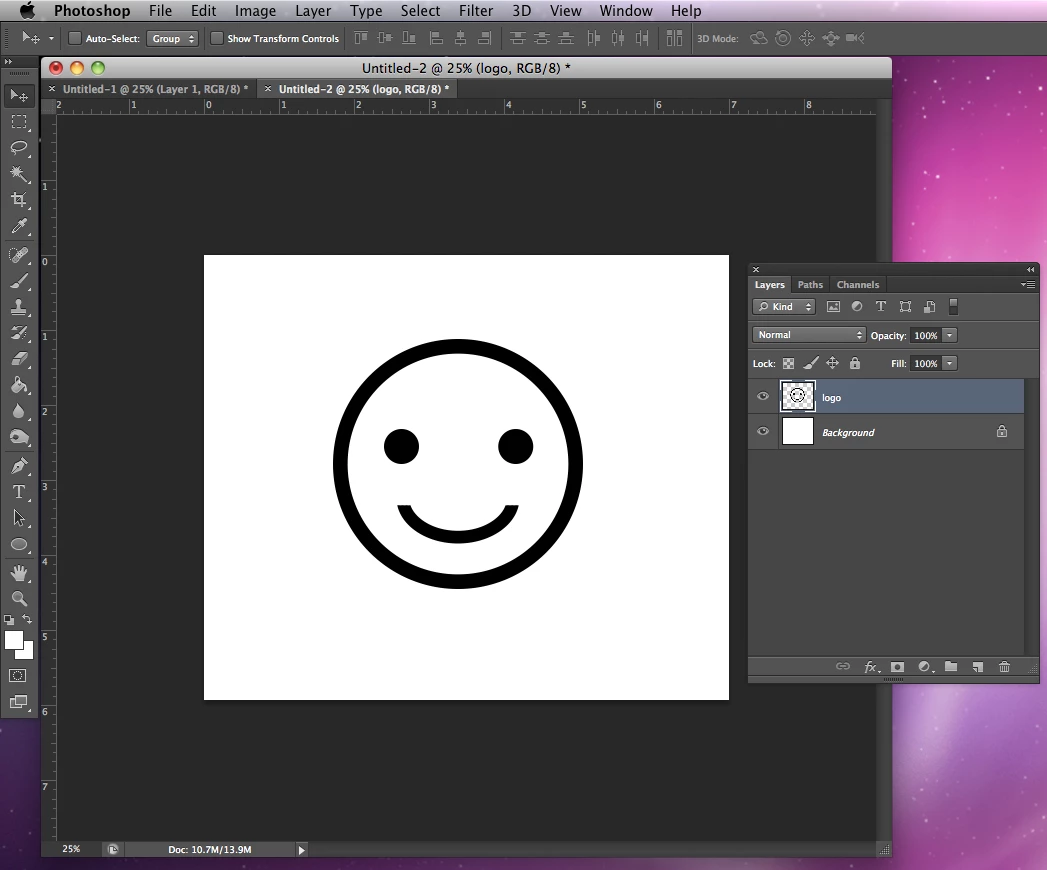
I have a jpeg file loaded into Photoshop CS6. This is a black logo on a white background. The colour replacement tool has no effect on this (I want to change the black to another colour)

I have read somewhere that the tool doesnt work with black and white? is that correct and if so, how do i get the colour changed

Thanks

Chris Anderson
    This topic has been closed for replies.
    Correct answer EricaLynneLarson

    Hi Cjacs,

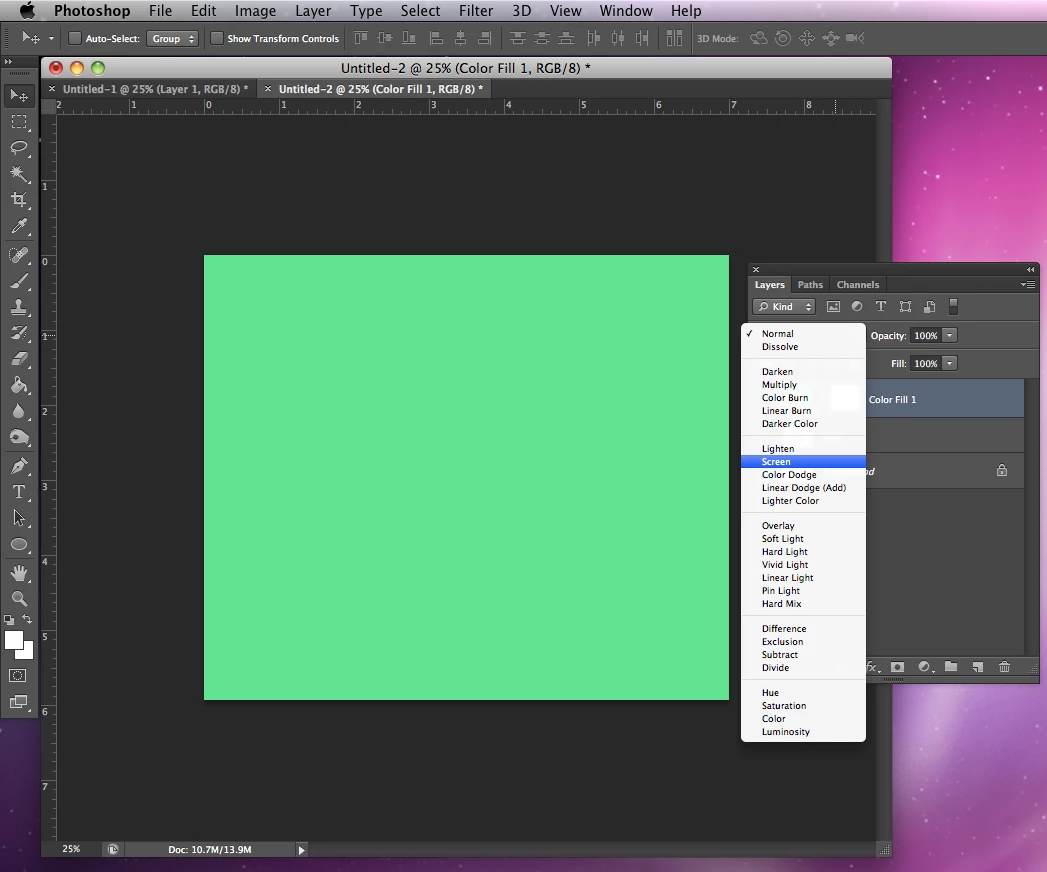
    You may try using blending modes to achieve your desired result. Starting with a black and white logo:

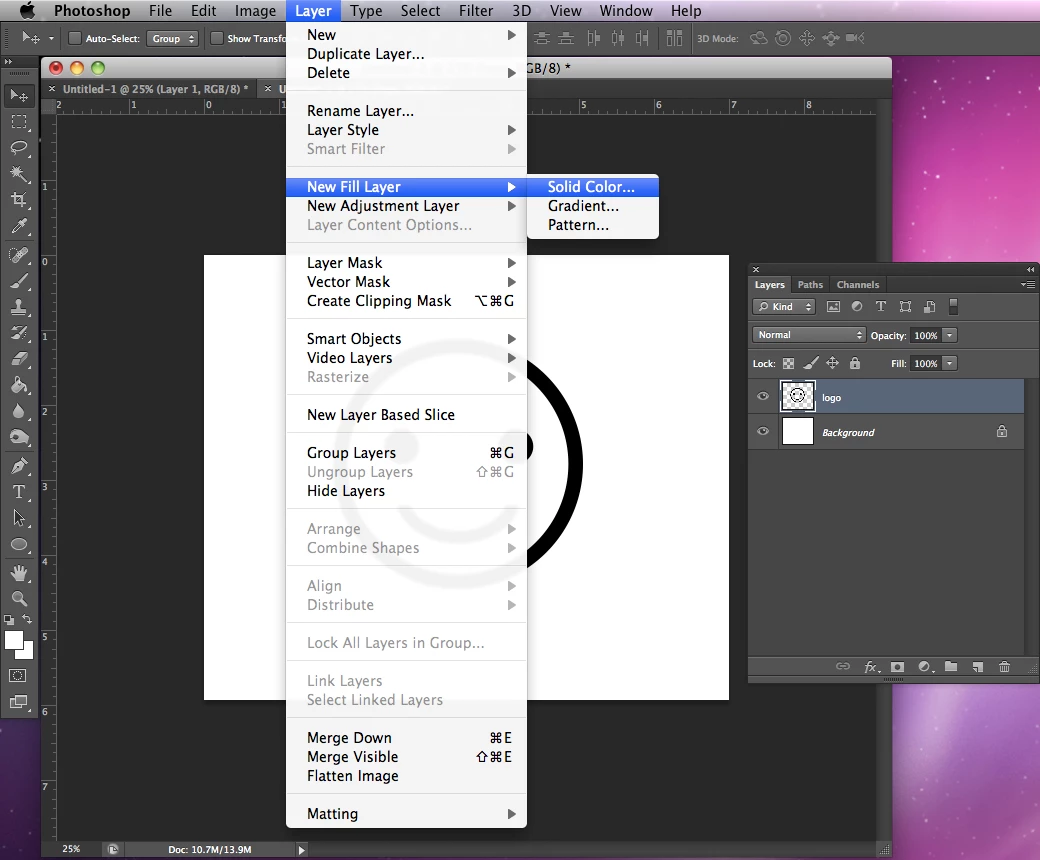
    1) Create a new fill layer by going to Layer > New Fill Layer > Solid Color.

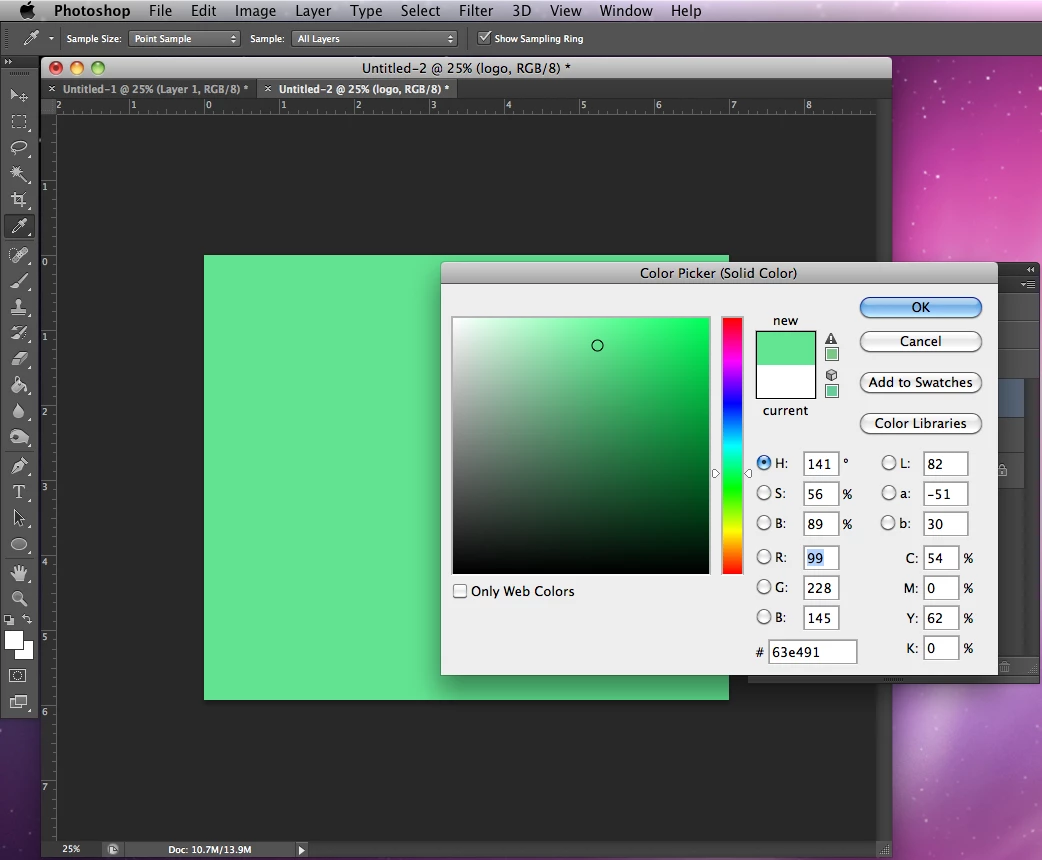
    2) At the first dialog box, click OK. Then choose the color you want the artwork to be.

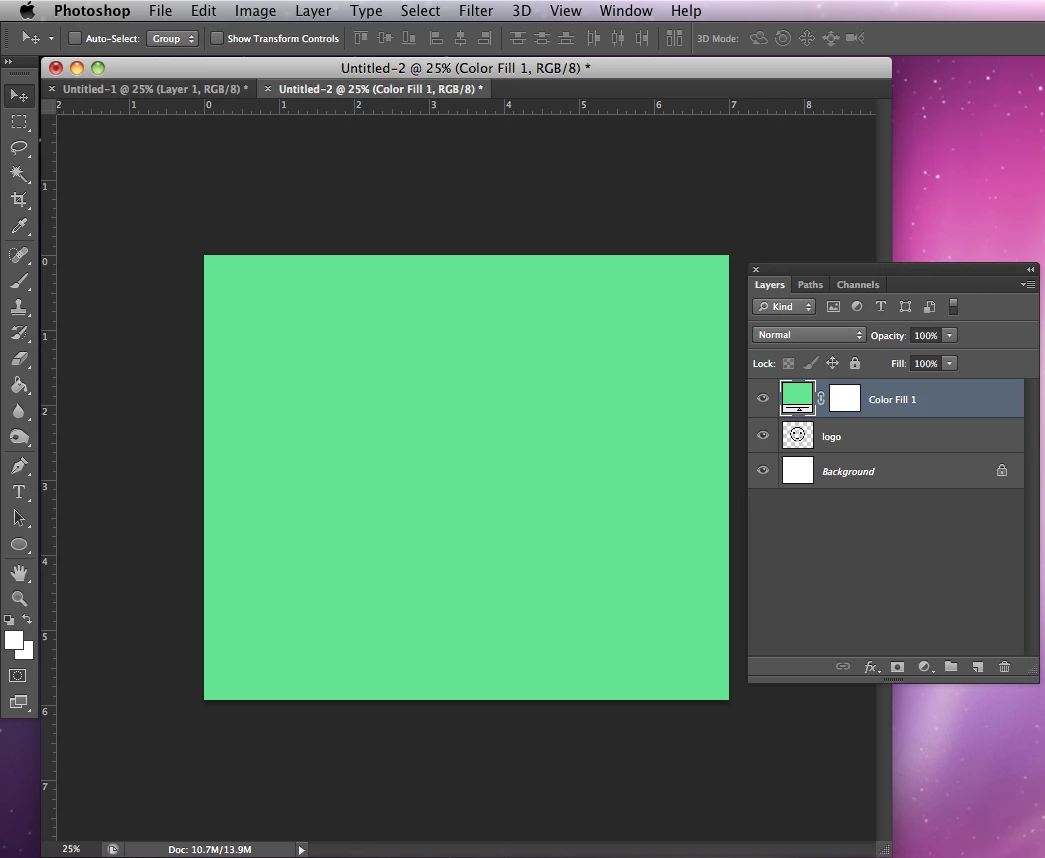
    3) You logo artwork will then be hidden, but don't worry! We'll using blending modes to change this.

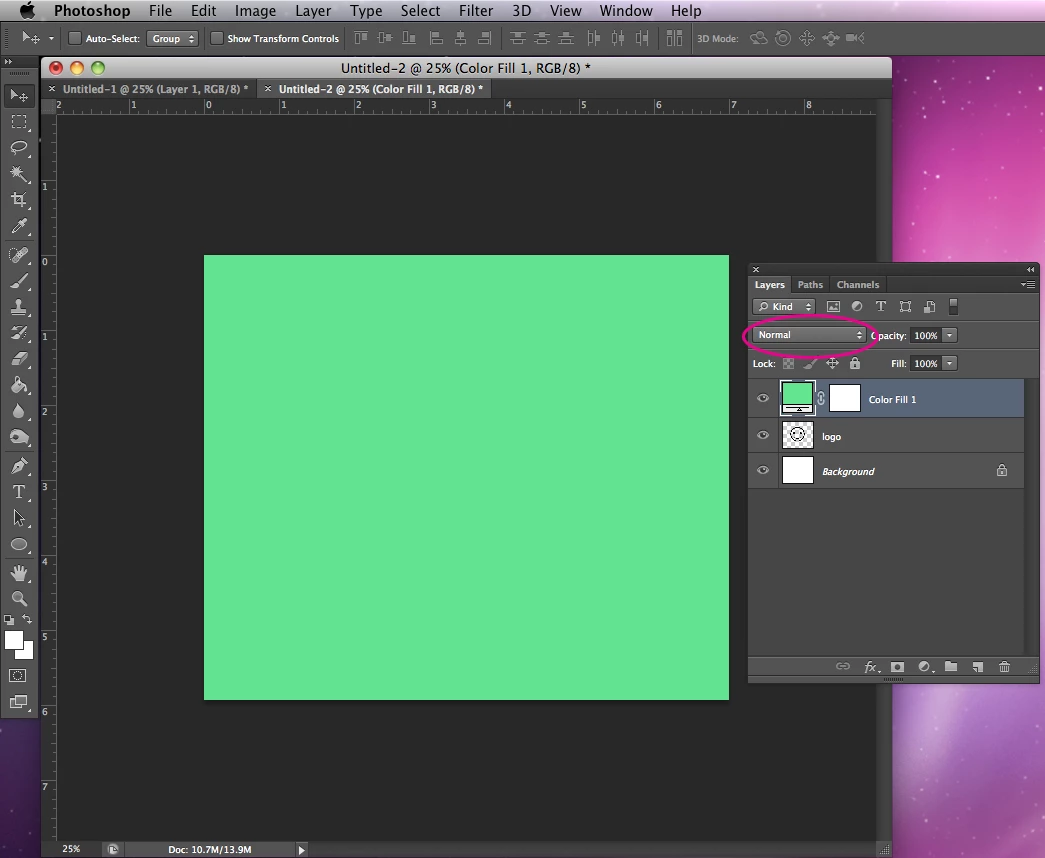
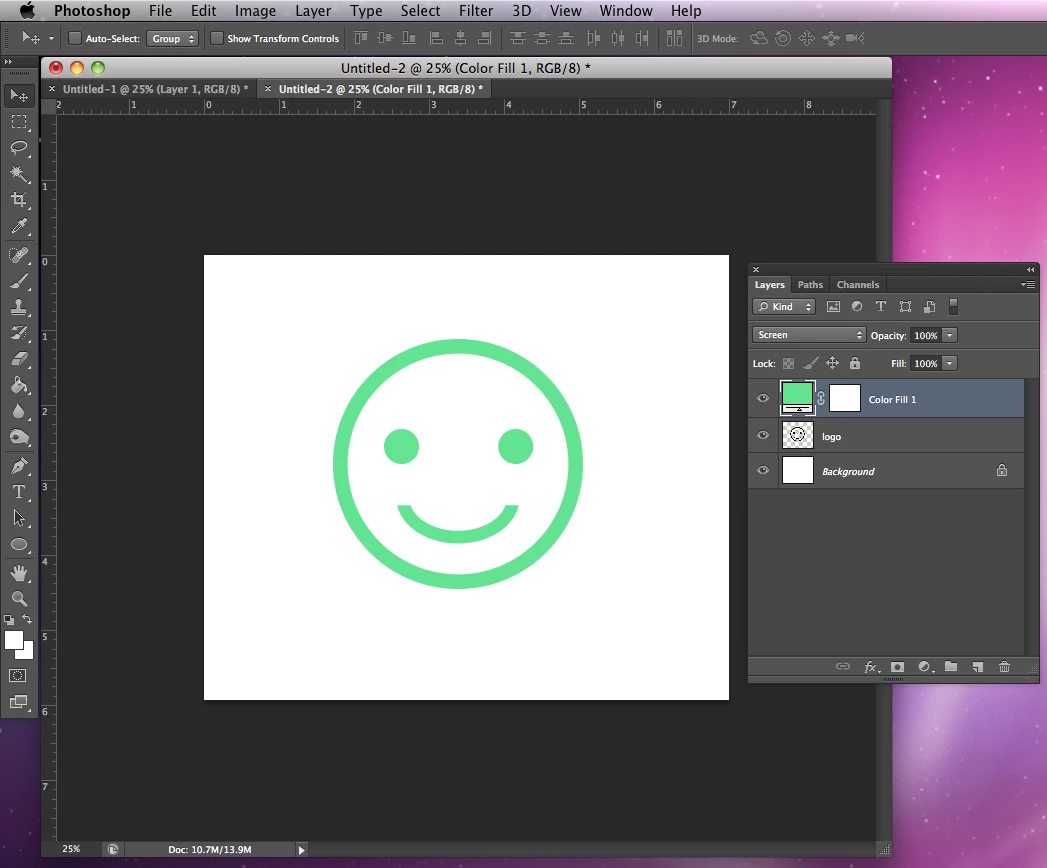
    4) In the Layers Panel, look for the area where it says "Normal." This is where you change the blend mode. Open this dropdown menu and select Screen.

    5) Your artwork will then be changed to the color you chose before.

    I hope this was helpful! Please don't hesitate to ask more questions if this did not solve your issue.

    4 replies

    Participant
    February 7, 2023

    The colour replacement tool is not workng for me either. It doesn't matter what blend mode I have it on, whatever colour i choose using the dropper will only register as grey. I've tried changing multiple settings and modes and nothings works. It'd be really nice ifwe had an option to actually trouble shoot these thingsw ith a person. You know, considering Adobe has switched from a one time purchase, to a monthly subscription thing, and the costomer service is now somehow worse despite making way more money... 

    Norman Sanders
    Legend
    June 5, 2018

    The Color Replacement tool is not an appropriate choice when the existing color (black)  has zero luminosity.

    Another option, in addition to CP's fine approach is to use Image > Adjustments Hue/Saturation.

    Note that Colorize has been checked and the sliders have been adjusted. Hue does not provide a precise designated color.

    For that you may make a selection of the black part of the image, then Edit > Fill with the Foreground color, and blending mode set to Normal.

    Wow! I just realized this inquiry is six years old!

    Participant
    August 14, 2019

    Another option with black/white images is to apply a colour overlay effect

    c.pfaffenbichler
    Community Expert
    Community Expert
    June 5, 2018
    I have read somewhere that the tool doesnt work with black and white?

    Check out the Options Bar – what »Mode« is the Color Replacement Tool set to?

    »Color« and »Luminance« are different aspects and cannot be edited with the Tool simultaneously.

    So true black could either be changed to something lighter with »Luminance« but the darkest version of any color (in the sense of a combination of hue and saturation) is still black indeed.

    But ultimately the question is pretty much moot because the tool is useless for serious, non-destructive work anyway – in my opinion at least.

    EricaLynneLarsonCorrect answer
    Adobe Employee
    November 18, 2012

    Hi Cjacs,

    You may try using blending modes to achieve your desired result. Starting with a black and white logo:

    1) Create a new fill layer by going to Layer > New Fill Layer > Solid Color.

    2) At the first dialog box, click OK. Then choose the color you want the artwork to be.

    3) You logo artwork will then be hidden, but don't worry! We'll using blending modes to change this.

    4) In the Layers Panel, look for the area where it says "Normal." This is where you change the blend mode. Open this dropdown menu and select Screen.

    5) Your artwork will then be changed to the color you chose before.

    I hope this was helpful! Please don't hesitate to ask more questions if this did not solve your issue.

    Inspiring
    November 21, 2012

    Hi,

    Many many thanks for that detailed reply.

    I am going to try it out later today

    Thanks again, much appreciated

    Chris