m3dhamed
Participating Frequently
February 9, 2018
Answered

Colour Shifted in Photoshop after LR import

  • February 9, 2018
  • 2 replies
  • 526 views

Hi fellow photoshop users,

I have searched everywhere and I can't figure out what is going with my photoshop cc 2018. I am pulling my hair out and the issue has made editing photos almost impossible due to inaccuracy of colour

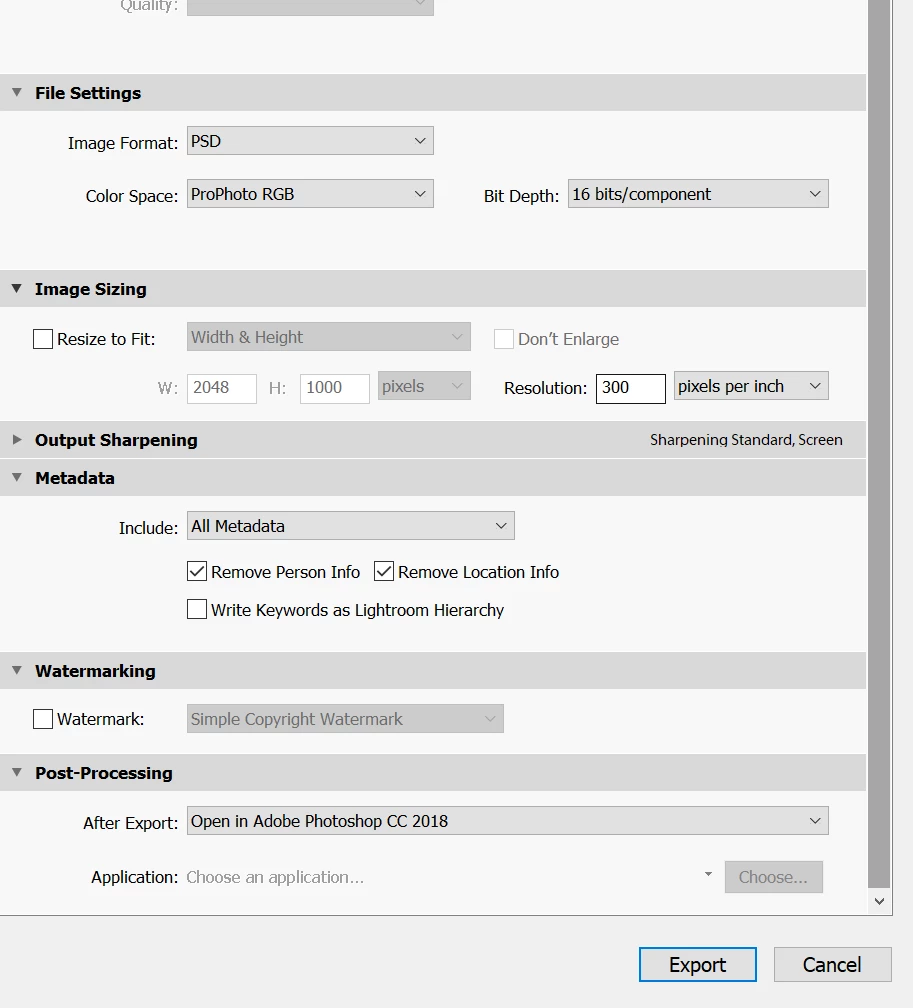
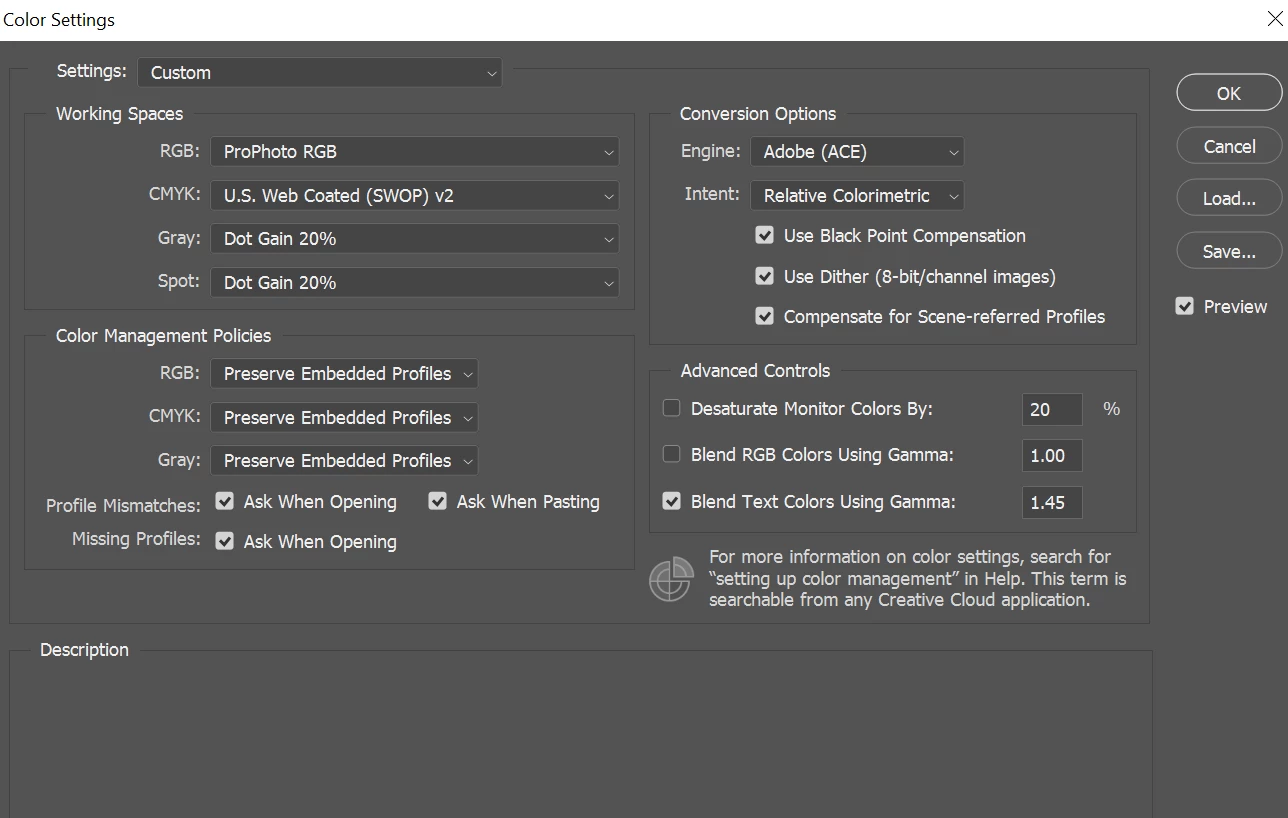
I edit in the prophoto colour space in both LR CC classic and PS 2018. However when I export my raw files as PSD 16 bit to colour grade in PS I note that the colours seem to shift. I can't figure out why. To me it seams like the yellows become more green and the black point shifts towards grey. I also loose detail and clarity in the image with the shift. I also note this colour shift occurring when I import from Capture One Version 11 to photoshop, so I suspect something is wrong with photoshop.

Pleas refer to link for example of my issue: https://imgur.com/a/V9bmh

I am running the latest version of Windows 10 with ryzen 1700x and ATI Radeon R9 200 with 16 gigs of ram. All software is up to date. I also have recently began calibrating my screen using Spyder5 express version.

I would really appreciate any suggestions. I've attached a photo to highlight my dilemma.

Kind regards

HS
This topic has been closed for replies.
Correct answer D Fosse

Hm, OK. But this still has to be in the display color management chain somewhere.

Are you using a dual/multi-display setup? There have been instances where one app uses the wrong display profile - it uses the profile for the main screen even when the application is on the secondary screen. So the wrong numbers are sent to the display.

Next, take the GPU out of the equation. In Photoshop, display color management is handled by the GPU in "normal" and "advanced" mode. In "basic" mode it's done by the CPU the traditional way. Anyway - uncheck GPU altogether, in both apps, to be sure.

Also try to use some other document profile, just to rule out a corrupt one. Lightroom uses gamma 1.0 ProPhoto internally and you can't change that. But try to set Adobe RGB or sRGB in Lr External Editing - this profile will be preserved and used in Photoshop. No need to change the working space in Photoshop.

2 replies

D Fosse
Community Expert
D FosseCommunity ExpertCorrect answer
Community Expert
February 9, 2018

Hm, OK. But this still has to be in the display color management chain somewhere.

Are you using a dual/multi-display setup? There have been instances where one app uses the wrong display profile - it uses the profile for the main screen even when the application is on the secondary screen. So the wrong numbers are sent to the display.

Next, take the GPU out of the equation. In Photoshop, display color management is handled by the GPU in "normal" and "advanced" mode. In "basic" mode it's done by the CPU the traditional way. Anyway - uncheck GPU altogether, in both apps, to be sure.

Also try to use some other document profile, just to rule out a corrupt one. Lightroom uses gamma 1.0 ProPhoto internally and you can't change that. But try to set Adobe RGB or sRGB in Lr External Editing - this profile will be preserved and used in Photoshop. No need to change the working space in Photoshop.

m3dhamed
m3dhamedAuthor
Participating Frequently
February 10, 2018

So I formatted my pc in the hophope t it will fix the problem. I calibrated my screen and actiactived the profile. The problem has reappeared in photoshop but goes away in Adobe rgb 1998

m3dhamed
m3dhamedAuthor
Participating Frequently
February 10, 2018

I should say editting in Adobe rgb colour space. Sorry for the typos my phone is playing up

D Fosse
Community Expert
Community Expert
February 9, 2018

That's almost certainly a defective monitor profile. Seems the Spyder isn't performing as it should. This often affects different apps in different ways.

Just as a test, try to replace the Spyder profile with sRGB IEC61966-2.1. If this makes the difference go away, that's confirmation that it is indeed a profile problem. Remember to relaunch both applications when done - they both need to load the profile at startup.

Don't change anything in Color Settings - that's not where the problem is. Any document profile should always display correctly, whatever it is.

m3dhamed
m3dhamedAuthor
Participating Frequently
February 9, 2018

Thanks for taking the time to reply. I've made the changes as you have recommended and the problem persists. Any ideas where to now?