Known Participant
February 26, 2022
Question

Complex (many layers tons of blend modes) only rendering properly in PS not in any other app

  • February 26, 2022
  • 3 replies
  • 415 views

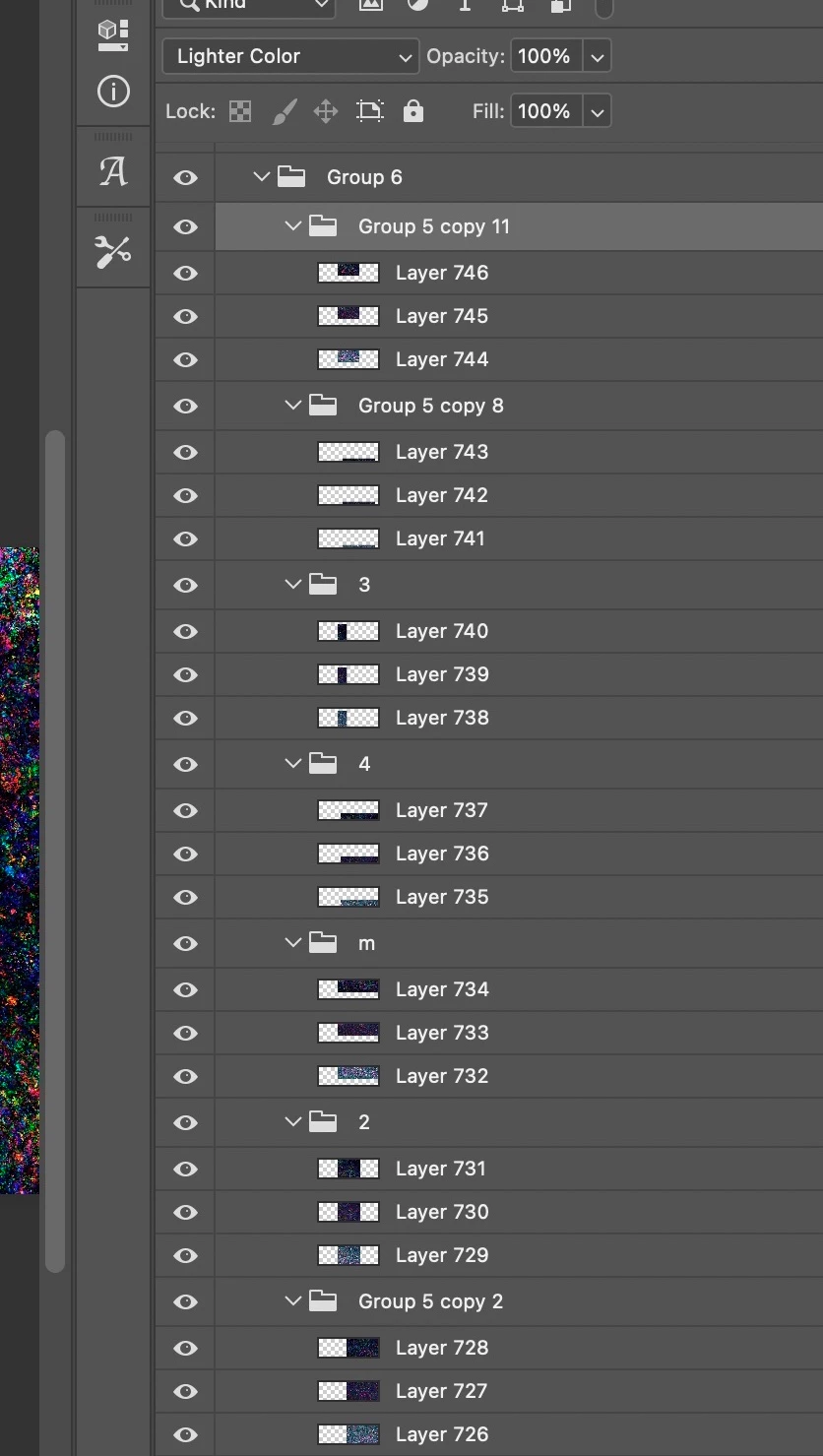
I have developed a technique for cool digital art and it only renders properly in Photoshop. The files are larger, but that's not the problem. They are complex (quite a few layers differently blended in groups that are blended, see screenshot. This doesn't happen with all of them, but many. Every other app outside of Photoshop renders them with "extra detail" or what I recently noticed is some type of merging. I can't do command+option+shift+e (not sure of the name of that shortcut) because it doesn't blend properly. Even with that shortcut applied to the smaller groups and those groups blended as they were it is still distorted somewhat in PS and very much in Preview on Photos on the Mac. Every other app except Photoshop. Black and white ones get a ton of extra white spots and color ones get extra color dots.


This is beyond adjusting curves/color/the light because the rendering is a bit off outside of PS. I have tried the above command, a white channel, taking a screenshot and blending that on top, and File->Scripts->Flatten All Layer Effects. 


I don't mind the larger files, but I can share nor see the images outside of Photoshop because of this issue. I can't flatten or merge in any way because it is a lot worse. In other apps, it looks as if there is some flatting/merging but not entirely.


Thank you very much
 

This topic has been closed for replies.

3 replies

TheDigitalDog
Inspiring
February 27, 2022
Every other app outside of Photoshop renders them with "extra detail" or what I recently noticed is some type of merging.


What 'other app's' are you viewing these layers in?


Author “Color Management for Photographers" & "Photoshop CC Color Management/pluralsight"
the.irfAuthor
Known Participant
February 27, 2022

Apple Preview on Mac. Mac OS Photos. iOS Photos. Any other Photo app except Photoshop. I've tried other apps for image/photo editing too


TheDigitalDog
Inspiring
February 27, 2022
quote

Apple Preview on Mac. Mac OS Photos. iOS Photos. Any other Photo app except Photoshop. I've tried other apps for image/photo editing too


By @the.irf


I wouldn't put too much faith in how non Adobe app's preview their layers depending on blending modes and so forth. Yes, in Apple's Preview, many of my layered TIFFs do match PS but there are no blending modes and such. And yes, absolutely critical to view at one image pixel to one display pixel especially when zooming out. Every app will have to subsample down the image for a preview, they do this differently.

Author “Color Management for Photographers" & "Photoshop CC Color Management/pluralsight"
D Fosse
Community Expert
Community Expert
February 26, 2022

The simple answer here is that you must view at 100% in Photoshop to see how the final result will look on output.


It's important to understand that the merged/flattened version is correct, whether in Photoshop or outside. All the layer blend modes are correctly treated. But if you're not viewing at 100%, the preview is misleading.


100% is a significant number. It means that one image pixel is represented by exactly one screen pixel.


This matters because all blending/adjustment previews are calculated on the basis of the on-screen image, for performance reasons. If you are zoomed out, that means a downsampled and therefore softened image. If there is a lot of pixel-level detail (like e.g. noise), this detail is lost and blurred out. In other words, a lot of intermediate pixel values that aren't there in the full data.


When you merge, it's calculated on the full data. That's how the file really looks, with all its blend modes.


So again, view at 100%. That's the answer.

the.irfAuthor
Known Participant
February 26, 2022

I am viewing at 100%. I can see how too far zoomed in and out are different effects. That makes total sense.

Zoomed in more than 100% is similar to what I see outside of Photoshop.


I like how this looks at 100% / CMD+0. But the saved Tiff without or with layer / image compression isn't the same outside and for many of my other piece it is, but these are extremely complex if that's the right word

D Fosse
Community Expert
Community Expert
February 27, 2022
quote

I like how this looks at 100% / CMD+0.


By @the.irf


I'm just wondering if you're confusing 100% and fit screen? Unless that was a typo?


You want Cmd+1, not Cmd+0.


100% has nothing to do with size. It means that one image pixel is represented by exactly one physical screen pixel.

War Unicorn
Community Expert
Community Expert
February 26, 2022

What is your workflow? Do you take the actual PSD and try to view it in another app that can open PSDs? Or just exported formats like JPEG? (I would advise against the latter unless you're just using the JPEG as a reference; JPEG is good at what it can do but it's not anywhere near the fidelity of the original image when it comes down to brass tacks, especially where image compression is concerned.)

the.irfAuthor
Known Participant
February 26, 2022

Save as .Tiff because they're often more than 2GB. But with layer and/or image compression they are not that bad of size.

I have done massive pieces 100+GB those can only be .PSB s of course.


But then I try to open the .Tiff in other apps preview, Mac OS Photos, iOS Photos. Every app except Photoshop has the similar result of some level of merging