Participant
June 1, 2022
Answered

Converting grey layer to transparent

  • June 1, 2022
  • 2 replies
  • 750 views

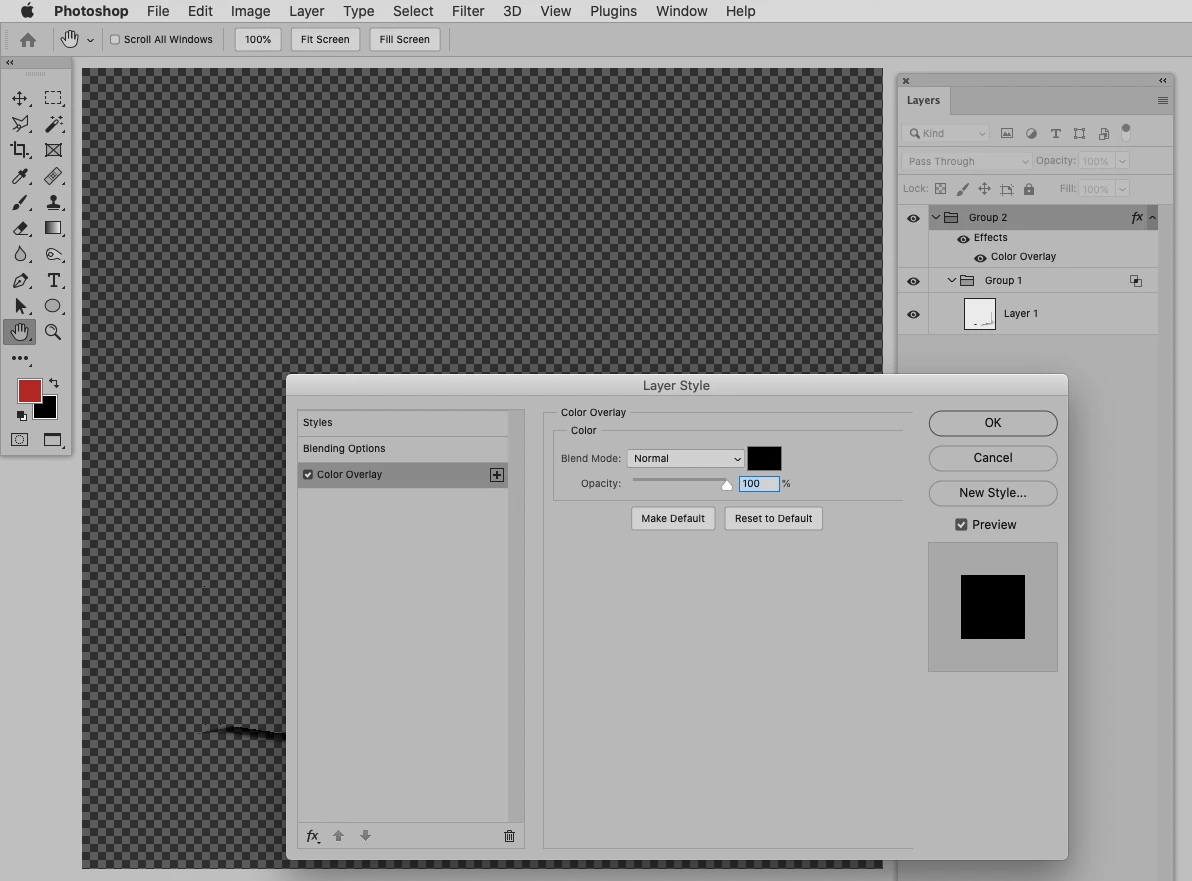
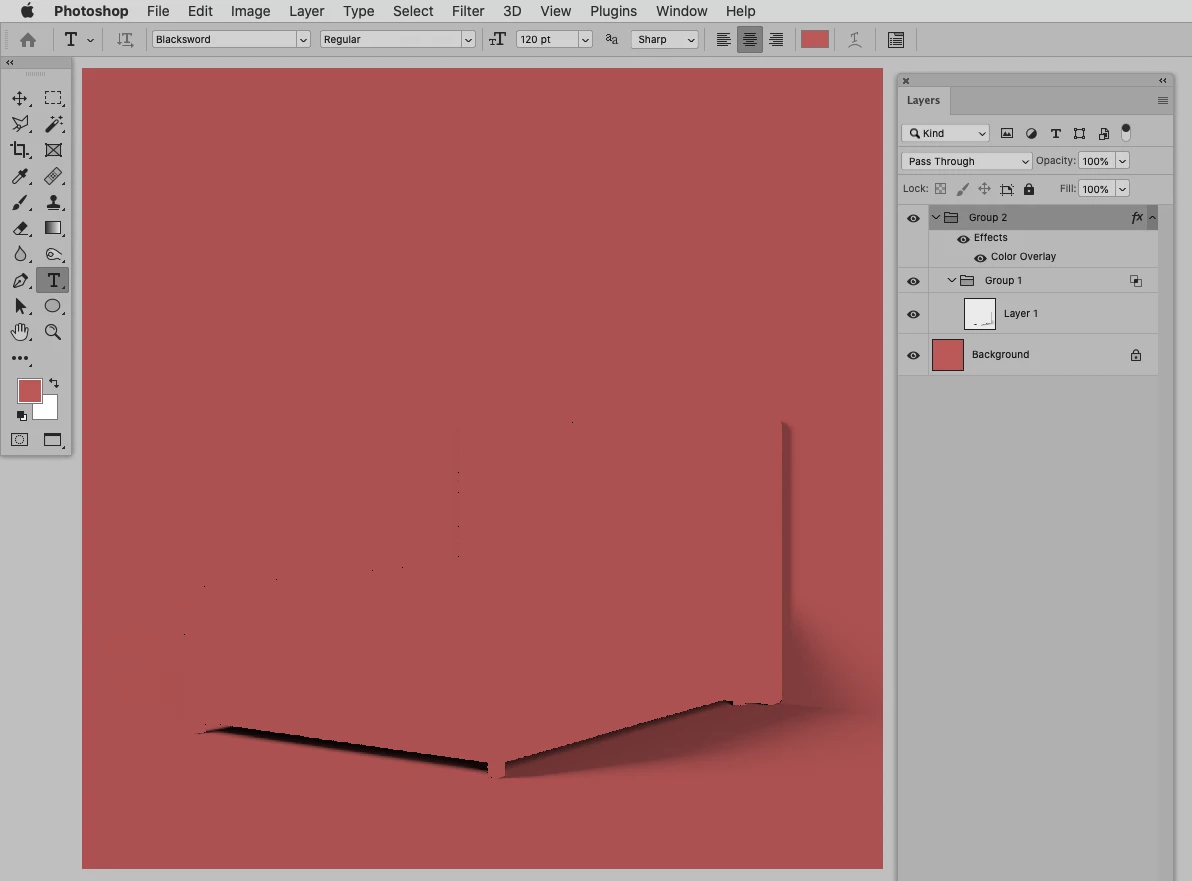
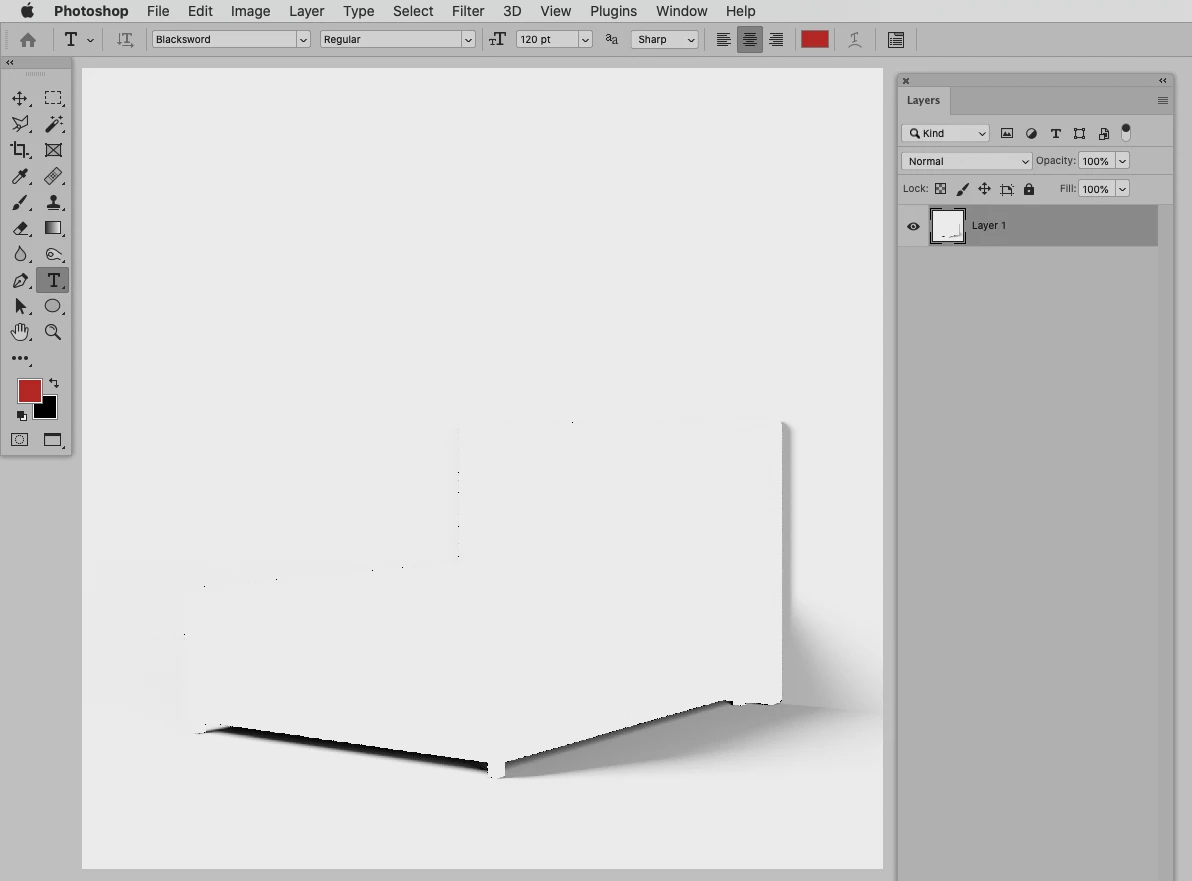
I have a light grey layer containing shadow (Question-Start.png) exported from a 3D application. I can use it over a background layer using a Multiply blending mode. But I would like to convert it to a transparent layer without losing any shadow information, like the example in the attachment (Question-wanted_result.png). Any ideas on how to do that?
This topic has been closed for replies.
Correct answer c.pfaffenbichler

• Put the Layer (or Smart Object) in a Group

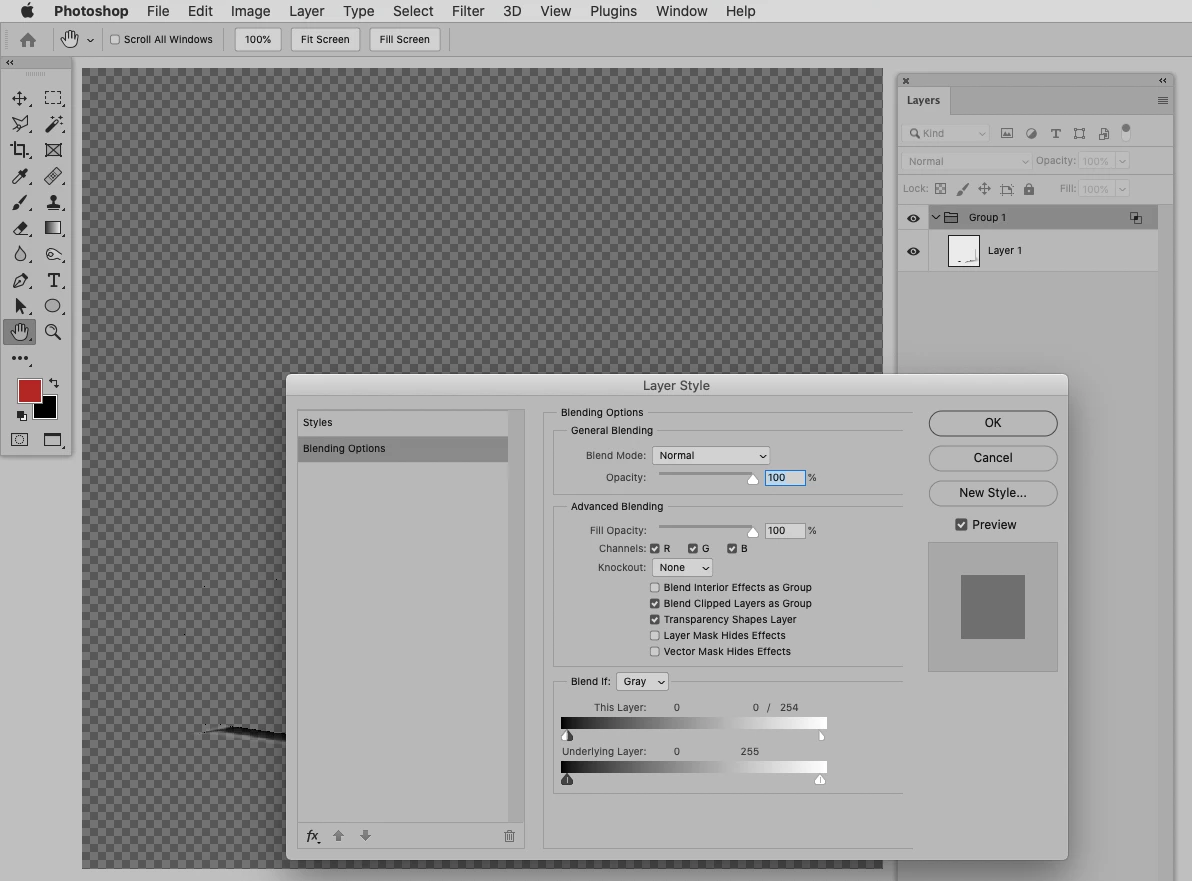
• Change the Group’s Blend if-settings as indicated in the screenshot, splitting the white This Layer-handle by alt-dragging it 

• put the Group in another Group and apply a black Color Overlay to that Group

2 replies

c.pfaffenbichler
Community Expert
Community Expert
June 1, 2022

Another option is using a Blend if-setting and a black Color Overlay on two Groups. 

lcetinaAuthor
Participant
June 1, 2022

Thank you. As a result I need a .png file with transparency as in the example I attached in the first post.

I tried this technique but didn't achieve transparency within the shadow, only in light grey background. Maybe I did something wrong in Color Overlay?

Mylenium
Legend
June 1, 2022

Convert the values to a layer mask using Image --> Calculations or similar operations that involve saving a selection like directly copy&pasting in the data after converting to greyscale and isolating the mask channel.


Mylenium

lcetinaAuthor
Participant
June 1, 2022

Thank you for your reply. Could you please explain a bit further 🙂

c.pfaffenbichler
Community Expert
c.pfaffenbichlerCommunity ExpertCorrect answer
Community Expert
June 2, 2022

• Put the Layer (or Smart Object) in a Group

• Change the Group’s Blend if-settings as indicated in the screenshot, splitting the white This Layer-handle by alt-dragging it 

• put the Group in another Group and apply a black Color Overlay to that Group