
Participant
December 2, 2019
Answered

COPY/PASTE TEXT PHOTOSHOP TO ANOTHER SOFTWARE

  • December 2, 2019
  • 5 replies
  • 3642 views

As I said, I cannot copy text in photoshop and paste it in another place that is not the same photoshop software. It happened have few time and I did the upgrade for the last version but the issue persist. Someone can help me? Thanks in advance.
Correct answer melissapiccone

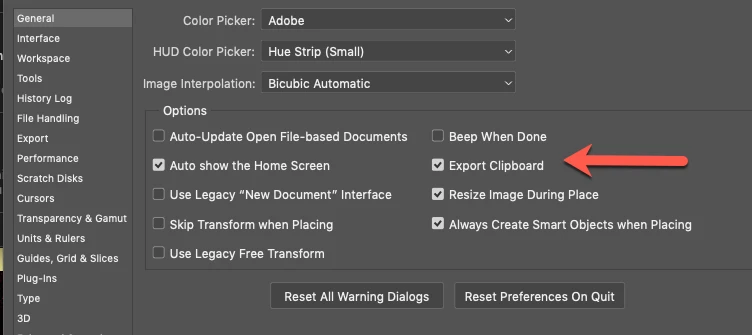
It's possible you turned off a preference - I always turn mine off. 

5 replies

Zebra Jamie
Known Participant
June 24, 2022

The title of this may sound dumb, but my copy-paste features in Photoshop are weirdly hobbled. For the record, I'm using the most updated version of photoshop (this was happeneing on the last few versions as well), on a Windows computer that's all up-to-date, and all my other Adobe products are up-to-date. I have no plug-ins running, no actions, no extras of any sort. I'm not trying to copy-paste images or pixels or special effects. Just basic text.


Scenario 1: I have 2 PS documents open. I have text writen in one that needs to be copied and pasted into the other. The formatting/text size is a little different in each, so I want to copy the text from document 1 and paste it into a text box in document 2. However, when I go to paste, the "paste" option is grayed out OR it will paste other text from a previous "copy" but only if it came from that document.


It appears as if each PS file has it's own clipboard and will not share with other PS files. My main work-around is draging the whole text layer from one file to another, and manually format it to match my needs or copy-paste the text now that it's all in one document. It's an extra step (or 5) that I just don't appriciate.


Scenario 2: I have a PS document and a Word document open. I copy the text in the Word document and paste it into Photoshop. Works perfectly. After editing and revising the text box and the text itself, I want to copy the new text back to the word document so I can don't need to to re-type everything. PS will copy the text, but the text will not paste into Word. Ok, maybe MS is not playing ball today. Let's try Notepad. Nope, won't paste there either. Email body? Nope. Ok, let's test if PS even copied the text at all. Can I paste into another text box in that PS document? Yes! But that's completely useless, because it was already there and I need it other places too.


In this case, the only work-around is to retype it. Again, it feels like the photoshop document is being extreemly precious about it's own little clipboard and won't share with other programs, although it will recieve from other programs.


So is there a setting that I'm missing? An update? A custom toggle or check box?


Thanks in advance!

Community Expert
June 26, 2022
Zebra Jamie
Known Participant
June 27, 2022

That worked! It looks like I can copy-paste between PS documents now.

Why is this considered a usefult setting?

And why is it toggled "off" by default?

JJMack
Community Expert
Community Expert
December 2, 2019

Double click T Thumbnail in Layer Palette get in Edit text mode then Ctrl+C Ctrl+V

JJMack
Bojan Živković11378569
Community Expert
Community Expert
December 2, 2019

Another possible problem is that something is blocking your clipboard and preventing anything to be stored in computer clipboard.

melissapiccone
Community Expert
melissapicconeCommunity ExpertCorrect answer
Community Expert
December 2, 2019

It's possible you turned off a preference - I always turn mine off. 

Melissa Piccone | Adobe Trainer | Online Courses Author | Fine Artist
Participant
December 10, 2019

WORKED PERFECTLY!! THANK YOU SO MUCH!

NB, colourmanagement
Community Expert
Community Expert
December 2, 2019

Hi


You'd need to select the text (on the text layer) using the text tool -

if already you flattened the layers, then what you want isn't possible because the text has been "rasterised" so it's actually now, practically speaking, an image of text, so no longer editable (or copyable) text.


I hope this helps

if so, please "like" my reply and if you're OK now, please mark it as "correct", so that others who have similar issues can see the solution

thanks

neil barstow, colourmanagement.net

[please do not use the reply button on a message in the thread, only use the one at the top of the page, to maintain chronological order]