Inspiring
February 18, 2023
Answered

Copying text over an image
  • February 18, 2023
  • 2 replies
  • 2794 views

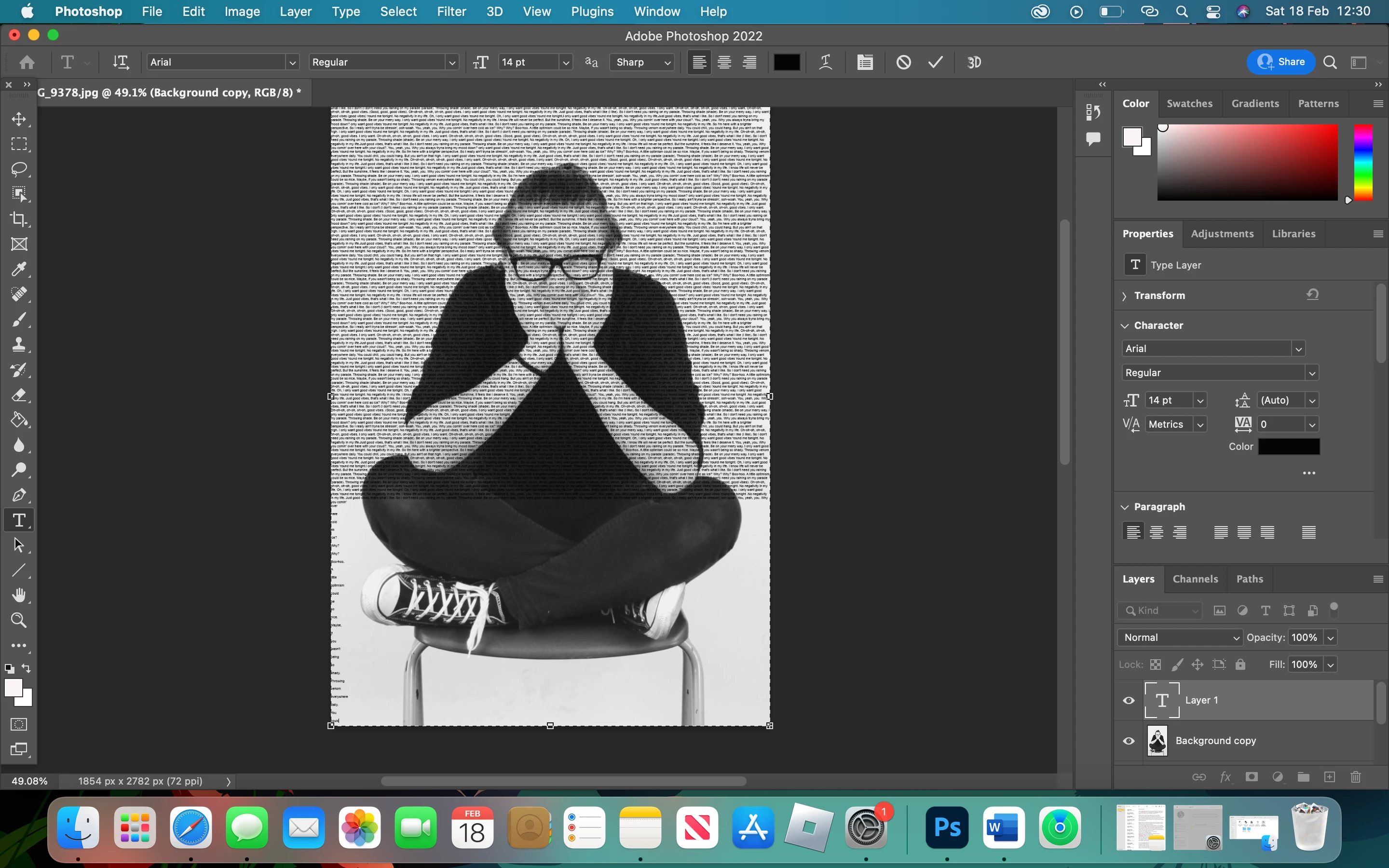
  I am currently working on this image on my Macbook, and I need the text to cover the whole image. After a certain point the text moves to the side and if I try to intact with it, causes photoshop to freeze. The text has to be this size as I need to be able to see the image behind after clipping mask.
This topic has been closed for replies.
Correct answer 161056284722711gnh

There is a scroll bar in your Layers panel. What is on the other layers?


Jane


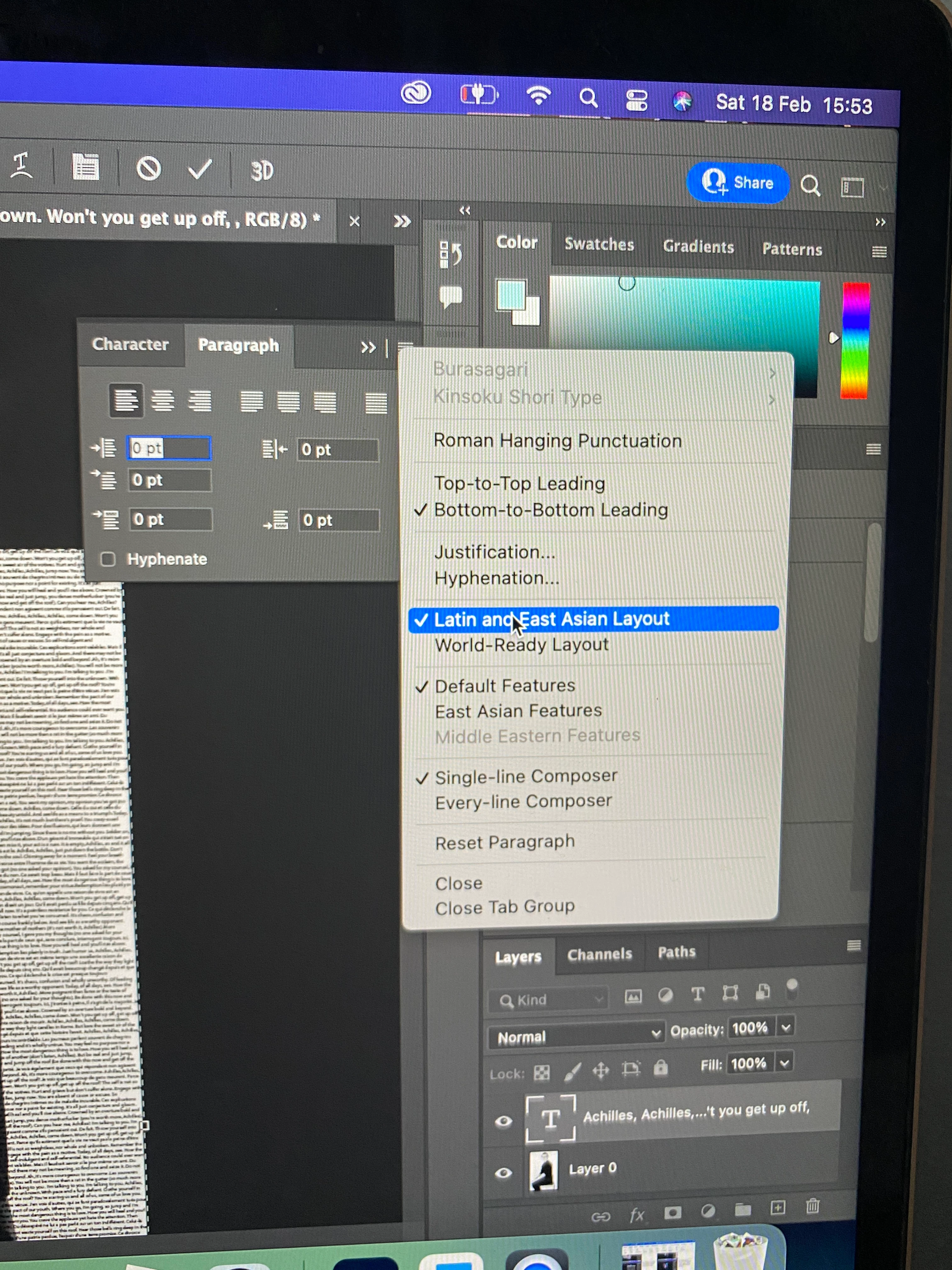
I think I've managed to fix the issue. I changed the paragraph layout setting from world ready to Latin and East Asian  and it seems to have fixed the issue. Thank you for all the help. This problems was really stressing me out as the image was for my a-level photography final series. 

2 replies

Participant
October 14, 2023


By following these tips, you can create images with text that are both informative and visually appealing.

LEK LADKI YOJANA

jane-e
Community Expert
Community Expert
February 18, 2023

@161056284722711gnh 


It's hard to tell by just looking at the screenshot. What happens to the text when you hide (or delete) the image layer (followed by undo, of course).


Jane


Inspiring
February 18, 2023

Doing these has no effcet on the text. i tried increasing the text box size and it looks like this. 

jane-e
Community Expert
Community Expert
February 18, 2023

The image is still showing. What happens if it you hide or delete it?


If it makes no difference when the image is gone, then there is something in the text — it could be Returns or it could be something else. For testing purposes, delete the text that is not workinh, then copy and paste the good text in its place.


Save first so you can go back after testing.


You can also try clicking at the beginning of a line and pressing Backspace one or more times. If the issue is a pilcrow, this will delete it.


Jane