Participant
March 5, 2020
Answered

Correcting a photo whose subject is a colored light.

  • March 5, 2020
  • 5 replies
  • 931 views

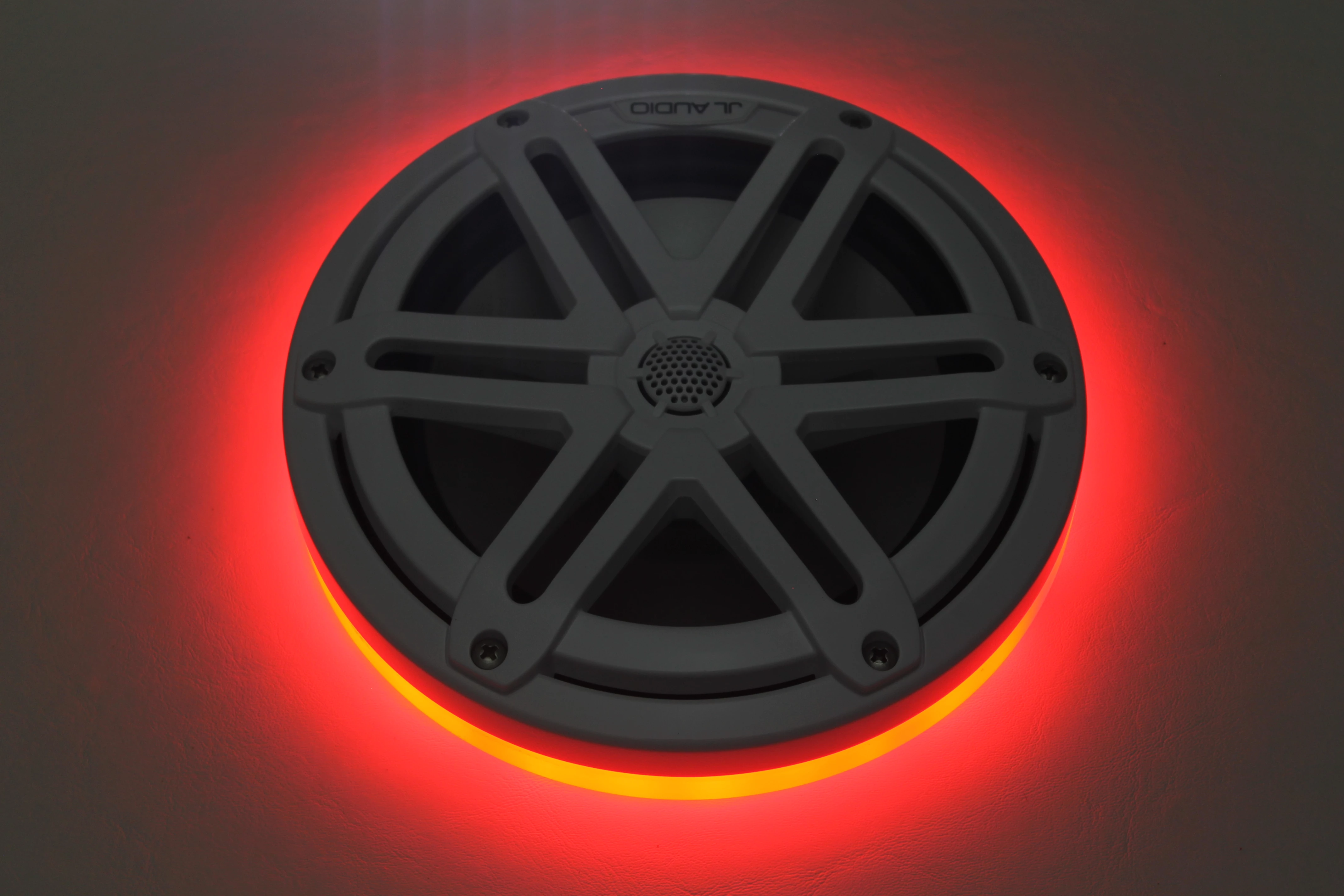
Hello.  I consider myself to be at intermediate abilities in Photoshop and photography.  There are some photos I have a difficult time getting correct.  Specifically when photographing product that has colored LEDs.  These are LED rings and I always have an issue with the red LEDs looking partially yellow.  I cannot figure out if this is a lighting issue or if this is just how it goes and I have to edit it out somehow and I just can't figure out either way.  The only time I have been able to eliminate the yellow ring within the red ring is when I have too much light.  Consumers will use this product in the dark so I need the photo to be in a similar environment.  Here is the typical example.  It's the same regardless of location of light, shutter speed, etc.  Any ideas either in the photo shoot or in the editing would be welcome.  Please keep in mind I want all the LEDs to show up red.
This topic has been closed for replies.
Correct answer D Fosse

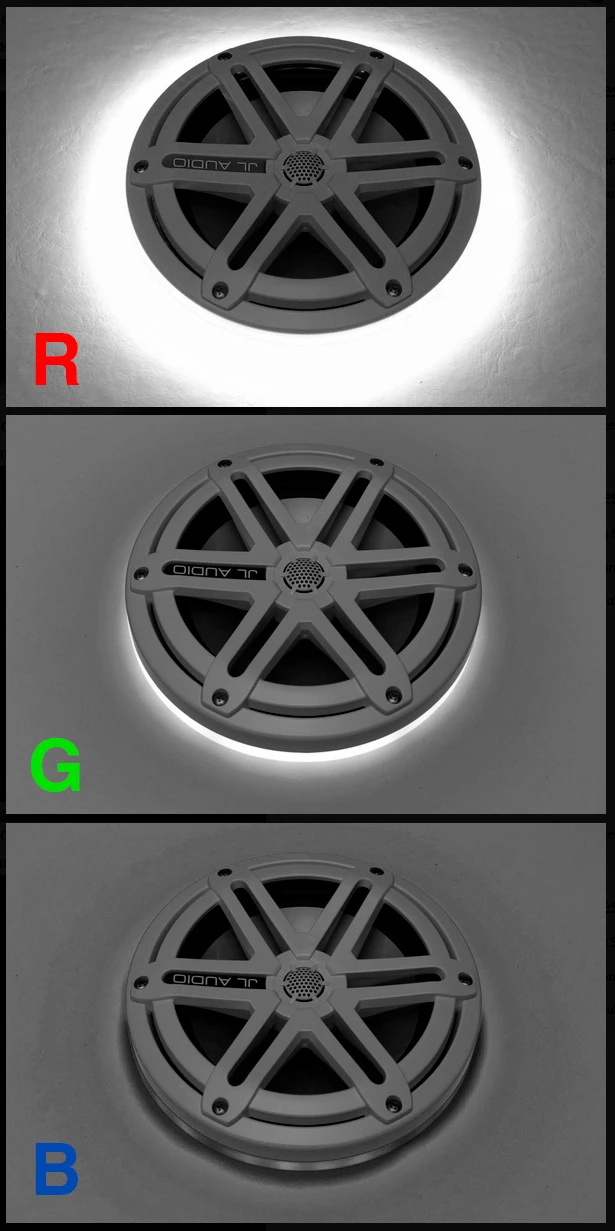
It's gamut clipping, plain and simple. The yellow happens when both the red and green channels are blown out:


This needs to be taken into account when shooting. Make sure you're not blowing out any channel. If you shoot raw, there is a much better chance of recovering the channels. If jpeg, it's gone.


A Channel Mixer layer, in combination with "Blend If" set individually per channel, is one way to fix it.


But the best way is to shoot raw and not blow out.

5 replies

PECourtejoie
Community Expert
Community Expert
March 6, 2020

Hello, I followed Dag's detective work.

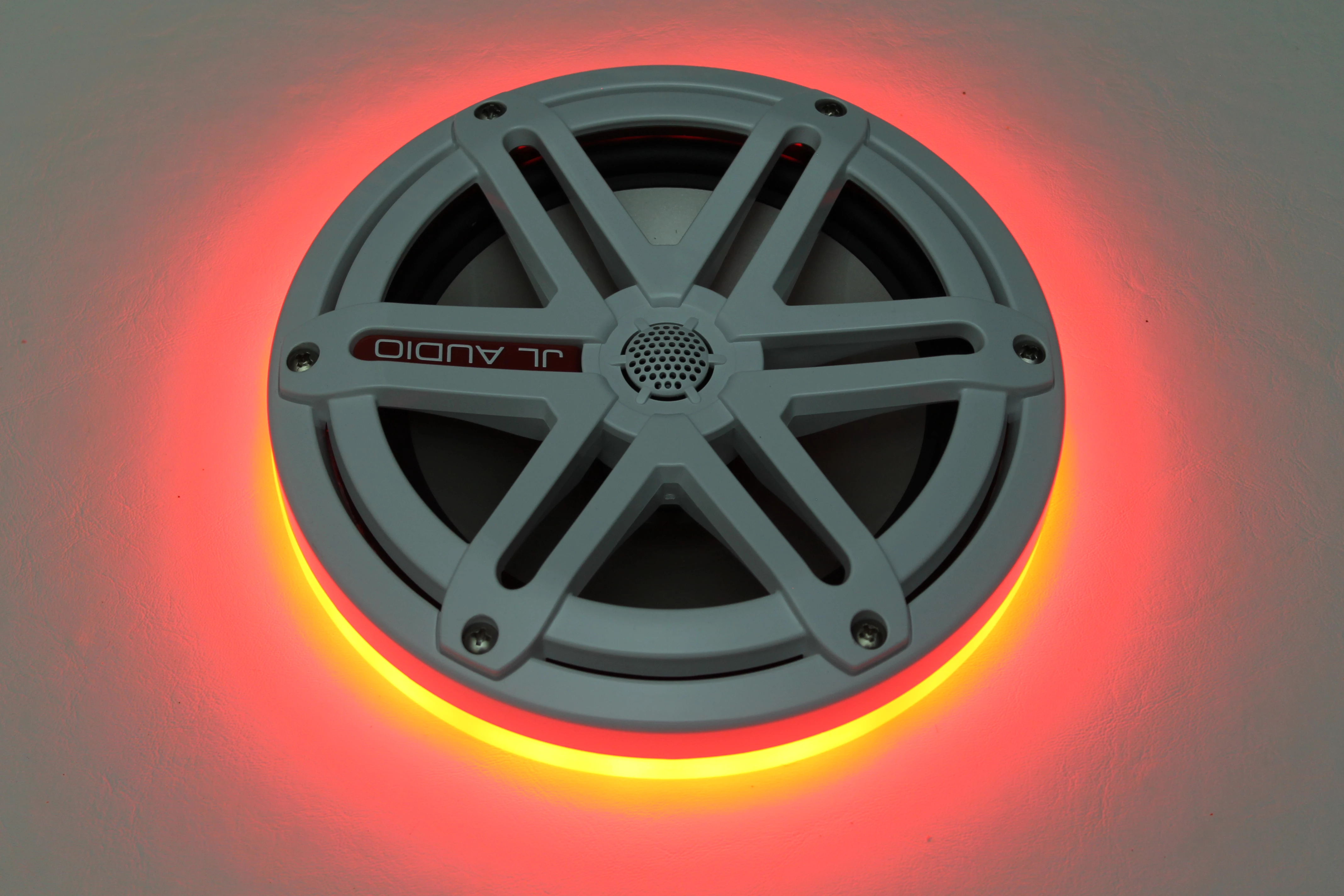
Here is a quick and dirty work (selecting with the pen tool might be cleaner):

\In the channels, I quick-selected the entire speaker on the green channel, pasted it on the red one, to recover the blown-out edge on the red channel.

I inverted the selection, copied the blue channel, therefore besides the speaker, into the green channel.

Ah, the magic of chops...

Here it is:

 IMG_8498quick.jpg

Still, you would be better shooting it again, making sure not to blow the highlights, (maybe meter on the highlighs, or use some negative EV...) Then, if needed, using maybe the highlight and white sliders in ACR. (I was about to type the long gone recovery slider.)

D Fosse
Community Expert
D FosseCommunity ExpertCorrect answer
Community Expert
March 6, 2020

It's gamut clipping, plain and simple. The yellow happens when both the red and green channels are blown out:


This needs to be taken into account when shooting. Make sure you're not blowing out any channel. If you shoot raw, there is a much better chance of recovering the channels. If jpeg, it's gone.


A Channel Mixer layer, in combination with "Blend If" set individually per channel, is one way to fix it.


But the best way is to shoot raw and not blow out.

Participant
March 11, 2020

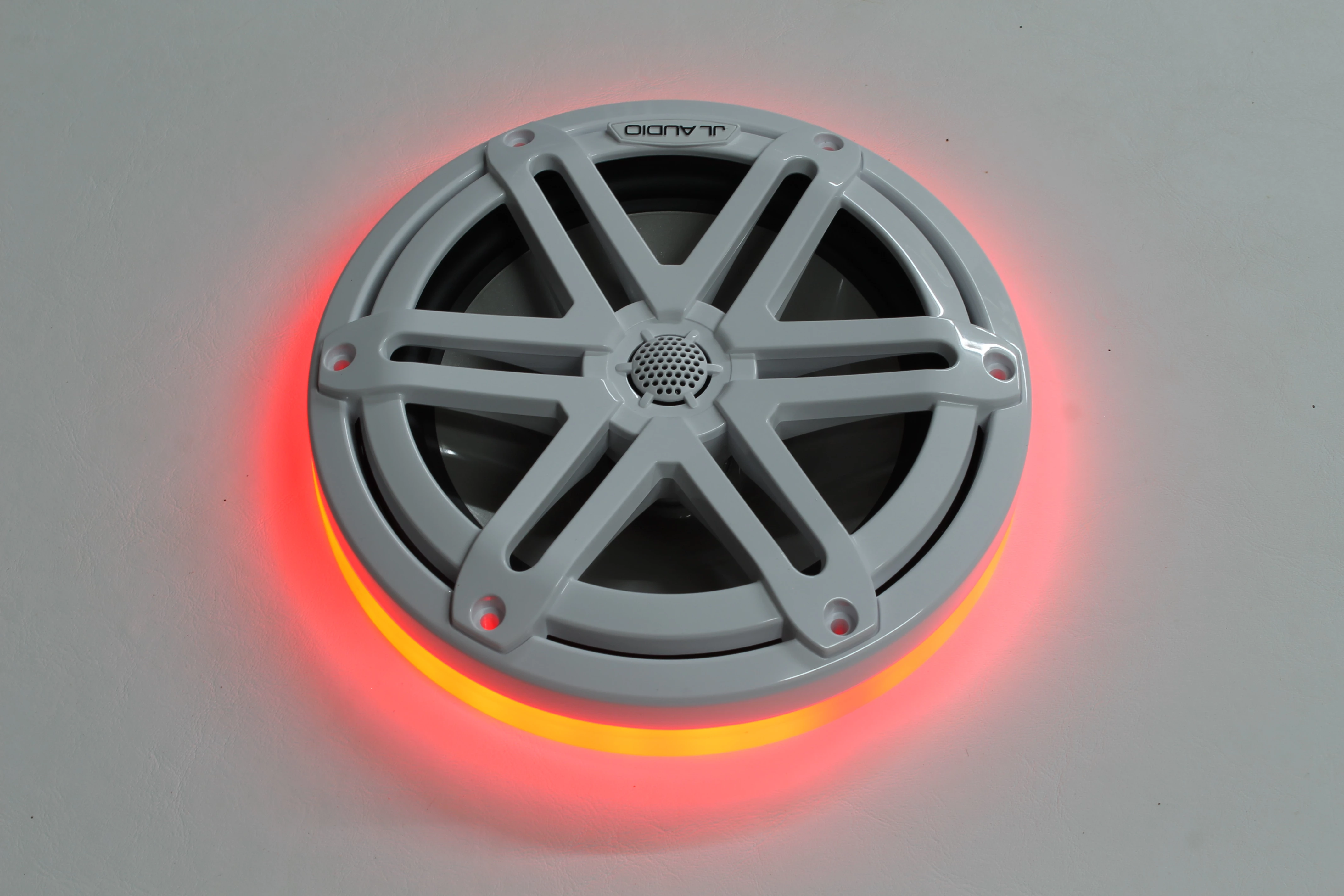
I went back and took more photos in RAW.  They look the exact same but it is far easier to edit it back to red.  Maybe I should consider myself still a beginner level since I had NO IDEA there was such a thing as RAW and that it matters.  Oh well, either way thank you for the advice.

NB, colourmanagement
Community Expert
Community Expert
March 6, 2020

One more thought

is that yellow area a reflection perhaps,

if its not matte already, maybe a very matte surface would help 


neil

NB, colourmanagement
Community Expert
Community Expert
March 6, 2020

I think you're perhaps going to have to correct this anomaly with a 'hue and saturation' adjustment layer, targeting the bright orange and making it red

(first choose any colour in the pulldown list, then using the + & - eyedroppers - then check the selected area by temporarily applying a crazy adjustment - I guess you already knew all that?).


Camera sensors often "see" quite differently to the human eye in many cases. It's just one of those frustrating things with technology being imperfect. You MIGHT, though, get all red by significantly underexposing? then combine 2 images. Or try a different camera?


I hope this helps

if so, please "like" my reply and if you're OK now, please mark it as "correct", so that others who have similar issues can see the solution

thanks

neil barstow, colourmanagement.net :: adobe forum volunteer

[please do not use the reply button on a message in the thread, only use the one at the top of the page, to maintain chronological order]

Legend
March 5, 2020

So you are just trying to change yellow to red?

Participant
March 5, 2020

Yes but where it doesn't look edited.  Looks like the rest of the red light.